


Apply your newest pricing strategy to all store products in one click—no manual editing required.

Note
After refining pricing rules or running promotions, existing store products often still show outdated prices. Manually editing hundreds of products is not feasible. DSers “Manually change store products price” solves this: one click, all products updated according to your latest pricing rules.
What Is Manually change store products price
“Manually change store products price” updates the selling prices of products already pushed to your store—based on your current pricing rules.
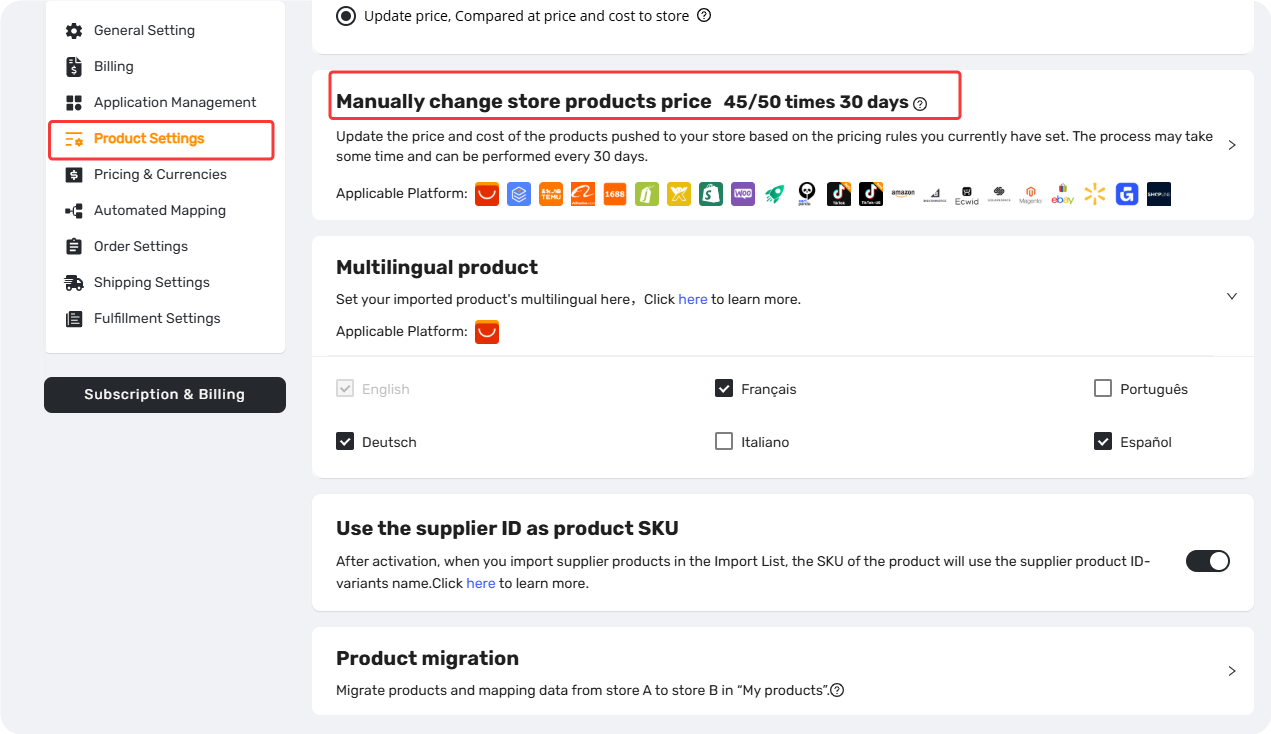
What it updates:
- Product price: sale price
- Compared at price: if enabled in your pricing rule
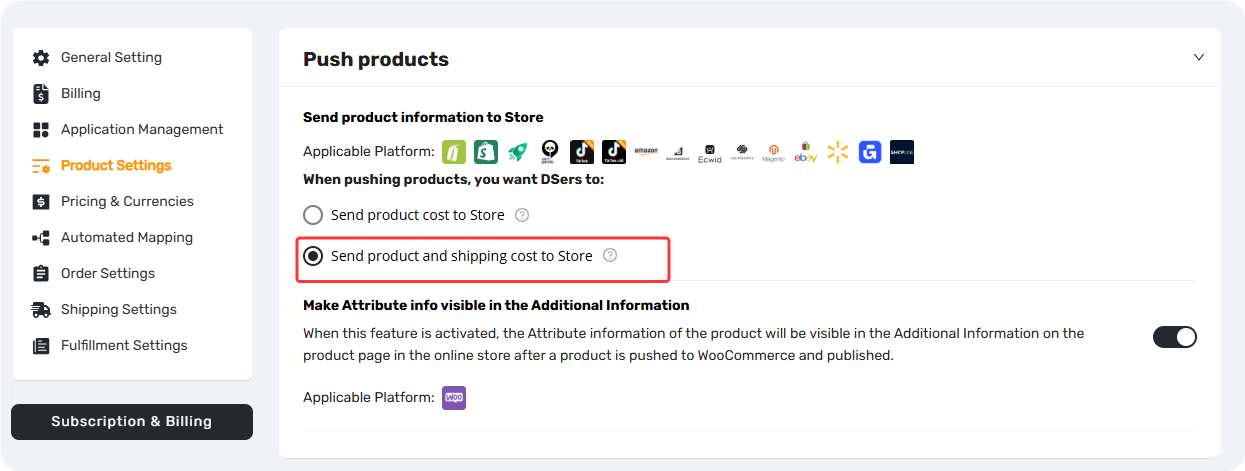
- Product cost or Send product and shipping cost : It depend on the setting on DSers - Settings - Product settings - Push products - “When pushing products, you want DSers to"
Tips: This is a manual one-time refresh, separate from automatic price updates. To learn more about automatic price updates, see our guide: [Auto-Update Pricing: Never Lose Money on Cost Changes]
Prerequisites
Before using this feature, ensure:
| Prerequisite | Status Required |
|---|---|
| Pricing Rule for the target store | Must be activated (ON) |
| Products use supported mapping types | Basic, Advanced Mapping (one supplier, one variant, quantity = 1) |
| Each variant has an available mapping |
Main supplier must be valid Each variant must be mapped |
Product-Level Exclusion:
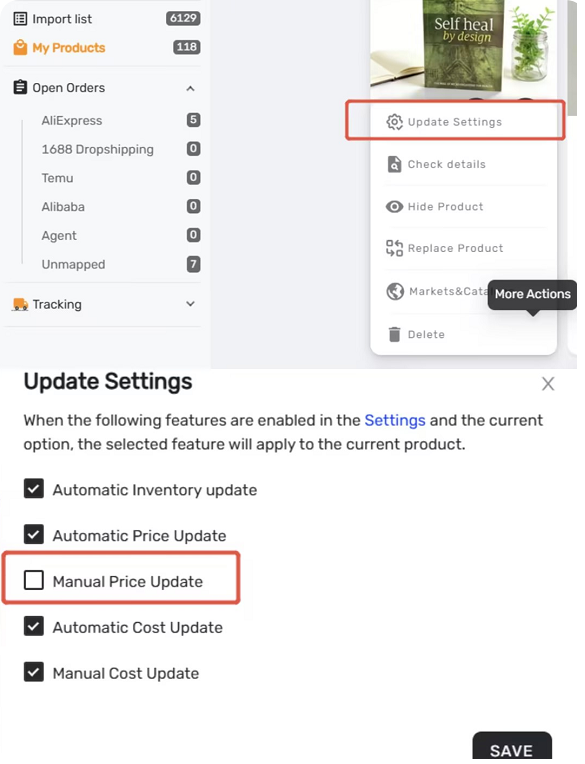
To prevent certain products from being updated. Navigate to My Products - product card - More actions - Update settings - deselect Manual Price Update - SAVE. Products with this setting disabled will be skipped during bulk refresh.
How to Use Manually change store products price
Step 1: Access the Feature
Settings - Product Settings - Manually change store products price. The remaining usage count for the current period is displayed.
Step 2: Select Stores and Start
1. Check the box next to each store to update (multiple stores allowed)

2. Click Start Update 
3. Type CONFIRM in the pop-up window
4. Click CONFIRM  to initiate
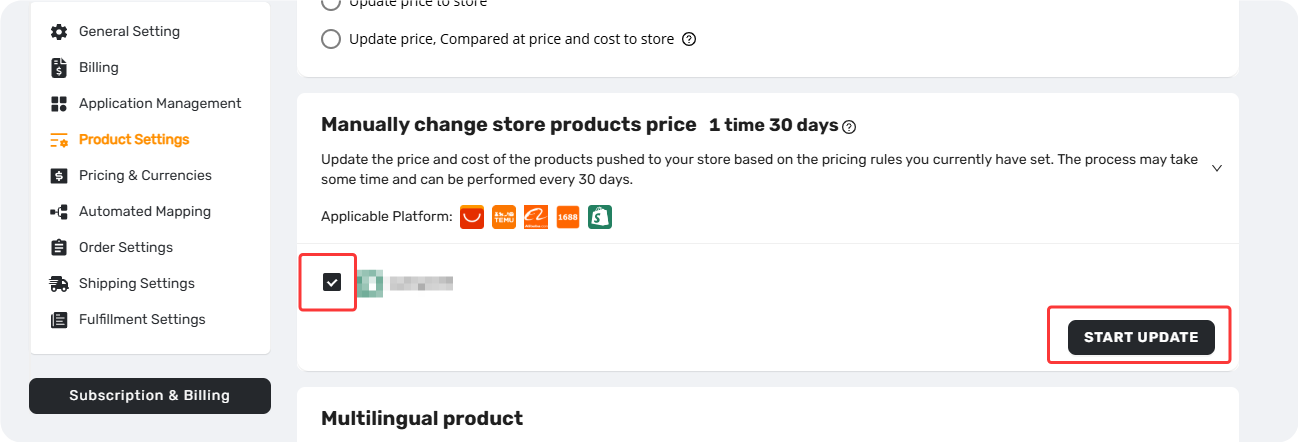
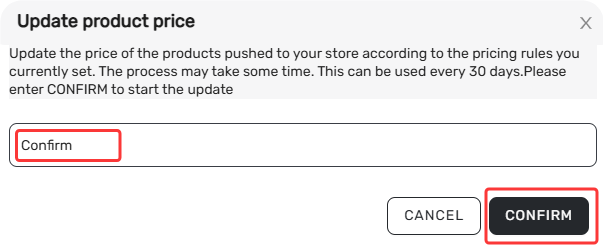
One update operation consumes one usage regardless of how many stores or products are selected.
Step 3: Monitor Progress
The feature displays:
- Processing update: X.XX% complete… — Update is running
- Update completed! Succeed: XX, Failed: XX — Update finished
Click the completion message to view details. If failures occurred, click Export Failed Products to download the list with failure reasons.
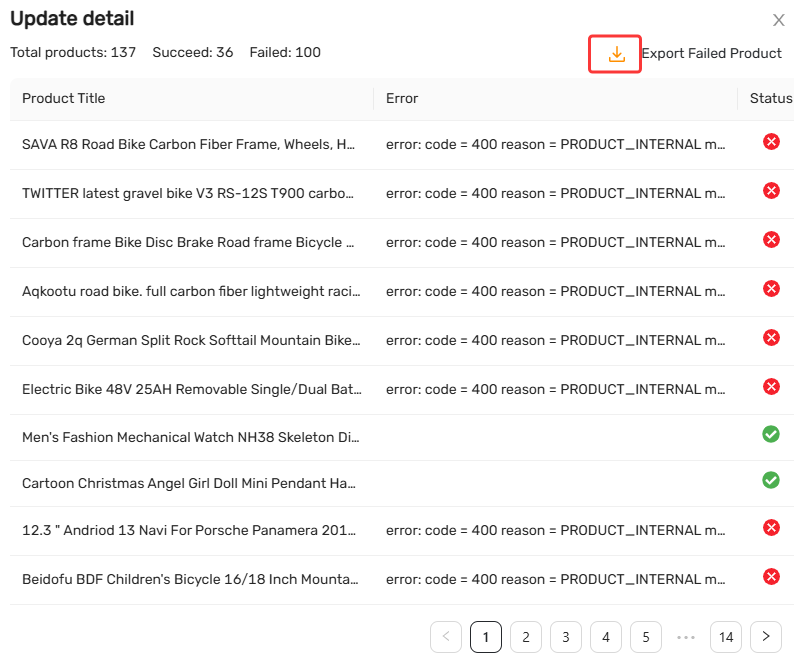
Click [here] to view the reasons for the synchronization failure and the corresponding solutions.
Supplier scope: Only main supplier prices are updated
Pricing rule during update: Cannot be edited while update is running
Store Connection required: Store must be properly authorized
Usage Limits by Plan
| Plan | Usage per 30 Days |
|---|---|
| Basic | 1 time |
| Advanced | 10 times |
| Pro | 25 times |
| Enterprise / Business | 50 times |
If your plan runs out, buy a one-time pack:
One-time purchase package: 3 additional uses for $1.99 (no expiration).
FAQ Section
Quick answers to the most common questions about DSers bulk price refresh and manual price sync.
| Get Started Now to Grow Your Online Business with the DSers! |



 Company
 Why Choose DSers
 Blog
Blog
 Help Center


