

Connection failed? Discover the 4 most common blockers and how to overcome them.
Note
Before you start: Binding a store to DSers is usually a one-click process. But if it's not working, it's almost never a system error. More often, it's a small mix-up: the wrong account logged in, a store that's already bound, or browser clutter. This guide shows you exactly what to check before trying again.Click here to start dropshipping now with DSers
Quick check: Is your store already bound?
Many dropshippers retry binding multiple times, not realizing the first attempt actually succeeded.
Here's how to confirm:
- Log into your DSers account
- Go to Settings - Application Management
- Under Sales Channel, click the dropdown for your platform (Shopify/WooCommerce/etc.)
- Look for your store's domain or original store name
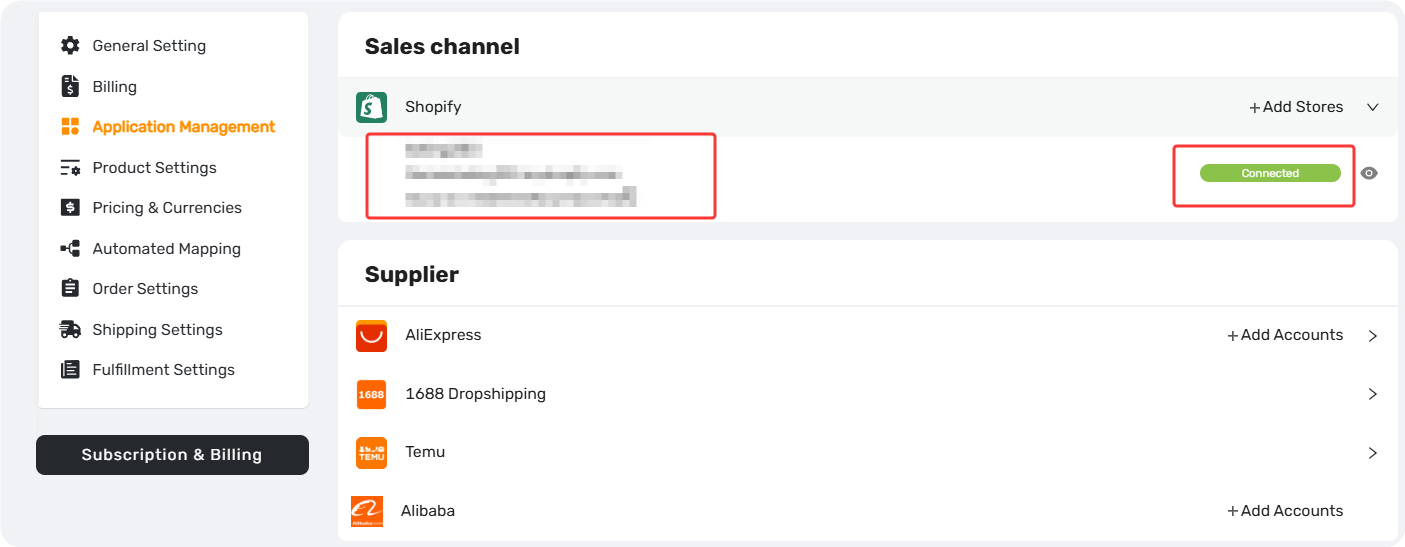
Situation 1: Store Already Bound
If you see it: Your store is already bound. You're ready to start importing products. No further action needed.
If you don't see it: Move to the situations below.
Situation 2: You're logged into the wrong combination of DSers account + Shopify store
During the binding process, you notice that DSers is about to connect to a different store — or a different DSers account — than the one you intended.
Why this happens: You have multiple Shopify stores open in different browser tabs, or you're logged into multiple DSers accounts. DSers gets confused and picks the wrong one.
The fix (takes 30 seconds):
- Log out of all your Shopify stores and all your DSers accounts
- Close your browser completely
- Open a fresh window and log into only one Shopify store + only one DSers account
- Retry the binding
💡 This single fix solves 80% of binding failures.
Situation 3: Unknown exception / unexpected error
You see a message like "Unknown error" or "Something went wrong" — but your network is fine and you've checked the situations above.
What to do:
- Try to clear cache of dsers.com and link them again
If it still doesn't work:
- Take a screenshot of the error
- Note your DSers account email
- Note your Shopify store's original domain name
- Contact DSers Customer Service directly
Our support team can check this for you quickly.
Situation 4: Network or browser interference
Rare, but possible. Your connection attempt times out or fails silently due to:
- An unstable internet connection
- Browser extensions (ad blockers, privacy tools) interfering with the pop-up window
- Browser extensions (ad blockers, privacy tools) interfering
Try the following methods:
- Switch Wi-Fi
- Temporarily disable browser extensions
- Try to log in with Chrome Guest Profile
- Switch to a different browser (Chrome → Edge)
Still stuck? We're here to help.
Contact DSers Customer Service:
- Live chat: 24/7 via Messenger
- Email: support@dserspro.com
Please provide:
✅Your DSers account email
✅Your store platform (Shopify/WooCommerce/Wix)
✅Your store's original domain name
✅Any error message or screenshot (if applicable)
Related Articles
- Login Issues: Can't Access Your DSers Account
- Not Getting Verification Code Emails from DSers? Here's How to Fix It
- Store Authorization Failed? How to Relink Store
- How to Disconnect a Store from Your DSers Account
FAQ Section
Quick answers to the most common questions about connecting your store to DSers.
| Get Started Now to Grow Your Online Business with the DSers! |
