

Bring your products and orders from any platform into DSers for seamless dropshipping fulfillment
Note
If your selling platform isn't supported by DSers, or if you manage orders manually via spreadsheets, CSV Upload is your solution.Click here to start dropshipping now with DSers
This guide walks you through the setup and basic usage steps.
What Is CSV Upload and When to Use It
CSV Upload allows you to download CSV templates, fill in your product or order data, and upload them to DSers. It's designed for:
| Scenario | Description |
|---|---|
| Non-supported platforms | You sell on platforms without native DSers integration |
| Manual order management | You're just starting out or managing orders via spreadsheets |
| Batch processing | You have a large catalog or order backlog that needs bulk handling |
Tip: Access this feature by clicking the CSV File button on the platform selection page, then complete plan selection.
How to Import Products via CSV
Before placing orders, you must import your product file to DSers to establish the mapping between your SKUs and supplier SKUs.
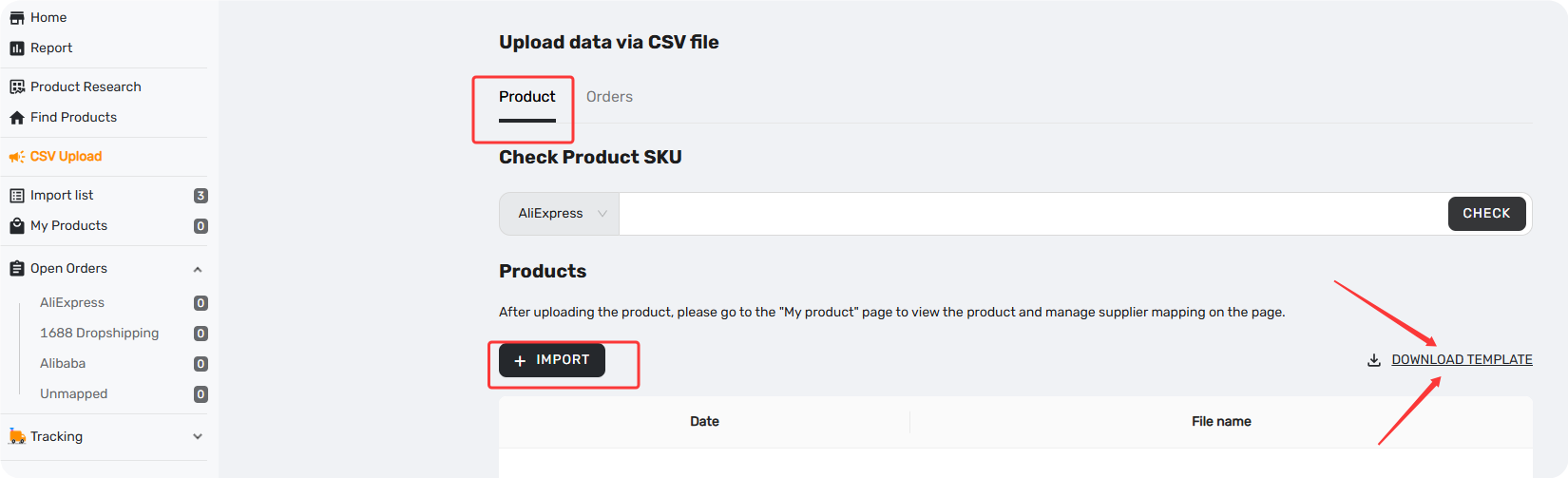
Step 1: Go to CSV Upload > Product tab.
Step 2: Download the template named import_products.
Step 3: Fill in your product data. Required fields:
| Field | Required? |
|---|---|
| Product ID | ✅ Required |
| SKU | ✅ Required |
| Supplier URL | Optional |
| SKU (Supplier SKU) | Optional |
Important: For one product SKU, you can only match one supplier SKU.
Step 4: Upload the file. After import, go to My Products to complete mapping. Click the "Map" button on each product, then enter or search for the corresponding AliExpress product URL to link your SKU to the supplier's SKU.
Step 5: Once mapping is complete, your products are ready for order fulfillment.
How to Place CSV Orders
After products are mapped, you can start fulfilling orders via CSV.
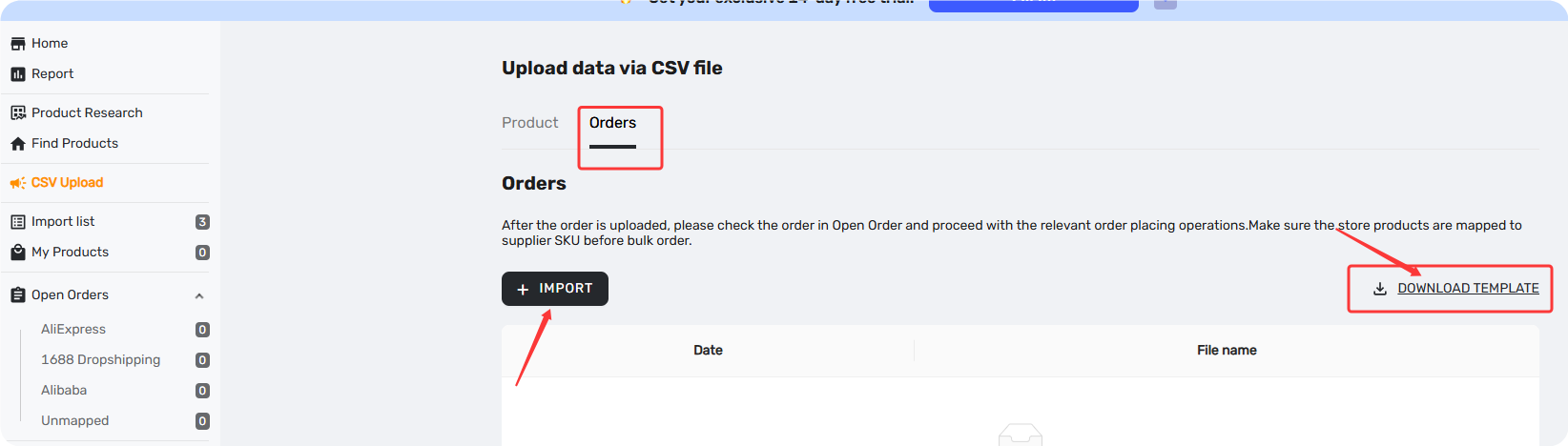
Step 1: Go to CSV Upload > Order tab.
Step 2: Download the order CSV template.
Step 3: Fill in order details. Required fields:
| Field | Required? | Notes |
|---|---|---|
| Date | ✅ Required | Order date |
| Country | ✅ Required | Use full country name (e.g., "United States") |
| Product ID | ✅ Required | Must match your product database |
| SKU | ✅ Required | Must match your product SKU |
| Product Count | ✅ Required | Quantity |
| Mobile No | ✅ Required | Only special character allowed: + |
| Address | ✅ Required | No special characters |
| Others | Optional | Additional fields as needed |
Tip: Some countries may require tax/ID numbers. Please refer to the detailed guide for country-specific requirements.
Step 4: Upload your completed CSV. DSers will process them and display the orders on the Open Orders page.
Step 5: Review your orders, verify shipping methods and addresses, then submit them to AliExpress for fulfillment.
Upload Results and Error Handling
After uploading your CSV file:
- Success: Orders/products will appear in the corresponding DSers page (My Products or Open Orders).
- Failure: The system will generate an error report. Download it, check the error messages, correct the issues in your CSV, and re-upload.
Checklist: Before You Upload
- product CSV includes Product ID and SKU
- Products are mapped to AliExpress supplier SKUs in My Products
- Order CSV uses the same Product ID and SKU as your product database
- Country names are full names (e.g., "United States", not "USA")
- Addresses and phone numbers contain no special characters (except
+) - Your AliExpress/Alibaba supplier account is connected to DSers
Related Articles
- How to Organize Your Import List Using Custom Tags
- Shipping Address Issues: Customer Address Causing Errors
- Connect Your AliExpress Account to DSers
- How to Connect Multiple Stores to a Single DSers Account
FAQ Section
Everything you need to know about CSV Upload and how to import products and orders into DSers.

Get Started Now to Grow Your Online Business with the DSers!