

Understanding How DSers Handles Multi-Item Order Fulfillment
Note
If an order contains multiple items, you need to decide whether your customer receives a separate email each time an item ships, or one single email containing all tracking numbers once everything has been dispatched.Click here to start dropshipping now with DSers
The Fulfillment Preference setting lets you choose the approach that best fits your business.
What Is the Fulfillment Preference Setting?
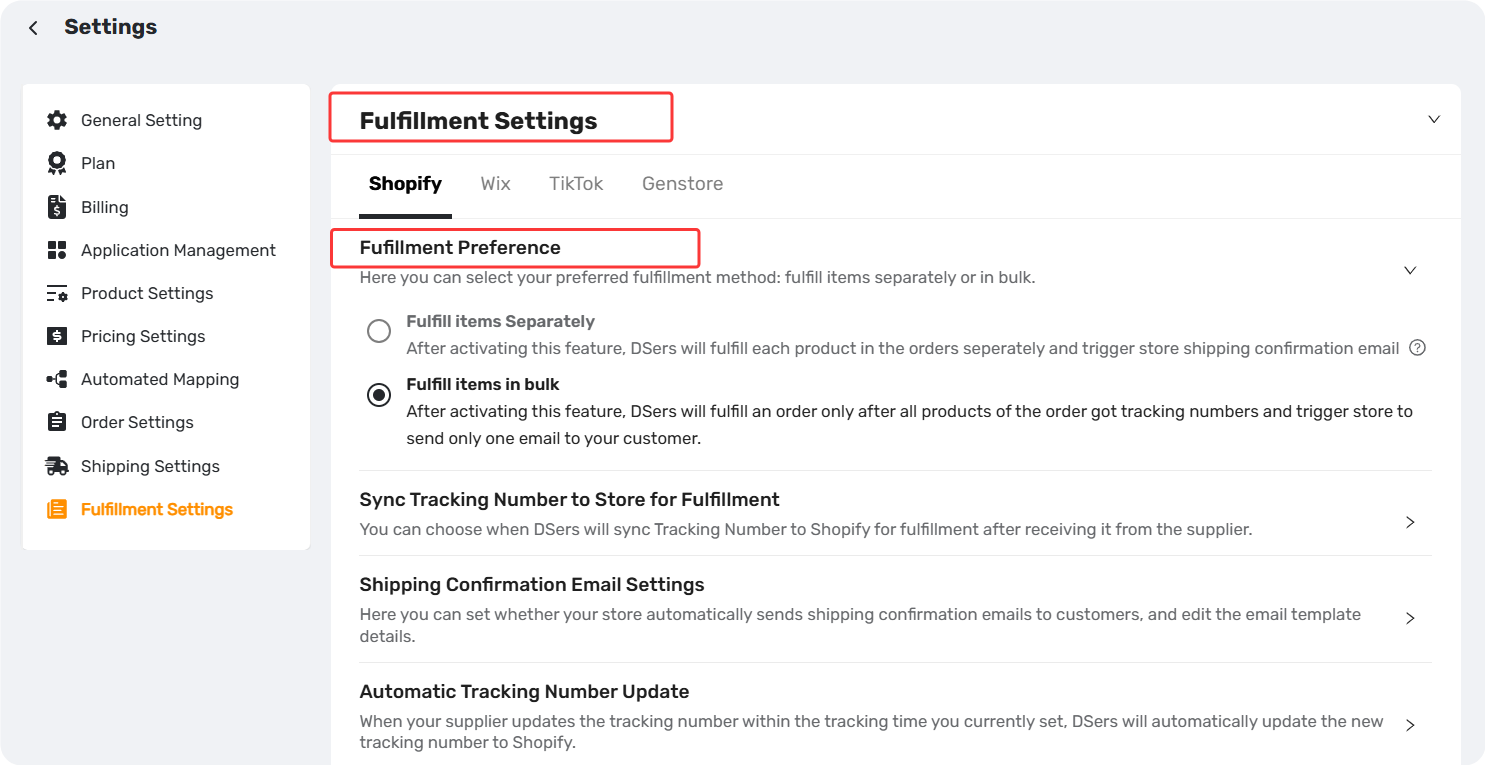
Located in DSers > Settings > Fulfillment Settings, this setting controls how and when DSers fulfills multi-item orders and triggers shipping confirmation emails.
Quick Comparison Table
| Fulfill Items Separately | Fulfill Items in Bulk | |
|---|---|---|
| Emails per order | Multiple | One |
| Order fulfills | Partially, item by item | All at once |
| Customer experience | Real-time updates | One consolidated notification |
You can choose between two options—only one can be active at a time.
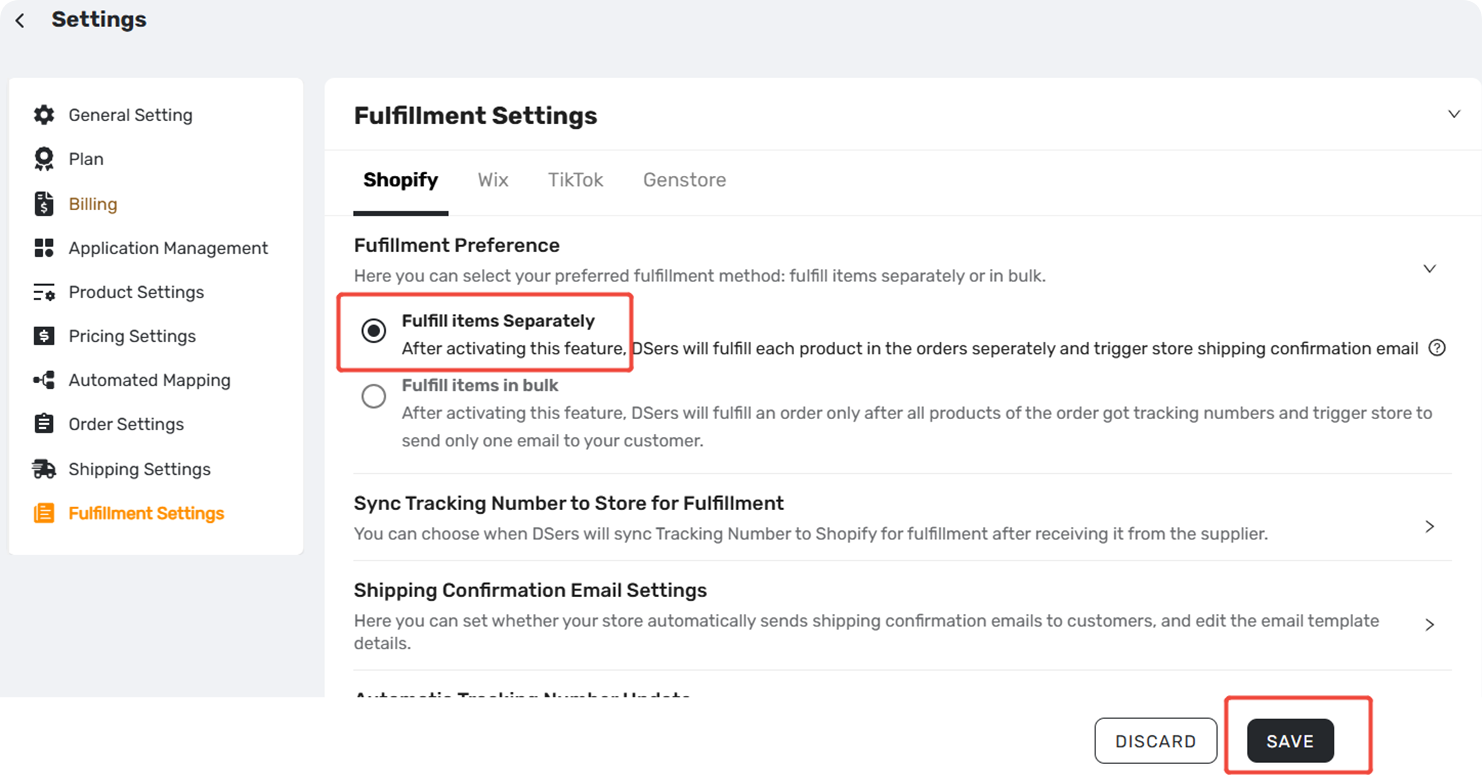
Option 1: Fulfill Items Separately
Each item fulfills as soon as it gets a tracking number. Your store sends a separate email per item.
- Items with tracking numbers move to the Fulfilled tab;
- Items without tracking numbers stay in the Awaiting Shipment tab.
Best for: Orders where items come from different suppliers and ship at different times, so you can update customers as soon as each part ships.
Option 2: Fulfill Items in Bulk (Default)
DSers waits until every item in the order has a tracking number, then fulfills everything at once. Your store sends one email containing all tracking numbers.
- Items with tracking numbers stay in the Awaiting Fulfillment until the rest of the order is ready
Best for: Most dropshippers — sends one clean notification instead of multiple emails.
How to Configure Your Fulfillment Preference
- Go to DSers > Settings > Fulfillment Settings.
- Under Fulfillment Preference, choose either Fulfill items separately or Fulfill items in bulk.
- Click SAVE.
Tip: Different sales channels (e.g., Shopify, WooCommerce) can have their own settings.
Switch to the desired channel tab to configure it individually—Fulfill items in bulk is selected by default for each new channel.
Some platforms (e.g., WooCommerce, Jumpseller, etc.) don't support separate fulfillment — the option will be grayed out on those channels.
Important: If you use BOGO or Bundle product mappings, DSers treats the bundle as a single item. Even with Fulfill items separately selected, fulfillment waits until all bundle items have tracking numbers.
Pro Tips for Dropshippers
- Balance customer communication: Frequent updates can reduce anxiety but may overwhelm. One consolidated email is cleaner but requires patience. Choose based on your product type and customer expectations.
- Test both on small orders: Run a few test orders with each setting to see which feels right before committing long-term.
Related Articles
- Customize Shipping Confirmation Email Settings
- How to Customize Shipping Carrier and Tracking URL for Shipping Confirmation Email
- Tracking Page: Create a Branded Order Tracking Experience
- How to Set Up Your Custom Tracking URL for Tracking Page
- How to Auto-Sync Tracking Number Changes
- Manually Updating Tracking Numbers via the DSers Chrome Extension
- Shopify Orders Stuck in Awaiting Fulfillment? Causes and Fixes
- BOGO & Bundle Mapping: Sell More with Product Combinations
FAQ Section
Quick answers to the most common questions about DSers Fulfillment Preference settings.

Get Started Now to Grow Your Online Business with the DSers!