

Edit, replace, and optimise product images before pushing—no more generic supplier photos or lost sales
Note
In dropshipping, product images often decide between a sale and a bounce—yet most AliExpress suppliers provide generic photos used by hundreds of sellers.Click here to start dropshipping now with DSers
This article covers DSers' Import List > Images tools: select, edit, resize, and replace product images before pushing to your store—giving you full control over your product presentation without external software.
Image Management Capabilities
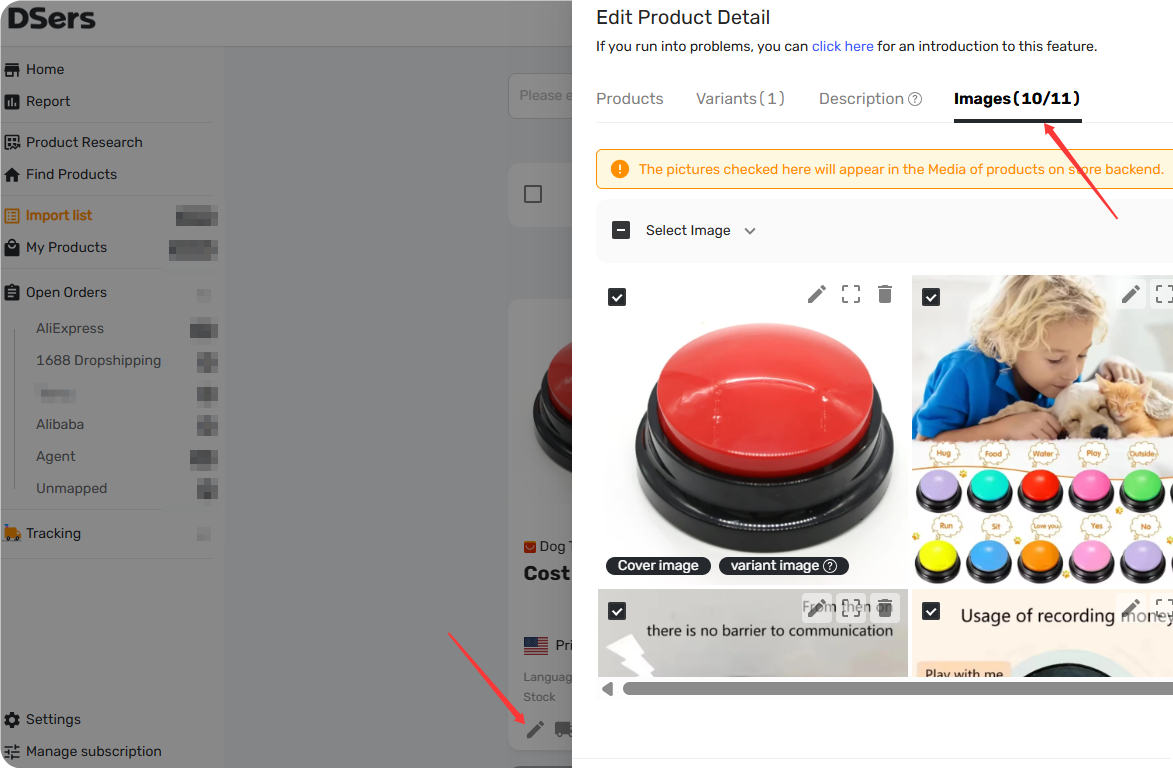
The Images tab gives you complete control over which images make it to your store and how they look. The number next to Images (e.g., 5/8) shows: selected / total images. Only selected images will be pushed.
| Capability | Free | Paid |
|---|---|---|
| Select/deselect images (cover, variant, product) | ✅ | ✅ |
| Delete images | ✅ | ✅ |
| Download images as WEBP | ✅ | ✅ |
| Change cover/variant labels | ✅ | ✅ |
| Add alt text | ✅ (WooCommerce only) | ✅ (WooCommerce only) |
| Edit images (crop, rotate, contrast, overlays, shapes, text) | ❌ | ✅ |
| Resize images (proportional) | ❌ | ✅ |
| Upload custom images | ❌ | ✅ |
| AI image edition | ✅ One-time charge | ✅ One-time charge |
Step‑by‑Step: Managing Images
Accessing the Images Tab
- Go to Import List and click Edit Products on the product card you want to modify.
- In the pop‑up, navigate to the Images tab.
For a complete walkthrough of all product editing options—including title, variants, description, and shipping—see Edit Product Detail.
Changing&Selecting Images for Push
- Check or uncheck images to control which are pushed to your store.
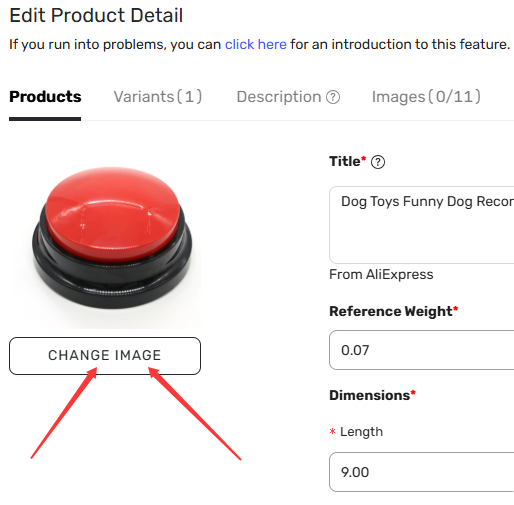
- Cover picture – You can switch the cover image either in the Products tab (click Change Image) .
- Variant picture – Variant images can be managed in either the Variants tab.
- Product pictures – Additional gallery images.
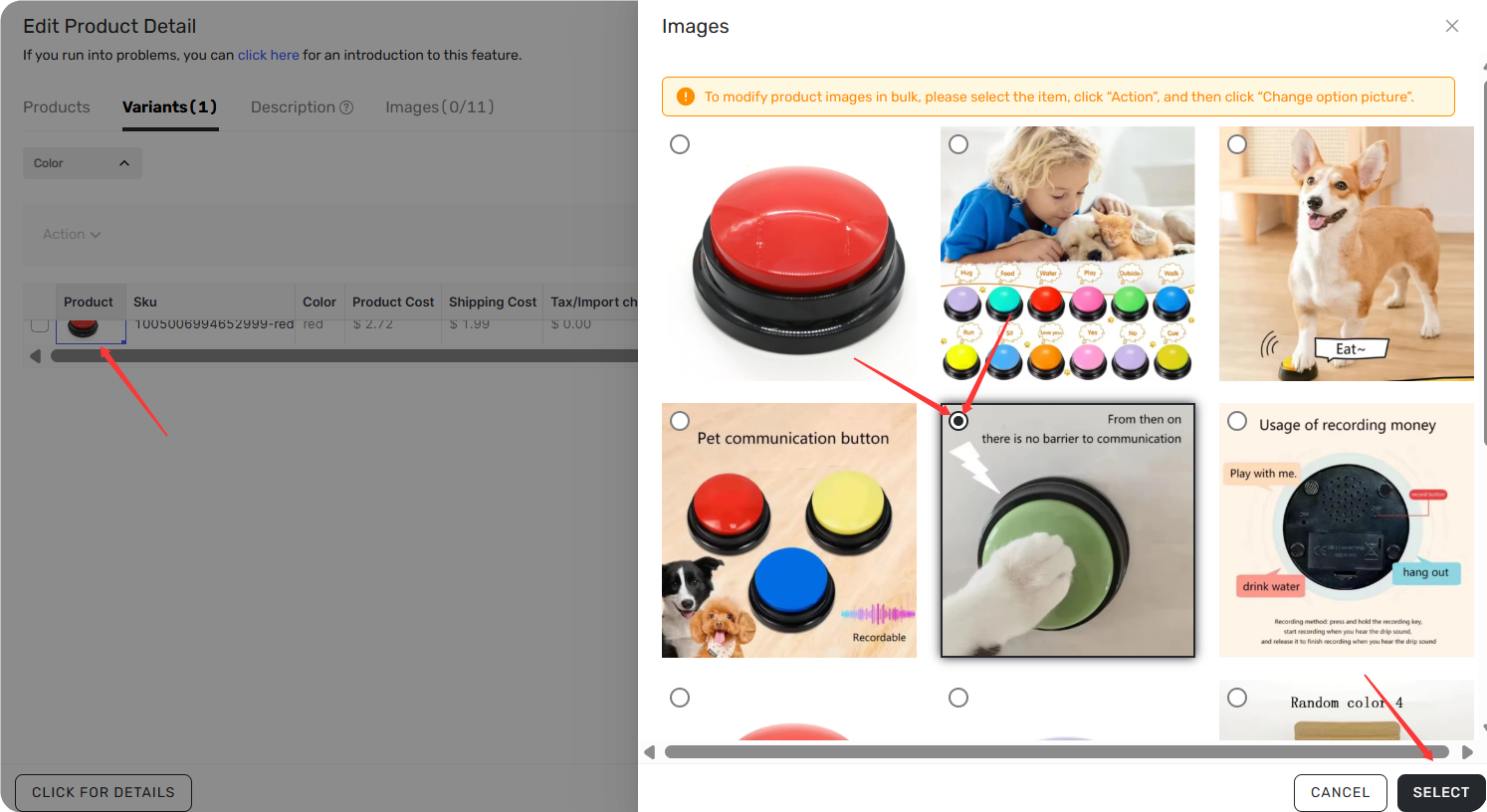
⚠️ If you delete the only image serving as both cover and variant, the Shopify product will have no cover or variant images after push.
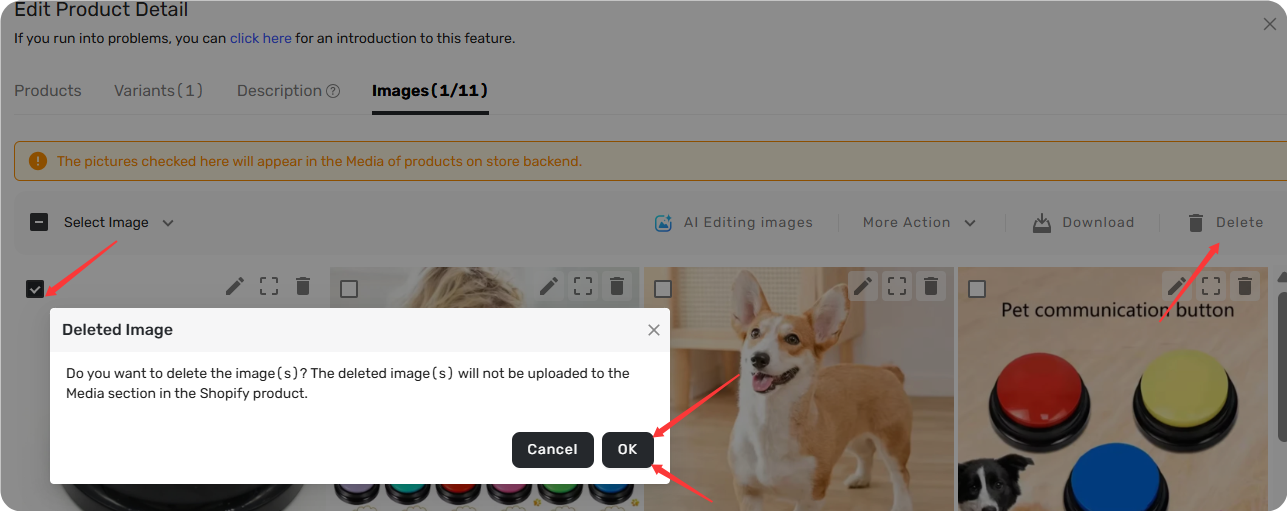
Deleted images will not be uploaded to your store's media section.
Deleting & Downloading Images
- Select images and click Delete to remove them.
- Select images and click Download to export them as WEBP format.
Editing Images
Click the Edit icon on any image to crop, rotate, adjust contrast, add overlays and shapes, insert text, or apply masks.
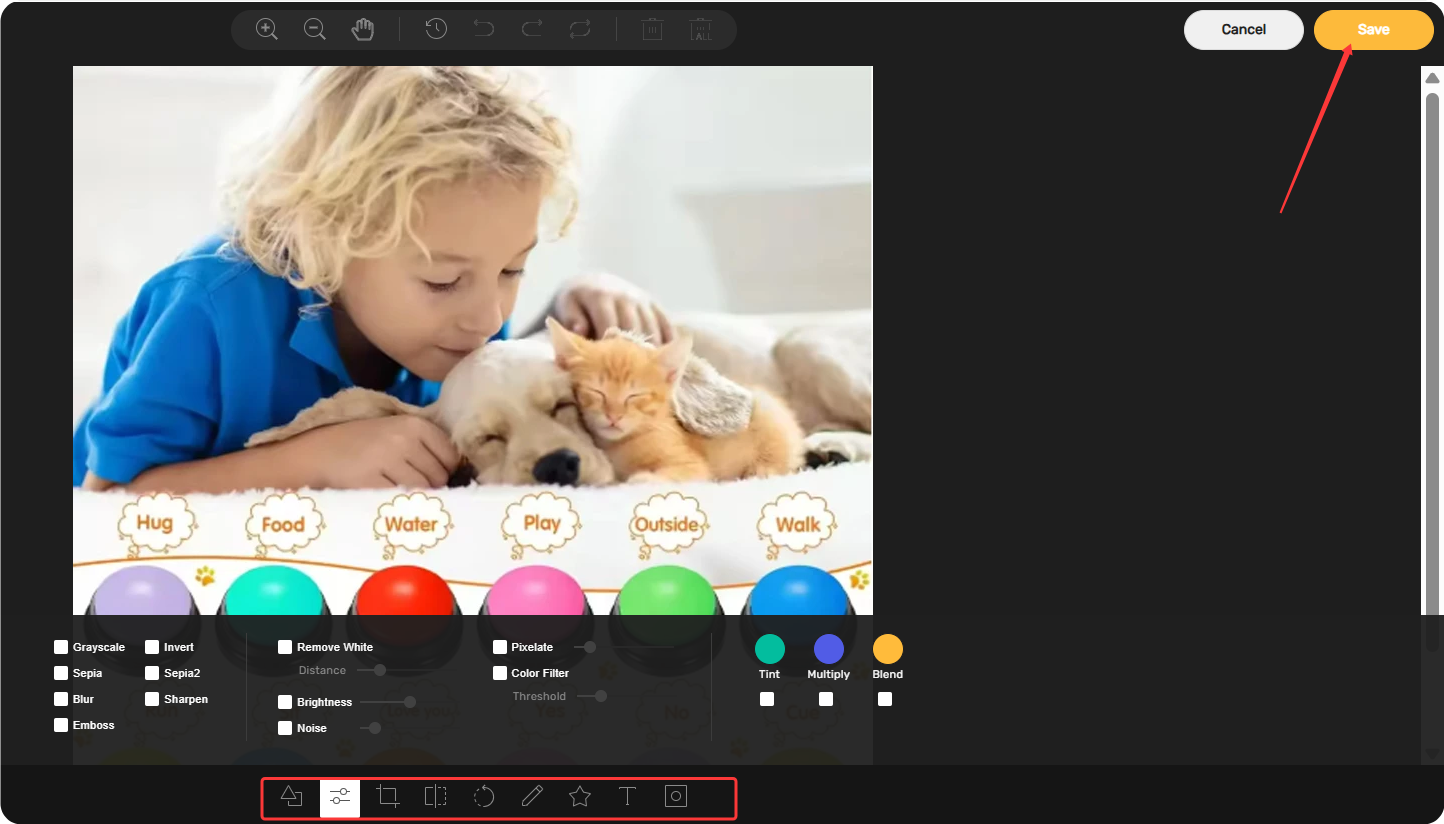
For AI-powered background removal and enhancement, see 【AI Product Images Management: Clean Backgrounds, Higher Trust】.
Resizing Images
Click the Resize icon, enter a new width or height, and the other dimension adjusts automatically to maintain the original aspect ratio.
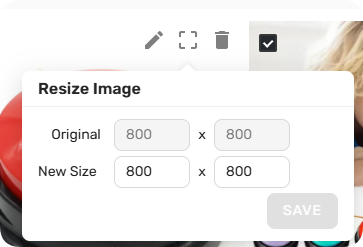
Uploading Custom Images
- Click More Action > Upload images from my computer.
- Select up to 10 images (max 2MB each).
- Uploaded images appear at the bottom of the list and are automatically selected.
- Click Save to apply.
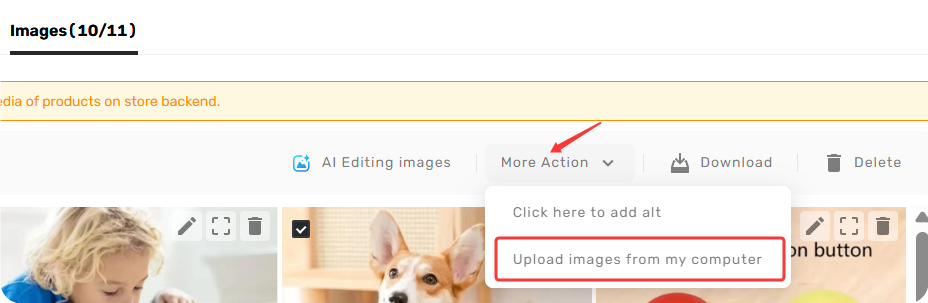
Adding Alt Text (WooCommerce Only)
Enter alt text in any field and click the OK icon to apply. To fill all fields with the same text, enter it once and click the edit icon—all fields will populate with that value.
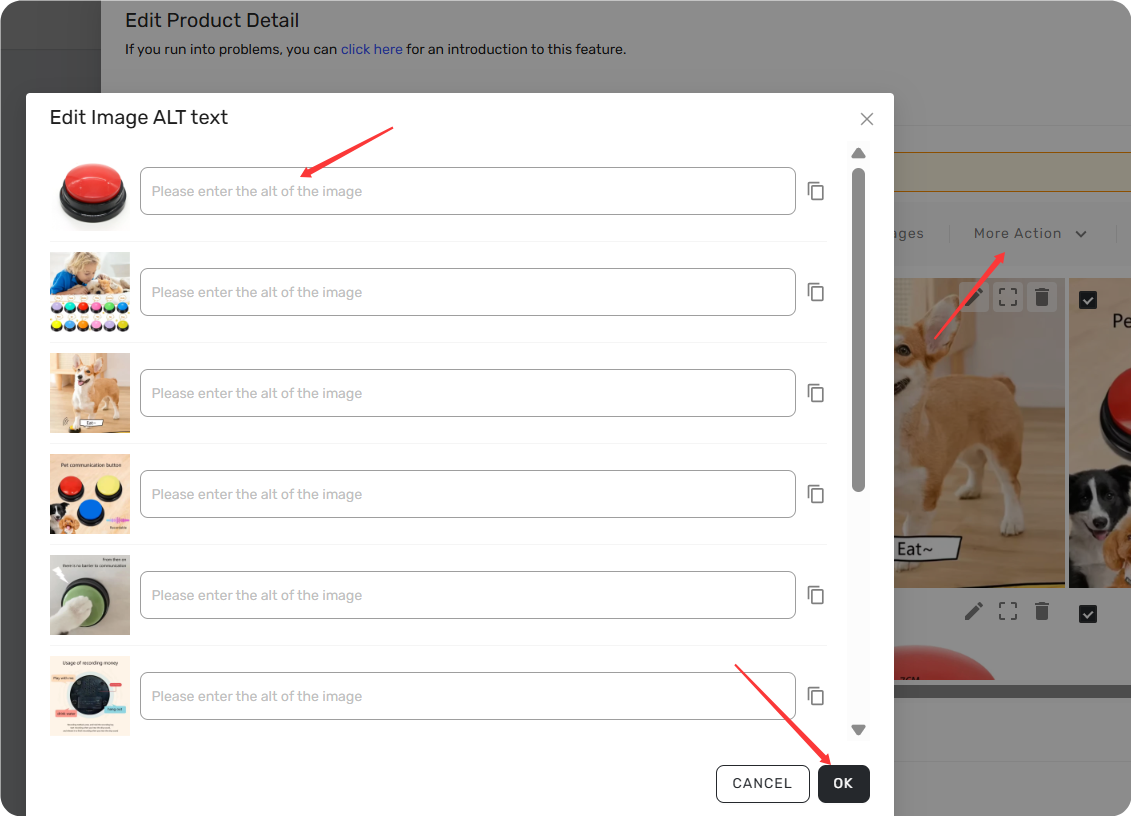
Tip: Alt text is currently only supported for WooCommerce stores.
Important
After editing images in the Images tab, you must click Save on the Edit Products page before pushing—otherwise, your changes will not be applied.
Before pushing, note how your store receives images based on your Description & Images settings:
- Description section: If you keep the default setting Only push products' SPECIFICATIONS, images from the product OVERVIEW will not be pushed.
- Images section: If you check Push all images to your online store, every image in the Images tab—including those you haven't manually selected—will be pushed to your store.
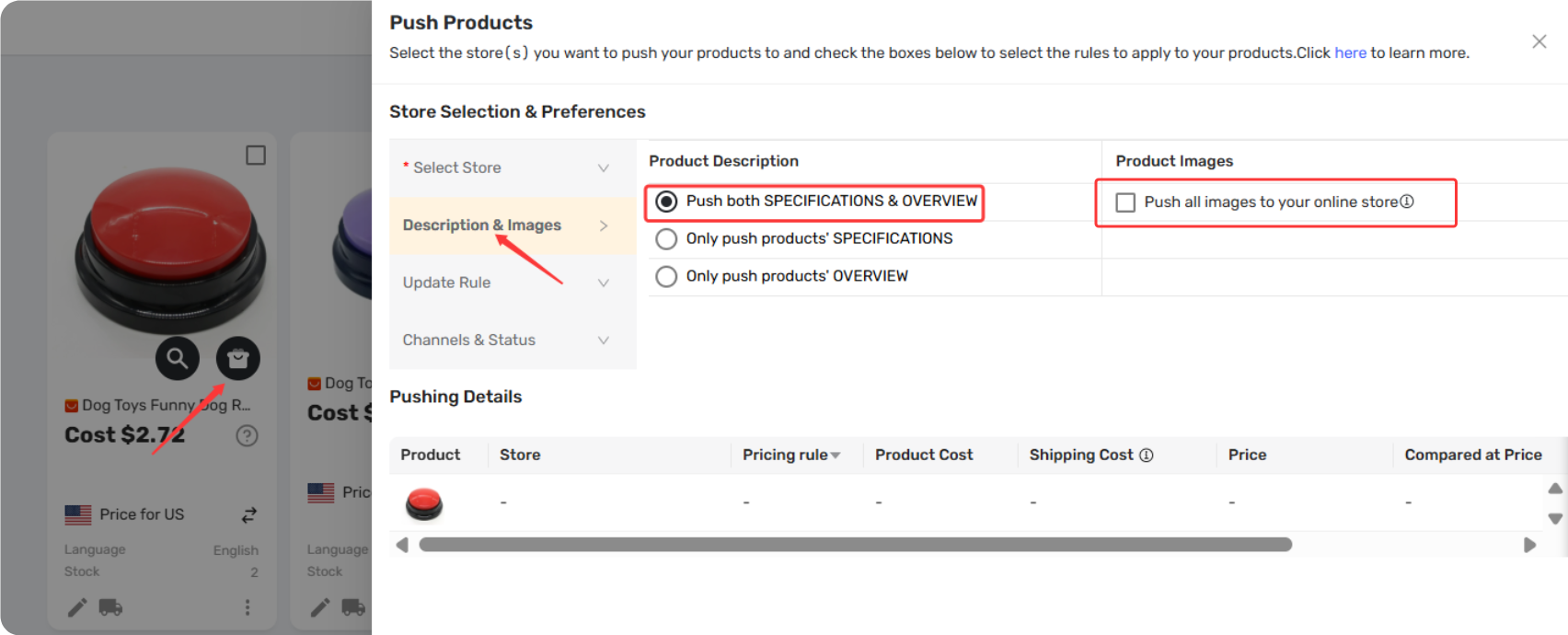
To avoid pushing unwanted images, review both sections before clicking Push to Store.
Related Articles
- AI Product Images Management: Clean Backgrounds, Higher Trust
- Edit & Push: Customize Products Before Publishing
- Bulk Import & Edit: Add Products in Batches
- AI Product Title Optimization: From Keyword Stuff to SEO-Friendly
- AI Description Generator: Turn Specs into Benefits
FAQ Section
Everything you need to know about editing product images in Import List before pushing to your store.

Get Started Now to Grow Your Online Business with the DSers!