

Manage all stores from one DSers account
Note
If you have multiple stores, connect them all to one DSers account instead of using separate accounts. This guide covers the connection methods and plan limits.Click here to start dropshipping now with DSers
Understanding Your Store Limits
The number of stores you can connect depends on your DSers subscription plan. Additionally, each plan limits how many different sales channel platforms (e.g., Shopify, Wix, WooCommerce) and stores you can manage under one account.
| Plan | Sales Channel Limit (Different Platforms) | Store Limit (Total Stores) |
|---|---|---|
| Basic (Free) | 1 | 3 |
| Advanced ($19.90/mo) | 1 | 10 |
| Pro ($49.90/mo) | 3 | 25 |
| Enterprise ($499.90/mo) | 5 | 50 |
⚠️ Wix Restriction: Due to Wix platform limitations, you can only connect one Wix store per DSers account, regardless of your plan.
DSers currently supports connections to the following sales channel platforms: Shopify, Wix, WooCommerce, eBay, TikTok, Jumpseller, cartpanda, Amazon, Squarespace, Bigcartel, Square, Ecwid, BigCommerce, Genstore.ai, LPQV, Walmart, Magento, Shopline, CSV
How to Add a New Store
With multiple stores connected, you can manage products, place bulk orders, and track inventory all from one DSers account. Use the Store Switcher to filter data by store on pages like My Products and Open Orders.
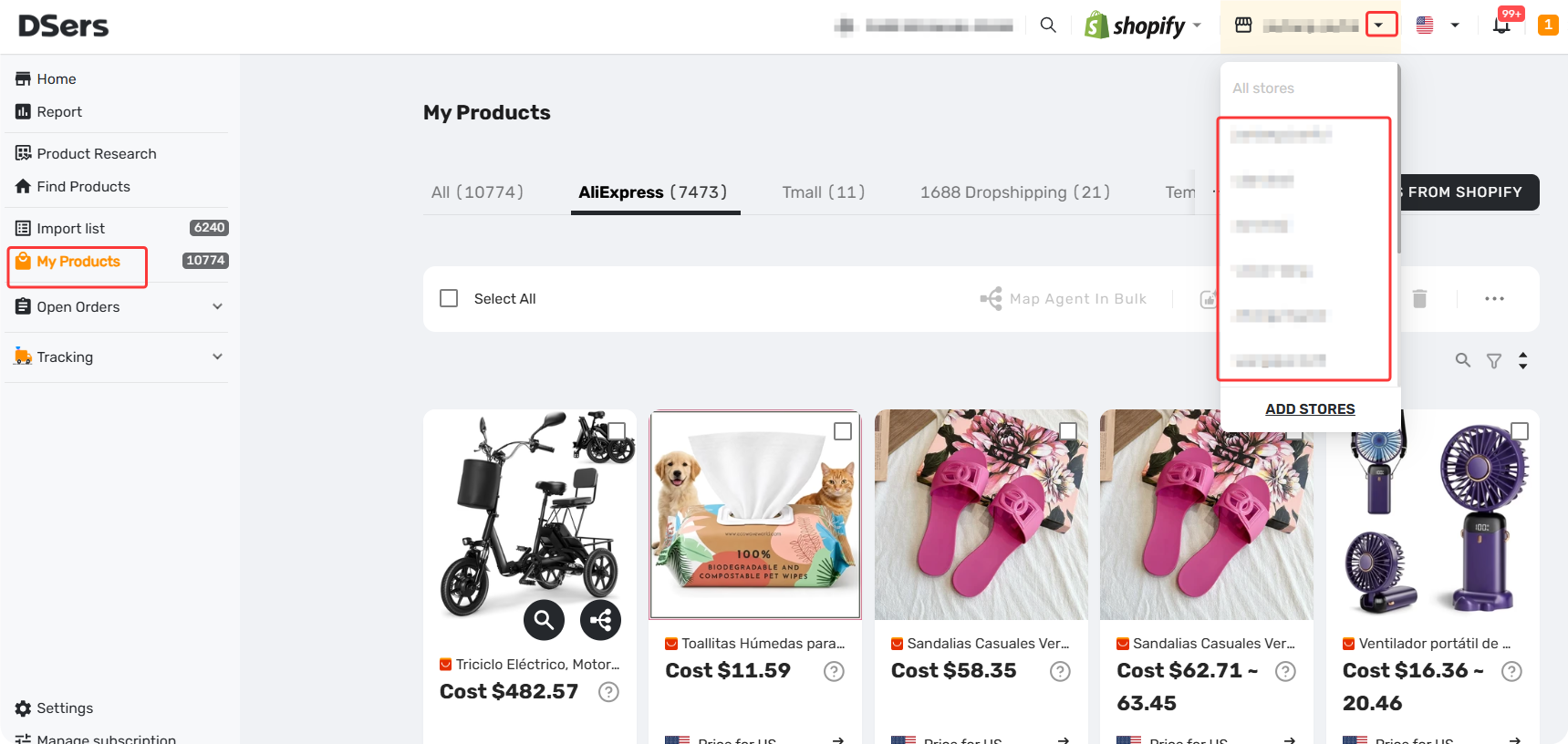
For a complete guide on managing multiple stores, see [Multi-Store Sync: Manage Multiple Stores from One Dashboard].
The method you choose depends on your situation:
Scenario 1: Connecting a New Platform (First-time integration)
Use this when you've never connected this sales channel to DSers before.
Steps:
- Click "LINK TO MORE STORES" in the Side Bar.
- Select your platform from the list of supported sales channels.
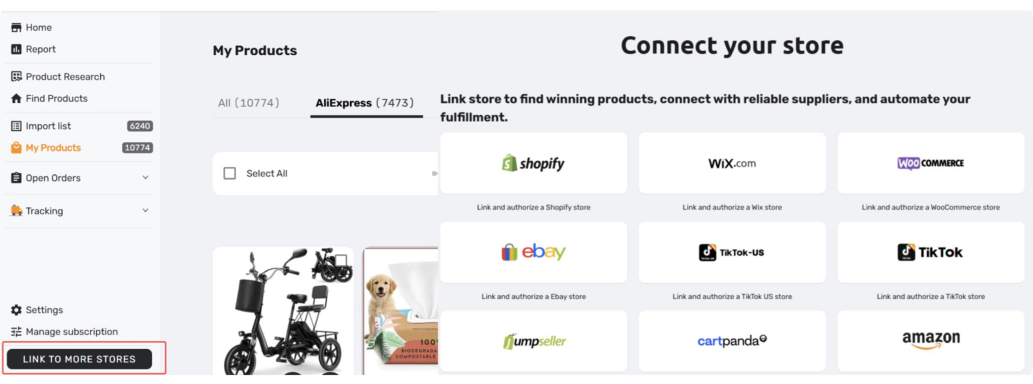
Scenario 2: Adding More Stores to an Existing Sale Channel
Use this when you already have at least one store connected on that platform and want to add additional stores under the same channel.
You can choose either of the two methods below:
Option 1: Via Store Switcher (Quick access)
- Click the current store name in the Top Bar to open the Store Switcher.
- Click "ADD STORES".
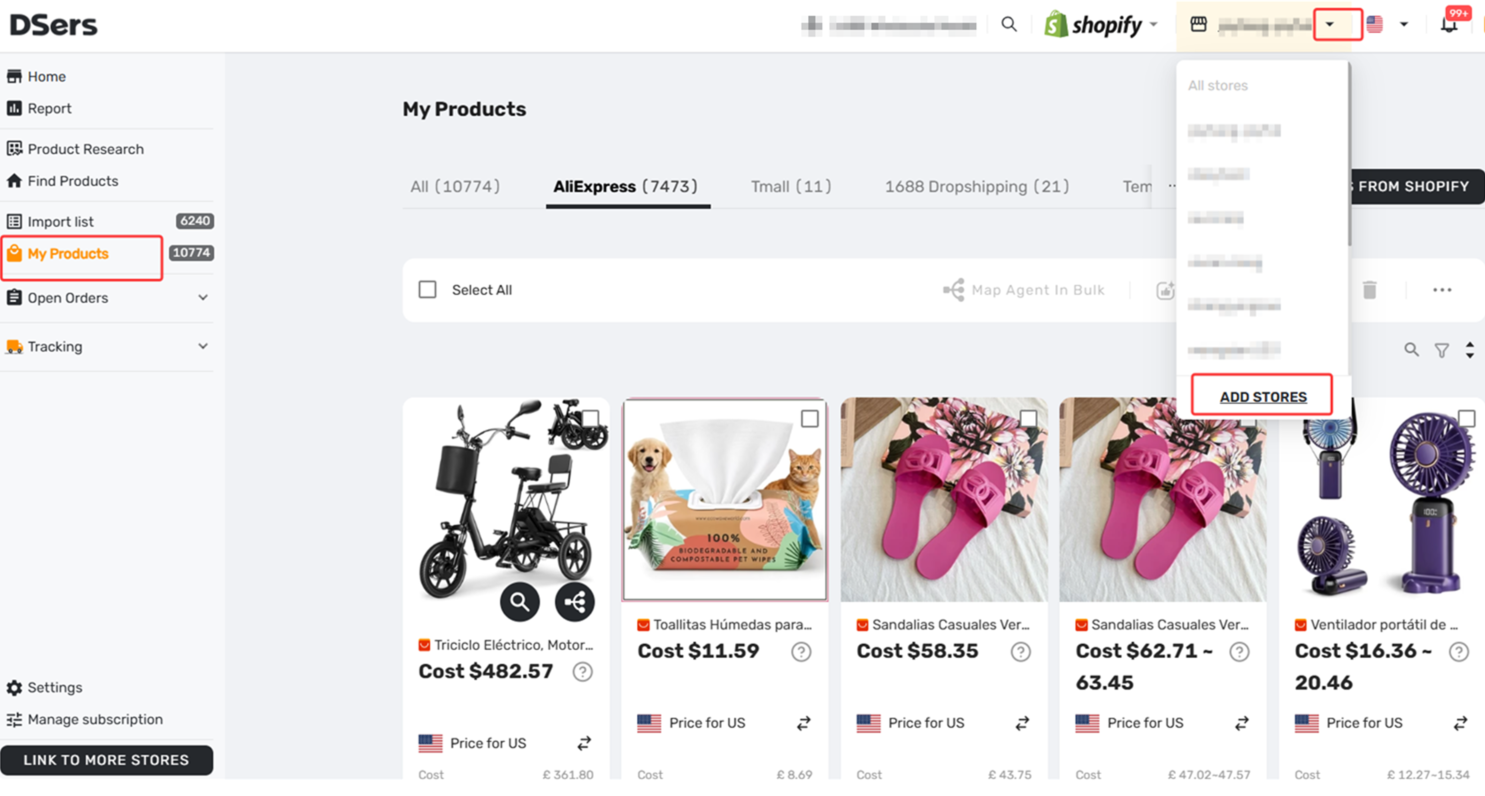
Option 2: Via Application Management (Settings path)
- Go to Settings > Application Management > Sales Channel.
- Find your platform in the list and click "+Add Stores" under that channel.
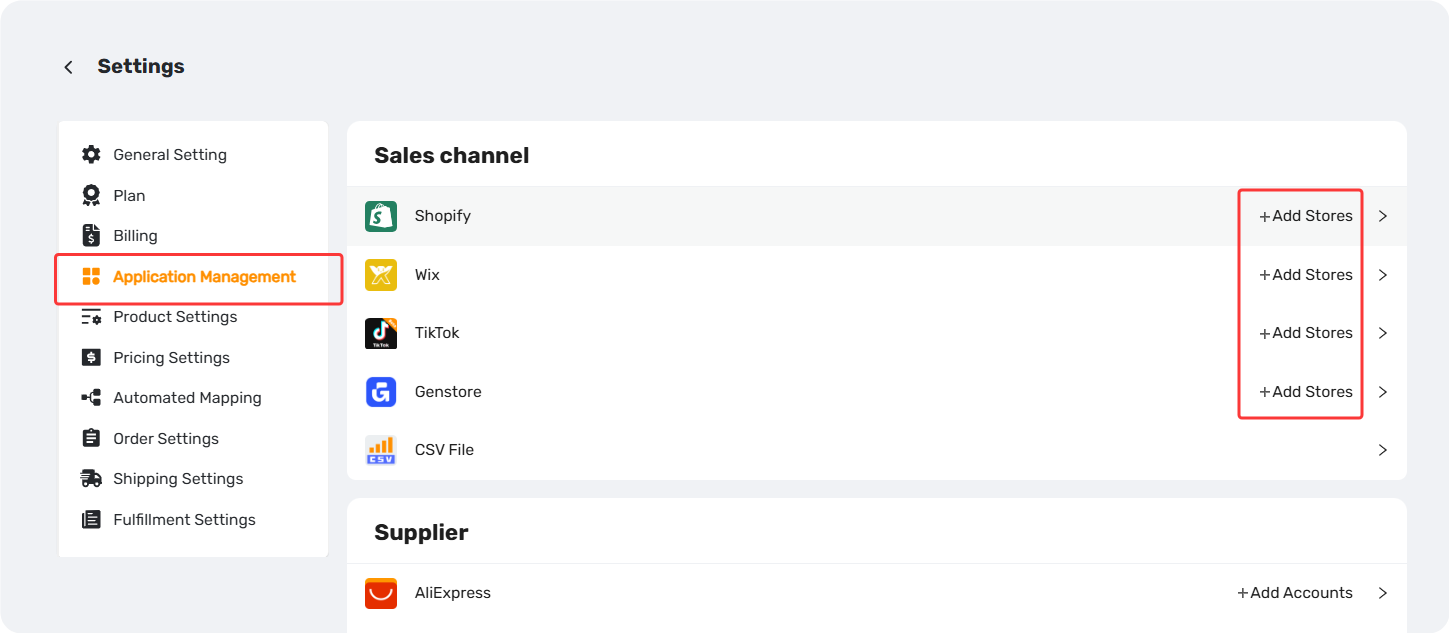
Related Articles
- Binding: Get Started in 3 Minutes: Connect DSers to Shopify Store
- WooCommerce Connection Guide: Website Verification, Authorization & Webhook Setup
- Store Binding: How to link with Shopline store
- How to Disconnect a Store from Your DSers Account
- Store Authorization Failed? How to Relink Store
- Multi-Store Sync: Manage Multiple Stores from One Dashboard
FAQ Section
Quick answers to the most common questions about DSers store connections, platform limits, and sales channels.

Get Started Now to Grow Your Online Business with the DSers!