

Support:


The Notification feature is a setting where you can control which type of notifications to receive in DSers. As it is always important to keep track of the status of your supplier products and orders, you can set whether to get notified about inventory, price and SKU changes of imported products and Cancelled orders through this feature. This way, you can adjust them accordingly in time.
-
1. DSers will display the notifications in the past 30 days.
2. Your notification update frequency depends on your selected plan:
| Plan | Notification Frequency | Basic | 24-36 hours |
|---|---|
| Advanced | 12-24 hours |
| Pro | 6-12 hours |
| Enterprise | within 6 hours |
How to set notifications
- Login to DSers >
 Settings > General Settings> Notification.
 - Turn on or off for different notification types based on your needs.
Notification type Explanation Default button status Inventory changes DSers will notify you when a supplier product you are mapping has the status "Product not found", "Product out of stock", or "Variants out of stock". 
Price changes When the product cost of the supplier you mapped has changed, DSers will notify you. SKU changes DSers will notify you when the supplier's product SKU name you are mapping changes or when an option is added, causing the mapping to fail. 
Cancelled order DSers will notify you when your purchase order is cancelled.
Where to check notifications
You can check in-app notifications in different ways for different needs:


On the Notification page, you can you can use the  Filter feature to filter the notifications by notification type as shown in the screenshot.
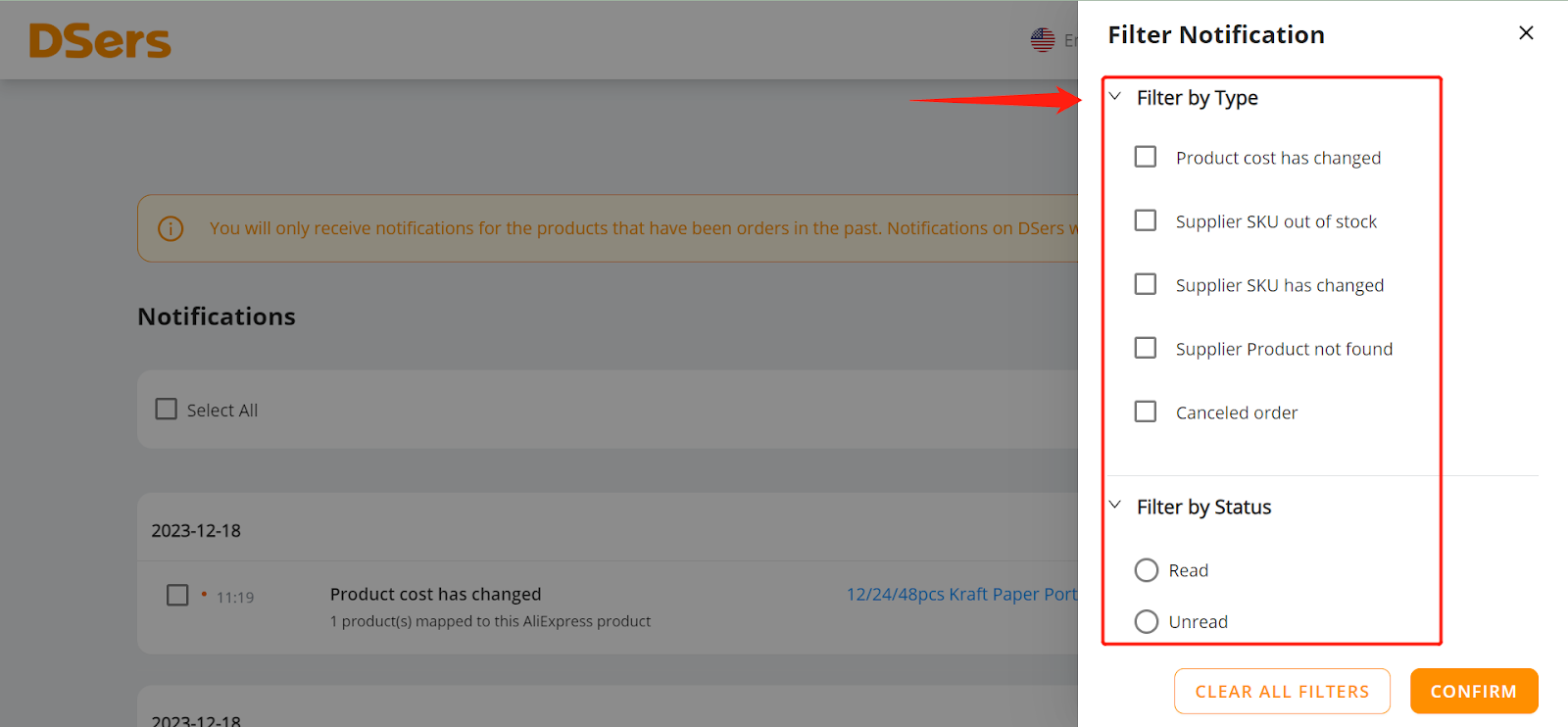
Filter feature to filter the notifications by notification type as shown in the screenshot.
Related Articles
- Notification Frequency: Get Alerts When You Need Them
- Notification Center: How to Filter and Search Your Alerts
- Inventory Changes Notification: What to Do When a Product Goes Out of Stock
- Price Changes Notification: What to Do When Supplier Costs Change
- SKU Changes Notification: What to Do When Variant Mapping Fails
- Cancelled Order Notification: How to Handle Supplier Cancellations
- AI Recommendation Notification: How to Find Better Suppliers