


Automatically keep your store inventory aligned with your suppliers'.
Note
In dropshipping, supplier inventory changes constantly.
A product that shows "in stock" this morning may be sold out by the afternoon. Without auto-sync, you face a choice: manually check each supplier's stock daily, or risk overselling – taking orders for products you can no longer fulfill.
Overselling leads to canceled orders, refunds, angry customers, and potential penalties from your sales channel .
This tutorial covers:
- What Inventory Auto-Sync does and why it's a paid feature
- How to set up automatic inventory updates in DSers
- What happens when a product, variant, or inventory changes
- Feature limitations you should know
- How to disable auto-sync for specific products
What Is Inventory Auto-Sync?

Automatic Inventory Update is a paid setting that helps update your store product inventory according to the latest supplier inventory – once every 24 hours.
This feature works by reading supplier inventory information through your product mappings. Here's what you need to know:
Without Auto-Sync (Manual Process)
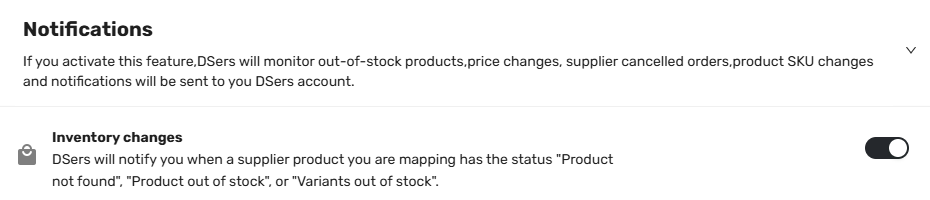
If you have enabled the Notification feature for inventory changes, DSers will alert you when a supplier's stock changes. However, you must then manually update your store's product inventory yourself.
With Auto-Sync (Automated Process)
When you activate Automatic Inventory Update, DSers automatically:
- Checks your connected suppliers' inventory levels once per day at 10 AM UTC+8
- Compares supplier stock against your store's current inventory
- Updates your store automatically – only when specific conditions are met (see below)
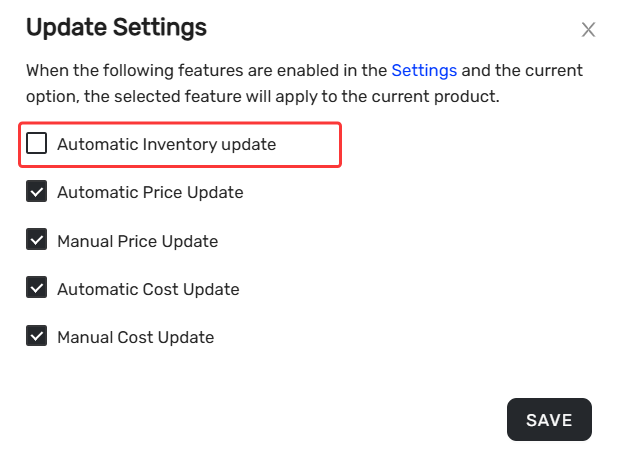
Important: DSers start to syncs stock once per day at 10 AM UTC+8 for well-mapped products. Make sure the function is checked in the Update Settings on the Variant page of My Products.Click here to start dropshipping now with DSers
Under what conditions does DSers automatically sync inventory?
The system updates a variant's inventory when one of the following three conditions is met:
| Condition | Trigger |
|---|---|
| 1 | Shopify inventory ≤ 500, and the difference vs. AliExpress is greater than 10 |
| 2 | Shopify inventory > 500, and the gap vs. AliExpress is greater than 400 |
| 3 | Shopify inventory = 0, and AliExpress inventory is unlimited |
What types of mappings support auto-sync inventory?
Automatic inventory sync applies to Basic Mapping, Advance Mapping-Bundle Mapping (1:1) – where one SKU is mapped to exactly one supplier product with a quantity of 1.
How to Set Up Inventory Auto-Sync
Follow these steps to activate automatic inventory updates for your store:
- Login to DSers > Settings > Product Settings .
- Locate the Automatic Inventory Update section.
- Configure the four decision rules below.
- Click SAVE once done with the settings.
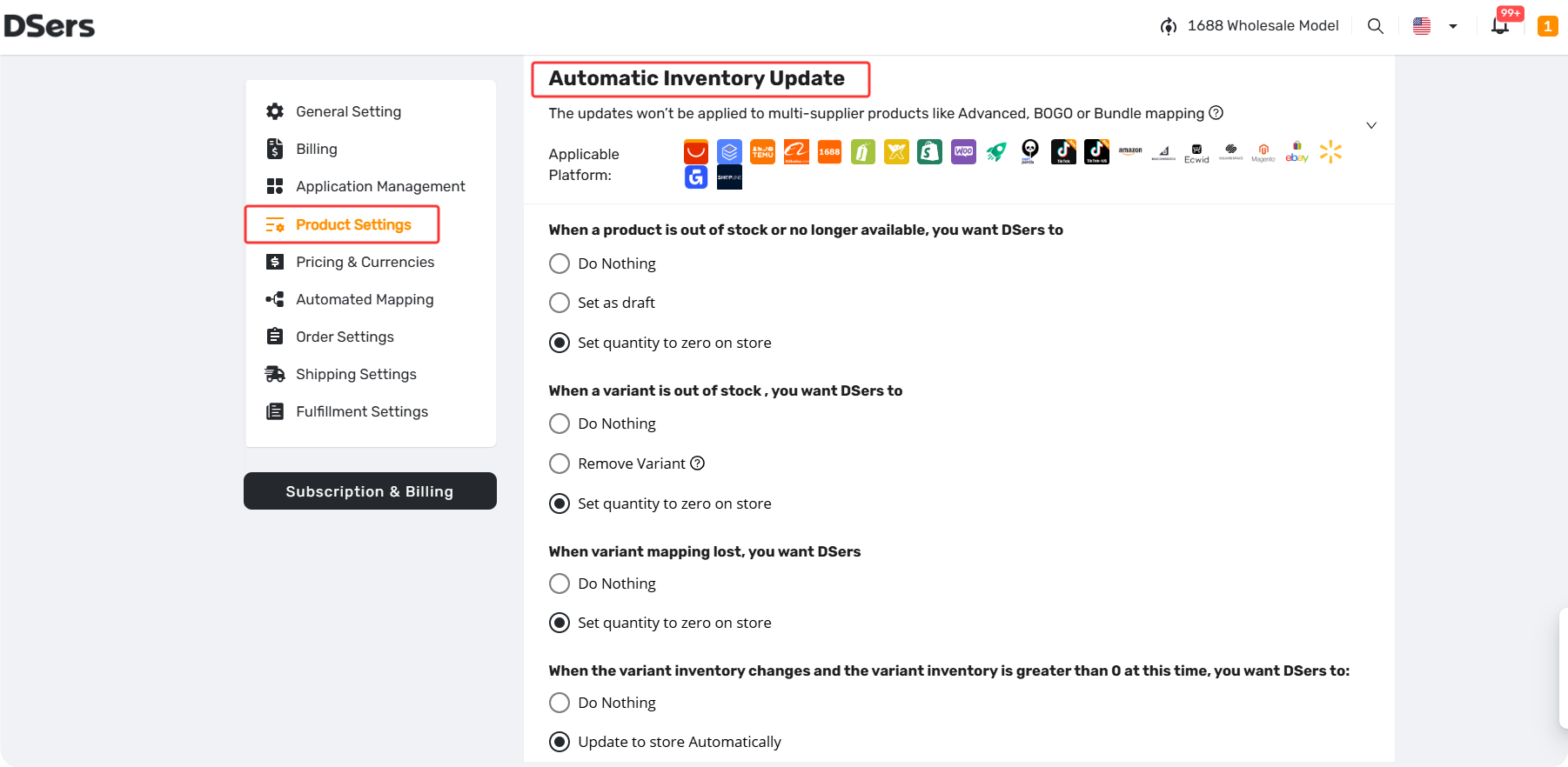
The Four Key Decisions
DSers gives you control over what happens in three specific scenarios. For each, choose the option that best fits your business.
1. When a product is out of stock or no longer available,
Decide what to do when the supplier modifies the product listing:
| Option | What It Does |
|---|---|
| Do nothing | DSers takes no action |
| Set as draft | The product becomes a draft in your store |
| Set quantity to zero on store | Inventory shows 0 – prevents new orders |
2. When a variant is out of stock,
Choose the behavior for individual variants (e.g., "Size M – Black"):
| Option | What It Does |
|---|---|
| Do nothing | DSers takes no action |
| Remove variant | Variant is deleted from your store product |
| Set quantity to zero on store | That variant shows "out of stock" |
Platform limitation: Wix and Jumpseller do not support removing variants. DSers will do nothing even if you choose the Remove Variant option .
3. When variant mapping lost,
| Option | What It Does |
|---|---|
| Do nothing | No automatic updates |
| Set quantity to zero on store | Variant inventory shows 0 – prevents new orders |
4. When the variant inventory changes and the variant inventory is greater than 0 at this time
Control whether DSers automatically updates inventory to your store:
| Option | What It Does |
|---|---|
| Do nothing | No automatic updates |
| Update to store automatically | DSers pushes inventory changes to your store in real time |
Important: For the four choice questions above, the Do nothing option is selected by default .
| Get Started Now to Grow Your Online Business with the Best AliExpress Dropshipping Tool - DSers! |

How to Deactivate the Feature for a Specific Product
If you don't want to update inventory for certain products, you can disable auto-sync on a per-product basis:
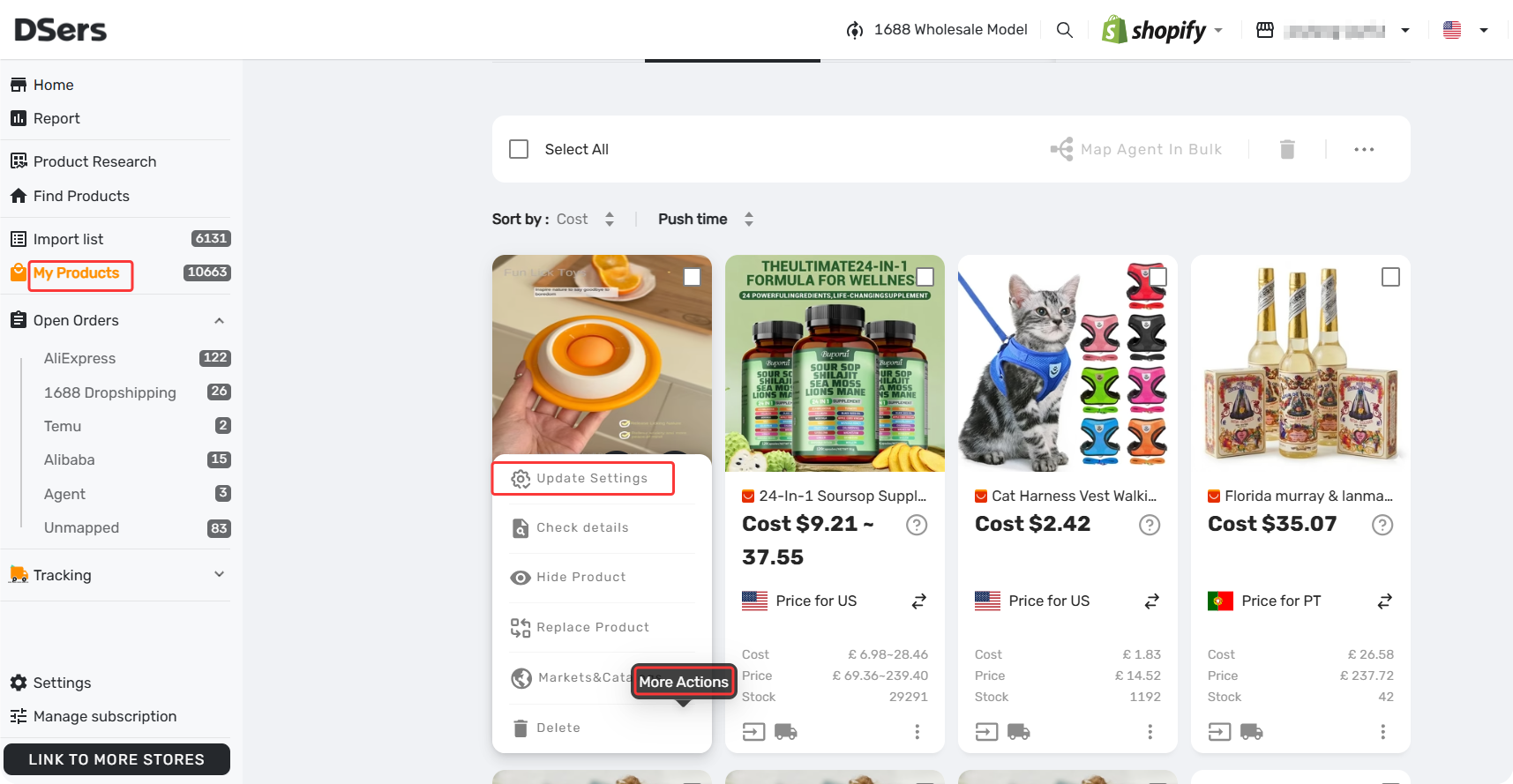
- Login to DSers > My Products.
- Click the product card menu icon and select Check details from the pull-up menu.
- In the Check Product Detail window, access the Variants tab.
- Click Update Settings.
- Deselect Automatic Inventory Update.
- Click Save .
Note on fulfillment locations: DSers only synchronizes inventory of products in locations including dsers-fulfillment-service, Shop location, and locations you create manually. If you want to synchronize inventory for products in other locations, you can have their locations set to either Shopify or DSers .
Pro Tip: Pair with Notifications
For best results, turn on the Notification feature alongside auto-sync. This way, you receive alerts when:
- A supplier changes SKUs
- Price changes exceed threshold
- A product is out of stock
Staying informed helps you proactively adjust pricing or find alternative suppliers before customers are affected. Get more information from:[Notification Frequency: Get Alerts When You Need Them]
FAQ Section
Here are some common questions about Inventory Auto-Sync and stock management in DSers.
| Get Started Now to Grow Your Online Business with the Best AliExpress Dropshipping Tool - DSers! |


 Company
 Why Choose DSers
 Blog
Blog
 Help Center


