


Learn how to add team members to your DSers account with custom permissions.
Note
As your dropshipping business grows, handling product research, order processing, and supplier communication alone leads to burnout. DSers Staff Accounts let you assign specific roles to team members—without ever sharing your master password.
1. Understanding Access Levels (Match Roles to Permissions)
Not everyone on your team needs to see your profit margins or billing info. DSers offers three distinct levels to match exactly what each person needs to do their job.
| Role | What They Can Do | Best For |
|---|---|---|
| Admin | Almost everything like the main account. Can add/remove staff and manage subscription. | A business partner or trusted lead. |
| Full Access | All except staff settings, subscription, and affiliate. | A manager handling daily orders and products. |
| Limited Access | Only specific stores + specific features (e.g., just Orders). | A product researcher, order processor, or customer service agent. |
💡 Tip: If a staff member tries to open a page they don't have access to (like Import List), they will see a clear error message: "You don't have access to the current page."
2. How to Add Your First Staff Account
Getting your team set up takes less than 2 minutes.
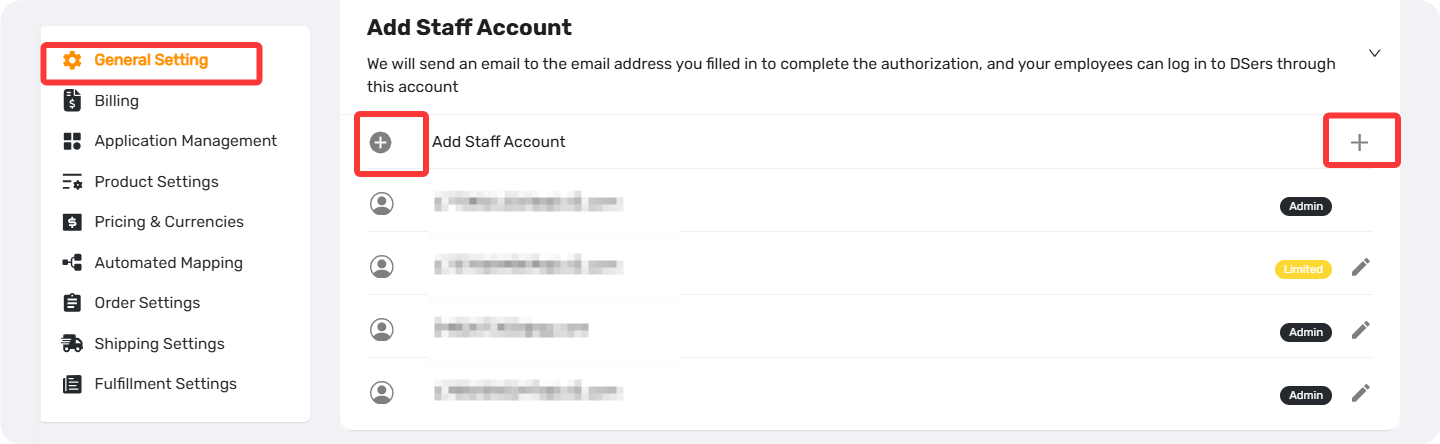
- Go to Settings > General Settings > Staff Account .
- Click Add Staff Account.
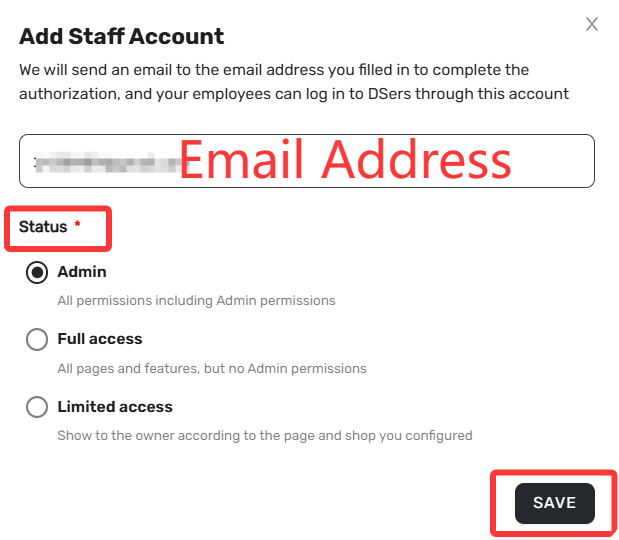
3. Enter their Email Address. ( The system checks if this email is already a DSers user. If it is, it will reject the invite to prevent conflicts).
4. Choose their Access Status (Admin/Full/Limited).
- If selecting "Limited": Check the specific boxes for which Stores and Features they can see.
- To modify a staff account's Access Status later, click the pencil icon next to their current status in the staff list.
5. Click Save.
6. Invite them to login: Ask your staff to check their email inbox for an invite from DSers. They will click Accept Invitation, set a password, and they are ready to work.
3. Important Rules to Know
- Shared limits: Your plan limits (e.g., 500 product imports per day) are shared across the entire team. If one person uses them up, everyone else waits until tomorrow.
- Staff can manage their own login: They can change their Account Name and Password, but cannot change their Account Email.
💡 Tip: Downgrading to a plan with fewer staff slots will freeze extra accounts. Upgrade again to reactivate them.
FAQ Section
Quick answers to the most common questions about DSers Staff Accounts and access management.
| Get Started Now to Grow Your Online Business with the DSers! |



 Company
 Why Choose DSers
 Blog
Blog
 Help Center


