


Supplier just raised prices overnight? No problem. DSers recalculates your margins automatically.
Note
Supplier costs fluctuate constantly—especially during AliExpress sales, seasonal demand shifts, or currency rate changes.
If you are running ads and a supplier raises the cost by $2.00, you could be selling at a loss for days before you notice. This guide explains how to use Automatic Price Update (available on paid plans) to protect your margins 24/7.
Click here to start dropshipping now with DSers
Why This Matters for Your Business
If you managed 50 products in store, manual repricing is impossible. The Auto-Update Pricing feature ensures your Pricing Rules are always applied to the latest supplier cost.
- No more negative surprises at the end of the month.
- Stay competitive when costs drop.
- Sleep better knowing DSers is protecting your margins automatically.
What You Need Before You Start
This feature works only if you have already activated Pricing Rules for store and well-mapped products. Pricing Rules are what tells DSers how to price your products (e.g., "2.5x cost" or "cost + $8"). Automatic Price Update simply triggers those rules whenever the supplier's cost changes.
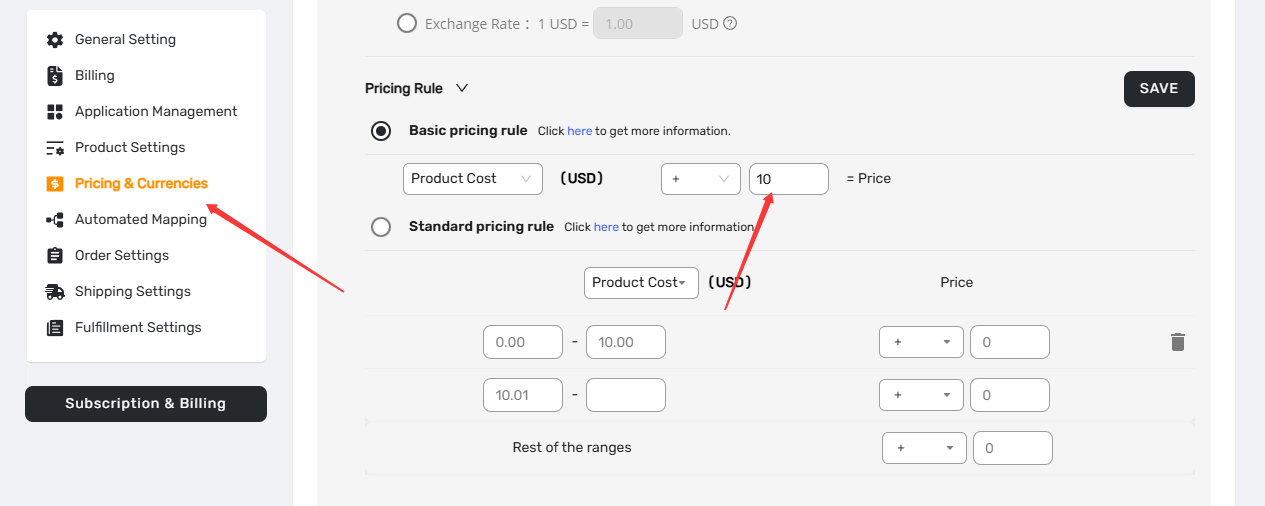
Quick check: If you haven't set up Pricing Rules yet, check and set it up on Settings > Pricing Setting first. Otherwise, the Auto-Update option will not work.
How to Turn On Automatic Price Updates
Once your Pricing Rules are active, you are just two steps away from fully automated repricing.
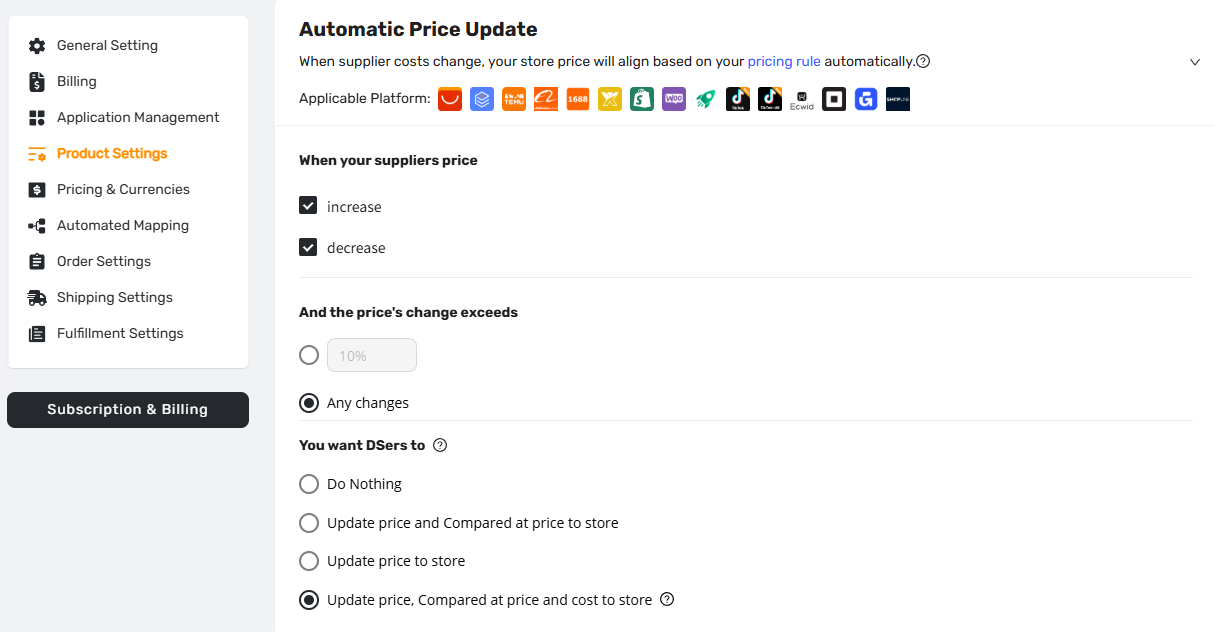
Step 1: Navigate to the setting:
DSers Dashboard → Settings → Product Settings.
Scroll down to the Automatic Price Update section.
Step 2: Choose direction
- Increase: Protects your margin when costs go up.
- Decrease: Lowers your store price when costs drop (keeping you competitive while preserving your profit %).
Select both "Price Increase" and "Price Decrease" unless you have a specific reason not to.
Step 3: Set "Fluctuation Filter-’And the price’s change exceeds’"
- Set the threshold to 3% – 5% .
- Why? This ignores micro-changes ($0.01) but immediately reacts to a real $2.00 cost hike.
Pro Tip:Suppliers sometimes change prices by $0.01 just to relist an item. You don't want DSers syncing every tiny change.
Step 4: Tell DSers what to do:
By default, this is set to "Do nothing" (meaning: no automation).
Click the dropdown and choose your trigger:
| You Want DSers to | What It Does |
|---|---|
| Update price & compared at price | Changes both the sale price and the "original" crossed-out price. |
| Update price to store | Only changes the selling price. |
| Update price, compared at price & cost to store | Changes the selling price, the original price, and your internal cost tracking. (Recommended for accurate profit reports) |
Step 5: Save
Tips: This feature only applies to price changes that happen after you turn it on. It will not retroactively update products whose costs changed last week.
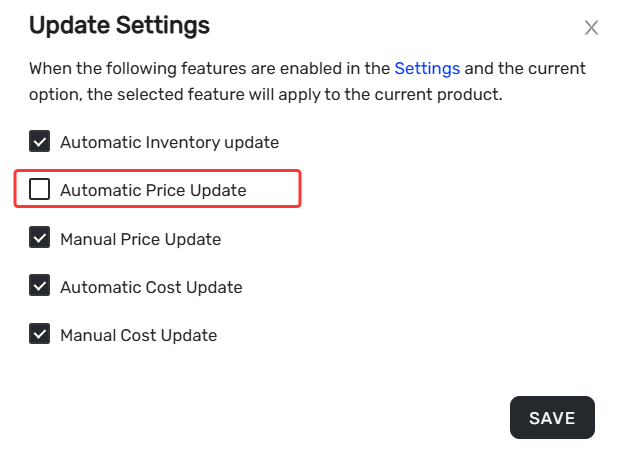
How to Deactive Auto-Updates for a Single Product
Sometimes you have a "loss leader"—a product you intentionally sell cheap to get customers in the door. You do not want this price to increase automatically.
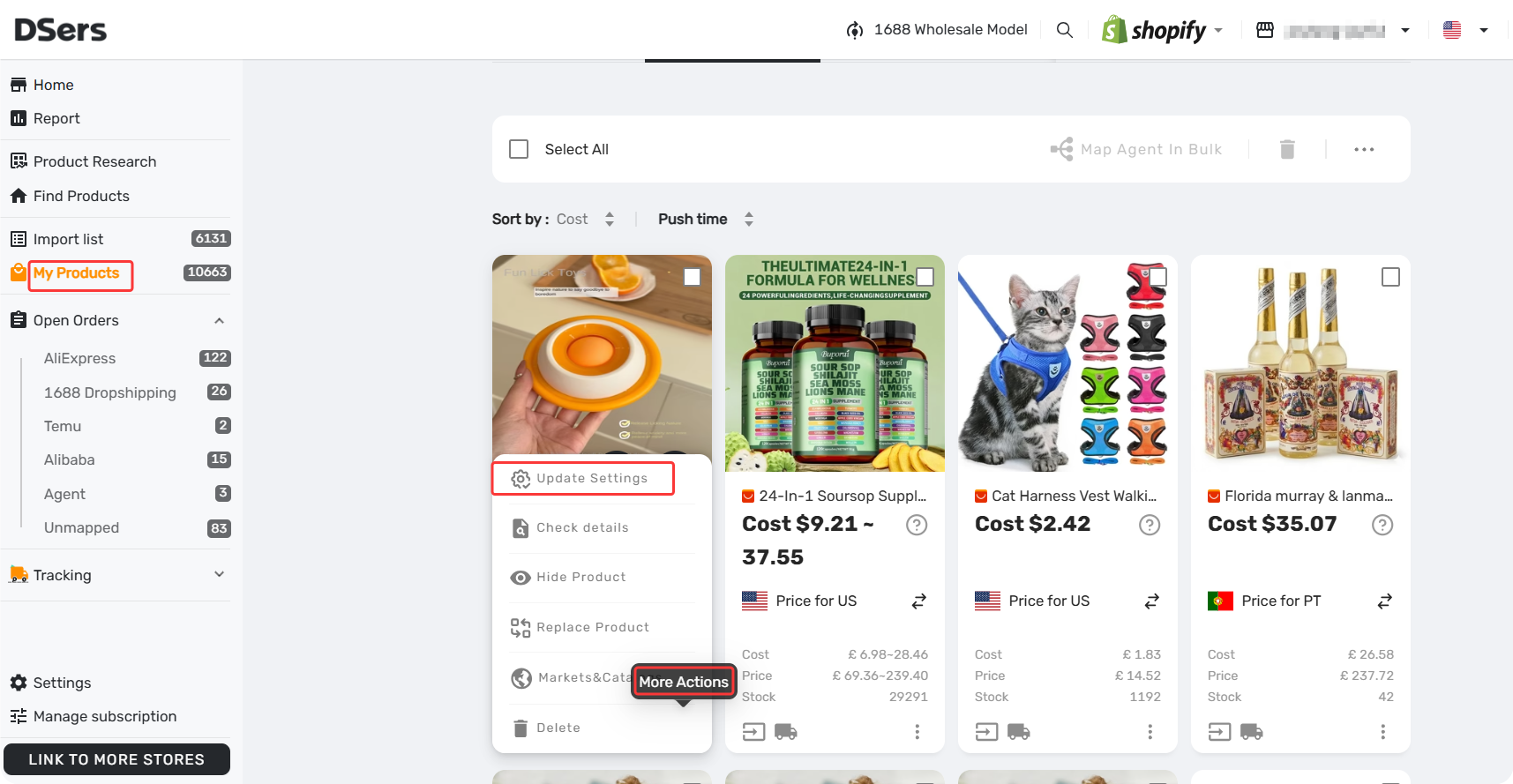
To lock a specific product:
- Go to My Products.
- Click the "..." (More actions) menu on the product card and select Update Settings.
- Uncheck Automatic Price Update .
- Click Save.
Important Things to Know
It only follows your main supplier.
If you use Mapping (backup suppliers), DSers only auto-updates prices based on the primary supplier's cost changes.
Manual changes get overwritten.
If you manually change a price in Shopify or DSers, Auto-Update will override it when the supplier's cost changes next. To prevent this, deactive Aotu-price upate setting above to lock that product.
It relies on DSers' price check cycle.
DSers checks AliExpress for price changes approximately every 14 hours (faster for paid plans). After DSers detects a change, it takes about 2 hours to sync to your store.
FAQ Section
Here are some common questions about Automatic Price Update and pricing management in DSers.
| Get Started Now to Grow Your Online Business with the DSers! |



 Company
 Why Choose DSers
 Blog
Blog
 Help Center


