
Add backup suppliers and cross-map variants to help safeguard your sales against supplier disruptions

Note
Note: Basic Mapping lets you add backup suppliers and cross-map variants across multiple suppliers — so you won't lose sales when one supplier runs out of stock or doesn't carry all your variants.Click here to start dropshipping now with DSers
What Is Basic Mapping?
Basic Mapping pairs each store variant with a supplier variant — so DSers knows which item to order. You can assign up to two suppliers per variant (default + backup) and use different suppliers across variants of the same product.
What You Can Configure with Basic Mapping?
| Capability | What It Does | Example |
|---|---|---|
| Default Supplier | Primary supplier for a variant | Red t-shirt → Supplier A |
| Back-up Supplier | Secondary supplier used when default is unavailable |
Red → Supplier A & B
If Supplier A is out of stock → Supplier B
|
| Cross-mapping | Different suppliers for different variants of the same product | Red → Supplier A, Blue → Supplier B |
How to Set Up a Backup Supplier
Step 1: Import Favorite Suppliers
-
Go to My Products - select your product -
click Mapping

- Select the platform (AliExpress, Alibaba or 1688)
- Import suppliers on Import supplier to Favorites
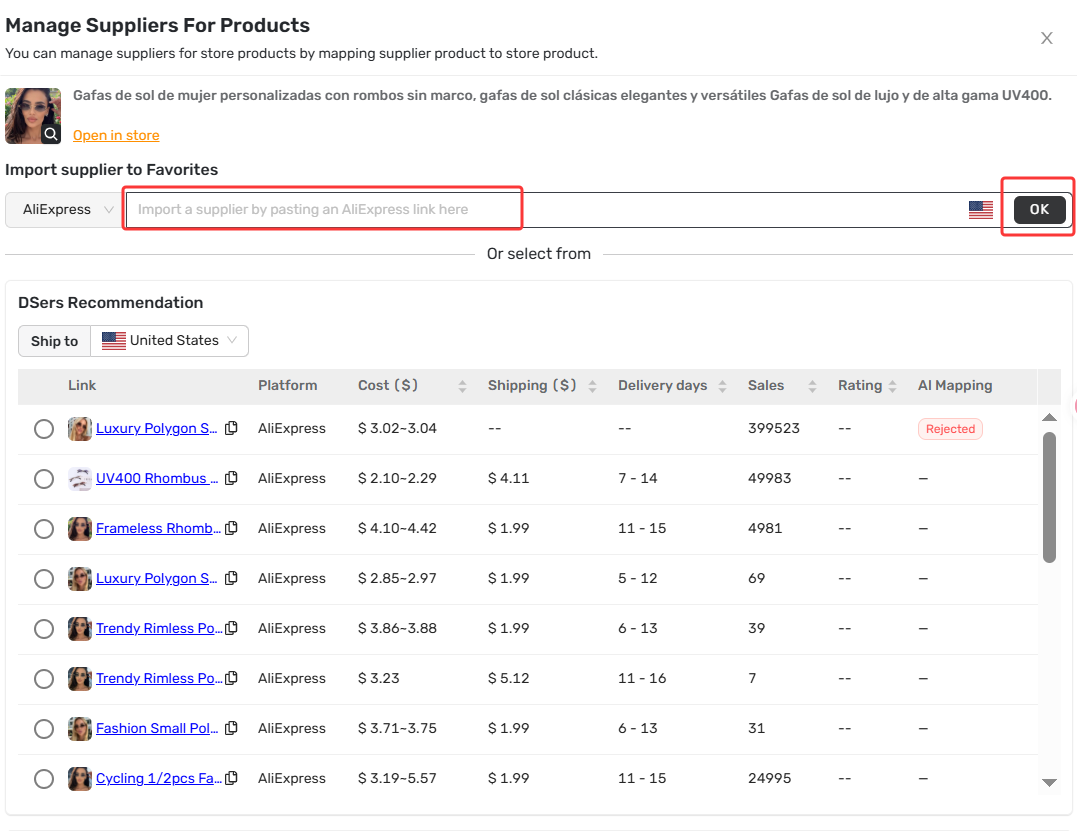
Tips: Agent suppliers cannot be used as backup suppliers in Basic Mapping. Use Advanced Mapping for Agent support.
Step 2: Access Basic Mapping
Click Basic mapping
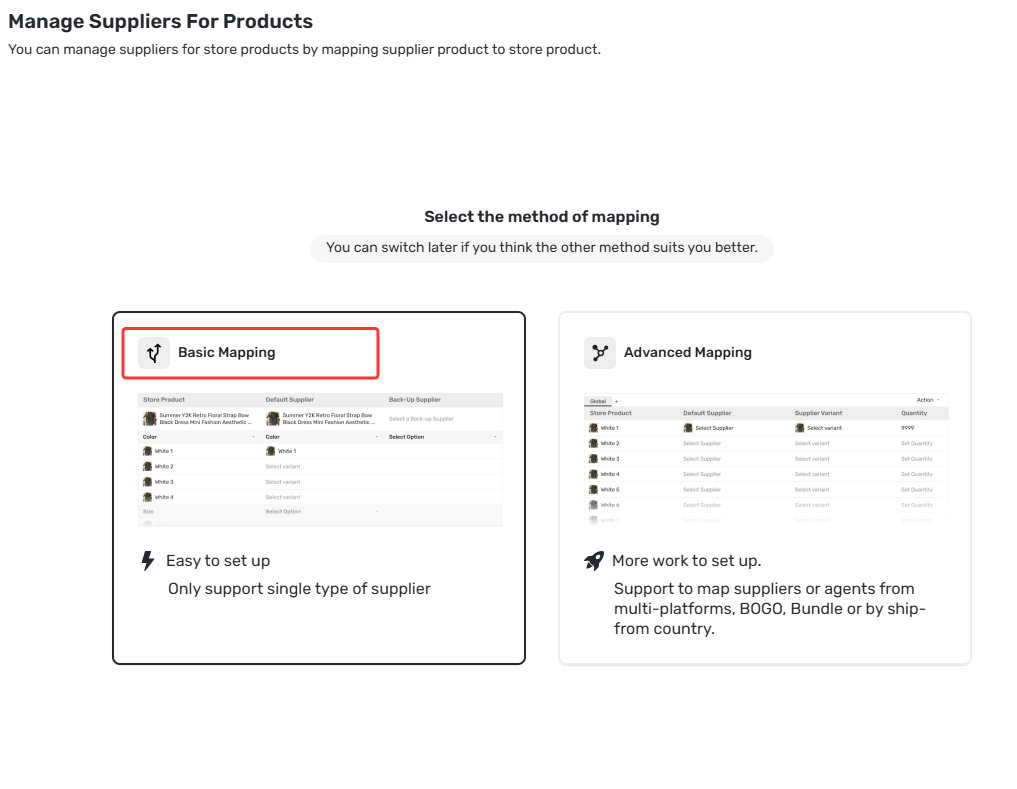
Step 3: Import a Backup Supplier
- Select the supply platform (AliExpress, Alibaba or 1688)
- Import the backup supplier
Step 4: Set as Backup Supplier
- Locate the newly imported supplier card in Favorite Suppliers
-
Click the
gear icon

-
Select Back-up Supplier
and Confirm

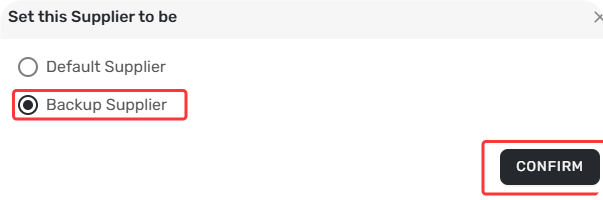
The supplier is now available as a backup option in your Basic Mapping table.
Tips: For a product’s Basic mapping, your default supplier and backup supplier must come from the same supplier platform.
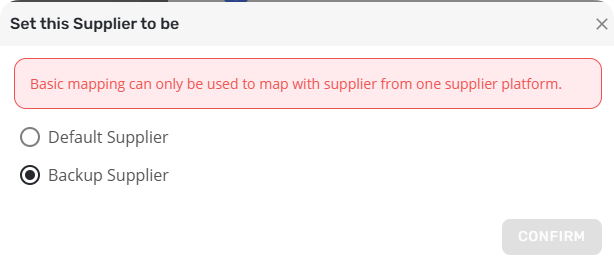
Step 5: Map the Backup Supplier to Your Variant
- In the Basic Mapping table, find the variant row
- Click the Back-up Supplier cell
- Select the supplier and the matching variant
Step 6: Confirm and Save
Click Save
 to check Apply Mapping
and Confirm
it.
to check Apply Mapping
and Confirm
it.
DSers will now automatically use your backup supplier whenever the default supplier is unavailable.
For more details, check out the related articles below.
Related Articles
- Basic Mapping Templates: Scale Your Product Library
- Advanced Mapping: Route Orders to the Right Supplier by Country
- BOGO & Bundle Mapping: Sell More with Product Combinations
FAQ Section
Quick answers to the most common questions about DSers Basic Mapping and supplier management.
| Get Started Now to Grow Your Online Business with the DSers! |
