

Turn single-item browsers into high-value shoppers with multi-product mapping.
Note
Why bundles matter: Single-item dropshipping often comes with low profit margins and high ad costs. Product combinations help you increase AOV.Click here to start dropshipping now with DSers
1. Why Use BOGO & Bundle Mapping?
| Benefit | What It Means for You |
|---|---|
| Increase AOV | Turn a $10 order into a $40 order without more traffic |
| Clear Slow Inventory | Pair low-selling items with best-sellers |
| Reduce Shipping Cost Per Unit | Spread fixed shipping costs across multiple items |
| Create Unique Offerings | Stand out with product combinations competitors don't have |
Key Differences: BOGO vs. Bundle
BOGO mapping is best for running promotions and upselling customers with offers like "Buy X Get Y Free," while Bundle mapping is designed for creating product kits such as a "Complete Starter Kit" by combining multiple items from different suppliers.
2. BOGO / Bundle Mapping Walkthrough
Before Start: Fix Variant Names on Store
DSers identifies products by their variant names, so make sure to use clear, descriptive variant names for your BOGO or Bundle offers.
| Offer Type | Variant Name Example |
|---|---|
| BOGO | "Buy 2 Get 1 Free" |
| Bundle | "Starter Kit - 3 Items" |
Ready to start? Here's how to get BOGO or Bundle mapping up and running.
Step 1: Select the Advanced Mapping Option
1. Login to DSers → My Products

2. Hover on the Product Card and click the Mapping icon

3. Import supplier link
4. Select the method of mapping-Advanced Mapping
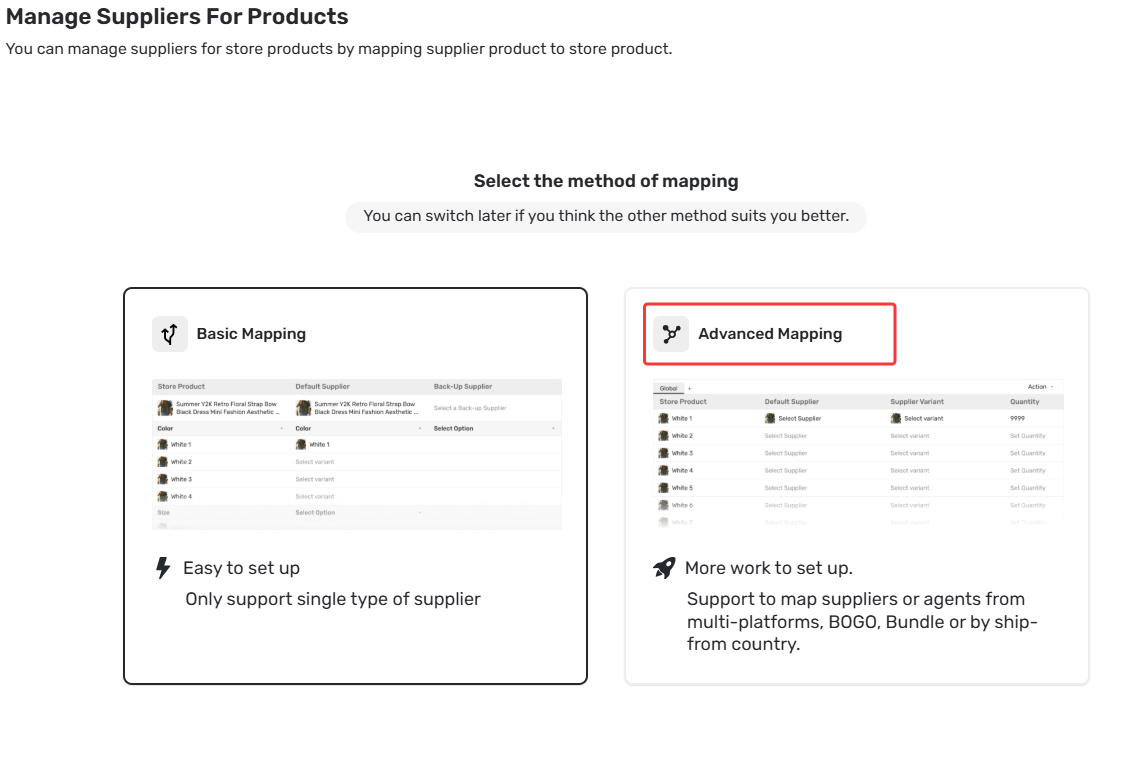
Step 2: Set Your BOGO & Bundle mapping
- Click Select Supplier & Select Variant under the Default Supplier & Supplier Variant column
- Choose the specific variant (color, size, etc.) and Save it
- Set the quantity (default is 1)
- Click “+” to add the new row
- Complete mapping data for the new row as the previous operation
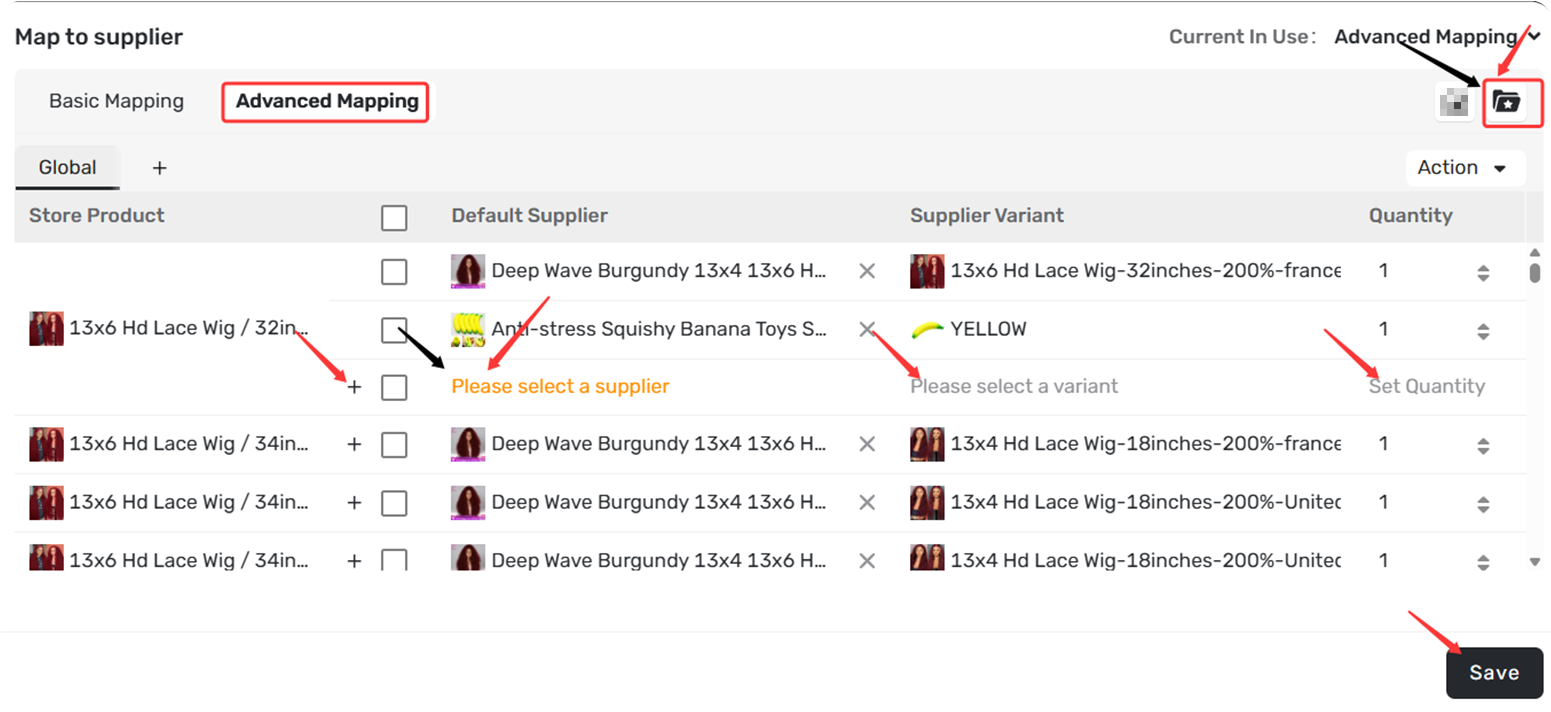
Tip: If the gift and main product are from the same supplier SKU, simply adjust the quantity.
Step 3: Save mapping
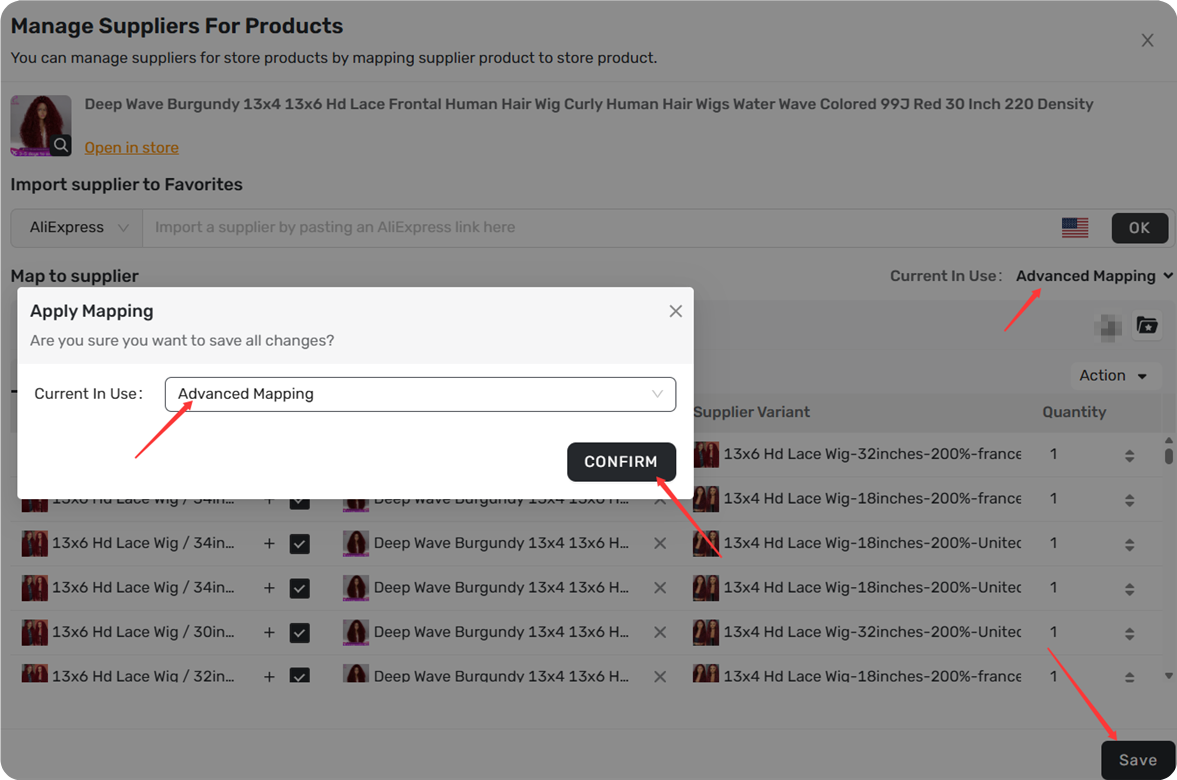
1. Click Save
 at the bottom of the page
2. In the pop-up, confirm Advanced Mapping is selected as the method
3. Click CONFIRM
 to save
Related Articles
- How Variant Mapping Works
- Basic Mapping: How to set Backup Suppliers
- Basic Mapping Templates: Scale Your Product Library
- Advanced Mapping: Route Orders to the Right Supplier by Country
FAQ Section
Everything you need to know about BOGO and Bundle mapping and how they help you create promotions and product kits.
| Get Started Now to Grow Your Online Business with the DSers! |
