

Present a professional post-purchase experience by customizing carrier and tracking Url in customer emails
Note
Customizing the shipping carrier and tracking URL helps you present a more professional image by masking the original carrier and shipment origin.Click here to start dropshipping now with DSers
This article walks you through how to customize the shipping carrier and tracking URL for your shipping confirmation emails.
What This Feature Does
When you configure the shipping carrier and tracking URL in DSers, your customers will see:
- The carrier name you choose in their shipping confirmation email
- A clickable tracking number that directs them to your specified tracking page
This allows you to maintain brand consistency and avoid displaying supplier-specific carrier information.
Configure Shipping Carrier and Tracking Url
1. Quick Setup Overview
To configure this feature:
- Go to DSers > Settings > Fulfillment Settings
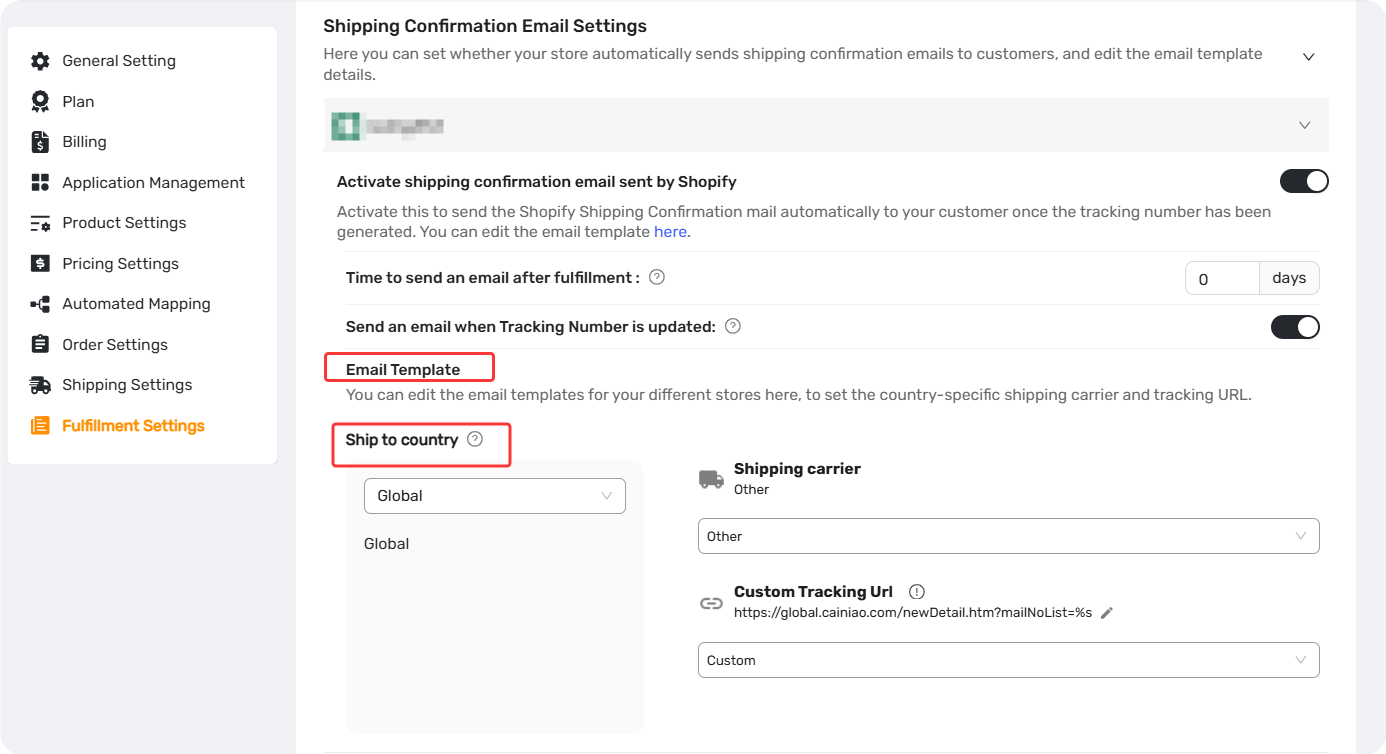
- Under Shipping Confirmation Email Settings, select your store
- Locate the Email Template section to configure both carrier and tracking URL
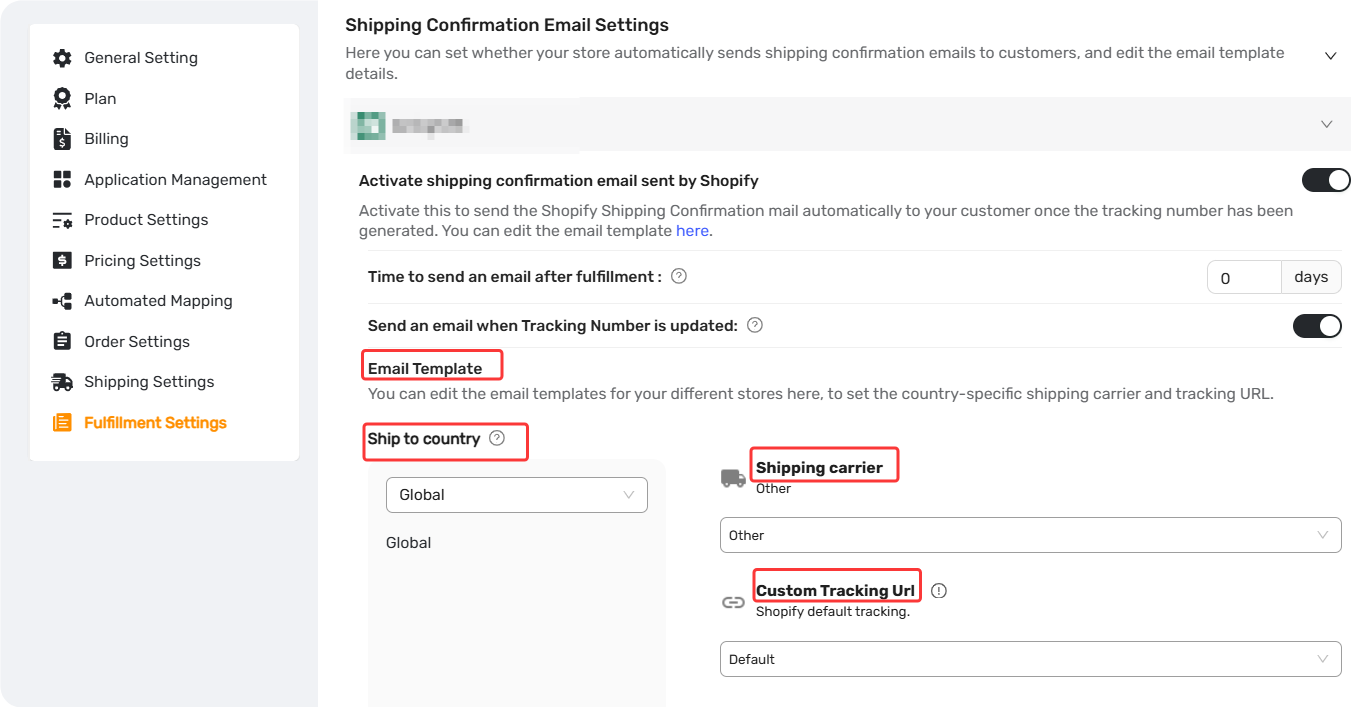
For complete step-by-step instructions, see the full setup guide.
2. Choose a Shipping Carrier
The Shipping carrier determines the carrier name shown to your customer.
- Other (Recommended): Displays "Other" to customers. Avoids incorrect carrier names while keeping tracking functional.
- Auto-detect carrier used by suppliers: DSers automatically identifies the carrier from your supplier. Falls back to "Seller's shipping method" if not detected. (Availability varies by sales channel.)
- Default (Not recommended): Shopify attempts to detect the carrier from the tracking number, but this is often inaccurate.
- Specific carrier (e.g., DHL): Only useful if all your suppliers use the same carrier—uncommon in dropshipping.
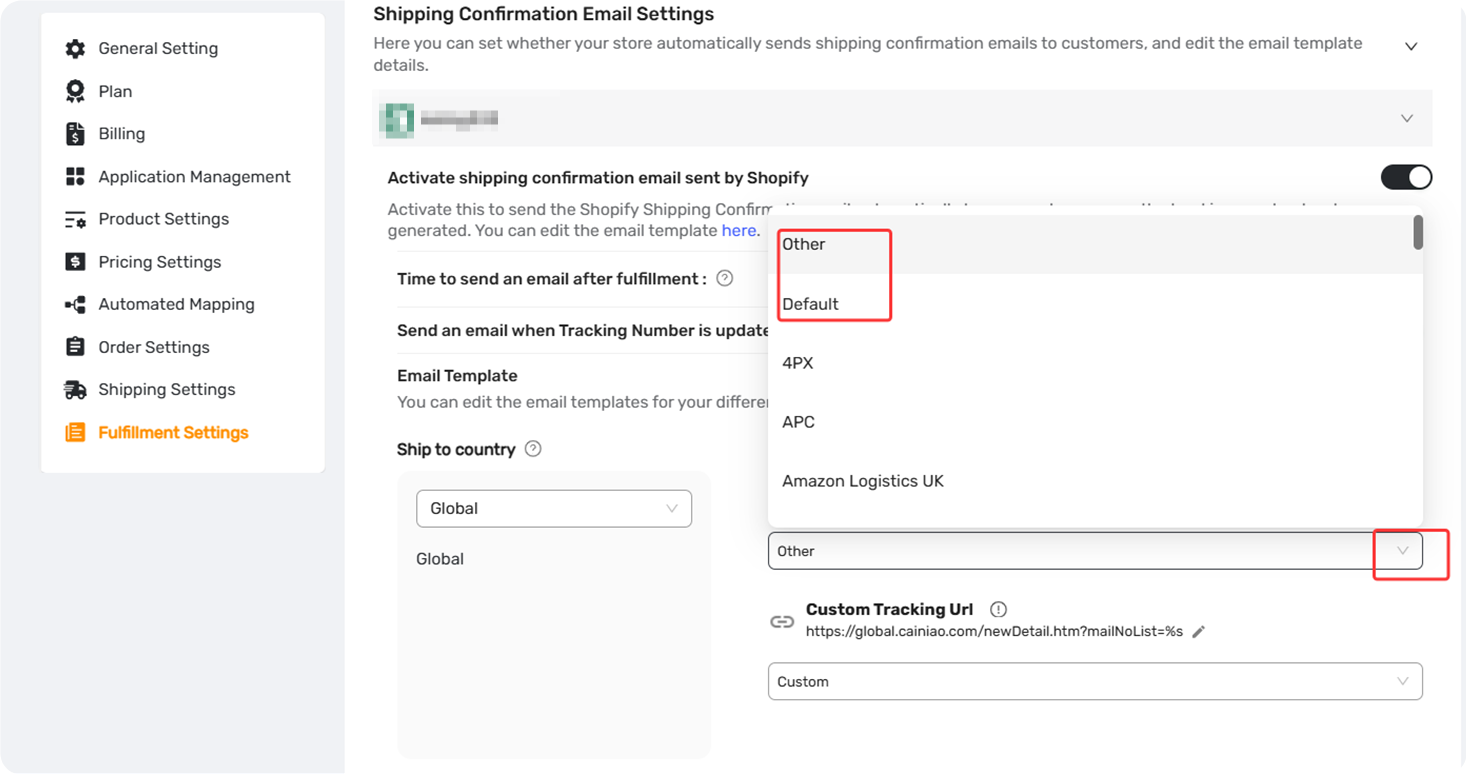
For TikTok Shop: This setting is fixed to Auto detect carrier by Supplier and cannot be changed.
3. Set Up the Tracking Url
The Custom Tracking Url is the link customers click to track their package. DSers appends the tracking number automatically.
- Select a tracking tool from the list, or choose Custom to enter your own.
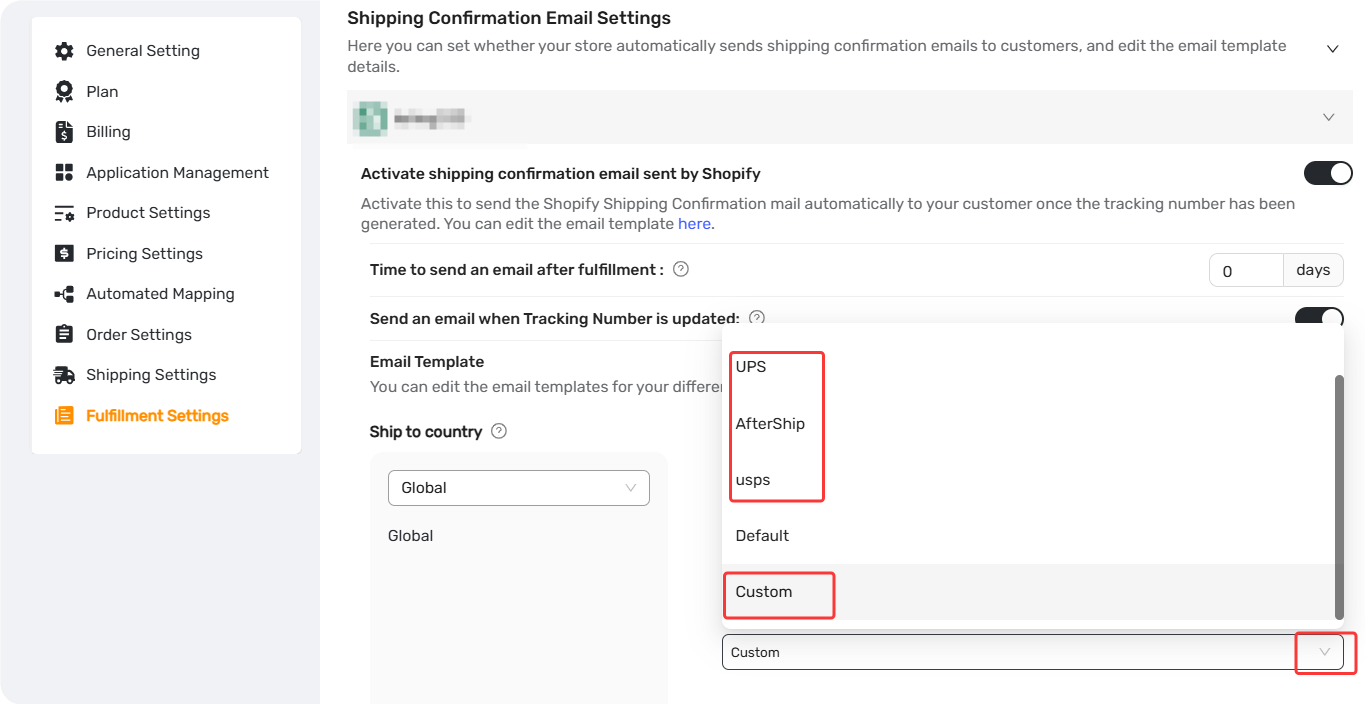
URL Format Requirement
Enter only the base Url—the part before the tracking number.
Correct: https://global.cainiao.com/newDetail.htm?mailNoList=
- Result:
https://global.cainiao.com/newDetail.htm?mailNoList=TRACKING123
Incorrect: https://global.cainiao.com/ (homepage) or a URL that already includes a tracking number.
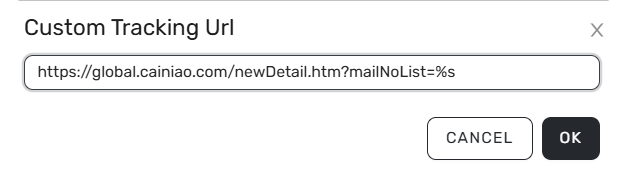
Tips:To use DSers’ tracking page instead of a third-party Url, select Tracking Page from the dropdown and set custom tracking Url. See [How to Set Up Your Custom Tracking URL for Tracking page] for details
4. Set Country-Specific Options (Option
By default, your settings apply to all countries (Global). To use different carriers or tracking URLs for specific market:
- In the Email Template section, click the Ship to country dropdown and select a country.
- Choose the Shipping carrier and enter the Custom Tracking URL for that country. Refer to the sections below for detailed instructions on configuring each option.
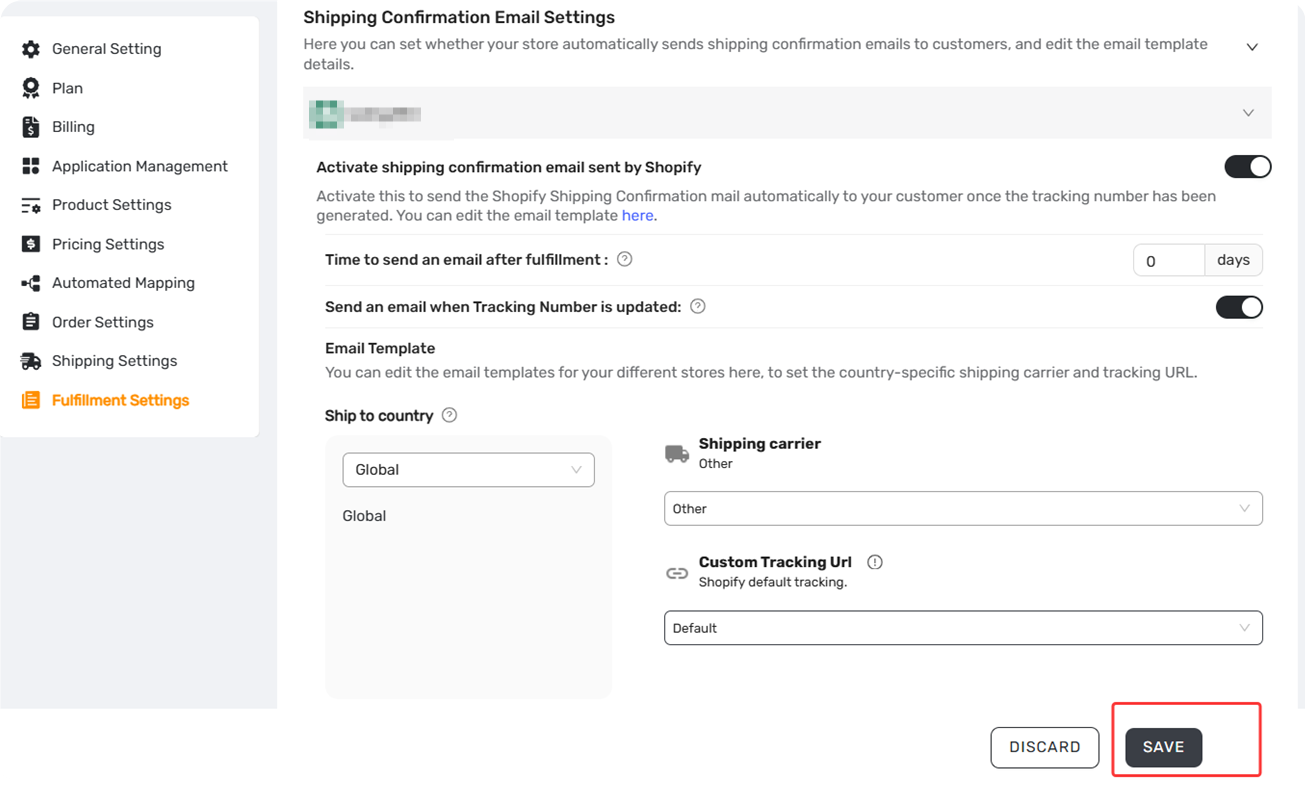
- Click SAVE.
Priority: Country-specific settings override the Global configuration for orders shipped to that country.
5. Save and Test
Click SAVE to apply your settings, then process a test order to confirm the tracking link and carrier display work correctly in the customer email.
Related Articles
- Customize Shipping Confirmation Email Settings
- Tracking Page: Create a Branded Order Tracking Experience
- Tracking Upsell: Turn Order Tracking into Extra Sales
- How to Set Up Your Custom Tracking URL for Tracking Page
- How to Auto-Sync Tracking Number Changes
- Manually Updating Tracking Numbers via the DSers Chrome Extension
FAQ Section
Quick answers to the most common questions about DSers shipping carrier and tracking link customization.

Get Started Now to Grow Your Online Business with the DSers!