

Multilingual product: Speak Your Customer's Language — Literally
Note
Most AliExpress product information is only available in English. The Multilingual product feature lets you import product details in up to six languages at once — automatically, with no copy-pasting.
This helps you sell to non-English speaking markets without manual translation work.
With DSers Multilingual product, you can automatically pull product titles and descriptions in multiple languages during import.Click here to start dropshipping now with DSers
This saves hours of manual translation and helps you reach customers in France, Germany, Spain, Italy, and Portugal — all from one import.
Plan Limits
The number of languages you can use depends on your DSers plan:
| Plan | Max Languages |
|---|---|
| Basic (Free) | 1 language (English only) |
| Advanced | Up to 2 languages |
| Pro | Up to 4 languages |
| Enterprise | Up to 6 languages |
Supported languages: French, Portuguese, German, Italian, and Spanish.
English is always included as the default language and cannot be deselected.
How to Set Up Multilingual Product
- Go to Settings → Product Settings → Multilingual product.
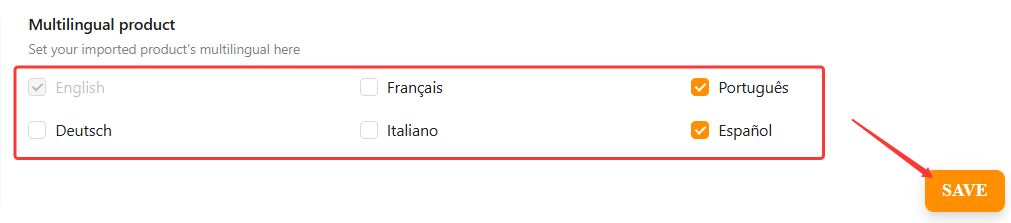
- Select the languages you want (English is pre-selected and cannot be deselected).
- Click Save.
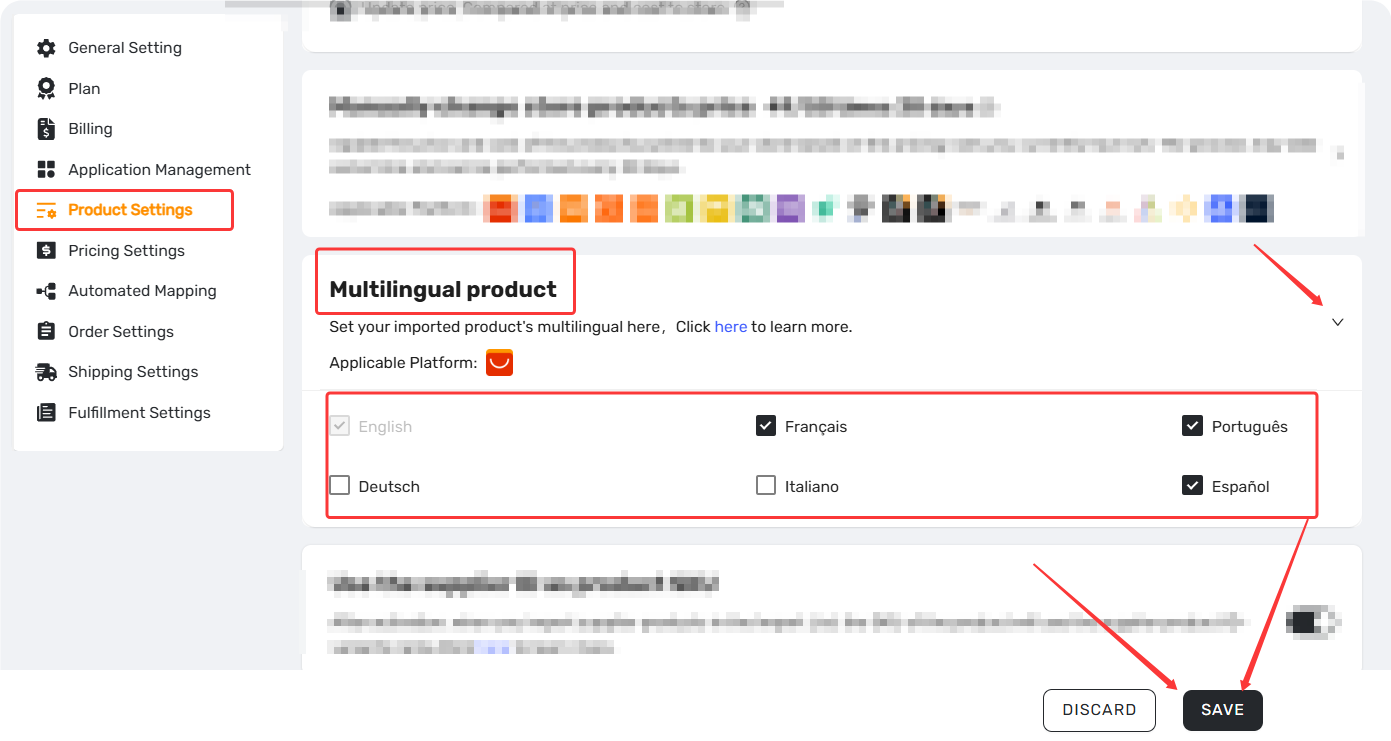
Note: You can also access this setting from the Chrome Extension — right-click the DSers icon, select Options, and find the Multilingual product section. The two settings sync automatically.
What You Can Do After Setting Up
Once your languages are set, here's what becomes available:
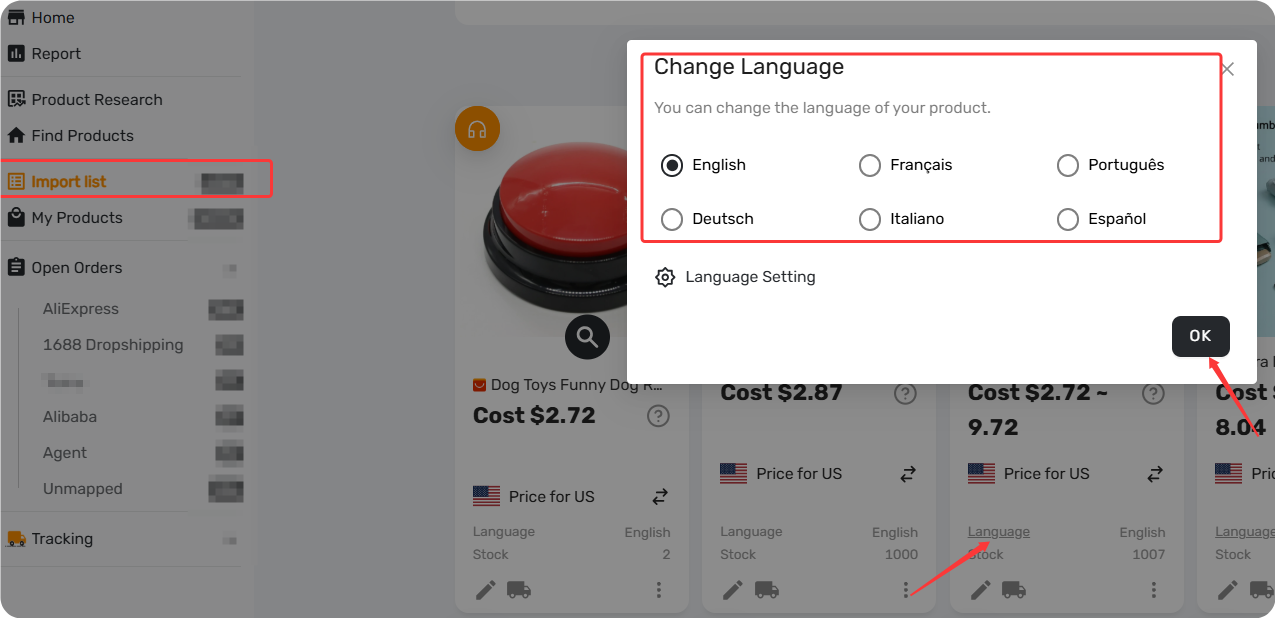
- View — Use the language dropdown on any product card in Import List to switch between language versions.
- Edit — Switch to your target language first. Edits apply only to the version you're viewing.
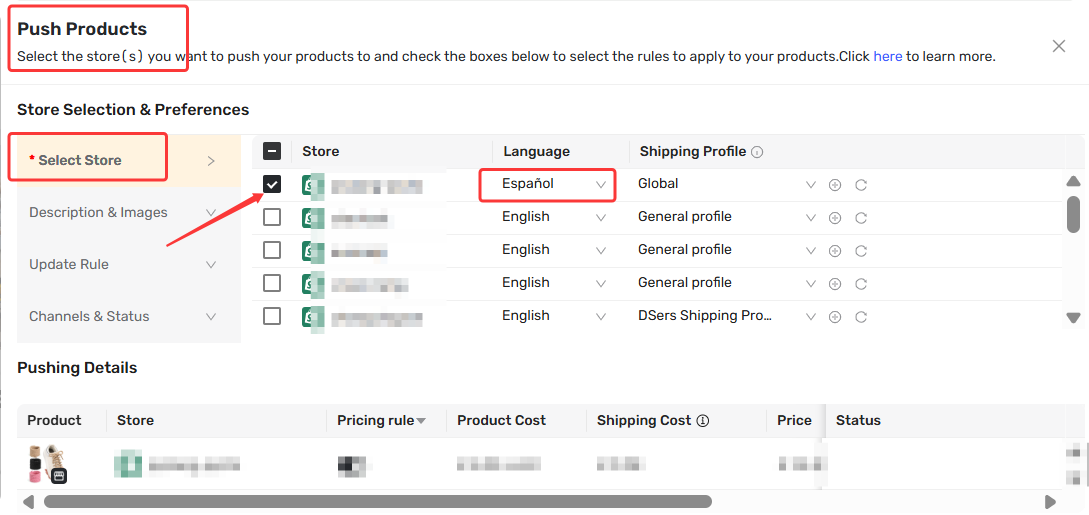
- Push — When publishing, select which language version to push to your store.
For further optimization, you can use the AI Description Generator or Use AI Translation to refine your translated product copy.
How to Switch Product Language in Import List
Prerequisite: Language preferences must be set in DSers Settings or the Chrome Extension first.
Option 1: From the product card
- In Import Lis- product card
- Click the Language dropdown on the card
- Select your target language — the product details will refresh in that language
Option 2: In Bulk Edit mode
- Select products- click Bulk Edit
- Find the language switcher in the top-right corner
- Select your target language to view and edit product details in that language
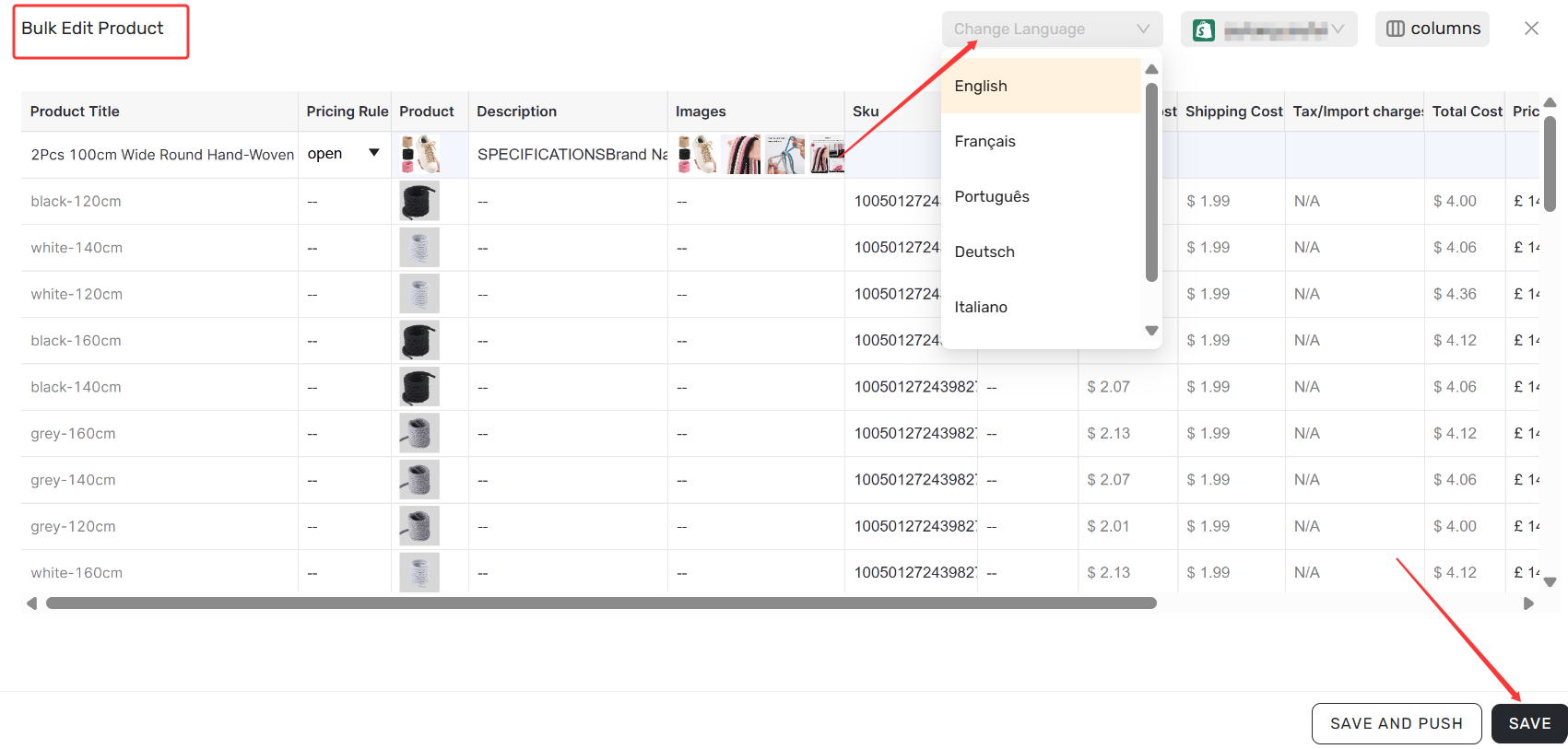
Important: Editing in one language does not auto-update other language versions. Always switch to the correct language before making any changes.
Next Steps
- Already imported? Check your Import List to review and edit product details in each language.
- Ready to publish? When pushing to your store, make sure you select the correct language version for store
- Want better translations? Explore our guides on [AI Description Generator] and [Use AI Translation] to polish your multilingual product copy.
Related Articles
- DSers Chrome Extension: Sourcing and Product Import Tools Guide
- How to Set Your Default "Price for Ship to Country"
- AI Product Title Optimization: From Keyword Stuff to SEO-Friendly
- AI Description Generator: Turn Specs into Benefits
FAQ Section
Everything you need to know about the Multilingual Product feature and how to sell to non-English speaking markets.

Get Started Now to Grow Your Online Business with the DSers!