

Set a default shipping method for a specific product and destination
Note
Want to lock a fixed shipping method to a product so DSers always selects it — whether you're calculating prices (using Manually Change Store Product Price) or processing orders? This guide shows you how.Click here to start dropshipping now with DSers
How to Set It Up
Step 1: Open the Configuration Panel
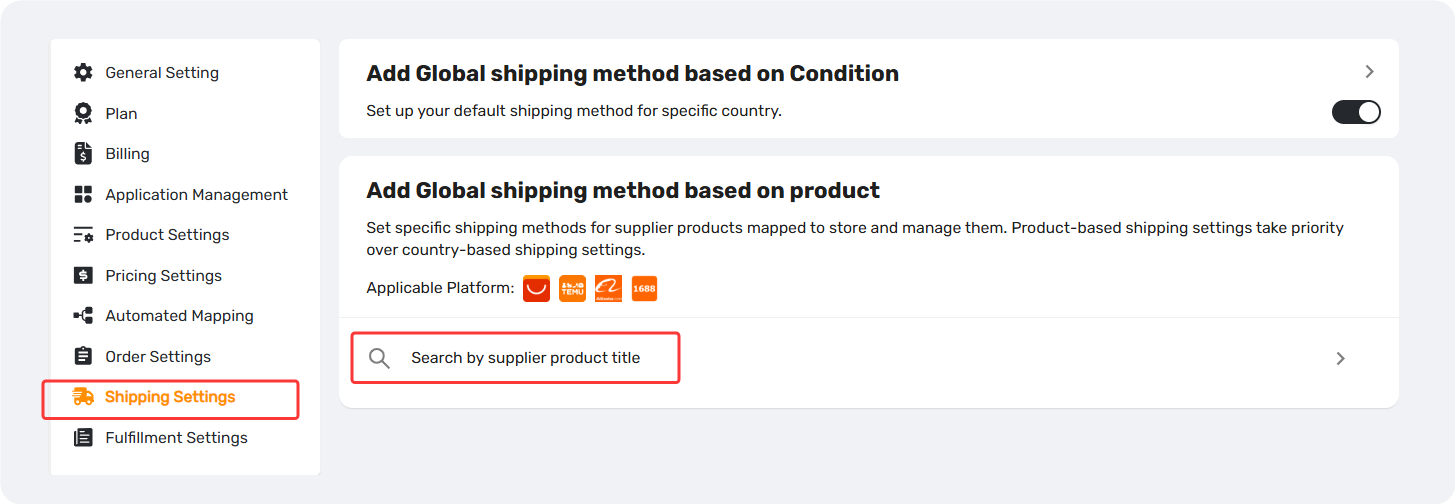
You can access this feature from two places:
- Settings > Shipping Settings – find the "Add Global shipping method based on product" section.
- Product Mapping page – open Favorite Suppliers, then click the Shipping Info icon.
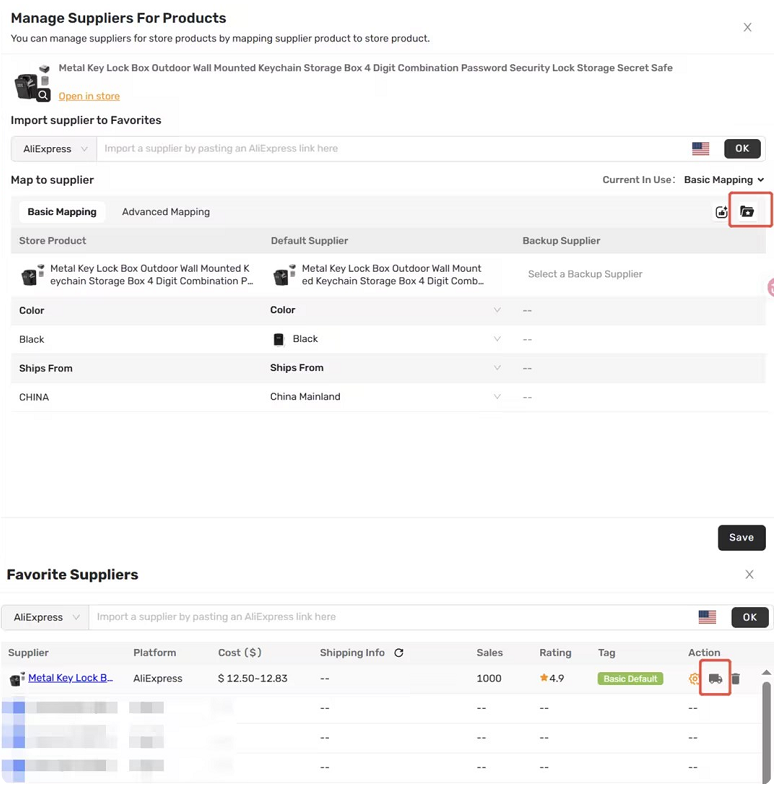
Either action opens the "Select product and set up shipping method" pop-up.
Step 2: Search for the Product
In the pop-up, you'll see two tabs:
- All (default) – lets you search for any mapped product to configure.
- Configured Products – shows items that already have a shipping method set, allowing you to view or edit existing rules.
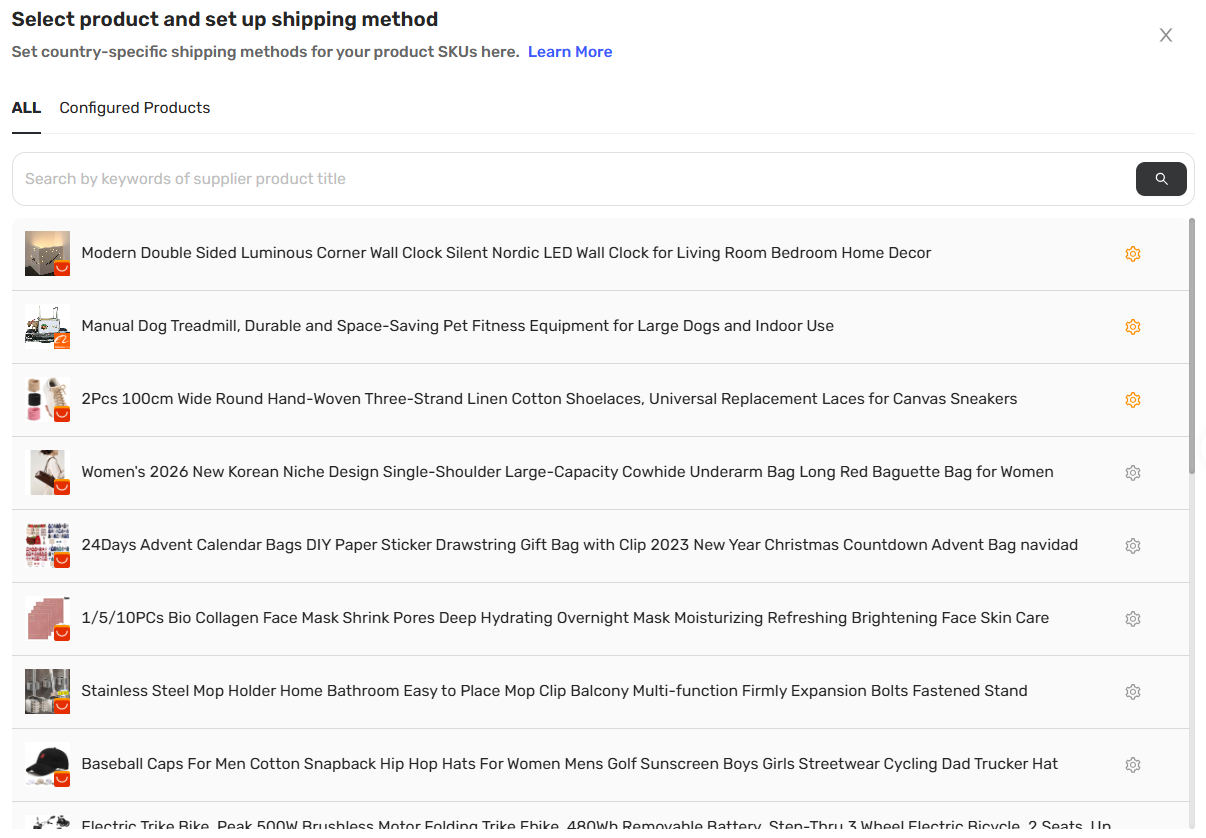
Use the search bar to find your product by supplier product title (supports fuzzy search). The product list displays all mapped SKUs.
Tip: Only products that have been mapped in DSers will appear in search results. See [Basic Mapping Templates: Scale Your Product Library] for more details on product mapping.
Step 3: Select the Destination Country
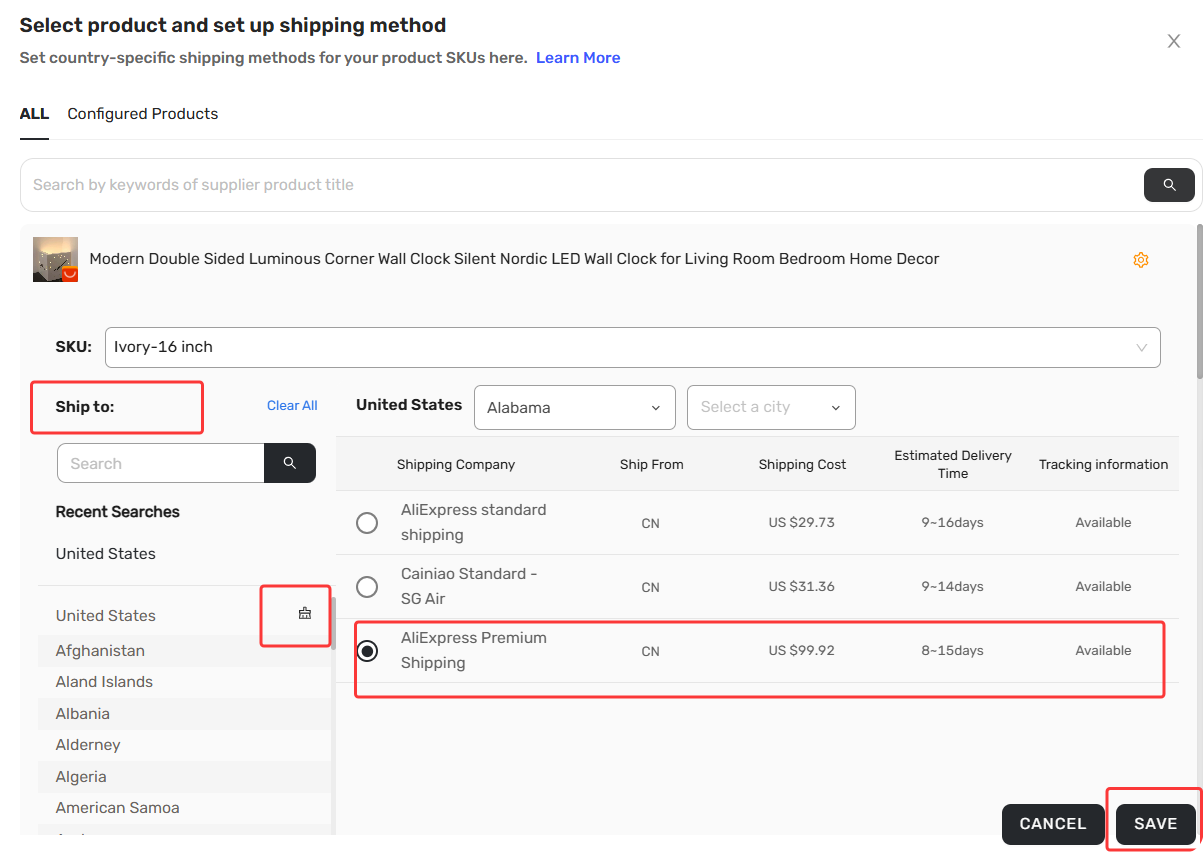
In the "Ship to" section:
- Type to search for a country, or scroll through the list.
- Recent searches appear at the top for quick re-selection.
- Click Clear All to reset your selection.
Tip: You can set up shipping methods for multiple countries by repeating Steps 3-4 for each destination.
Step 4: Choose a Shipping Method
After you select a country, the available shipping methods will load automatically from the supplier for that destination.
Select your preferred method from the list.
Step 5: Save or Delete the Rule
Click SAVE to confirm. The pop-up will close and the rule becomes active immediately.
To delete an existing shipping rule for a country: locate the country in the Ship to list—it will appear at the front with a brush icon next to it. Click the brush icon to remove that country's shipping setting.
Priority Order
When multiple shipping rules exist, DSers applies them in this order:
- Manual selection on the order card (Highest priority)
- Product-based rule (this feature)
- Country-based rule (General setting)
Check more details on Add Global shipping method based on Condition, see [Shipping Settings: How to Set Your Default Shipping Method].
Related Articles
- Shipping Settings: How to Set Your Default Shipping Method
- Basic Mapping Templates: Scale Your Product Library
- Shipping Cost Not Push to Shopify With Product Cost
- Master Pricing Settings: 2 Ways to Automate Your Product Pricing
- Basic Pricing Rule: Automate Your Product Pricing in Minutes
- Basic Pricing Rule: How to Add Shipping Cost to Your Pricing Rule
FAQ Section
Quick answers to the most common questions about DSers product-based shipping rules, setup, and priority logic.

Get Started Now to Grow Your Online Business with the DSers!