

A step-by-step guide to return unfulfilled orders to Awaiting Orders for reprocessing
Note
During order processing, you may encounter various situations that require returning an unfulfilled order to the Awaiting Orders tab for reprocessing.Click here to start dropshipping now with DSers
This article walks you through how to manually fulfill orders (or individual items) and then roll them back so you can start fresh.
Which Orders Can Be Rolled Back?
You can roll back orders from any tab except Canceled — with one exception:
| Cancellation Source | Roll Back Available? |
|---|---|
| Canceled by sales platform (Shopify, Wix, etc.) | ❌ No |
| Canceled by supplier (AliExpress, Alibaba, etc.) | ✅ Yes |
All other tabs (Pending, Awaiting Orders, Awaiting Payment, Awaiting Shipment, Awaiting Fulfillment, Fulfilled, Failed Orders) — ✅ Yes
How to Mark Unfulfilled Orders as Fulfilled
All unfulfilled orders (those outside the Awaiting Fulfillment and Fulfilled tab) need to be marked as fulfilled first. You can fulfill either the entire order or individual items.
Step 1: Select what to fulfill
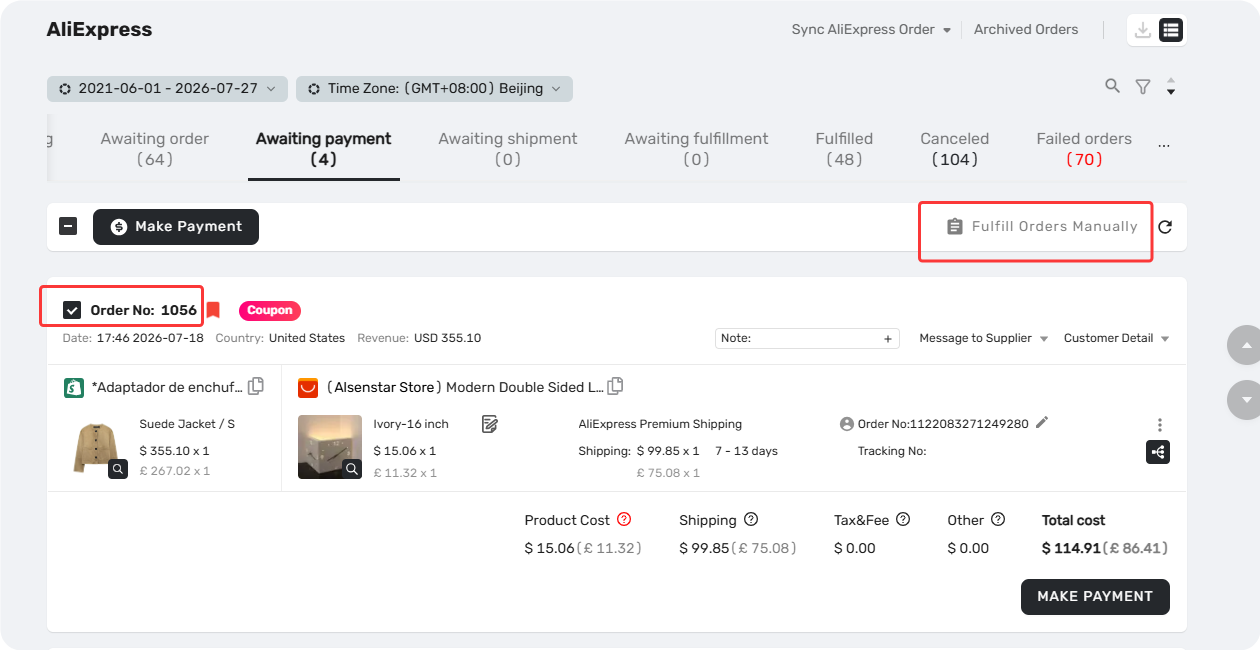
For the entire order: Select the order checkbox → click Fulfill Orders Manually.
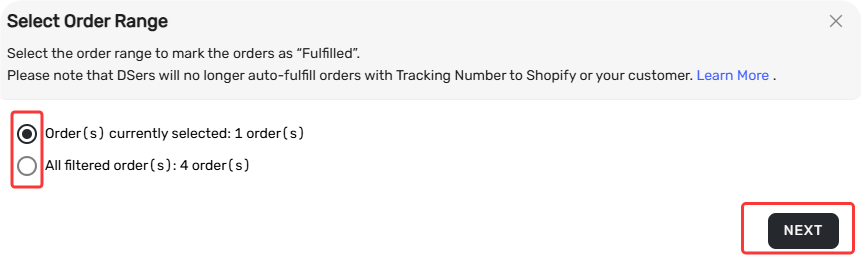
- In the pop-up, choose either "Fulfill the selected order(s) only" or "Fulfill all filtered orders" (only use this if you're certain all orders in this tab need fulfillment) → click Next
For a single item (multi-item orders only): On the order card, click the three dots (Action) on the item → select Mark as Fulfilled
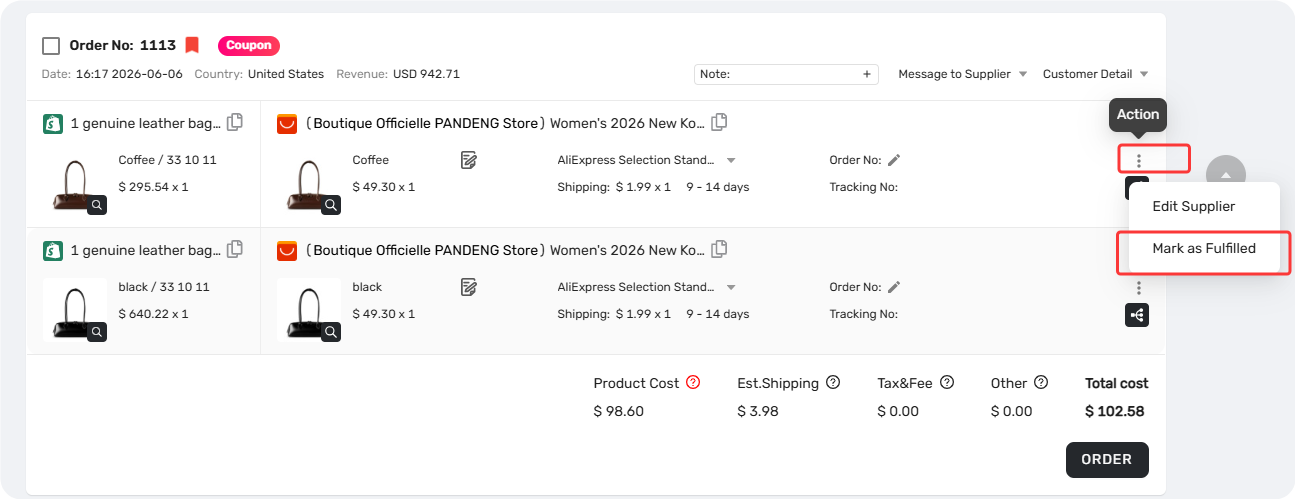
⚠️ Exception: Orders using Advanced Mapping (multiple supplier items mapped to a single variant) cannot fulfill individual items — use the entire order method instead.
Step 2: Choose fulfillment options
A pop-up appears with the following options:
| Option | Recommended for Roll Back? |
|---|---|
| Mark this order as fulfilled on Shopify too | ❌ No — your customer will find the order was fulfilled without tracking number |
| Sync available tracking numbers to Shopify | ⚠️ Optional |
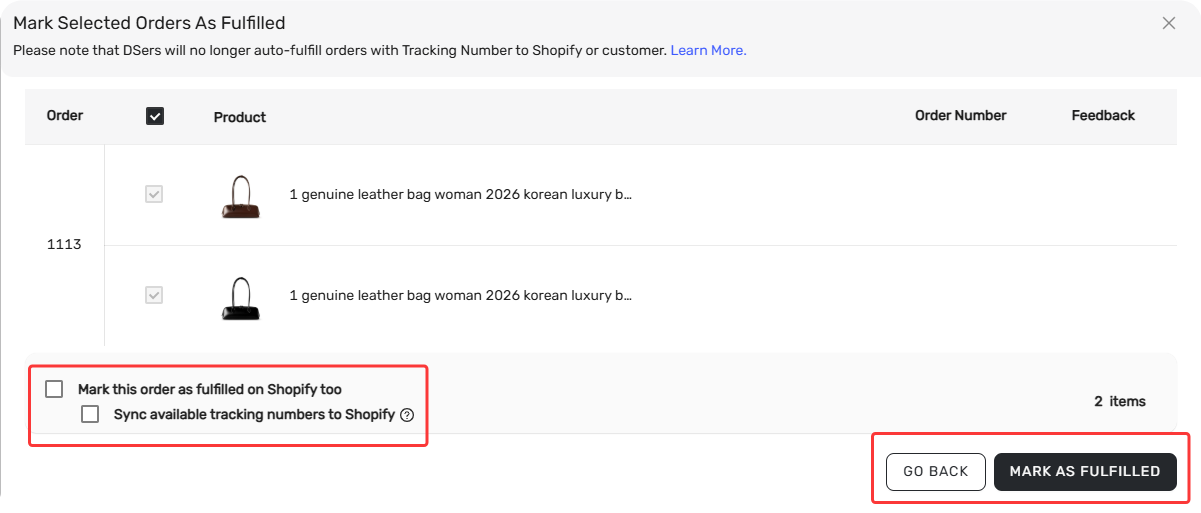
Click MARK AS FULFILLED, or GO BACK to cancel
Step 3: Confirm fulfillment
In the confirmation dialog, type CONFIRM (case-insensitive) and click OK, or click CANCEL to abort
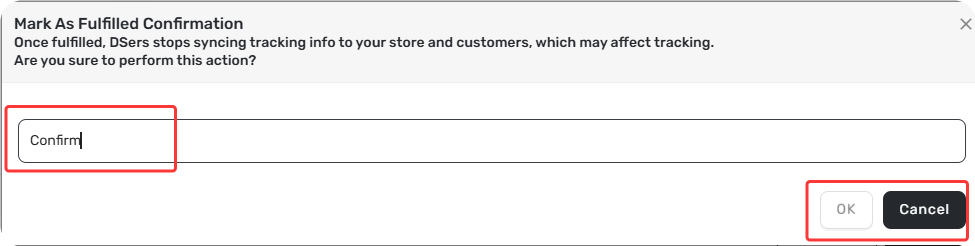
The order (or item) will now move to the Fulfilled tab. From here, you can proceed to roll it back to Awaiting Orders.
How to Roll Back After Fulfillment
Once your order is in the Fulfilled tab:
- Find the order and click the Roll Back button
- Follow the on-screen prompts to complete the rollback
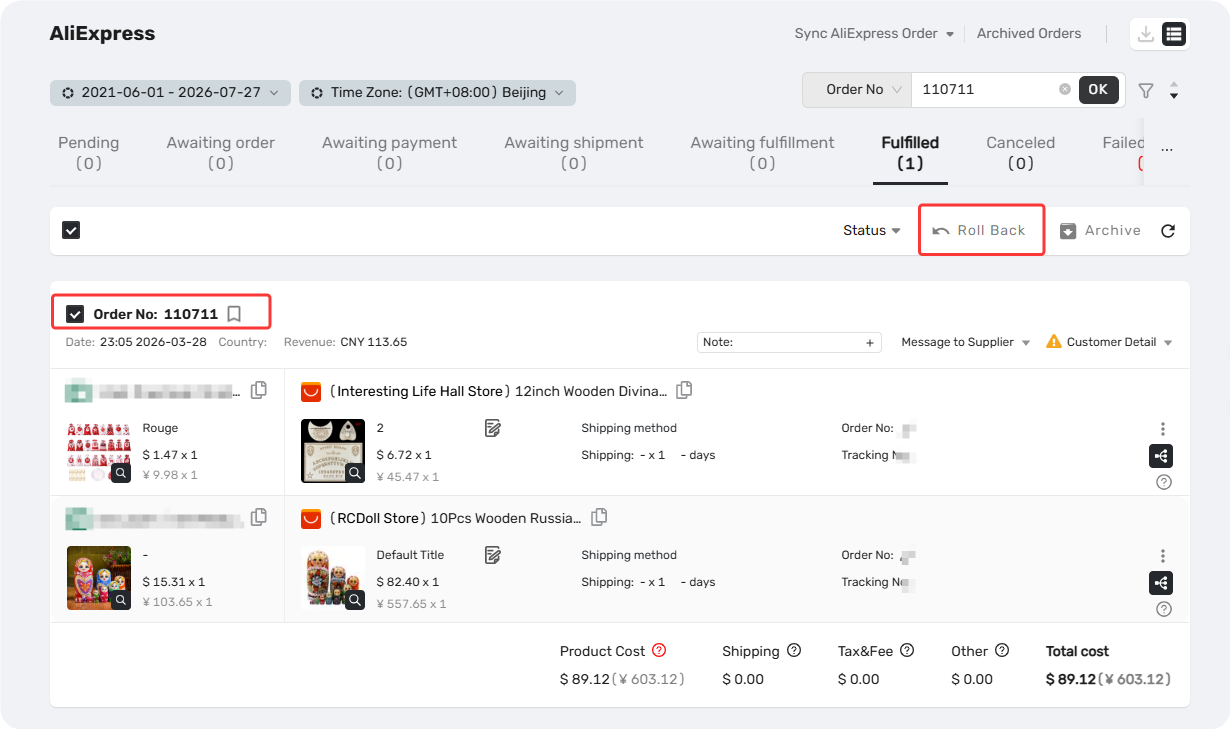
The order moves to Awaiting Orders and is ready for reprocessing.
Important: When marking an order as fulfilled, you can select specific line items to fulfill. However, the rollback function does not support item-level selection. It will roll back all items under that order from the Fulfilled tab to Awaiting Orders, and all original supplier order information will be lost.
Please review the order carefully before proceeding. If you're unsure whether you need to manually mark items as fulfilled and then roll back, or if you encounter any issues, contact our support team for assistance.
For more details on rolling back fulfilled orders, see [How to Roll Back a Fulfilled Order and Reprocess It]
Related Articles
- How to Roll Back a Fulfilled Order and Reprocess It
- How to Roll Back Fulfilled Orders for After-Sales Reprocessing
- Fulfilling Customer Orders: How to Place & Pay for Supplier Orders
FAQ Section
Quick answers to the most common questions about rolling back orders in DSers.

Get Started Now to Grow Your Online Business with the DSers!