

Move a fulfilled order back to Awaiting orders to place a replacement
Note
If an order is already fulfilled but you need to reorder—for example, because the item was damaged in transit, an incorrect variant was ordered, or a customer requests a replacement—this guide walks you through rolling it back and reprocessing it.Click here to start dropshipping now with DSers
Before You Start: Is Reordering Necessary?
Rolling back a fulfilled order removes its suppply platform order number, tracking number and fulfillment status—so only proceed if you're certain you need to reorder. If the issue can be resolved without reordering (e.g., contacting the supplier for a replacement), consider that route first.
If you decide to proceed, the process simply moves the order from Fulfilled to Awaiting Orders, ready for you to place again.
How to Roll Back a Fulfilled Order
Step 1: Locate the Order
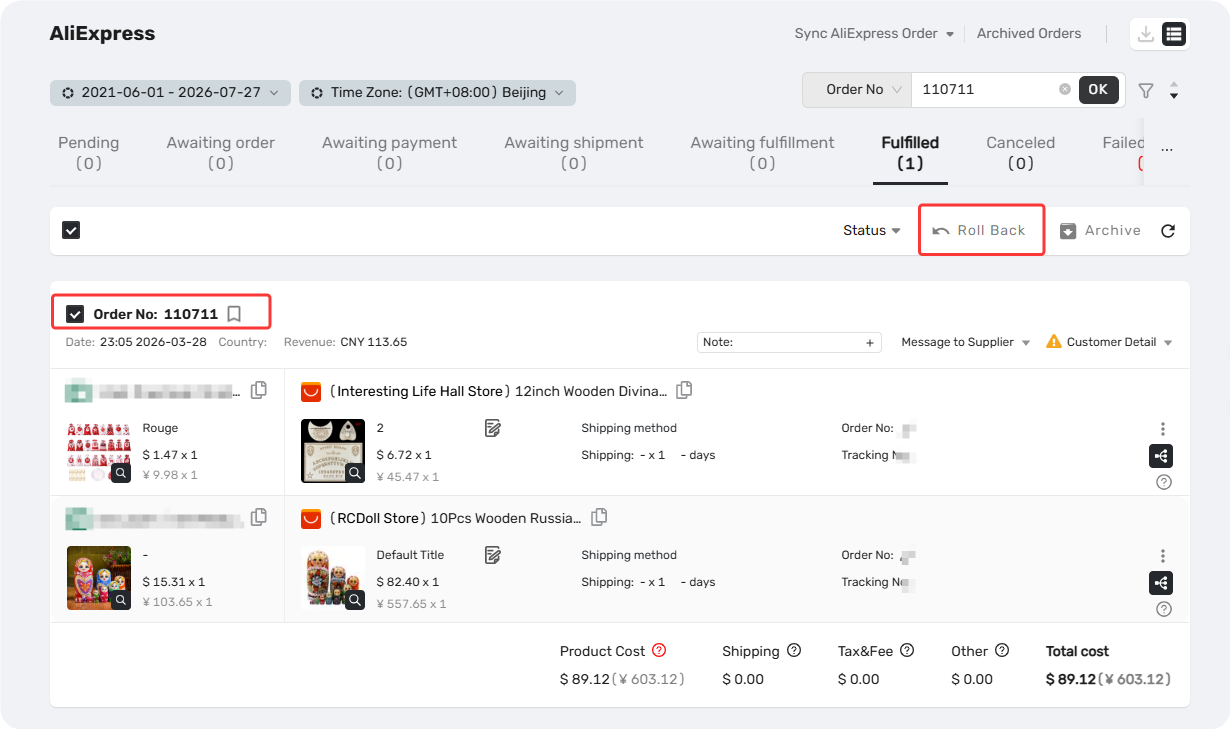
Go to DSers > Open Orders > Fulfilled tab. Find the order you want to roll back, click the order card, then click Roll back orders.
Step 2: Select Order Range
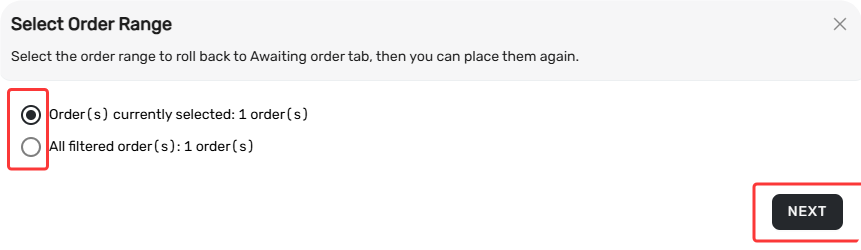
In the pop-up, choose which orders to roll back:
- Order(s) currently selected: Roll back only the order you selected.
- All filtered order(s): Roll back all orders in the current tab. Only use this if you need to reprocess every order.
⚠️ Bundle & BOGO orders: You cannot roll back only part of a Bundle or BOGO order. The entire order will be rolled back, and you will lose the AliExpress order number and tracking number for all items. Only proceed if you are prepared to reprocess the entire order.
Click NEXT.
Step 3: Sync Rollback to Sales Channel
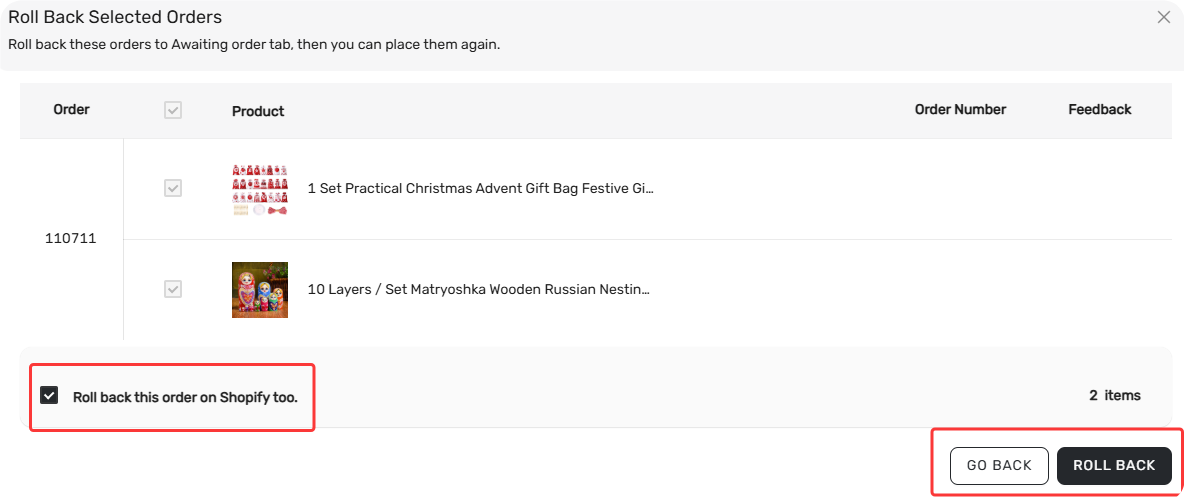
You will see the option: Roll back this order on Shopify too.
Make sure this is checked when rolling back. If you only roll back in DSers, your sales channel will still show the order as Fulfilled, and DSers may pull it back to the Fulfilled tab automatically.
Click ROLL BACK to continue, or GO BACK to cancel.
Step 4: Confirm Rollback
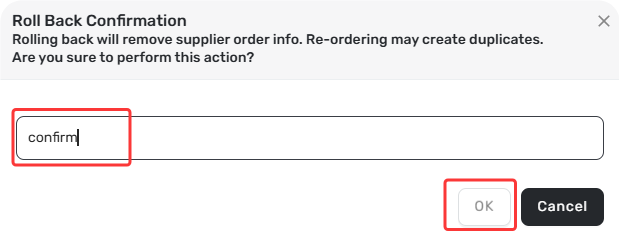
A confirmation pop-up will appear. Enter CONFIRM (case-insensitive) and click OK. Click Cancel if you change your mind.
The order moves to Awaiting orders. You can now reprocess it.
Placing the Order Again
Once the order is in Awaiting orders:
- Go to DSers > Open Orders > Awaiting orders.
- Find the order you rolled back.
- Click Order to place it with your supplier.
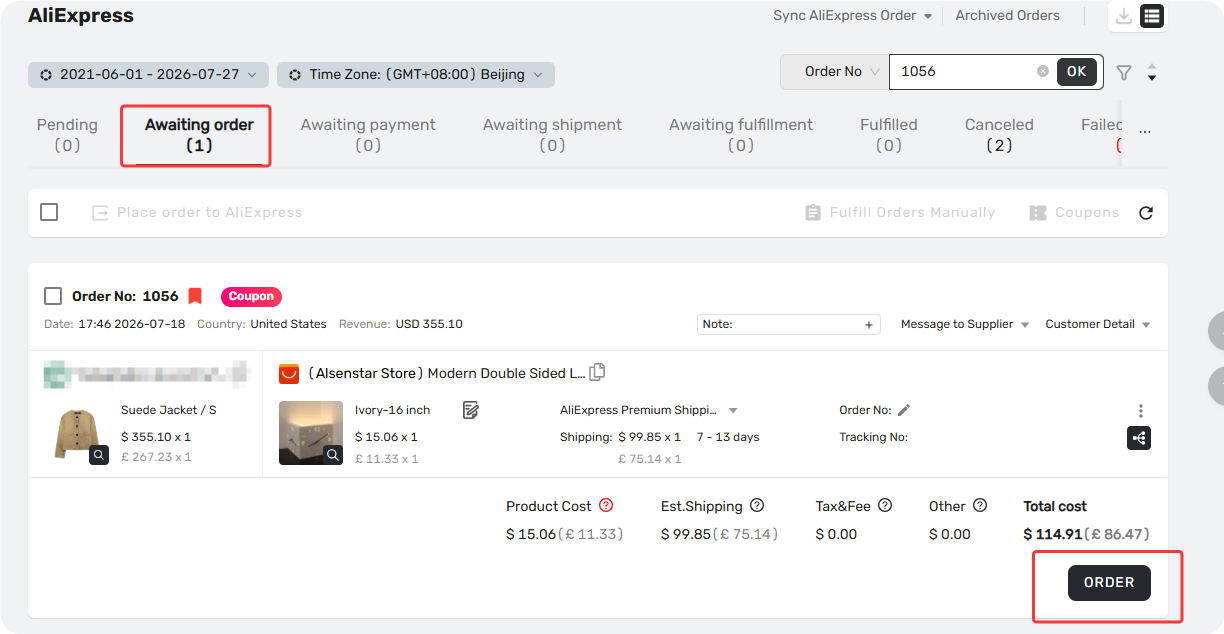
For a complete walkthrough of the ordering and payment process—including shipping method selection and payment options—refer to [Fulfilling Customer Orders: How to Place & Pay for Supplier Orders].
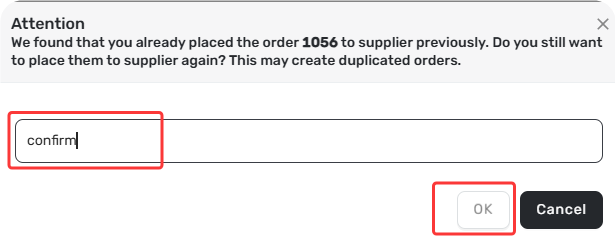
Tip: DSers will display a pop-up reminding you that an order for this product has already been placed. If you are sure you want to place it again, enter Confirm in the text field and click OK. If you are not sure, click Cancel.
Related Articles
- How to Roll Back a Fulfilled Order and Reprocess It
- How to Roll Back and Reorder Unfulfilled Orders
- Fulfilling Customer Orders: How to Place & Pay for Supplier Orders
- BOGO & Bundle Mapping: Sell More with Product Combinations
FAQ Section
Quick answers to the most common questions about rolling back fulfilled orders in DSers.

Get Started Now to Grow Your Online Business with the DSers!