

Set store and product notes to protect your brand
Note
One common dropshipping task is telling suppliers what not to include in packages — invoices, QR codes, or promo flyers can reveal you're not the manufacturer and hurt your brand.
With DSers, you can set default messages for all orders from a specific store, or per-product custom notes for more control. Set it up once, and DSers handles the rest.
Before you start: If you have special requirements for a supplier, it's best to ask them first whether they actually support your request before leaving a note.
Configuring Leave a Message to Suppliers
To access the message settings:
- Go to DSers > Settings > Order Settings.
- Under Leave a message to suppliers, select the supply platform (AliExpress, 1688 Dropshipping, Alibaba, or Agent).
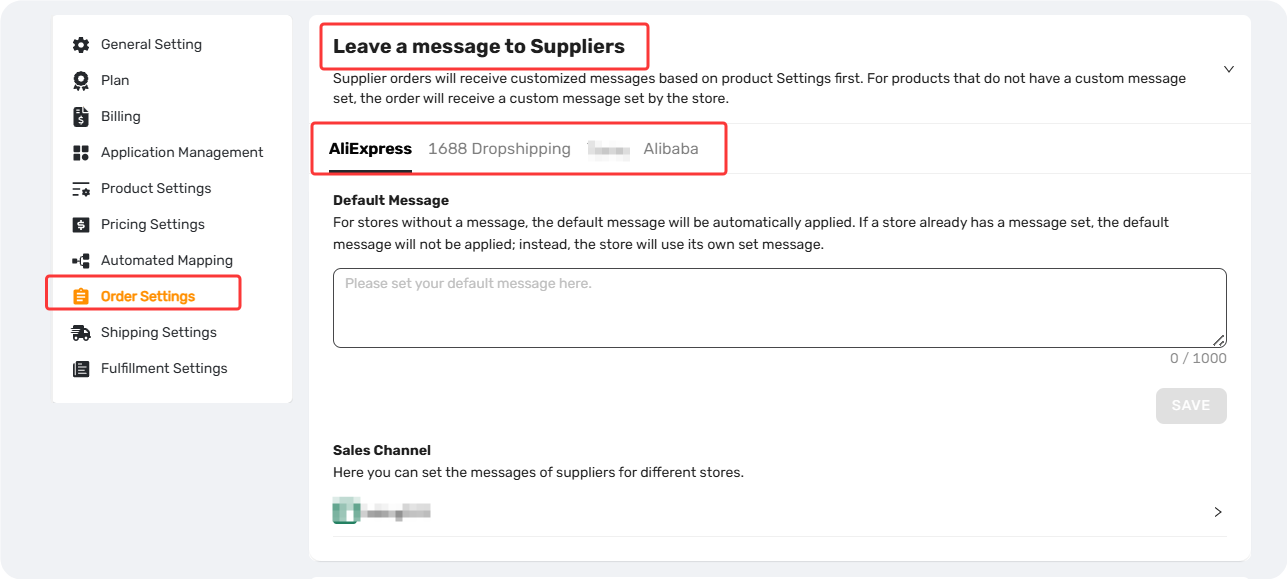
From here, you can configure messages at three levels:
1. Account-Level Default Message
Set once and apply to all stores that don't have their own message — no need to configure every store individually.
- Locate the Default Message section at the top.
- Enter your global message (max 1,000 characters).
- Click Save.
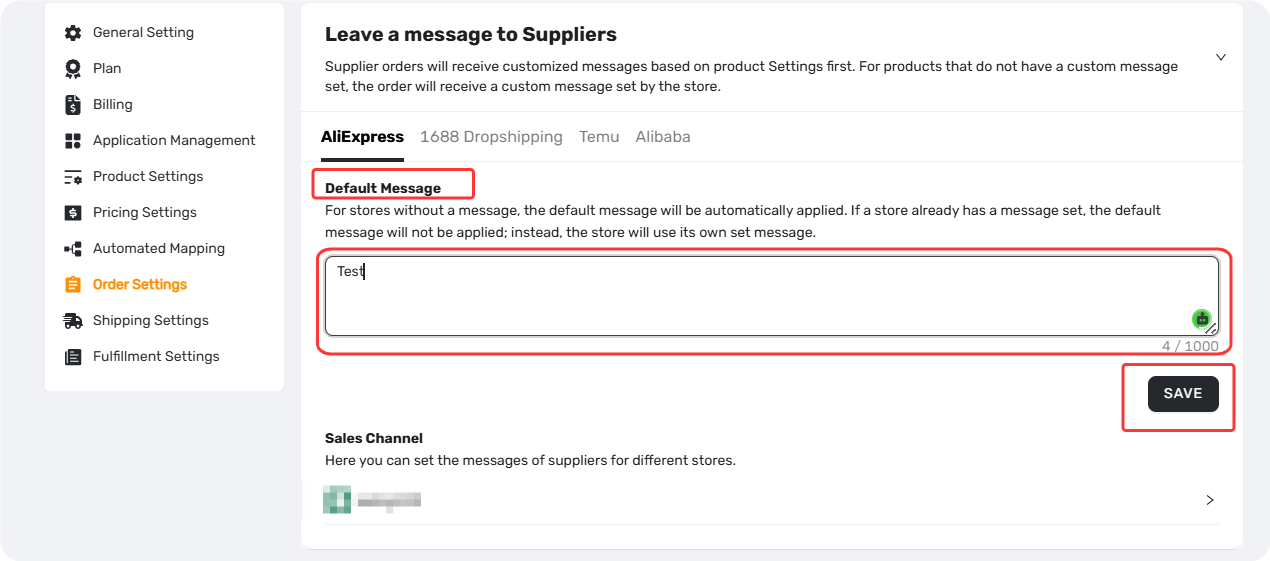
DSers does not set any default messages automatically — you must configure them.
2. Store-Level Message
Different stores may have different requirements. A store-specific message overrides the account default.
- Scroll down to the Store section.
- Find the store you want to configure and click to expand it.
- Enter your store-specific message (max 1,000 characters).
- Click Save.
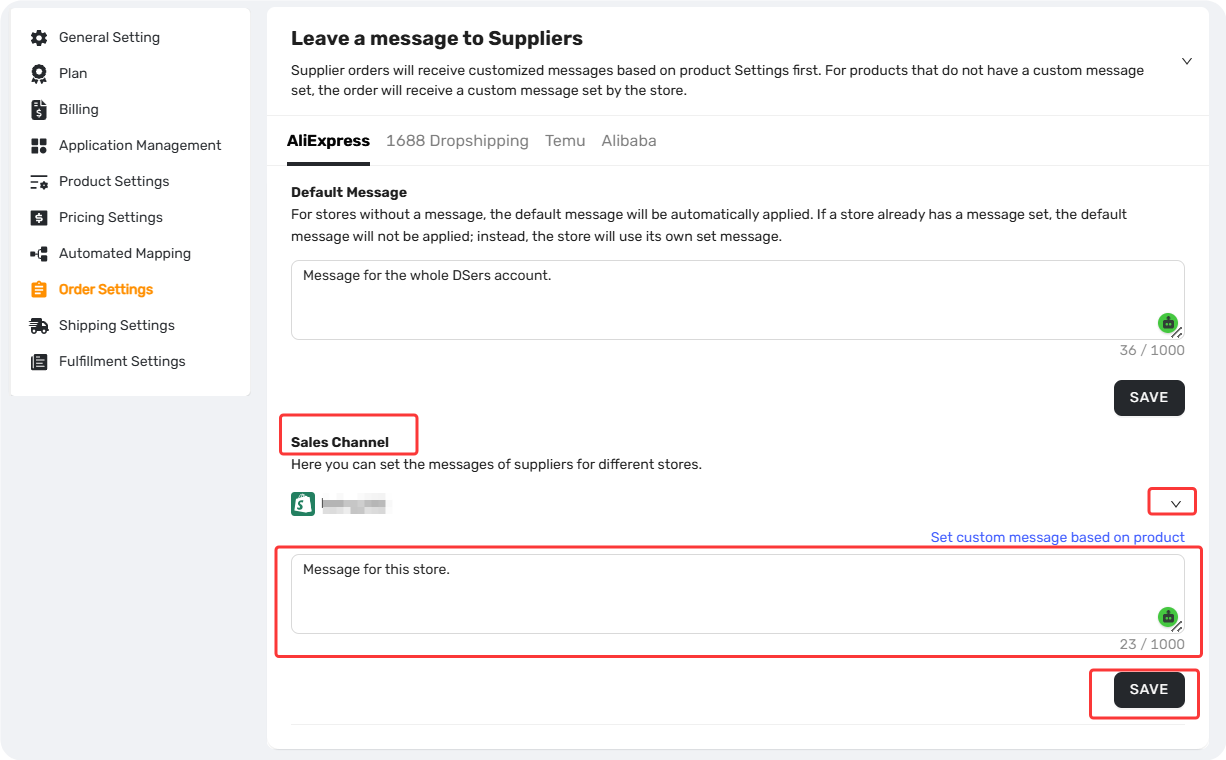
3. Per-Product Custom Message
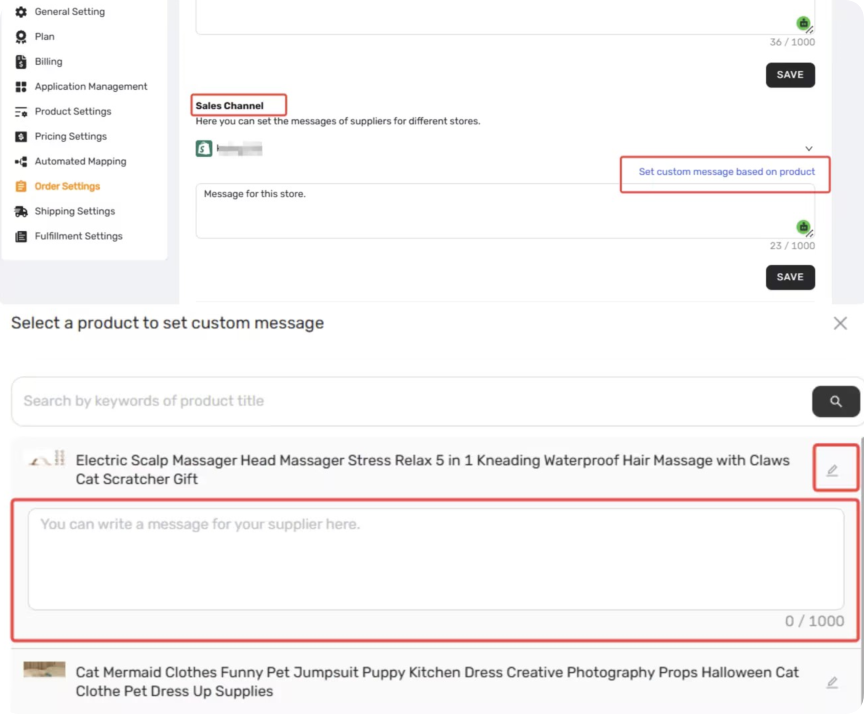
Add special handling instructions for specific products (e.g., "pack in a rigid box") — this has the highest priority.
- In the Store section, find the store containing the product.
- Click Set custom message based on product.
- Search or scroll to find the product, then click the product card to expand it.
- Enter your custom message (max 1,000 characters).
- Click Save.
Priority Rule (Highest to Lowest)
- Product-level custom message
- Store-level message
- Account-level default message
Edit Custom Message for a Specific Order
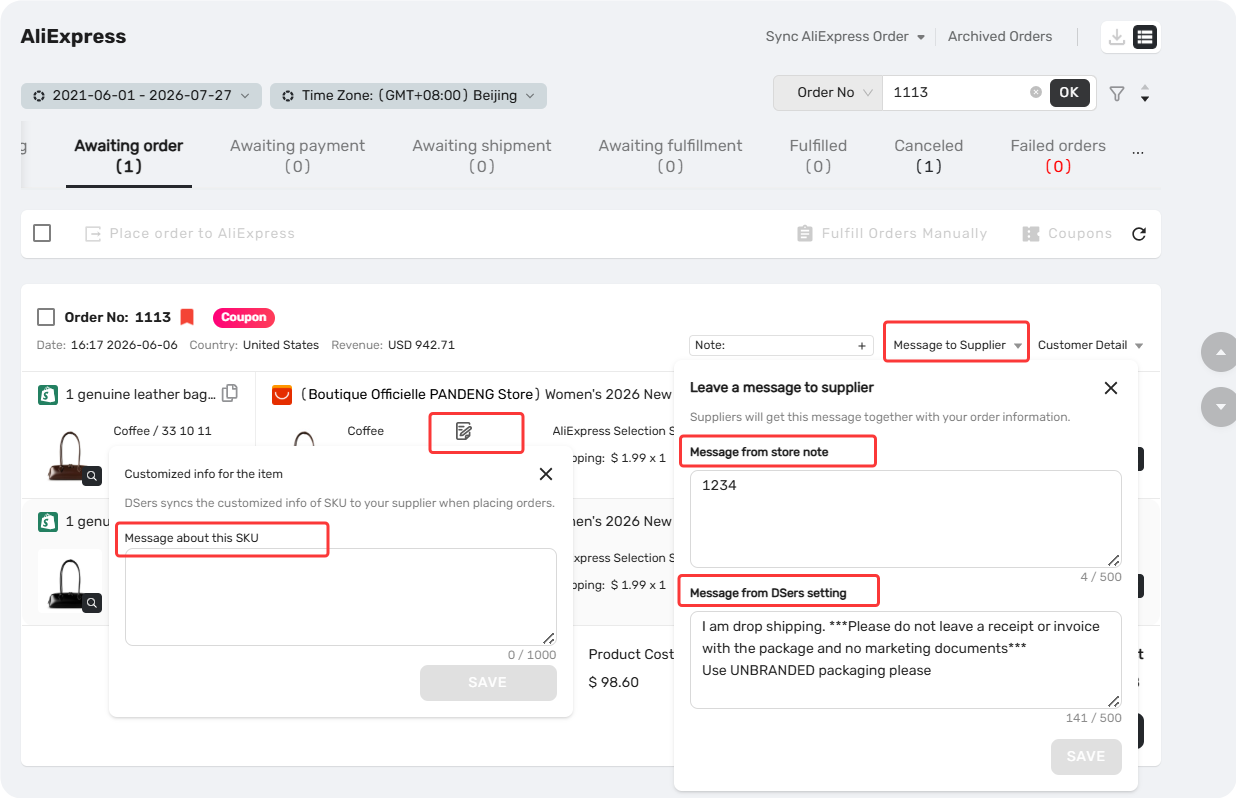
Edit or add a one-off message for a specific order without changing your default settings. This overrides any account, store, or product-level message for this order only.
- Go to Open Orders > Awaiting Order/Canceled/Failed orders.
- Find the order and click Message to Supplier.
- Add it under Message from store note or Message from DSers setting.
- Alternatively, click notebook button to open Customized info for the item — here you can only add a new note per SKU (you cannot edit Shopify-synced data).
- Click Save.
Verify the Message on Supply Platform
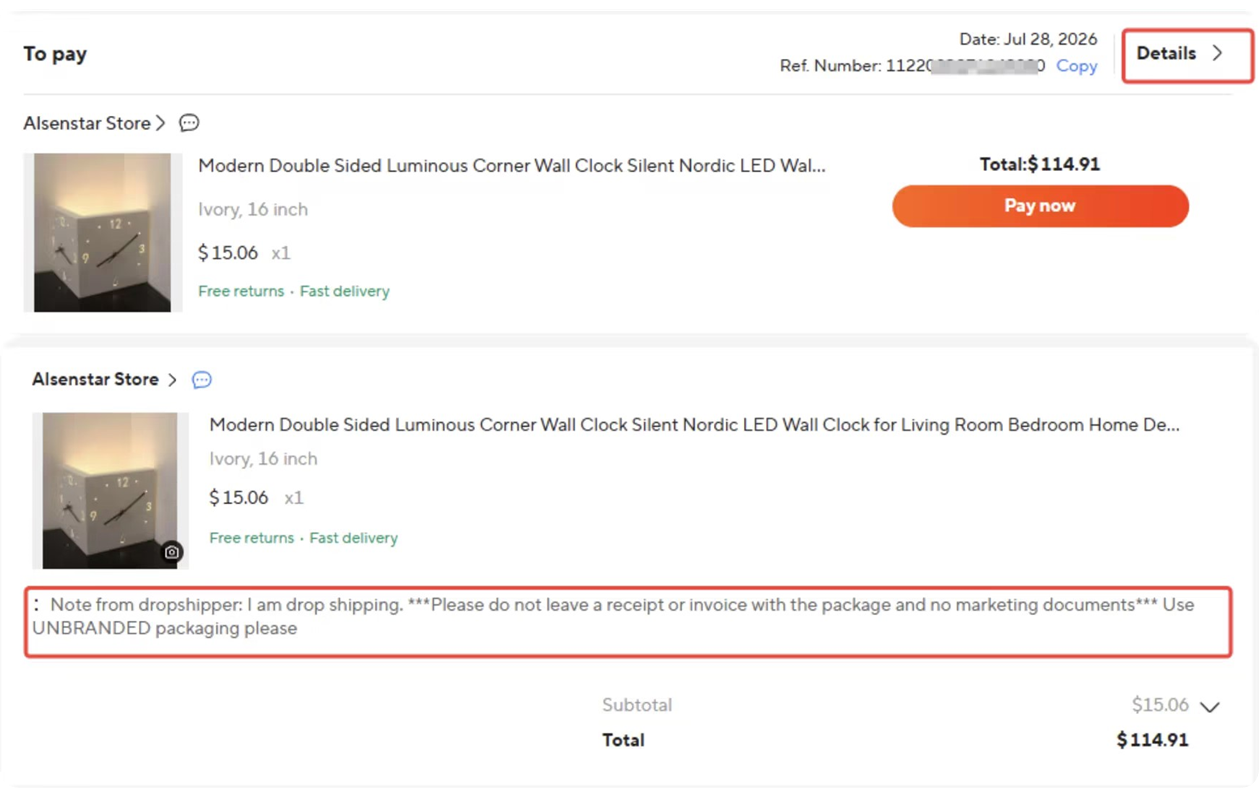
For AliExpress and Alibaba orders, you can confirm it was correctly transmitted to the supplier to avoid misunderstandings.
- Log in to AliExpress /Alibaba and go to Account-Orders.
- Find the order and click Details.
- Look for the Note section under order details — the synced message will appear there.
Related Articles
- Fulfilling Customer Orders: How to Place & Pay for Supplier Orders
- How to Sync Messages to Suppliers in DSers
- How to Sync Customer Checkout Notes to Suppliers
- How to Sync Per-Item Customization Notes from Shopify to Suppliers
FAQ Section
Quick answers to the most common questions about DSers supplier message settings, priority levels, and order-specific notes.

Get Started Now to Grow Your Online Business with the DSers!