


Your tracking page looks like your brand. Shouldn't the link say the same? Here's how to set up a custom tracking URL.
Note
You've set up your branded tracking page—great first step. But if the tracking link still reads dsers-track, it's undermining your brand experience. Replacing that generic path with your own custom URL keeps customers on your store domain. Small change, big professional impact.
Before You Start
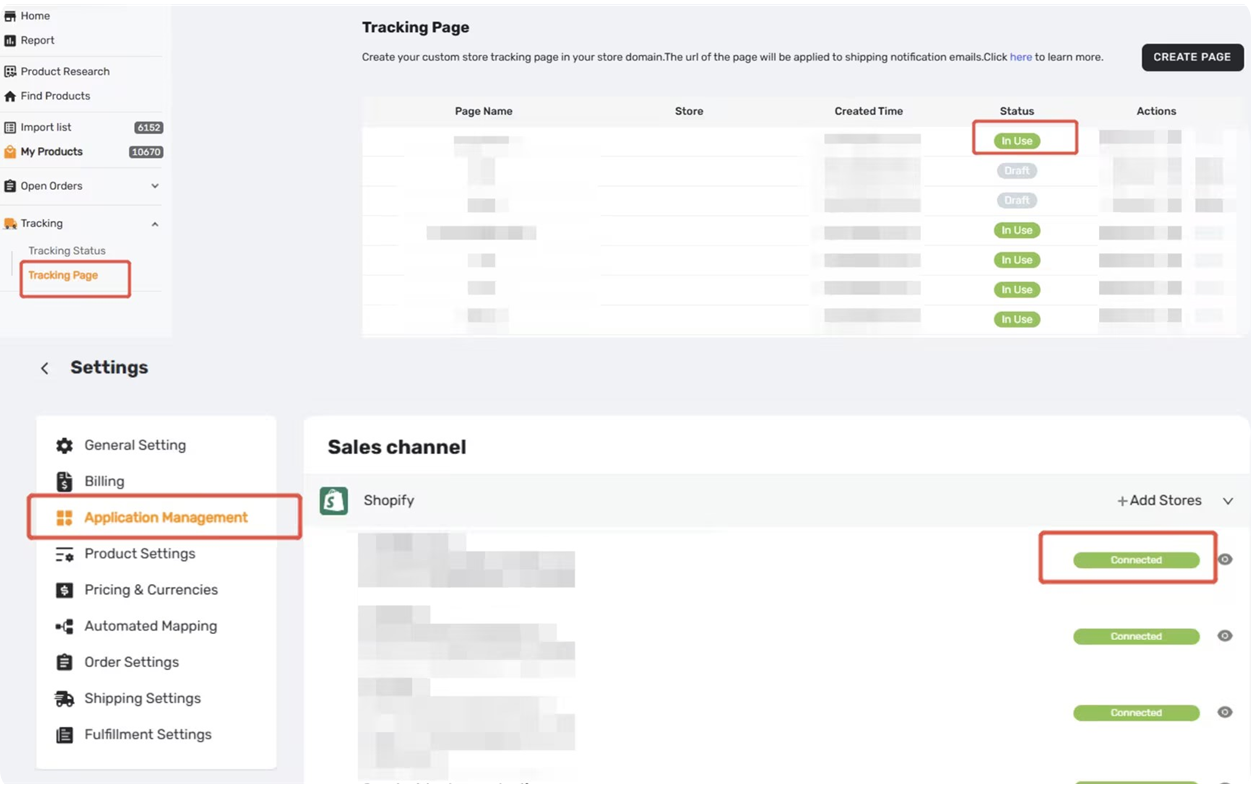
- Store Tracking Page created and activated in DSers
- Shopify store connected to DSers
Your custom URL won't work if your Tracking Page is in Draft status.
What You're Changing
Replace the default dsers-track segment in your tracking link with a custom URL path of your choice.
| Default URL | Custom URL |
|---|---|
your-store.com/apps/dsers-track?order=12345 |
your-store.com/track?order=12345 |
Change dsers-track to anything you like — track, order-status, delivery, or your own custom path. A cleaner link keeps customers on your domain and strengthens your brand trust.
Step 1: Set Your Custom URL in DSers
1. Tracking - Tracking Page to confirm the page is active.
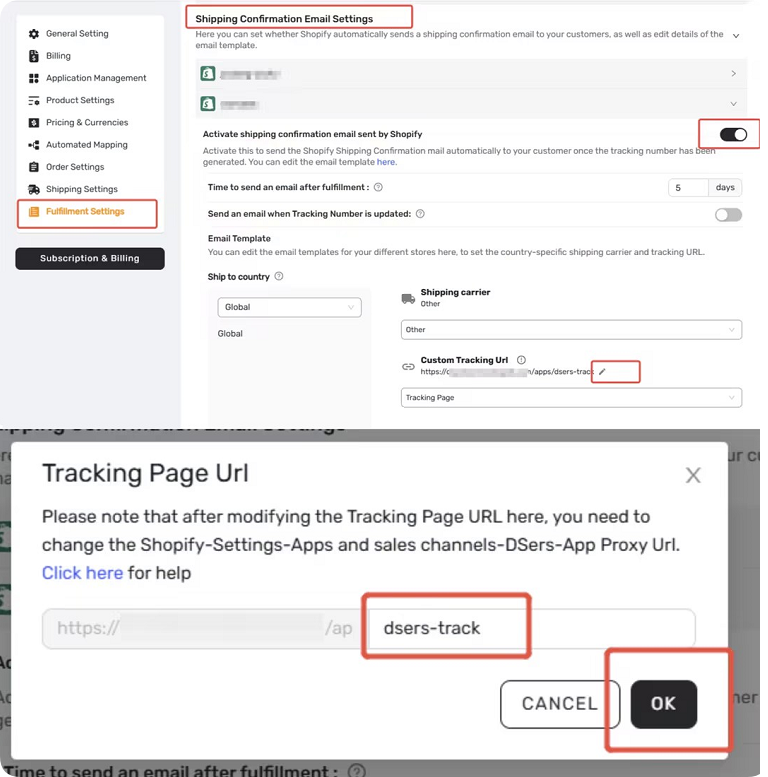
2. Go to Settings - Fulfillment Settings - Shipping Confirmation Email Settings - Email Template.
3. In the Edit drawer, find the Custom Tracking URL field.
Enter your preferred path (e.g., track, order-status).
Guidelines: Lowercase, no spaces, max 50 characters.
4. Click Save.
Step 2: Update Your Shopify App Proxy URL
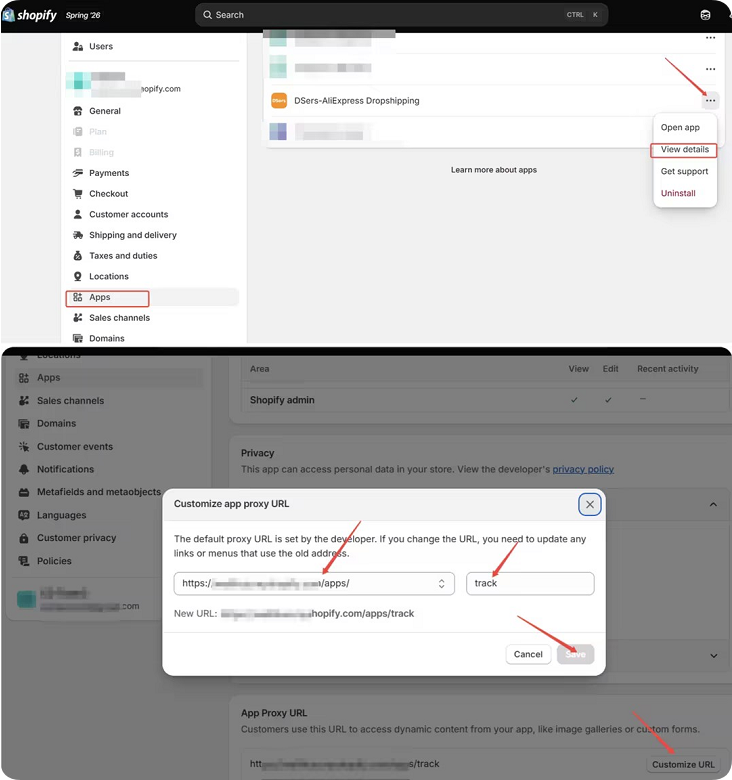
1. In your Shopify admin, go to Settings - Apps and sales channels - DSers - Open app.
2. Locate the App Proxy URL section.
Enter the path you set in DSers as exactly the same.
3. Click Save.
To verify your custom tracking URL is set up correctly:
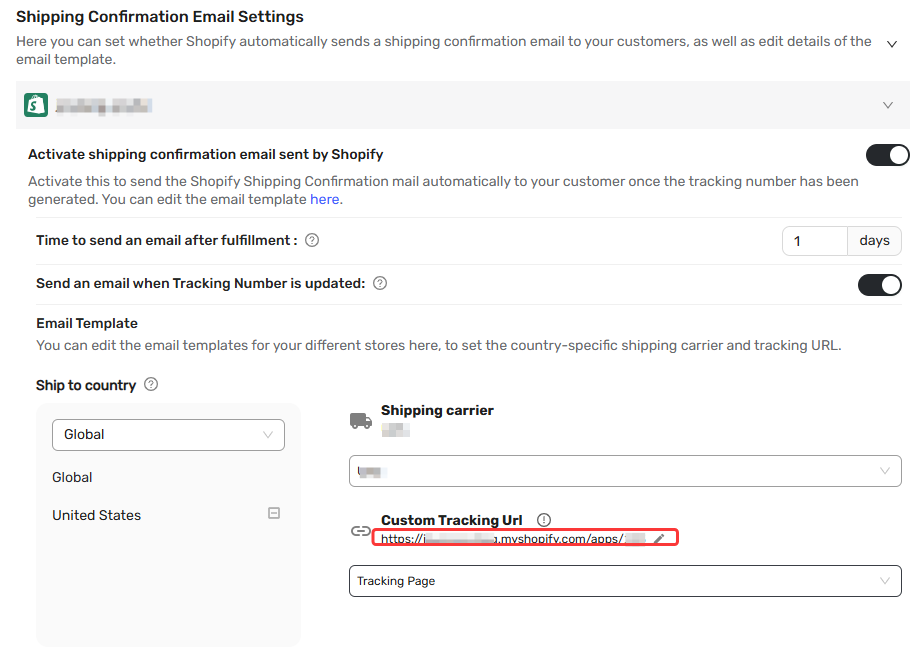
- 1. Copy the tracking link
Go to DSers Settings → Fulfillment Settings → Shipping Confirmation Email Settings → Email Template, and copy the contents of the Custom Tracking Number field.
- 2. Test the link
Paste the URL in your browser, then append?tn=with a valid tracking number after — use an actual tracking number from an order from the same store of tracking page that was fulfilled with DSers. - 3. Check the result
If the link loads the tracking details correctly, your setup is complete and working.
Example:your-store.com/apps/dsers-track?tn=12345
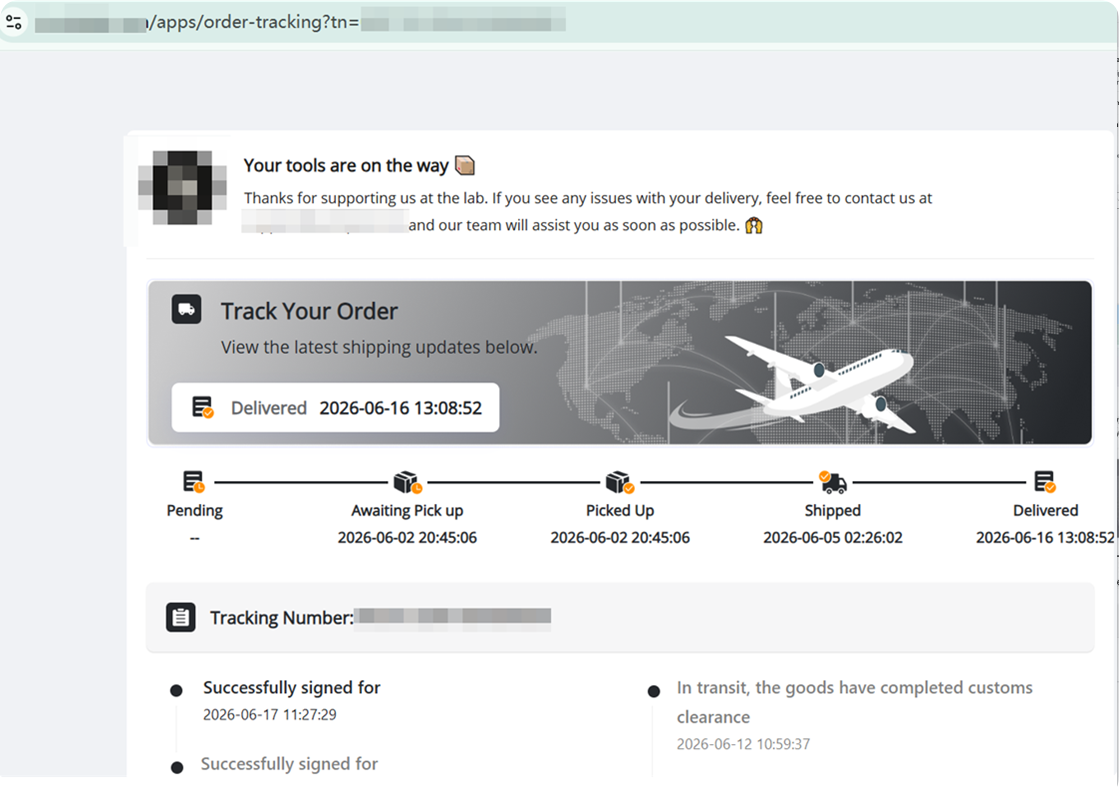
Before you finish:
- Your Tracking Page must stay activated.
- Existing links won't update—only new fulfilled orders use the new URL.
- The path must match exactly in both DSers and Shopify.
FAQ Section
Quick answers to the most common questions about setting up a custom tracking URL.
| Get Started Now to Grow Your Online Business with the DSers! |



 Company
 Why Choose DSers
 Blog
Blog
 Help Center


