

Automatically pass customer instructions to your suppliers—no more manual copying
Note
Synchronize store order notes is useful when customers leave special instructions during checkout — such as gift messages or delivery notes.Click here to start dropshipping now with DSers
What This Feature Does
When enabled, DSers automatically captures any note your customer leaves at checkout and passes it to your supplier along with the order. No more copy-pasting instructions manually.
This feature is available across all major store platforms and suppliers supported by DSers.
Before You Start
Before enabling this feature, make sure you've completed the following:
- Enable the checkout note field on your storefront — Ensure your cart or checkout page has a note field for customers. The setting location varies by platform.
- Confirm with your supplier — Ask whether they support receiving checkout notes and whether they have any restrictions.
How to Enable the Feature
- Log in to DSers.
- Go to Settings > Order Settings.
- In the Synchronize store order notes section, toggle the button ON (off by default).
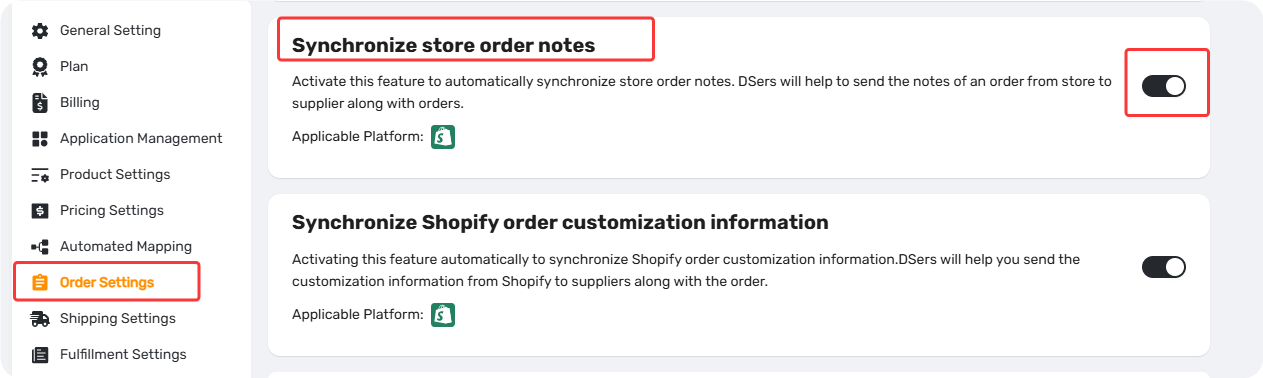
Important: This only applies to orders placed after you enable it. Existing orders won't be affected.
Where to Check the Synced Note
Check in DSers (Before Placing the Order)
To review the synced customer note before sending the order to your supplier:
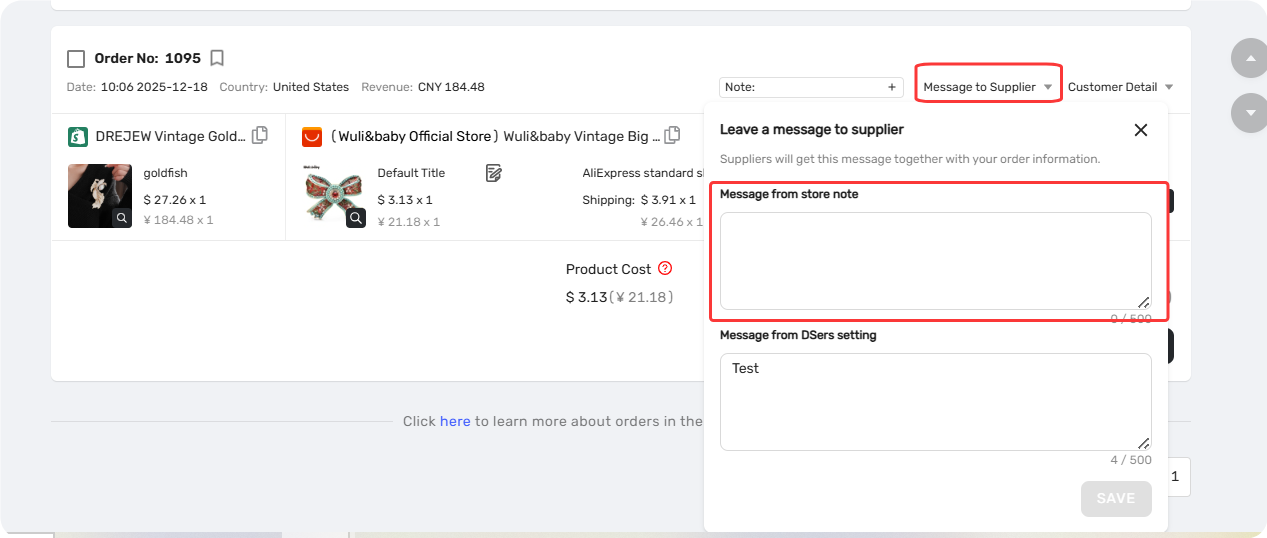
- Go to Open Orders.
- Select Awaiting Orders, Canceled, or Failed Orders.
- Open the order card and navigate to Message to Supplier > Message from Store Note.
Check in AliExpress (After Placing the Order)
To confirm the note was correctly transmitted after the order has been placed with your supplier:
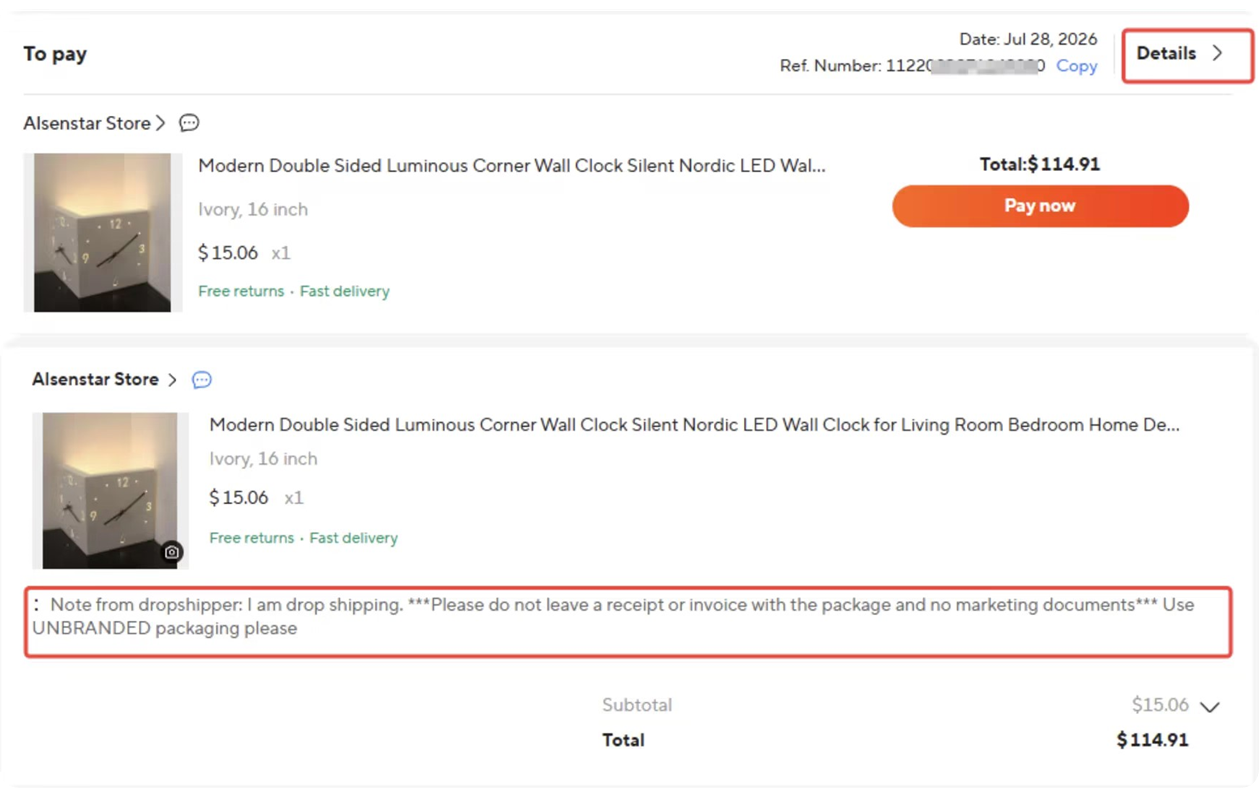
- Log in to AliExpress and go to Account-Orders.
- Find the order and click Details.
- Look for the Note section under order details.
Special Cases
- Character limit: The checkout note is limited to 500 characters. Longer notes will be truncated.
- Images: If a customer wants to include an image, ask them to provide an image link in the note — DSers will sync it automatically.
- Order-level sync: The note syncs at the order level, so the same note applies to all items.
For POD items with different customizations per product, use Synchronize Shopify order customization information instead. See[ How to Sync Per-Item Customization Notes from Shopify to Suppliers] for details.
Related Articles
- Fulfilling Customer Orders: How to Place & Pay for Supplier Orders
- How to Sync Messages to Suppliers in DSers
- Leave a Message to Suppliers: Store and Per-Order Settings
- How to Sync Per-Item Customization Notes from Shopify to Suppliers
FAQ Section
Quick answers to the most common questions about DSers store order note sync.

Get Started Now to Grow Your Online Business with the DSers!