

Save time by automating per-item customization sync to your suppliers
Note
Synchronize Shopify order customization information is useful when customers leave different instructions for each item in their cart — such as personalized text or image uploads for POD products.Click here to start dropshipping now with DSers
What This Feature Does
When enabled, DSers automatically syncs per-item customization notes from your Shopify store to your supplier. This is ideal for POD products where each item may have different text, colors, or image uploads.
This feature is available for Shopify stores and works with AliExpress, Alibaba, 1688 Dropshipping, and Agent suppliers.
Before You Start
Before enabling this feature:
Install a third-party Shopify app that supports per-item custom notes or image uploads, and ensure it's configured to collect notes at the item level.
Confirm your supplier accepts and processes per-item customization notes.
Tip: This feature syncs at the item level. If you have a store-level default message set in Leave a Message to Suppliers, DSers will combine both messages.
How to Enable the Feature
- Log in to DSers.
- Go to Settings > Order Settings.
- In the Synchronize Shopify order customization information section, toggle the button ON.
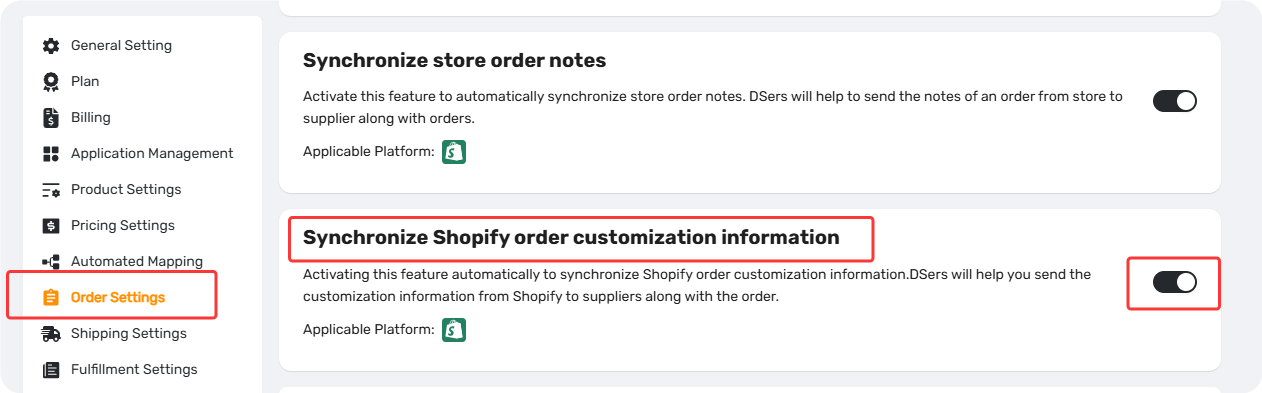
Important: This only applies to orders placed after you enable it. Existing orders won't be affected.
How to Verify the Synced Note
Check in DSers (Before Placing the Order)
To review the synced customization notes before sending the order to your supplier:
- Go to Open Orders.
- Select Awaiting Orders, Canceled, or Failed Orders.
- Find the order and click notebook button to Customized info for the item — each item will display its customization note in the format:
Customized information: [customer's note].
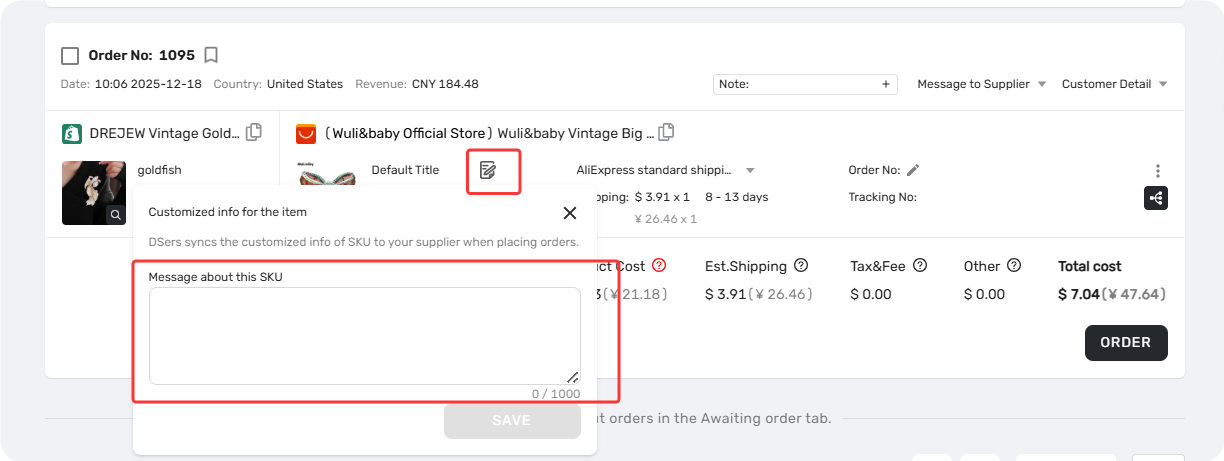
If the customization app captures an image from the customer, DSers converts it to an image URL and adds it to the message, separated by a comma. Example: Customized information: Happy Birthday, <https://example.com/image.jpg>
Check in AliExpress (After Placing the Order)
To confirm the notes were correctly transmitted after the order has been placed with your supplier:
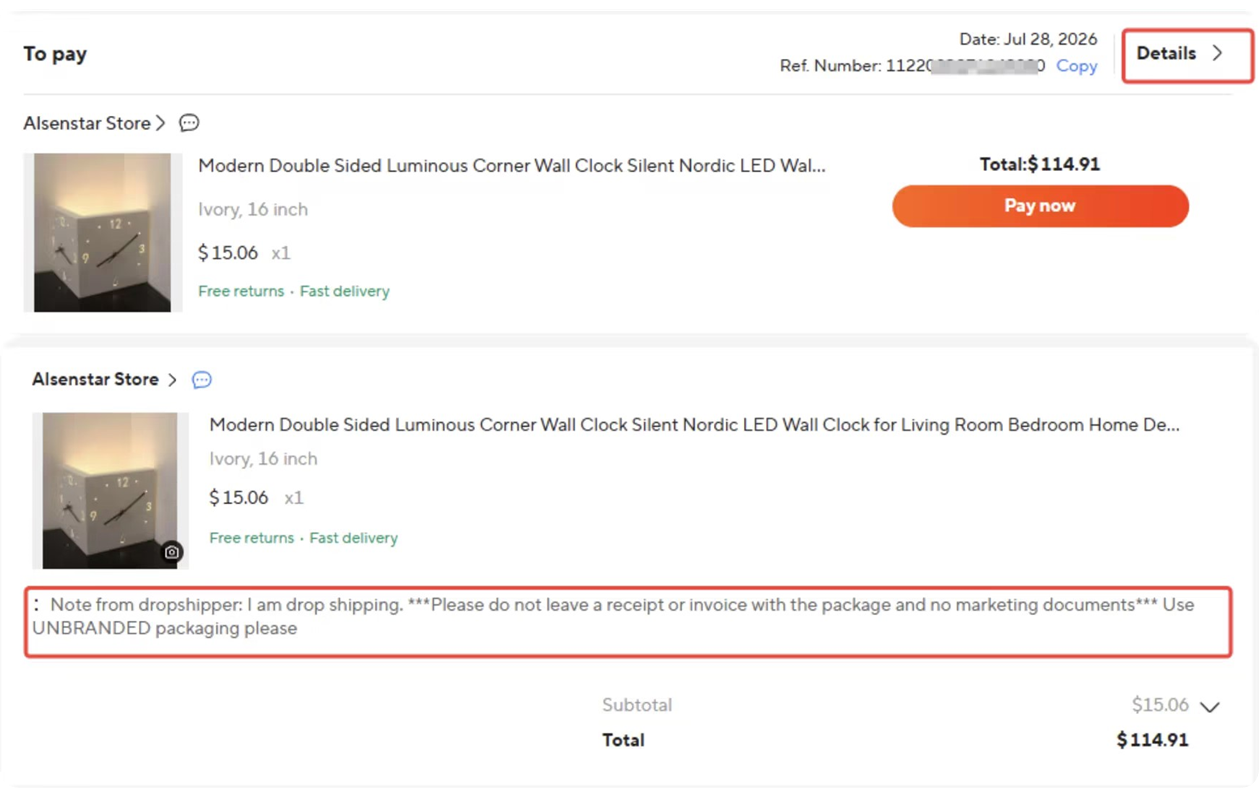
- Log in to AliExpress and go to Account-Orders.
- Find the order and click Details.
- Look for the Note below each item — each item will show its corresponding note.
Related Articles
- How to Sync Messages to Suppliers in DSers
- Leave a Message to Suppliers: Store and Per-Order Settings
- How to Sync Customer Checkout Notes to Suppliers
- Fulfilling Customer Orders: How to Place & Pay for Supplier Orders
FAQ Section
Quick answers to the most common questions about DSers Shopify order customization sync.

Get Started Now to Grow Your Online Business with the DSers!