

Find the right supplier match for unmapped products, changed SKUs, or supplier not found issues — step by step.
Note
When a supplier changes a SKU, runs out of stock, or discontinues a variant, your product mapping breaks and orders can't go through.Click here to start dropshipping now with DSers
AI Mapping automatically finds matching supplier products for your unmapped variants, so you can fix errors without manually searching AliExpress.
This guide covers the complete step-by-step process.
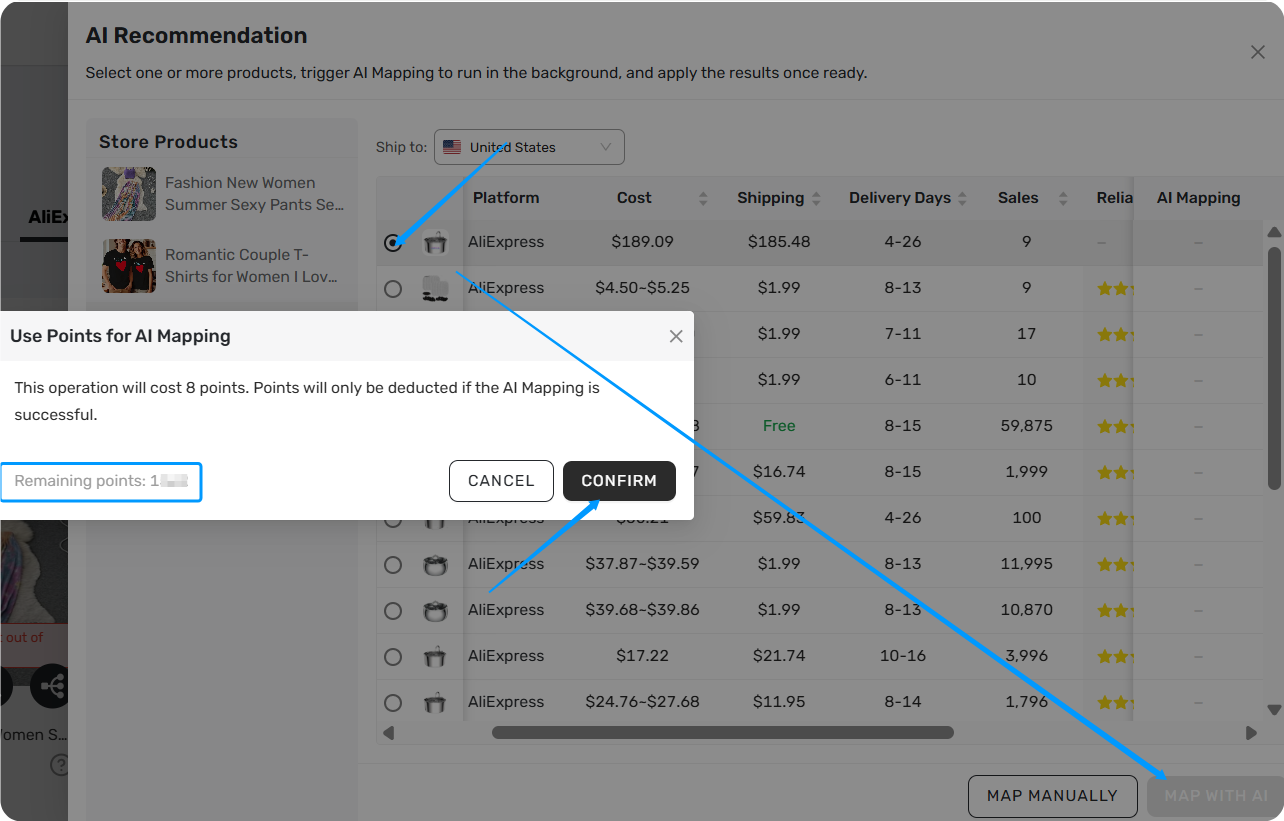
AI Credits: What They Are and How They Work
AI Mapping uses AI Credits
- Cost: 8 Credits per mapping
- New users: Receive 10 free credits upon registration
- Shared pool: All AI features use the same credit pool
Step-by-Step: How to Use AI Mapping
Quick Overview
| Step | What You Do |
|---|---|
| 1 | Find the AI Mapping entry |
| 2 | Pick a product and run image search |
| 3 | Select a supplier and trigger AI Mapping |
| 4 | Wait for AI Mapping to complete |
| 5 | Review and apply the mapping |
Step 1: Where to Find AI Mapping
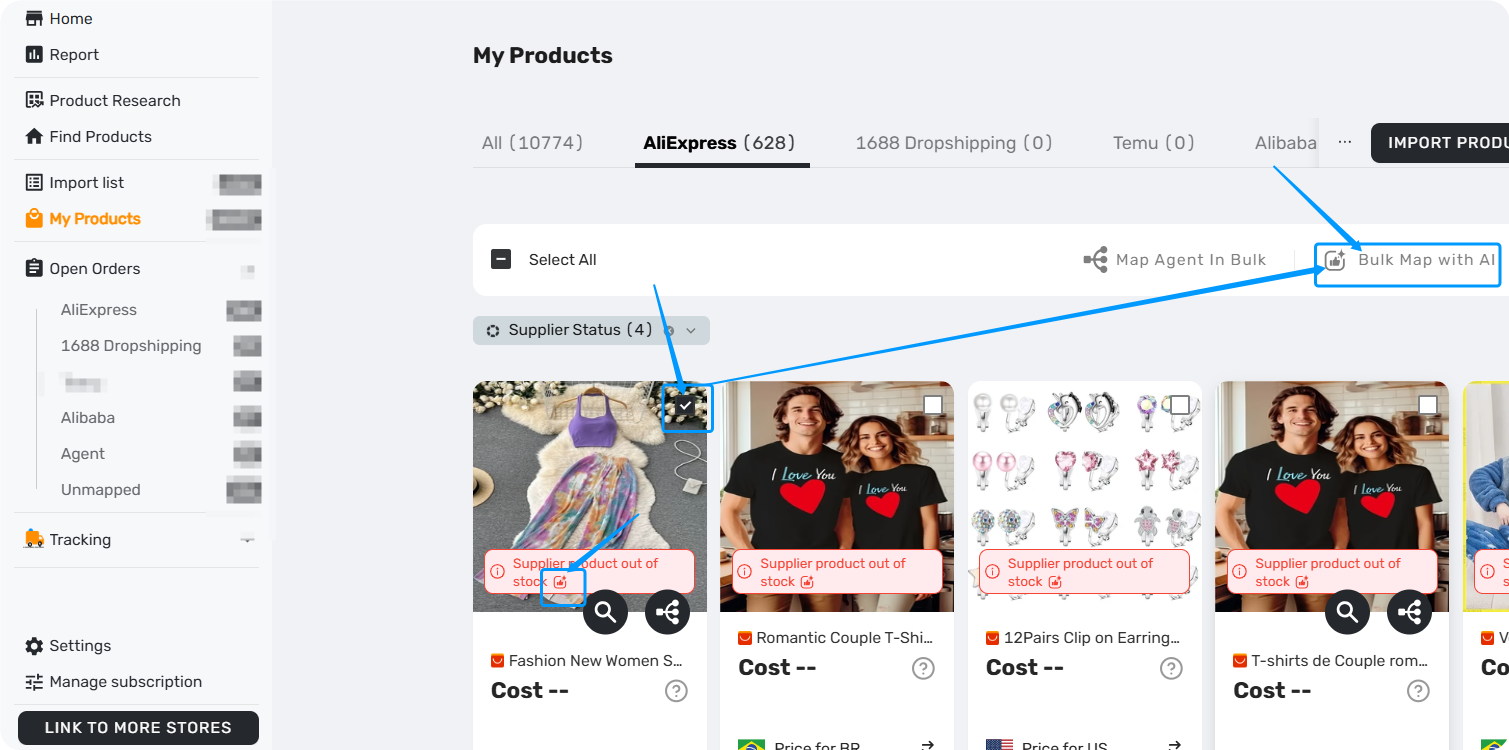
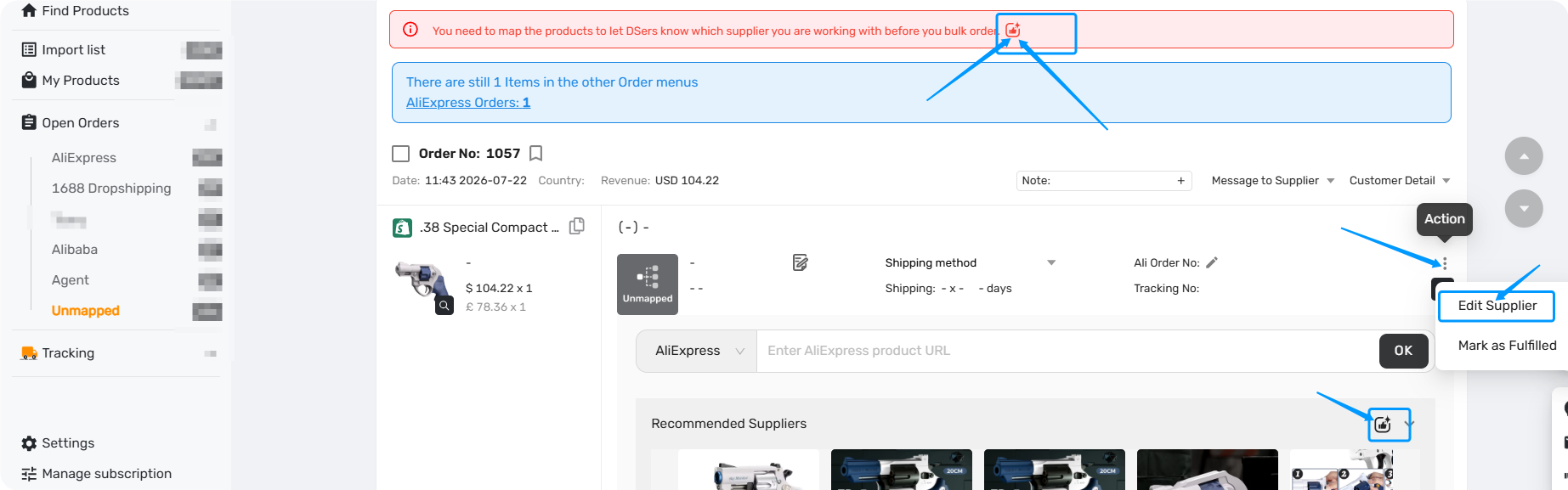
AI Mapping is available from two pages:
| Entry Point | How to Access |
|---|---|
| My Products | Click the mapping status on any product card, or select multiple products and click "Bulk Map with AI"
 at the top of the page.
 |
| Open Orders | Go to the Unmapped tab. On any order with unmapped products, or click Action → Edit
. |
💡 Tip: The "Bulk Map with AI"
 button activates only after you select at least one product. It processes products in the order you selected them.
Step 2: Pick a Product and Run Image Search
Once you're in the AI Mapping drawer:
- Check your Ship to country — DSers detects it automatically. You can change it manually if needed.
- Click any product in the left panel — DSers searches AliExpress for visually similar products.
- Review the results — key fields include product image, supplier name, cost, shipping fees, and estimated delivery days.
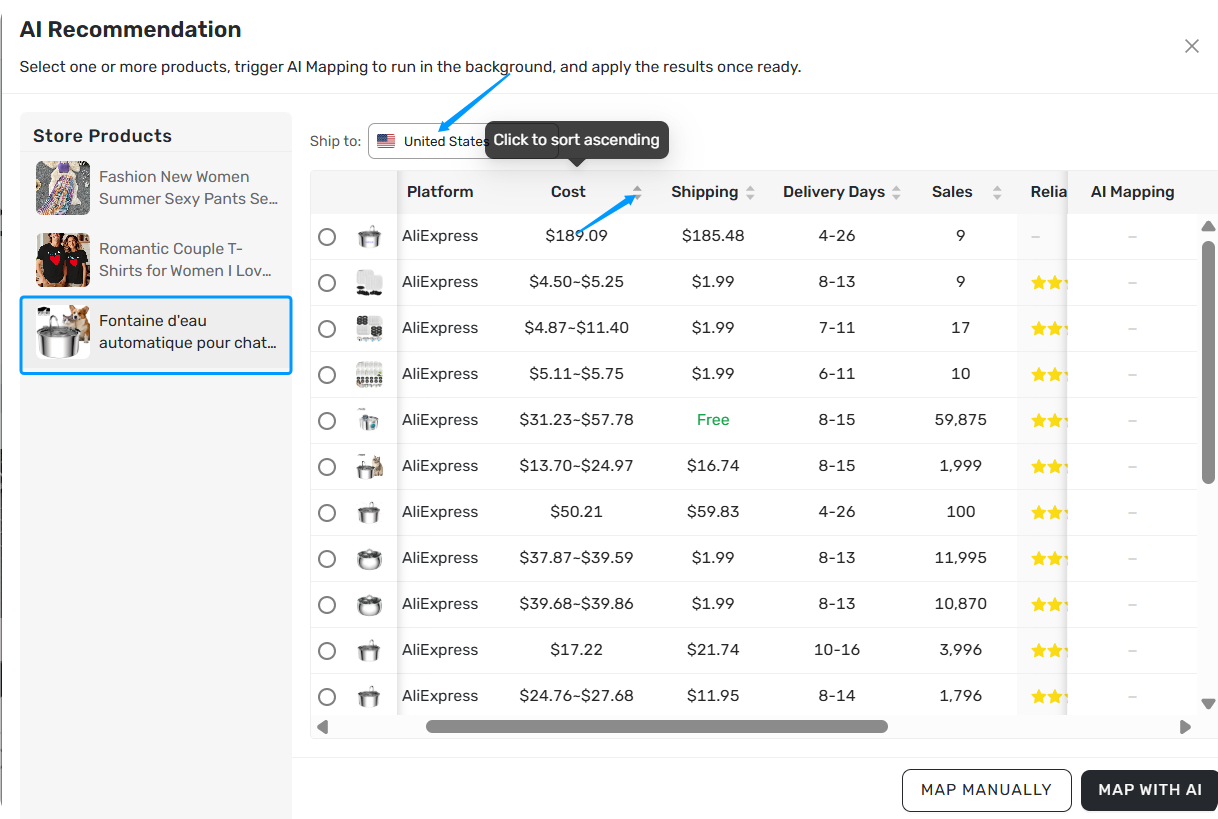
🔍 Tip: Results are sorted by image similarity by default. You can also sort by price or rating.
Step 3: Select a Supplier and Trigger AI Mapping
You can select one supplier product from the search results.
From the search results, select one supplier product, then click "Map with AI".
When you click "Map with AI", a confirmation popup appears- click CONFIRM.
Step 4: Wait for AI Mapping to Complete
AI Mapping runs in the background. You can close the drawer and continue working.
- Completed: Matched variants (size, color, etc.) appear on the results page for review.
- Failure: An error message appears. No credits are deducted. You can Retry or Clear Task.
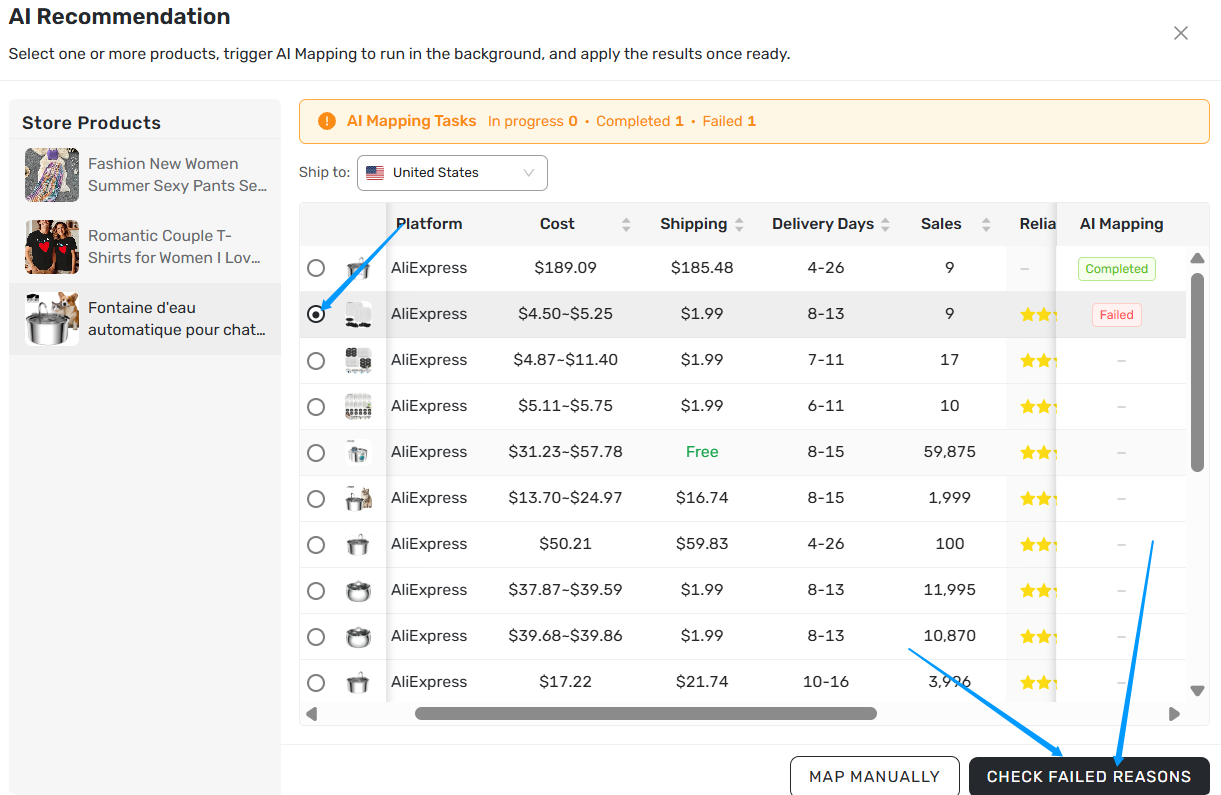
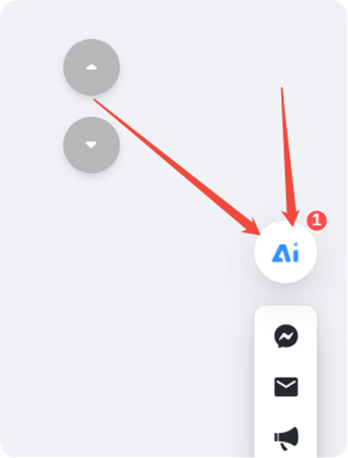
💡 Tip: You can view all your AI Mapping results (successful or failed) by clicking the small icon in the bottom-right corner.
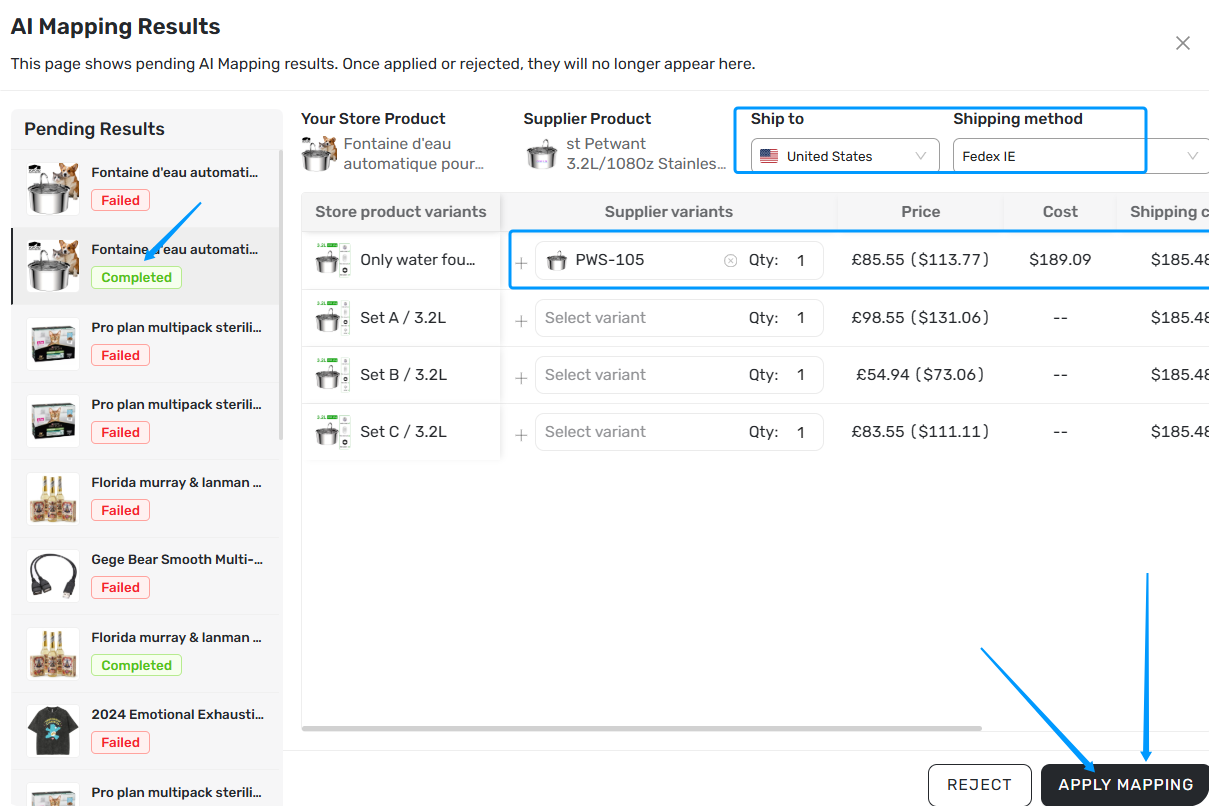
Step 5: Review and Apply the Mapping
- Click Completed-Check AI Mapping Result — the system shows which variant maps to which supplier SKU.
- Manually adjust any match if needed.
- Click "APPLY MAPPING" to save.
After application:
- My Products: Supplier info is saved to your product record.
- Open Orders: The order updates with the new supplier details — you can now place it.
Related Articles
- Automated Mapping: Match Products Faster, Skip the Manual Work
- Advanced Mapping: Route Orders to the Right Supplier by Country
- AI Recommendation Notification: How to Find Better Suppliers
FAQ Section
Everything you need to know about AI Mapping and how to automatically find matching supplier products for unmapped variants.

Get Started Now to Grow Your Online Business with the DSers!