

Learn how to enable price change alerts and update your store pricing when supplier costs fluctuate
Note
Supplier price changes can quietly eat into your margins. This tool helps you protect your profits for free.Click here to start dropshipping now with DSers
What Is This Notification?
The Price Changes notification alerts you when a mapped supplier updates a product's cost—including the Price and Compare at price auto-calculated by DSers from your pricing rules. You control exactly when you're notified:
- Direction: Price increases, decreases, or both
- Threshold: Any change, or only when the change exceeds a set percentage
How to Enable Price Changes Notifications
- Go to Settings > General Settings > Notification.
- Toggle Price changes to ON.
- Configure your preferences:
- Price direction: Select "Price increases," "Price decreases," or "Both."
- Change threshold: Choose "Any change" or set a percentage (e.g., 5%).
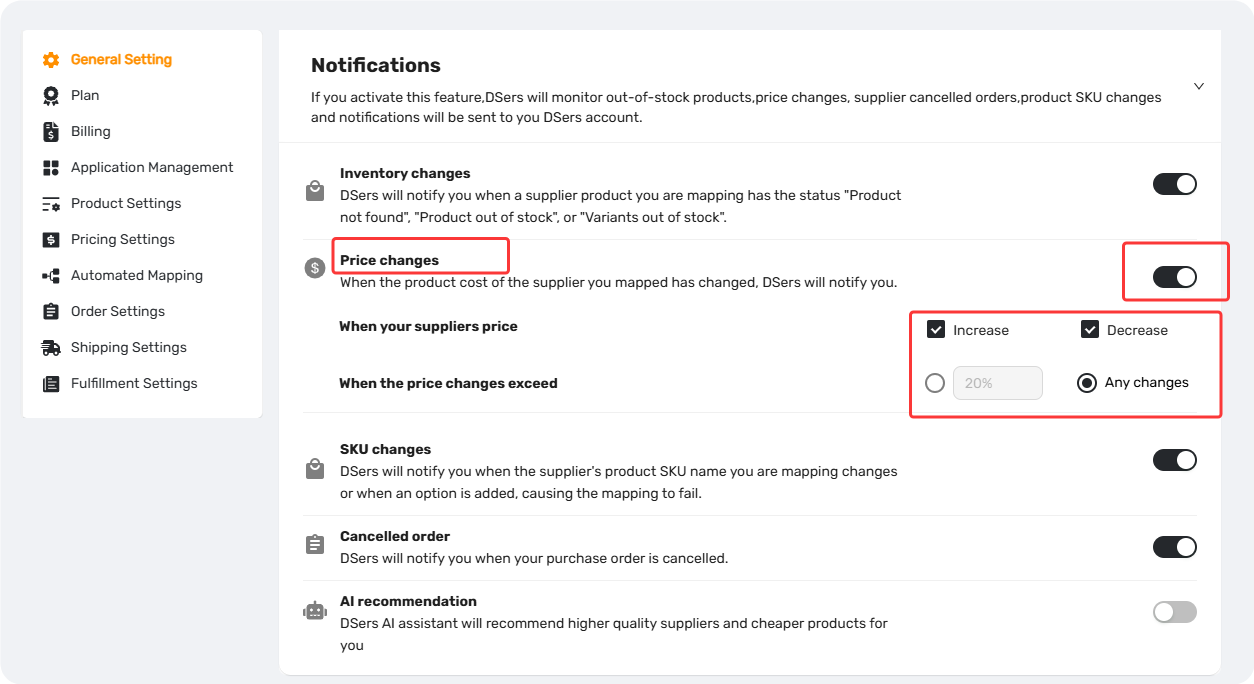
💡 Tip: Suppliers often adjust prices by just a few cents. Start with "Any change" to see their pricing patterns, then increase the threshold if you're getting too many minor alerts.
Where You'll See Alerts
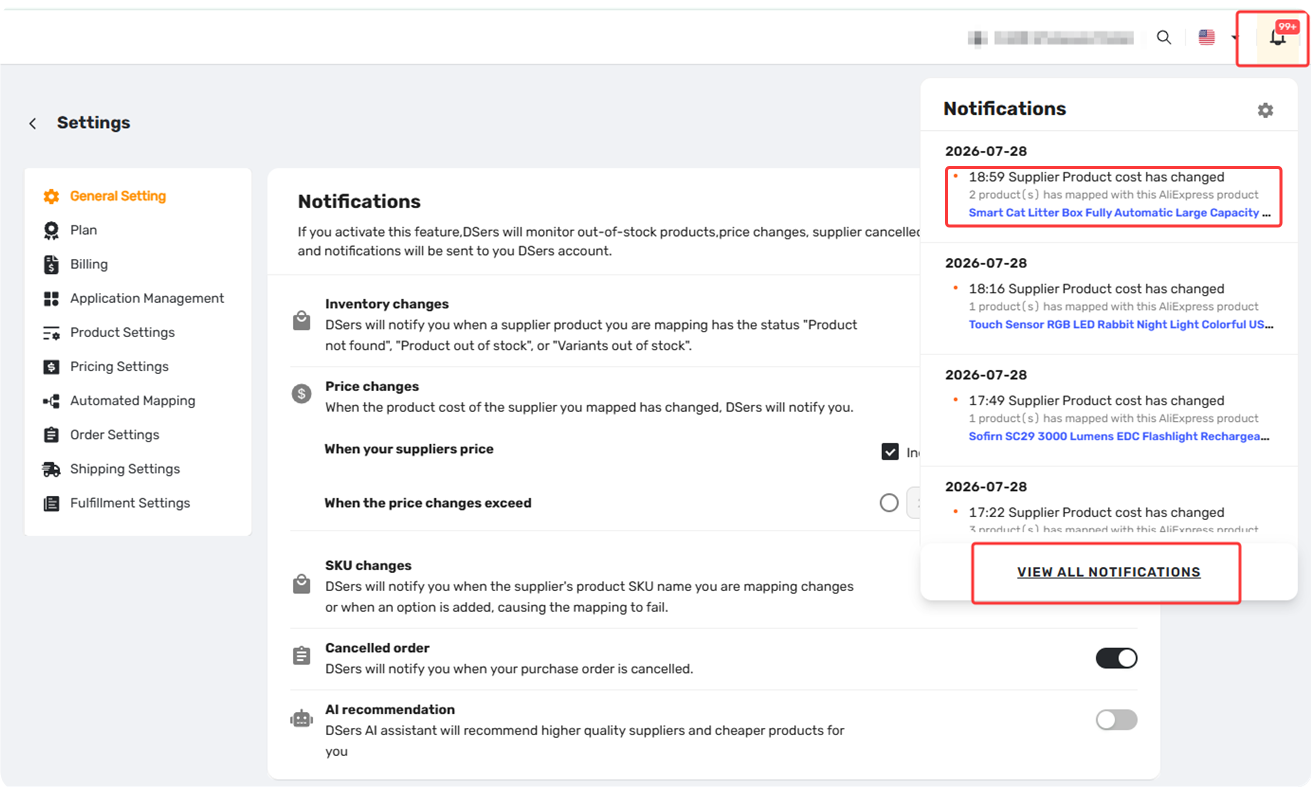
Once enabled, you'll see notifications in two places:
- Bell icon in the top bar—click to open Notification Center
2. Status badge on the product card in My Products
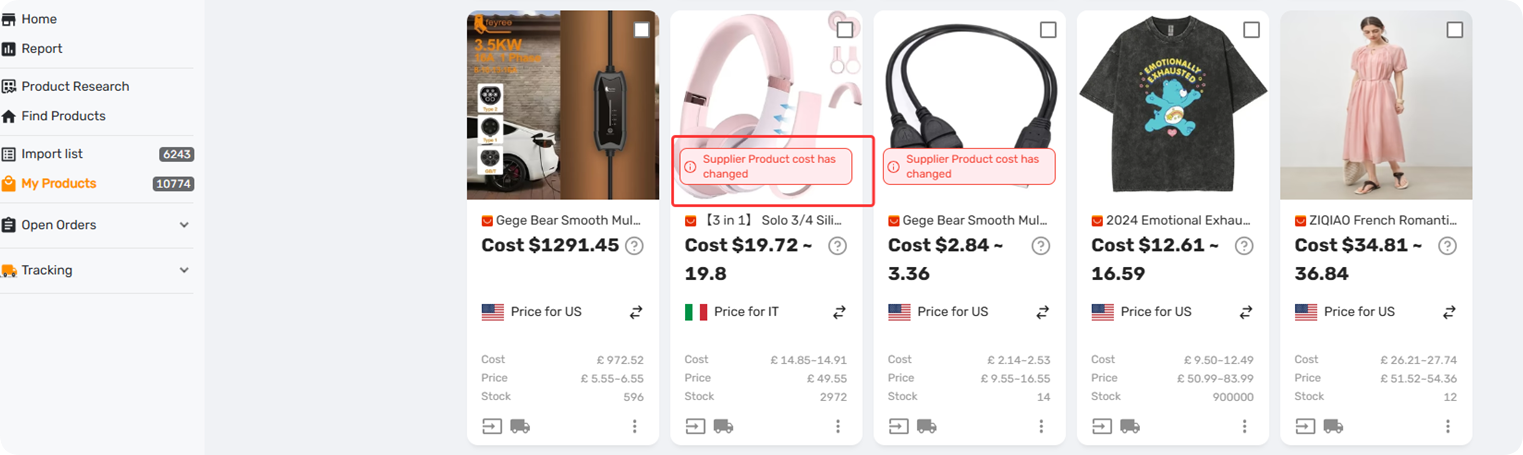
Notifications are stored for 30 days, giving you time to review and act on them. Check more details to manage notification from this article: [Notification Center: How to Filter and Search Your Alerts]
How to Handle a Price Change Alert
Step 1: Open the Alert
Click either the status badge on the product card on My product tab or the notification card in the Notification center (bell icon).
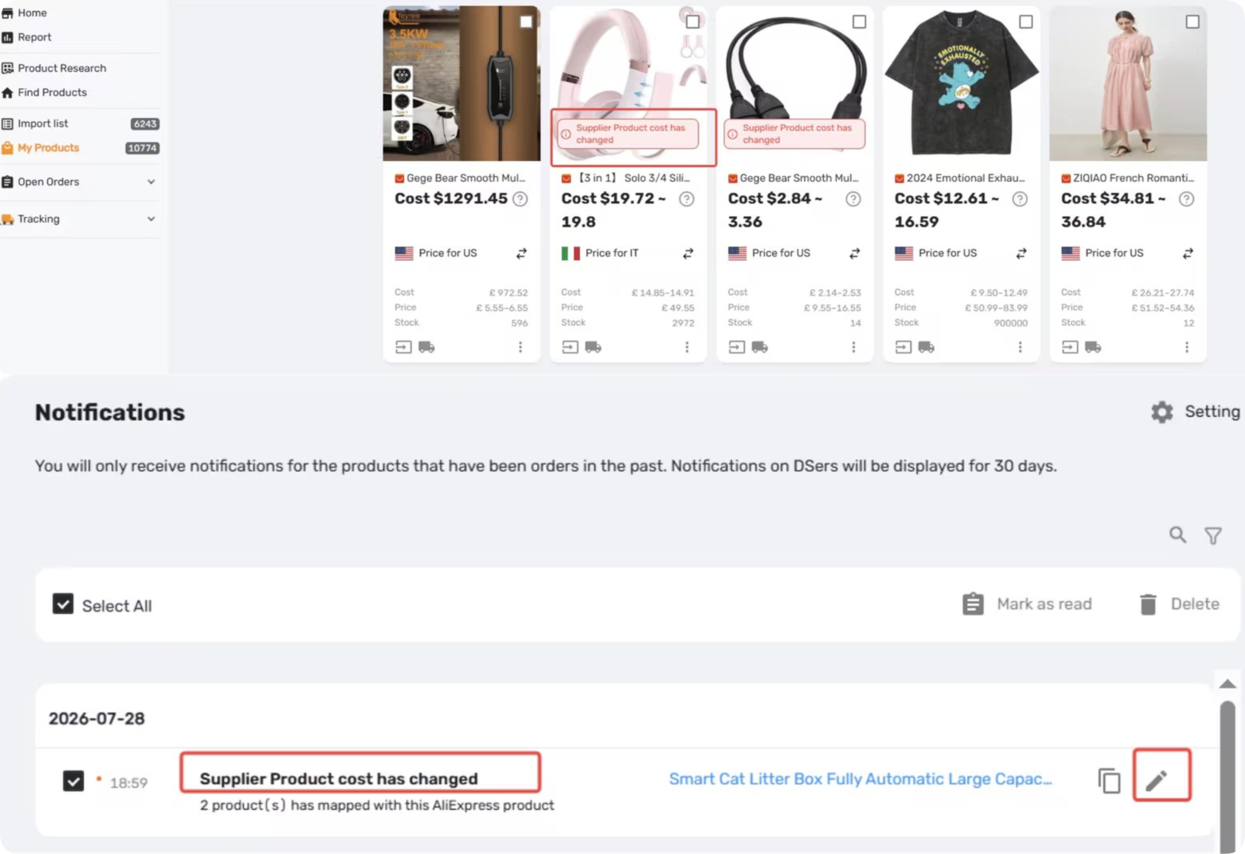
Step 2: Review the Details
The pop-up shows:
- The SKU affected
- The Cost Change (new cost and the change amount)
- Current store selling price
- Editable Price and Compare at price fields
Tip: Compare at price support depends on your sales platform.
Step 3: Choose Your Action
Based on whether you need to adjust your selling price:
Option A: OK, GOT IT
Dismiss the notification. Use this if the change is small and you don't need to adjust your pricing.
Option B: UPDATE STORE PRICE AND COST
Open the price editor to update your store:
You can adjust Price and Compare at price for each variant individually, or use the batch update option to apply the same price to all variants at once.
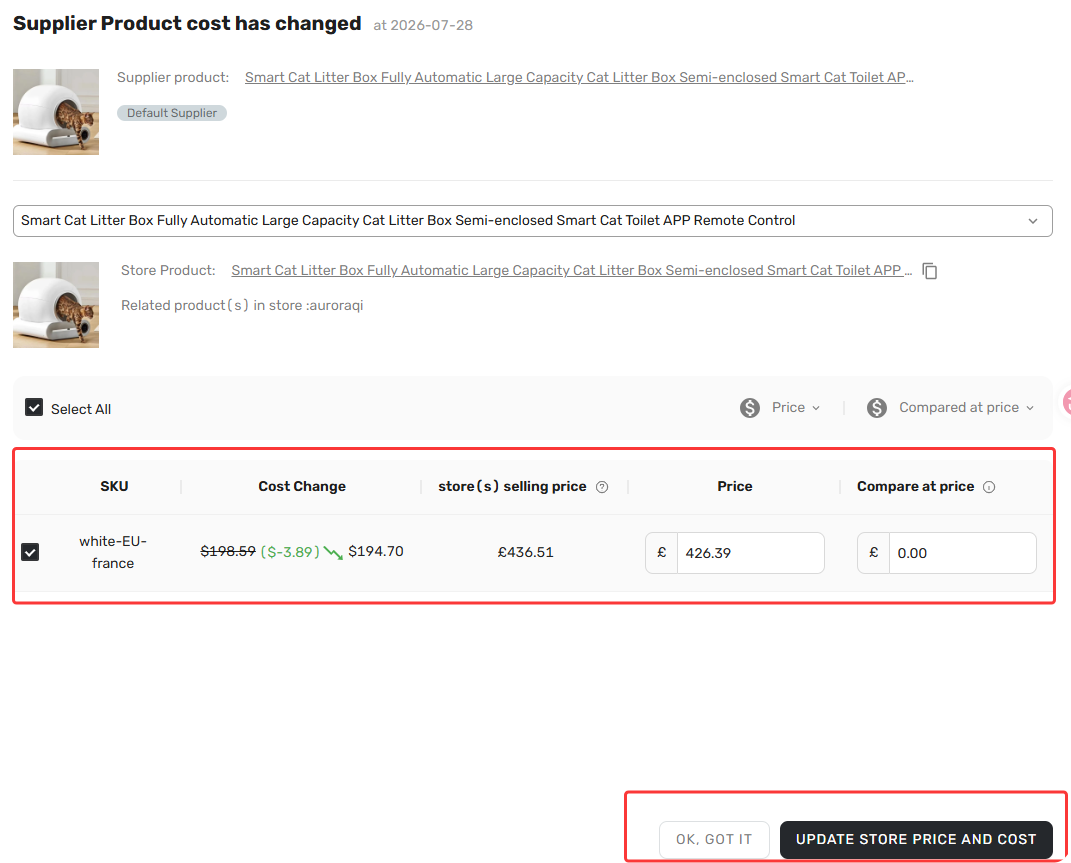
Tip: If you use Pricing Rules, DSers will display the suggested selling price based on your formula—you can accept it or override it manually.
Automatic Price Update
For automatic price synchronization without manual intervention, please refer to the [Automatic Price Update: Keep Store Prices in Sync with Suppliers] article.
If you enable both, you'll still receive notifications even after prices are auto-updated—simply dismiss them with "OK, GOT IT."
Related Articles
- Notification Frequency: Get Alerts When You Need Them
- Notification Center: How to Filter and Search Your Alerts
- Automatic Price Update: Keep Store Prices in Sync with Suppliers
- Inventory Changes Notification: What to Do When a Product Goes Out of Stock
- SKU Changes Notification: What to Do When Variant Mapping Fails
- Cancelled Order Notification: How to Handle Supplier Cancellations
- AI Recommendation Notification: How to Find Better Suppliers
FAQ Section
Quick answers to the most common questions about DSers Price Changes notifications and automatic price updates.

Get Started Now to Grow Your Online Business with the DSers!