

A "SKU Changes" alert means your supplier updated the product SKUs—here's how to review and handle the changes
Note
Suppliers can edit their products anytime. A SKU Changes alert tells you when a supplier modifies options or variants in a way that breaks your existing mapping. If ignored, this can lead to order failures.Click here to start dropshipping now with DSers
This guide explains what triggers the alert and the exact steps to resolve it.
What Triggers a SKU Changes Notification?
This alert is triggered when a supplier's edit disrupts your current variant mapping. Specifically:
| Scenario | Example |
|---|---|
| Option added, renamed, or deleted | "Color" changes to "Colour"; "Size" is removed. |
| Option Value renamed or deleted | "Red" changes to "Scarlet"; "L" is removed. |
| SKU renamed or deleted | The unique product SKU is changed or removed. |
Tip: Adding a new Option Value or SKU does not trigger an alert, as it doesn't affect existing mappings.
How to Enable This Notification
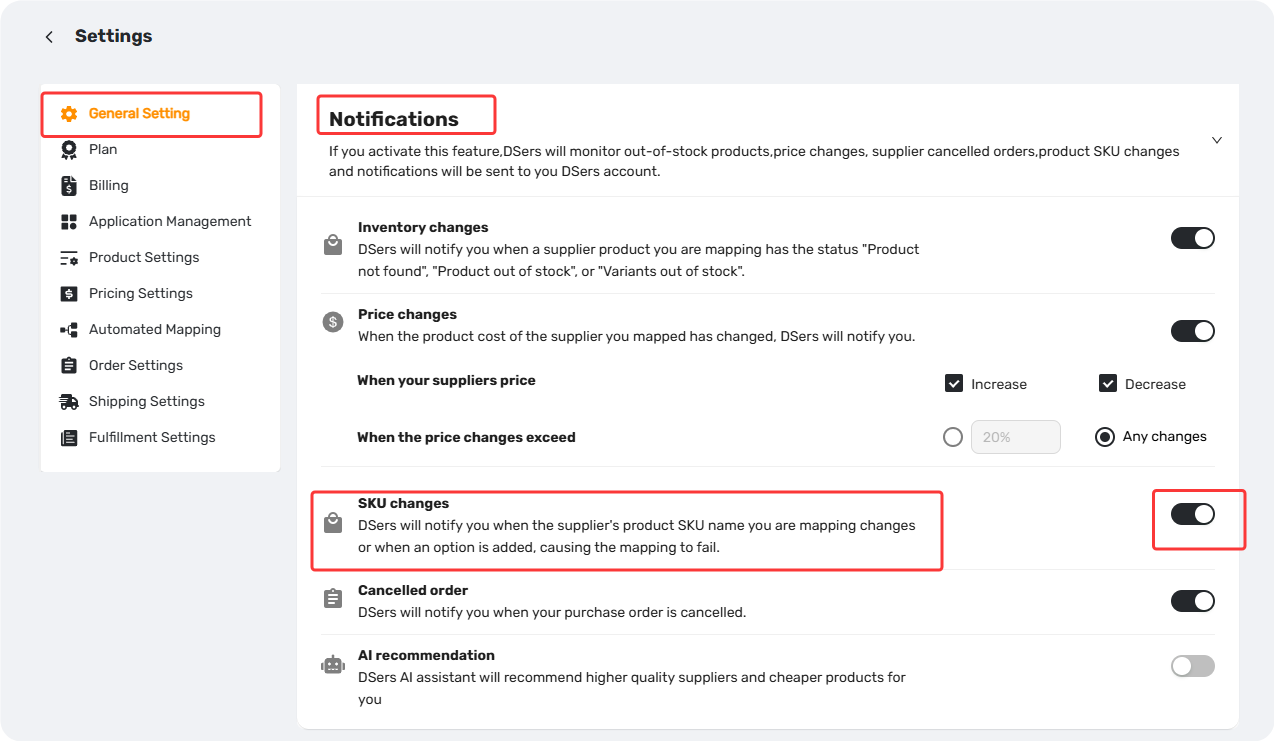
Go to DSers > Settings > General Settings > Notifications and toggle SKU Changes on.
Where to Find SKU Changes Alerts
You'll see SKU Changes alerts in two places:
- My Products Page – A status badge appears on the product card.
- Notification Center – Click the bell icon in the top bar to view all notifications.
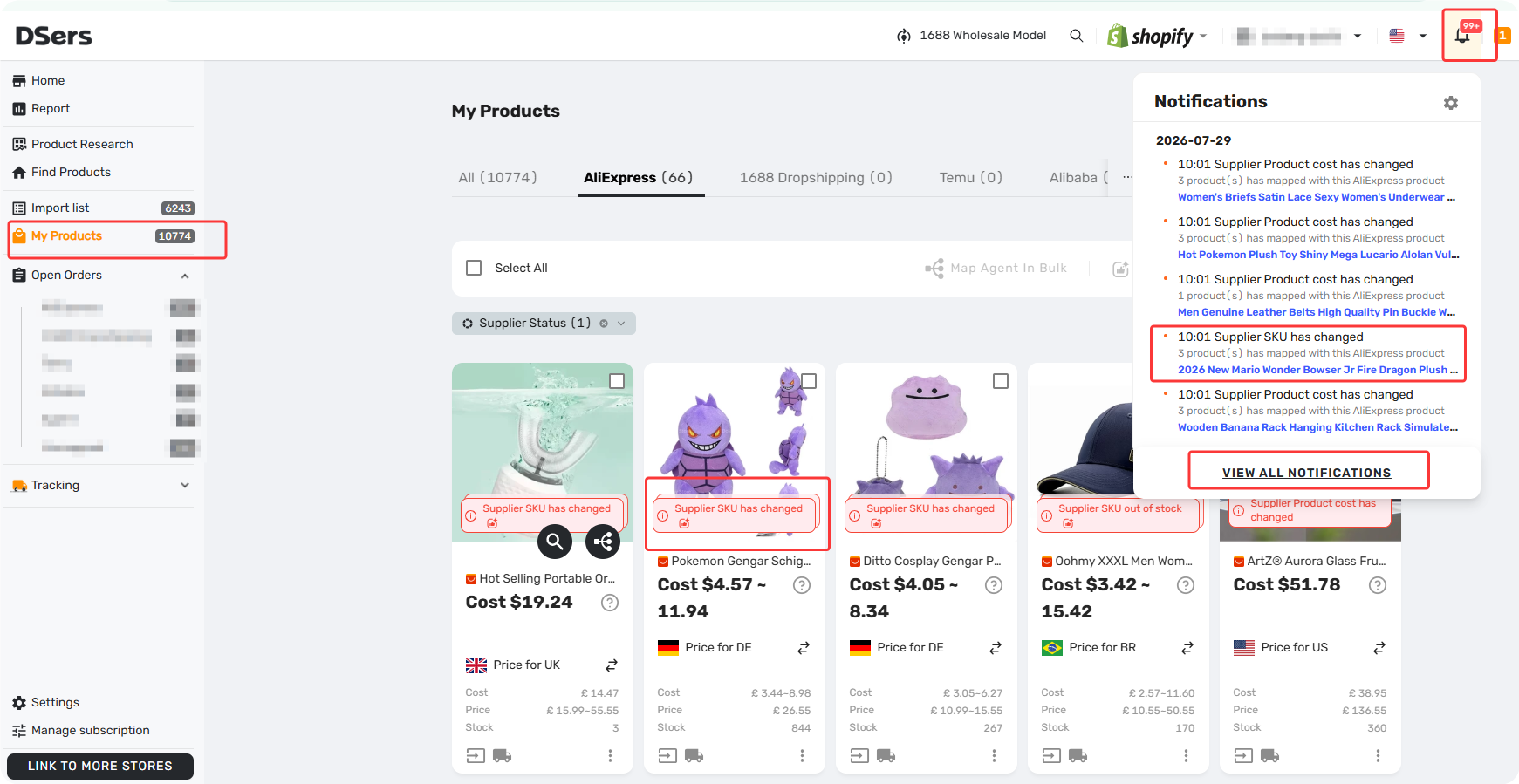
From either place, click the status badge or the pencil icon to open the same detail view and take action.
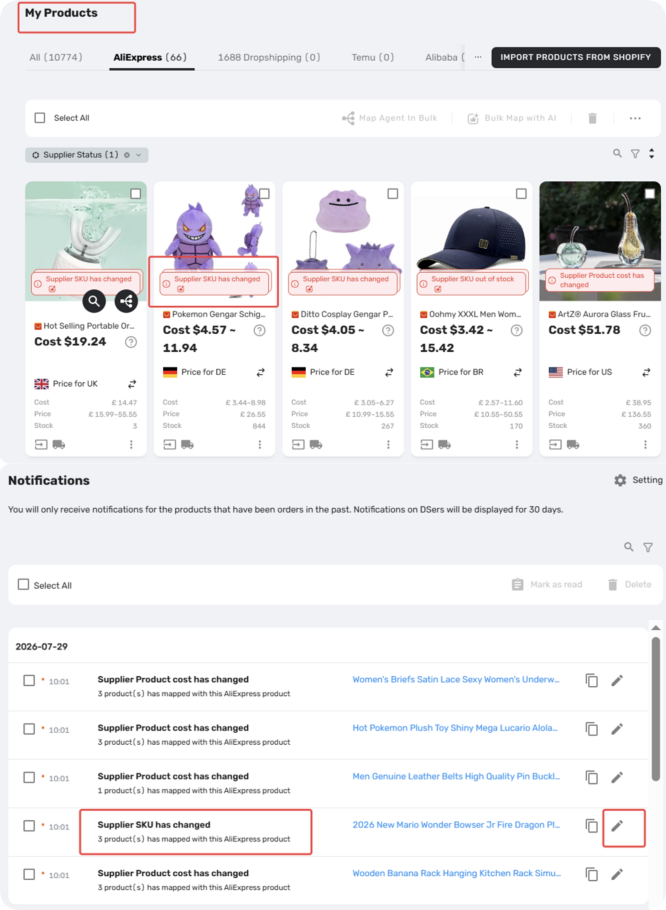
Tip: Alerts in both places are kept for 30 days.
How to Respond to a SKU Changes Alert
Resolving SKU Changes alerts promptly helps prevent order failures caused by mismatched variants.
Option 1: Via "My Products" Page
- Click the status badge on the product card to open the Mapping interface.
- Review your variants against the supplier's:
- If mapping is complete: All variants are correctly matched. No action is needed.
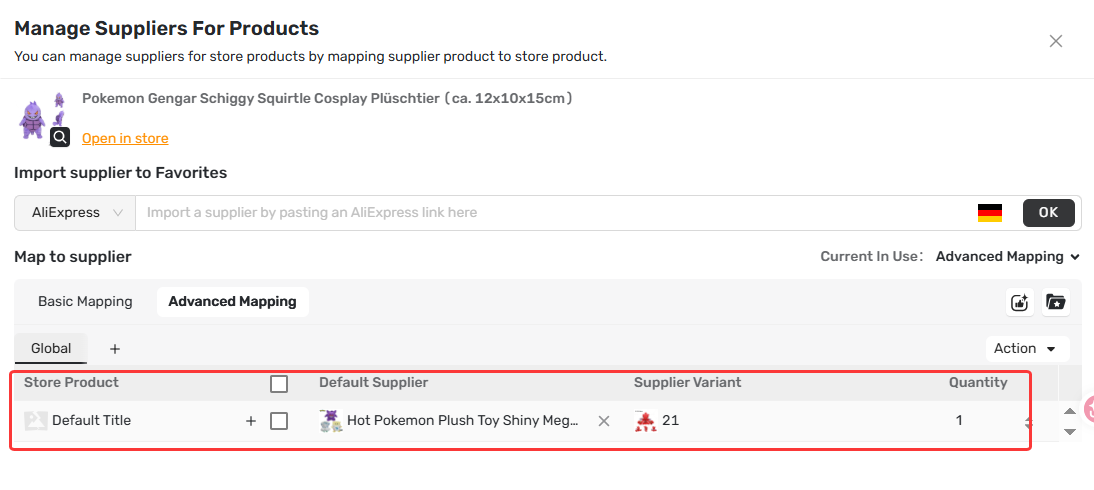
- If mapping is incomplete: Manually re-map your store variants to the correct supplier variants.
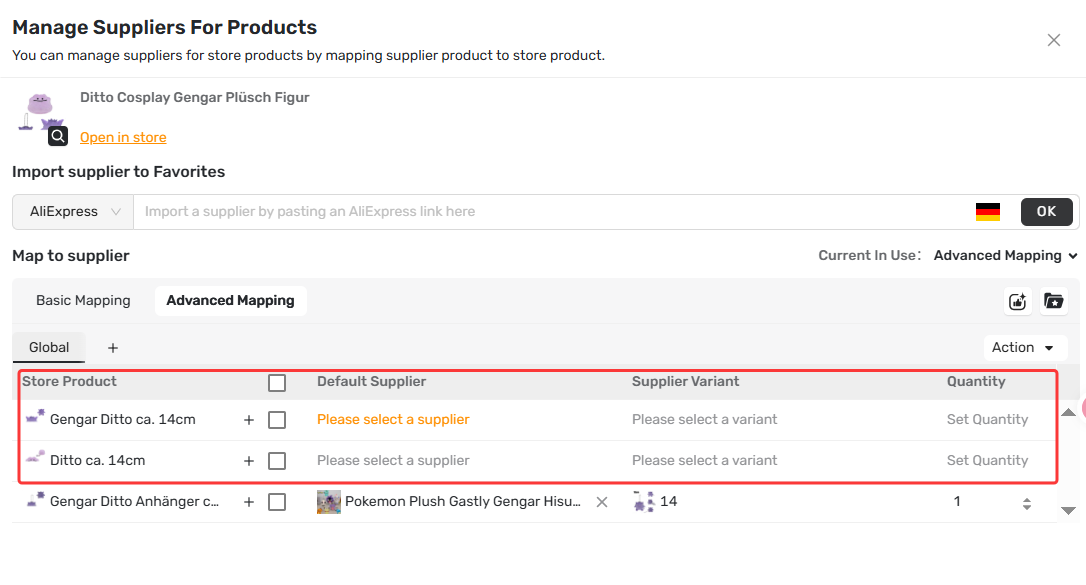
For detailed instructions on using the mapping interface, see [Basic Mapping Templates: Scale Your Product Library].
If you need to fix mapping errors or want a faster way to match products, learn more in our guide: [How to Use AI Mapping and Fix Errors to Match Products Faster ].
Option 2: Via the Notification Bell (🔔)
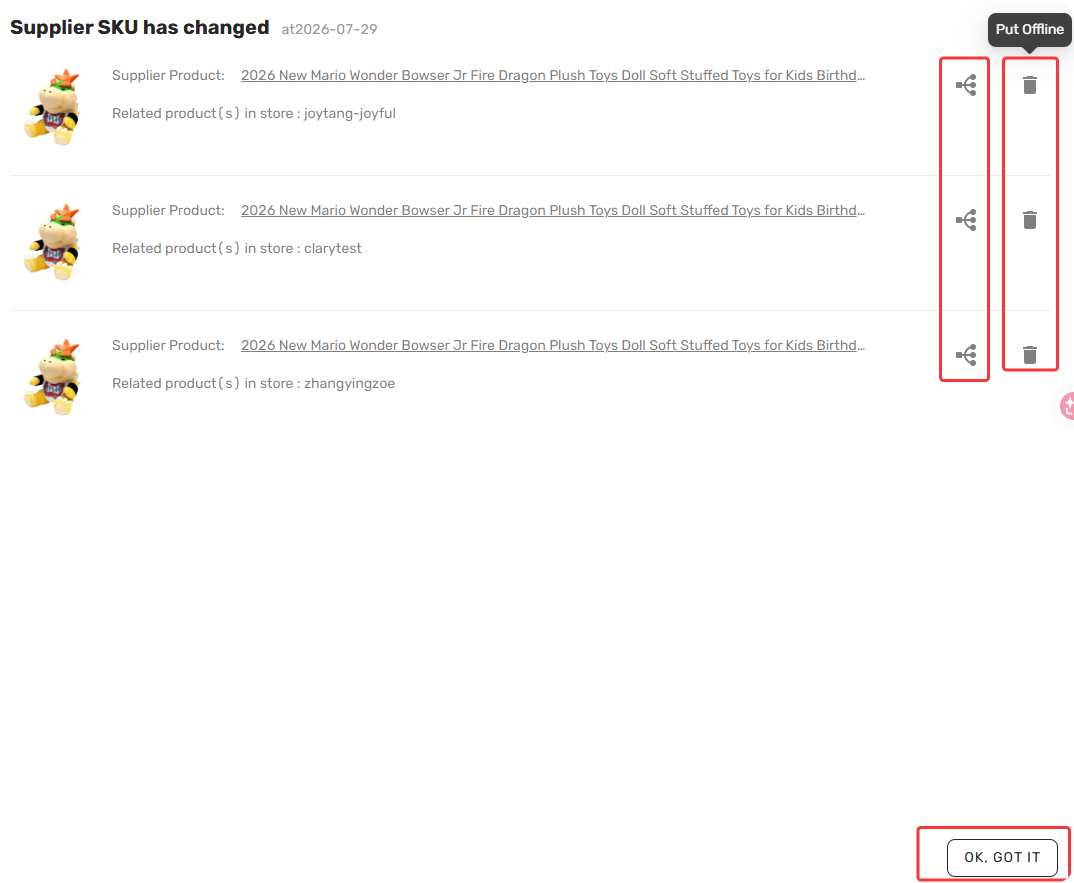
- Click the Pencil icon (Edit Product) on the notification. This opens a dedicated action pop-up.
- In this pop-up, you have three choices:
- Click the Mapping button. This takes you to the same mapping interface described in Option 1.
- Click the Put Offline icon to immediately take this product offline from your store.
- Click OK, Got It to dismiss the alert and handle it later.
Related Articles
- Notification Frequency: Get Alerts When You Need Them
- Notification Center: How to Filter and Search Your Alerts
- How to Use AI Mapping and Fix Errors to Match Products Faster
- Inventory Changes Notification: What to Do When a Product Goes Out of Stock
- Price Changes Notification: What to Do When Supplier Costs Change
- Cancelled Order Notification: How to Handle Supplier Cancellations
- AI Recommendation Notification: How to Find Better Suppliers
FAQ Section
Quick answers to the most common questions about DSers SKU Changes notifications.

Get Started Now to Grow Your Online Business with the DSers!