

Your mission control for tracking orders, managing fulfillment, and catching issues before customers notice
Note
Once your store starts getting orders, the DSers dashboard becomes the page you'll check every single day.
It shows all orders from all your connected stores in one place. You can see what needs your attention, what's already shipped, and what might be stuck—without digging through emails or logging into AliExpress.
This guide walks you through the main sections of the Orders dashboard and explains what each status means.
Click here to start dropshipping now with DSers
Understanding Your Orders Dashboard
The Main View: Awaiting Order Tab
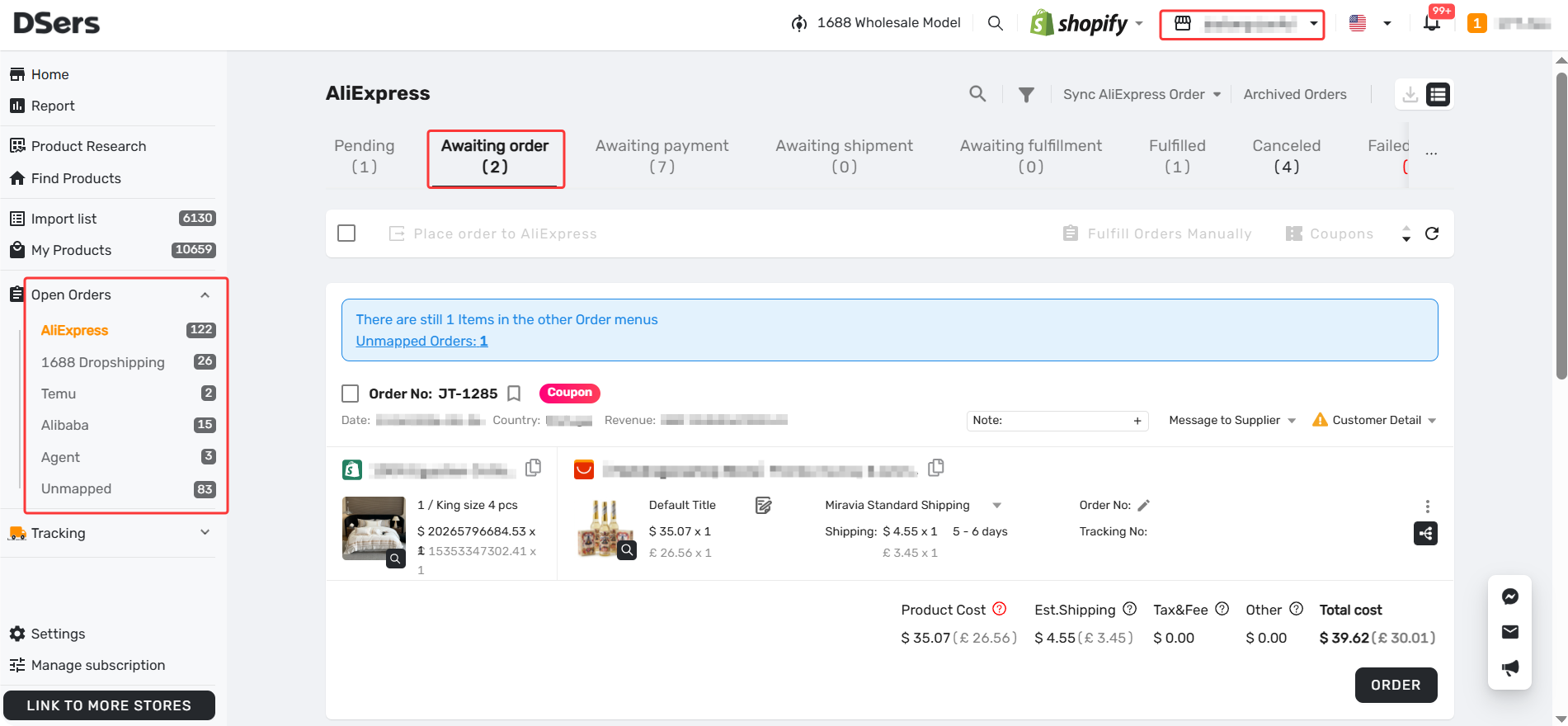
When you open DSers → Orders, you land on the Awaiting Order tab by default.
What you see here: All new orders from your store that haven't been fulfilled yet.
What to do here: This is where you start the fulfillment process. Select orders and click Place order to place them on AliExpress.
💡 Pro Tip: The number in the red badge on your DSers icon shows exactly how many orders are waiting. No need to guess.
Order Status Tabs You Need to Know
| Status | What It Means | What You Need to Do | When to Check |
|---|---|---|---|
| Pending | Customer has not yet paid for the order in your store. | Contact the customer to remind them to complete payment promptly. | Daily — follow up to avoid lost sales |
| Awaiting Payment | Order placed on AliExpress, but payment is pending. Supplier will not ship until paid. | Click Make Payment → complete payment on AliExpress. DSers auto-syncs status within minutes. | Right after placing an order |
| Awaiting Shipment | Payment completed. Supplier is processing and preparing to ship. | Monitor. If status hasn't changed after 7 days, message the supplier. | Every 1–2 days |
| Awaiting Fulfillment | Supplier marked as shipped. DSers has automatically grabbed the tracking number. | None — DSers auto-syncs tracking to your store and customer. | Weekly — confirm delivery progress |
| Fulfilled | Tracking number synced to your store. Order status in your store is now "Fulfilled." | Monitor delivery progress until the package reaches your customer. | Weekly — check for delivery issues |
| Failed | Order failed placed to AliExpress. | Check the error message on the order → fix the issue (e.g., correct address, adjust quantity) → retry place order | Immediately — fix these first |
How to Find and Filter Orders
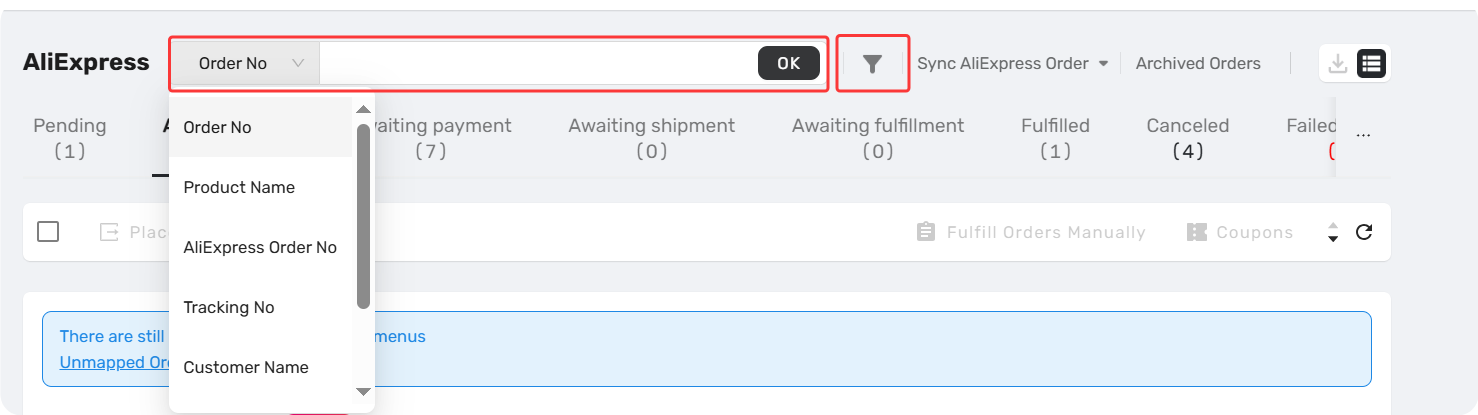
Search for a Specific Order
- Click any tab (Awaiting Order, Fulfilled, etc.)
- Use the search bar at the top
- Search by:
- Order number (from your store)
- AliExpress order number
- Product name
- Tracking No
- Customer Name
- Customer E-mail
- Note
Filter by Date or Country
Click the filter icon to narrow down:
- Orders from last 7, 30, or 90 days
- Orders ship to a specific destination country
What the Dashboard Tells You at a Glance
Without clicking anything, you can see:
- How many orders need action (number on Awaiting Order tab)
- How many orders are on the way (number in Awaiting fulfillment tab)
- If something is wrong (red badge on Failed tab means check immediately)
💡 Pro Tip: Bookmark your DSers Orders page. Check it first thing every morning—like checking your store's pulse.
What's Next?
Now you know how to read your dashboard. Next, learn how to actually fulfill those waiting orders: [Fulfill Your First Order: A Step-by-Step Walkthrough]
Related Articles
- Fulfill Your First Order: A Step-by-Step Walkthrough
- Fulfilling Customer Orders: How to Place & Pay for Supplier Orders
- Tracking Status Explained: Know Where Every Package Is
- Why is my tracking number missing? Understanding the fulfillment workflow
- Order Sync Failed: Why Orders Aren't Appearing in DSers
- How to Roll Back a Fulfilled Order and Reprocess It
FAQ Section
Here are some common questions about managing orders and using the DSers Orders dashboard.
| Get Started Now to Grow Your Online Business with the Best AliExpress Dropshipping Tool - DSers! |
