

A step-by-step guide to linking your Wix store — and what to do if something goes wrong.
Note
This guide walks you through connecting your Wix store to DSers.Click here to start dropshipping now with DSers
If you've already set up your Wix store and want to start dropshipping, you're in the right place.
By the end, your store will be linked and ready to sync products and orders.
Before you start
Before connecting, please check these:
| ✅ Check | What to verify |
|---|---|
| Store type | Your Wix site must be an "Online Store" (not a blog, portfolio, or business site without a shopping cart) |
| Store creation | Your Wix store should be created with the "Edit a Template" option (this ensures full compatibility with DSers) |
| Store availability | Your store is not already linked to another DSers account |
Important:
- One DSers account can only connect to one Wix store. This is a Wix limitation.
- Before you start, make sure you're logged into both your DSers account and your Wix store in the same browser.
How to connect your Wix store
You can start from DSers or from your Wix dashboard. Both work the same way.
Option 1: Start from DSers
Step 1: Log in to your DSers account. On the platform selection page, click Wix.
New to DSers? Learn how to create your account here: [Create Your DSers Account: Sign Up Step by Step]
Connecting another store? Check out: [How to Connect Multiple Stores to a Single DSers Account]
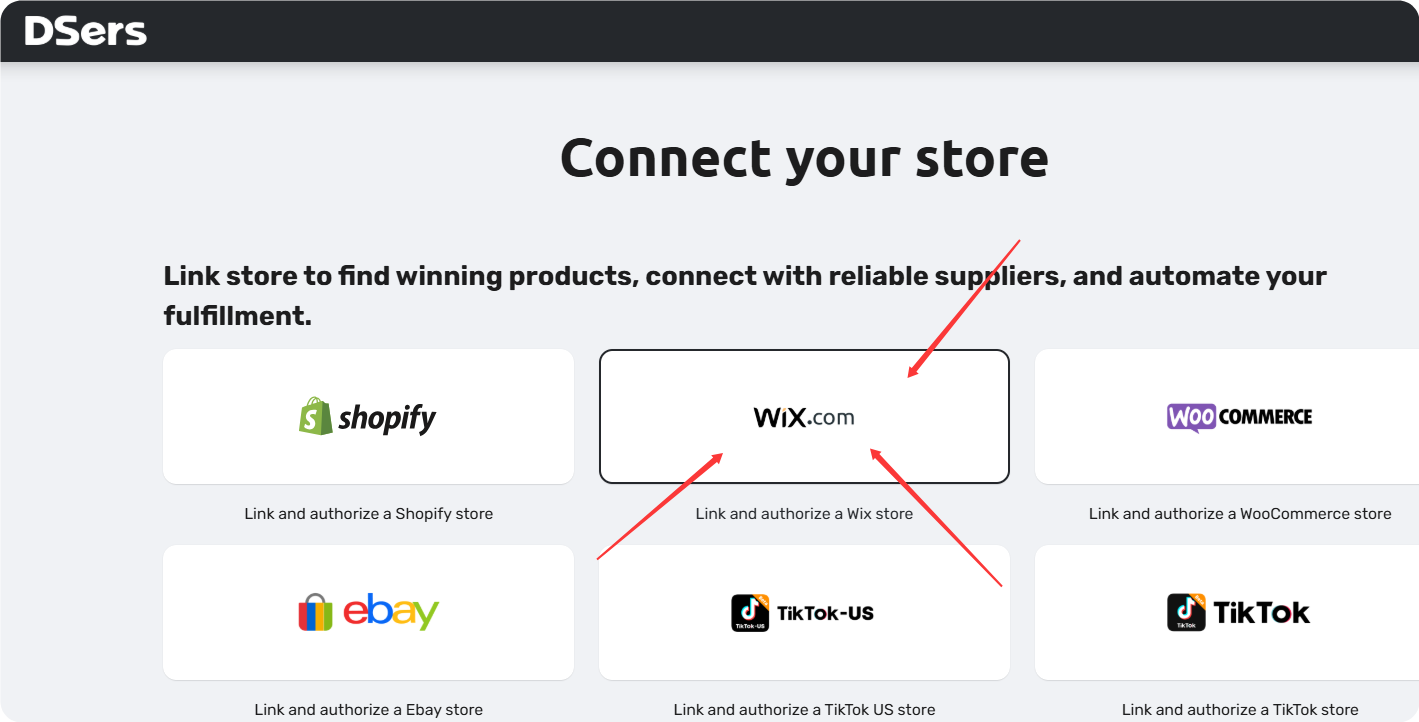
Step 2: Wix will check if you're already logged in.
If not, you'll be asked to log in first. If you have multiple Wix stores, click Select next to the one you want to connect.
Tip: If you don't see your store in the list, make sure you've logged out of other Wix stores in your browser and try again.
Step 3: Click Agree & Add to authorize DSers.
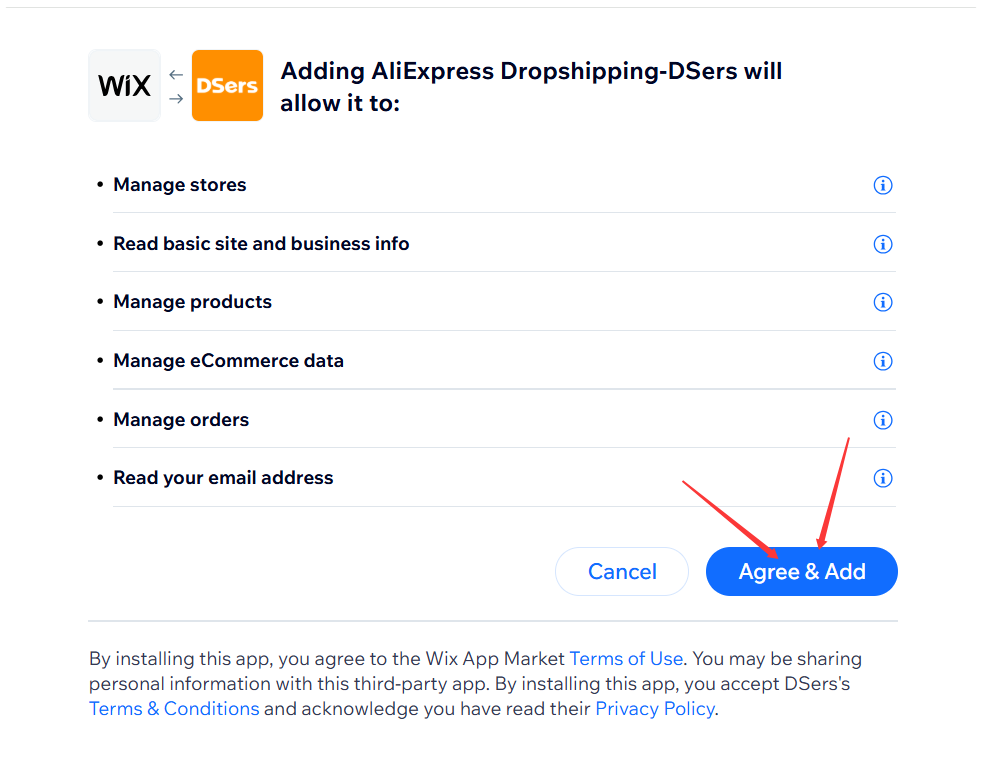
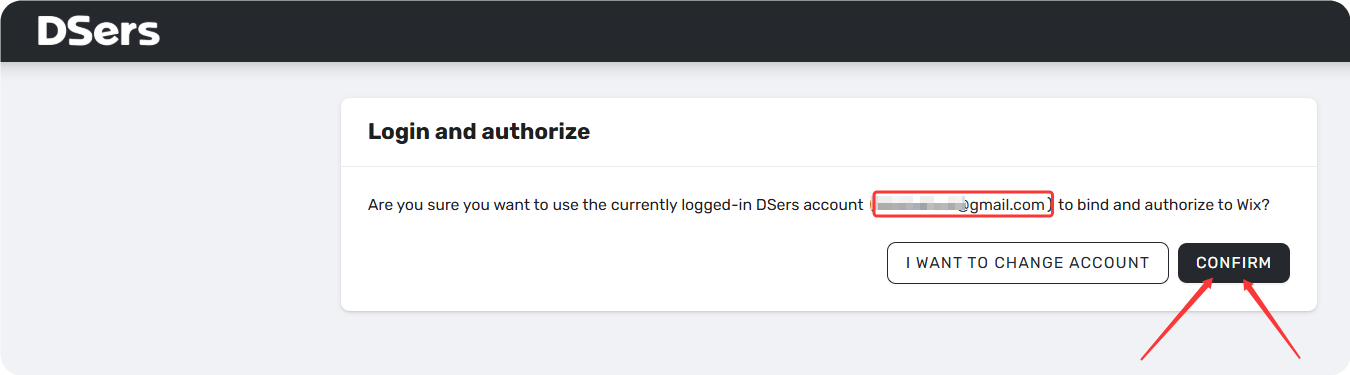
Step 4: You'll be redirected to DSers. The system will confirm your account and show the authorization pop-up. Click CONFIRM.
Step 5: Click the UPDATE button to refresh the page and sync the latest store status to your DSers account.
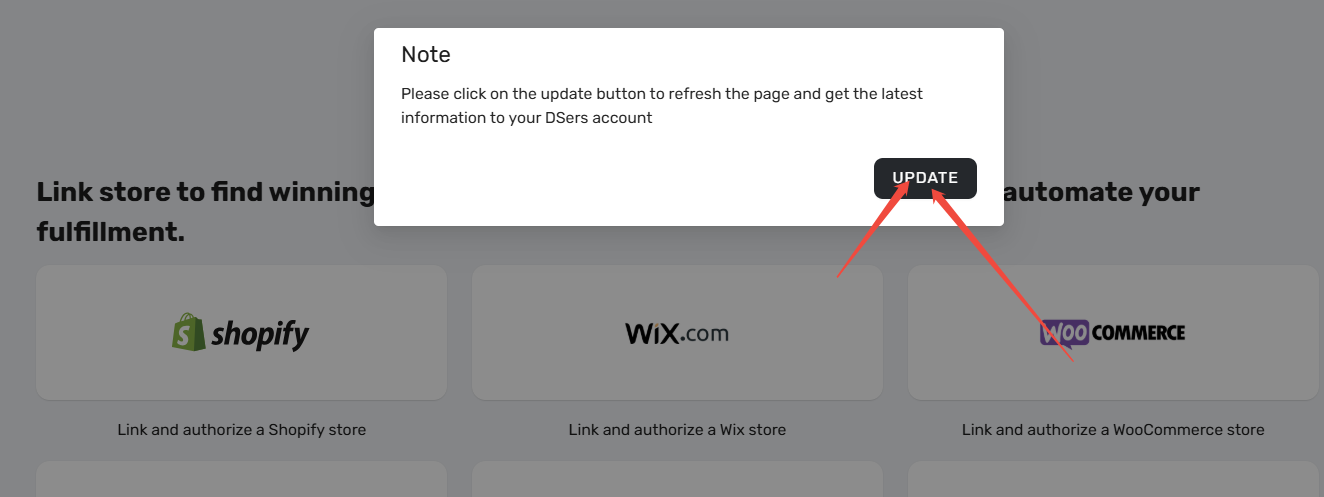
Once authorized and updated, your store is now linked!
Option 2: Start from your Wix dashboard
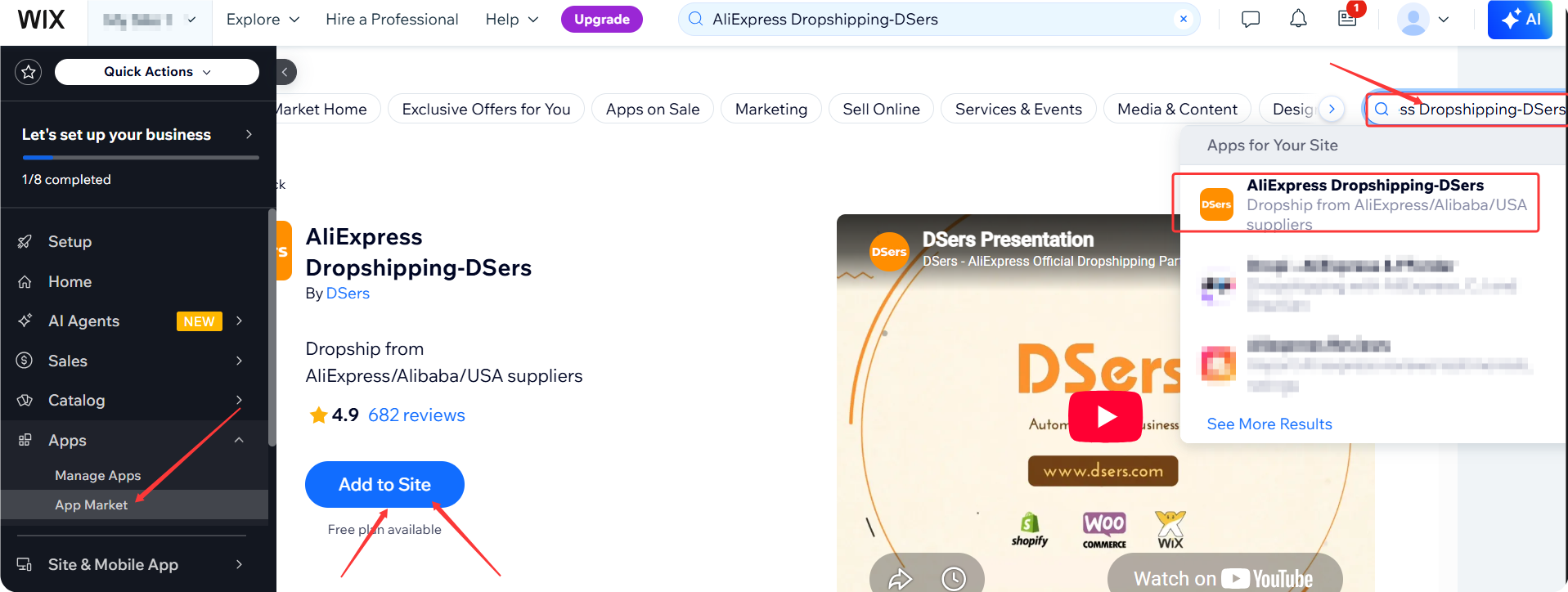
Step 1: In your Wix dashboard, go to Apps > App Market and search for "AliExpress Dropshipping-DSers".
Step 2: Click on the "AliExpress Dropshipping-DSers" app, then click Add to Site.
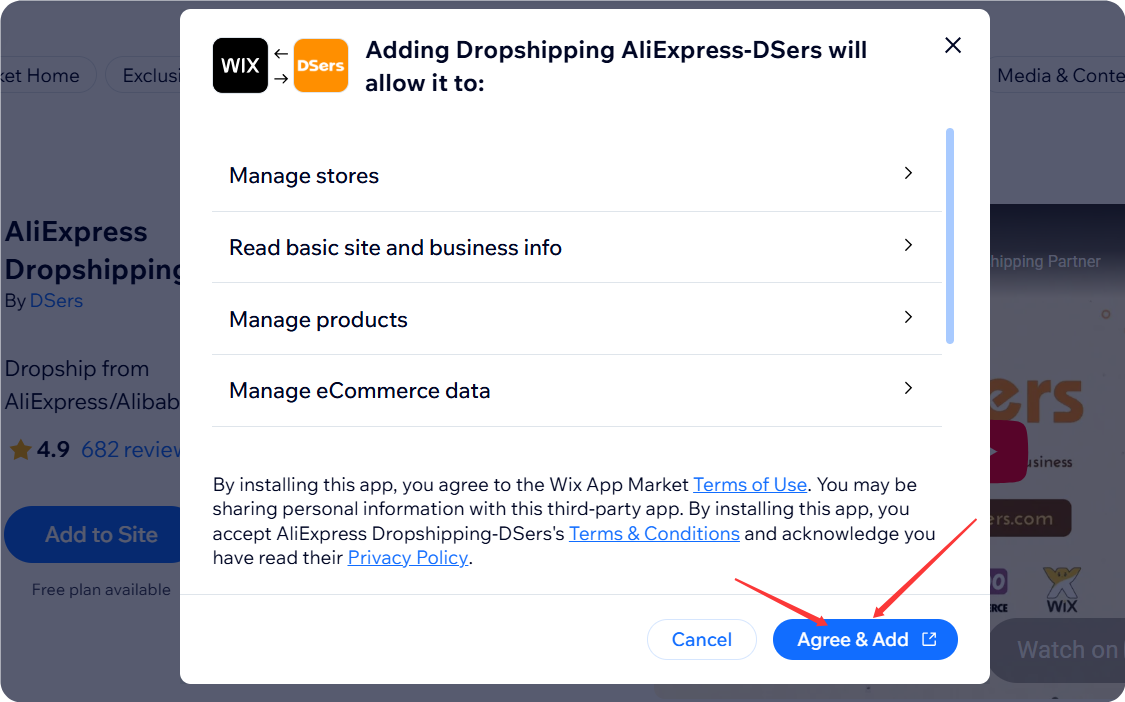
Step 3: Click Agree & Add to authorize DSers.
Step 4: You'll be redirected to DSers. The system will confirm your account and show the authorization pop-up. Click CONFIRM.
You'll be redirected to DSers – your store is now linked!
Common issues and how to fix them
| Issue | Why it happens | How to fix |
|---|---|---|
| Multiple stores logged in | You're logged into several Wix stores in the same browser, and DSers picked the wrong one | Log in to only the store you want to connect, then restart |
| Store type is not "Online Store" | DSers only works with Wix sites that have ecommerce functionality | Create a new Wix site and select "Online Store", then repeat the connection |
| Store already linked to another account | Each Wix store can only connect to one DSers account | Access DSers dashboard from Wix-app page |
| Pop-up window blocked | Your browser blocks pop-ups for security | Click the blocked icon in your browser's address bar and select "Always allow pop-ups from dsers.com" |
What's next?
Once your Wix store is connected, you'll be prompted to choose a subscription plan. The Basic plan is free and works great to get started – no credit card needed.
After that, you can start importing products and processing orders right away.
💡 Tip: If you want to connect a supplier account (like AliExpress), you can do that later anytime in Settings > Application management – it's not required for the initial setup.
Related Articles
- How to Connect Multiple Stores to a Single DSers Account
- Create Your DSers Account: Sign Up Step by Step
- Connect Your AliExpress Account to DSers
- eBay Authorization: Connect Your eBay Store to DSers
FAQ Section
Everything you need to know about connecting your Wix store to DSers.

Get Started Now to Grow Your Online Business with the DSers!