

Get your WooCommerce store connected in minutes—find solutions for every red "×" here.
Note
This guide helps you connect your WooCommerce store to DSers.Click here to start dropshipping now with DSers
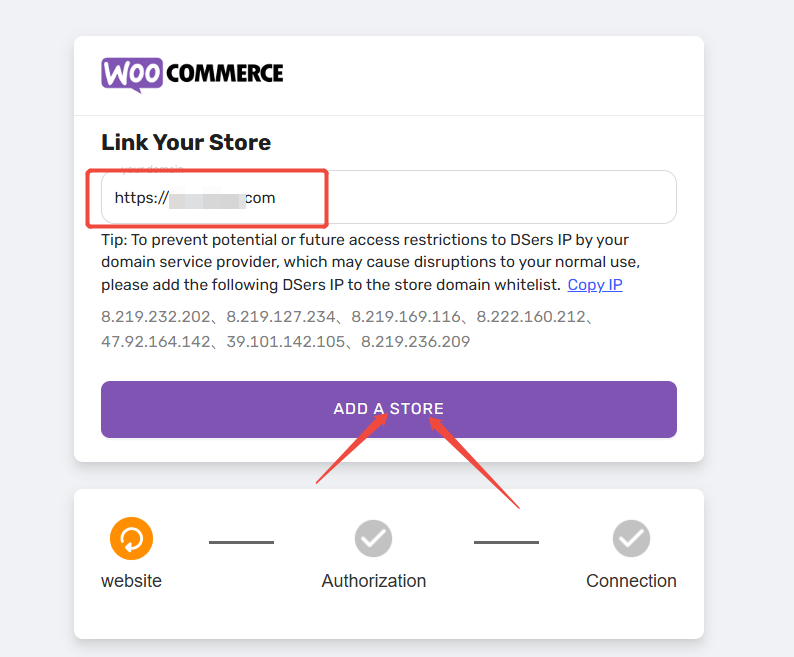
The connection involves three steps: Website (domain verification), Authorization (REST API creation), and Connection (webhook setup). If you see a red "×" at any step, jump to the corresponding section below to troubleshoot.
How to connect your WooCommerce store
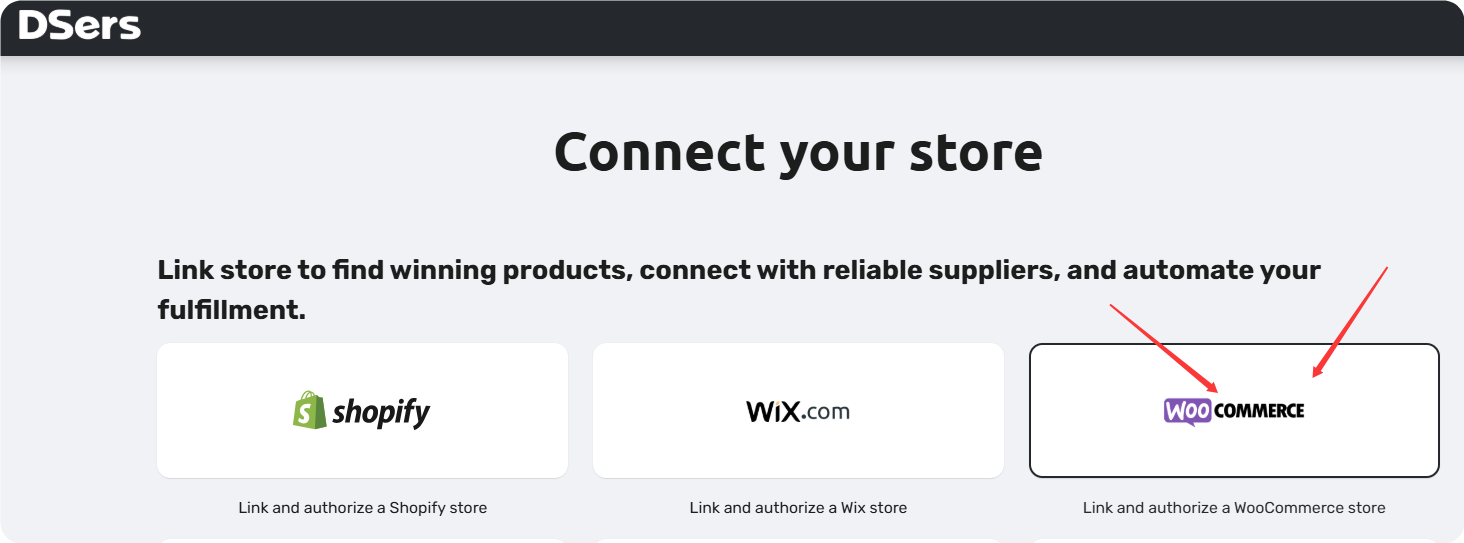
Step 1: Log in to your DSers account. On the platform selection page, click WooCommerce.
New to DSers? Learn how to create your account here: [Create Your DSers Account: Sign Up Step by Step]
Connecting another store? Check out: [How to Connect Multiple Stores to a Single DSers Account]
Step 2: Enter your store domain (e.g., https://yourstore.com) and click ADD A STORE.
Step 3: Log in with your WordPress admin credentials.
Step 4: Click Approve to authorize REST API creation.
Step 5: Click CONFIRM to use your current DSers account.
Step 6: Click UPDATE to sync your store.
The connection involves three steps: Website (domain verification), Authorization (REST API creation), and Connection (webhook setup).
If you see a red "×" at any step, refer to the troubleshooting sections below.
Troubleshooting the three steps
⚠️ Website step – red "×"
| Issue | How to fix |
|---|---|
| Website is offline or domain is incorrect | Ensure your site is online and the domain is correct. Verify it loads properly in a browser |
| Site is not built on WordPress | DSers requires a WordPress site. Switch to WordPress or choose a different sales channel |
| Permalink not set to "Post name" | Go to WordPress > Settings > Permalinks, select "Post name", and click Save |
| WooCommerce not installed or activated | Install and activate WooCommerce (version 4.0 or higher) |
| Website does not use HTTPS | Install an SSL certificate or activate the "Really Simple SSL" plugin |
| /wp-json endpoint is blocked | Enable WordPress REST API and disable any plugins that block it |
| JavaScript is disabled | Contact your hosting provider to enable JavaScript on your server |
| Conflicting plugins are blocking DSers | Temporarily disable plugins that restrict access or optimize performance (e.g., cache, SEO, security, or REST API blockers). Re-enable them after connection |
Pro tip: Server firewall blocking the connection? Contact your hosting provider to whitelist DSers' server IPs.
If using ModSecurity, ask them to temporarily disable it or add an exception for DSers.
DSers IP addresses: 8.219.232.202; 8.219.127.234; 8.219.169.116; 8.222.160.212; 47.92.164.142; 39.101.142.105; 8.219.236.209; 3.68.159.19; 44.211.237.70
⚠️ Authorization step – red "×"
| Issue | How to fix |
|---|---|
| Authorization pop-up blocked | Click the blocked icon in your browser's address bar and select "Always allow pop-ups from dsers.com" |
| Using a preview URL | Use your live website URL, not a preview or staging URL |
| Pop-up shows "Not Found" | Temporarily disable the WPML Translation Management plugin, try again, then re-enable |
| Can't log in through the pop-up | In WP Super Cache settings, go to Easy > Caching and change to "Caching On (Recommended)", then refresh |
| Pop-up doesn't respond after clicking Approve | Temporarily disable the Customize My Account for WooCommerce plugin, try again, then re-enable |
⚠️ Connection step – red "×"
| Issue | How to fix |
|---|---|
| "Connection failed" | Your server is blocking DSers' requests. Contact your hosting provider to whitelist DSers' IPs or temporarily disable ModSecurity |
| "403 error – website prohibited DSers from creating Webhooks" | Contact your hosting provider with the error details. Ask them to whitelist all DSers IPs. After they release the restriction, try connecting again |
What's next?
Once your WooCommerce store is connected, choose a subscription plan—the Basic plan is free with no credit card required.
💡 Optional: DSers offers a plugin that helps send automated order shipping notification emails for Woocommerce store.
It's optional and not required for store connection. You can download it from Settings > Fulfillment Settings > Shipping Confirmation Email Settings in your DSers account.
Related Articles
- How to Connect Multiple Stores to a Single DSers Account
- Create Your DSers Account: Sign Up Step by Step
- How to Disconnect a Store from Your DSers Account
FAQ Section
Everything you need to know about connecting your WooCommerce store to DSers.

Get Started Now to Grow Your Online Business with the DSers!