

Automatically assign each order to the best local supplier based on the customer’s shipping destination.

Note
In global dropshipping, a single product may be stocked in multiple warehouses across different countries. Country-Based Advanced Mapping can help you map suppliers to your products based on destination countries and SKUs, allowing suppliers with local or regional warehouses to deliver faster and reduce shipping fees for a better customer experience.
Advanced Mapping solves this by letting you set country-based routing rules. When a customer places an order, DSers checks the destination country and selects the supplier you mapped to that country.
This tutorial covers:
- How to turn on Advanced Mapping for a product
- How to Set Variant Mapping for Specific Countries
- How to use Bulk Edit for faster configuration
How to turn on the Advanced Mapping Feature
1. Login to DSers → My Products

2. Hover on the Product Card and click the Mapping icon

3. Import supplier link
4. Select the method of mapping-Advanced Mapping
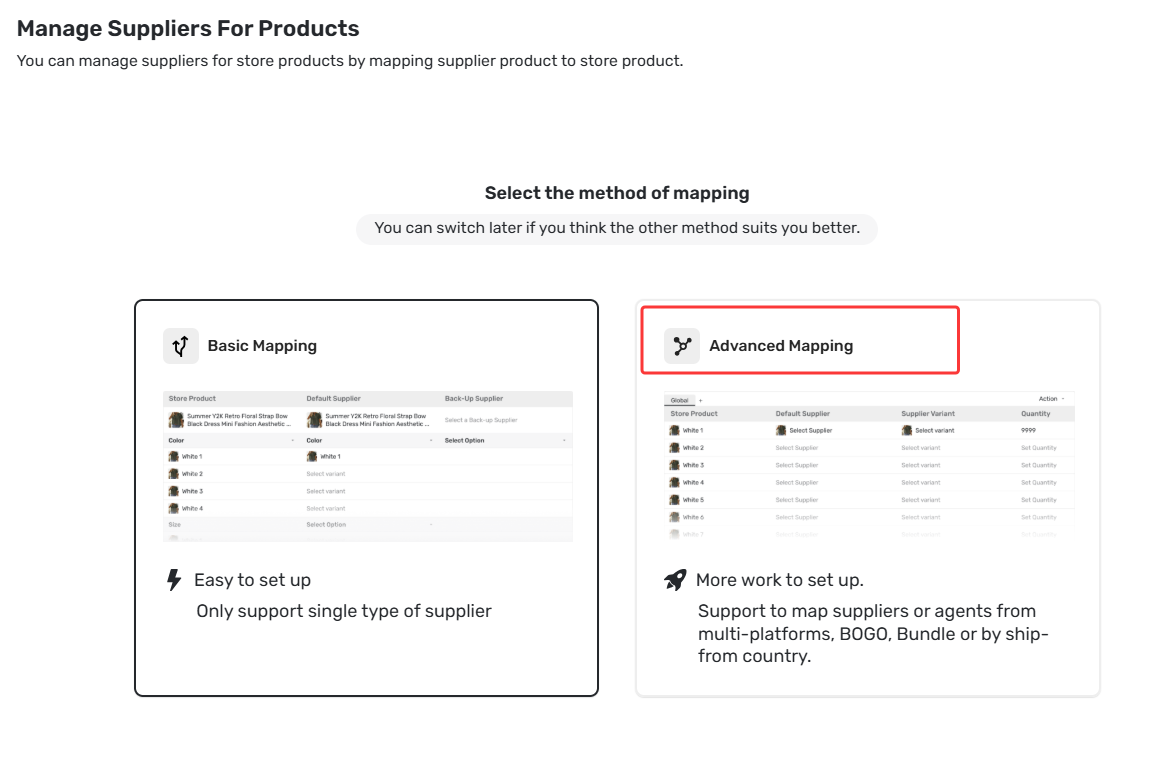
Tip: Don't forget to select Advanced Mapping in the confirmation pop-up when saving — this is required for your changes to apply.
How to Set Variant Mapping for Specific Countries
After activating Advanced Mapping for a product, follow these steps to set up country-based routing for each variant.
Step 1: Understand the Global Sheet (Default)
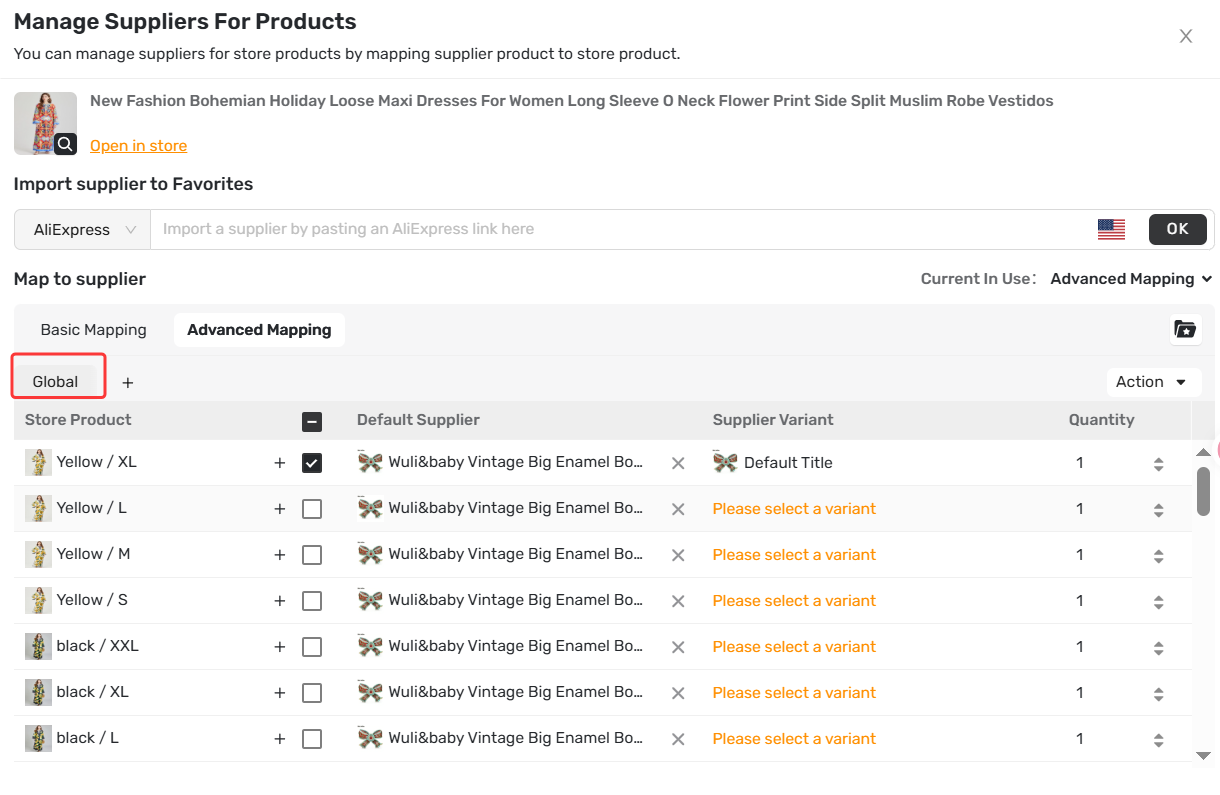
When you open the Advanced tab, you will see sheets for configuring routing rules:
- Global sheet (default): Fallback rule for any country you don't specifically map.
- Country sheets (you add them): Rules for specific destination countries.
Step 2: Complete Variant Mapping Page
- Locate the variant you want to map (e.g., "Size M – Black")
- Click Select Supplier & Select Variant under the default Supplier & Supplier Variant column.
- Choose the same country you selected (e.g., Germany) as the Ships From option.
- Select your desired values for other options (color, size, etc.).
- Set the quantity for it (the default option is 1).
- Click Save to submit the global mapping.
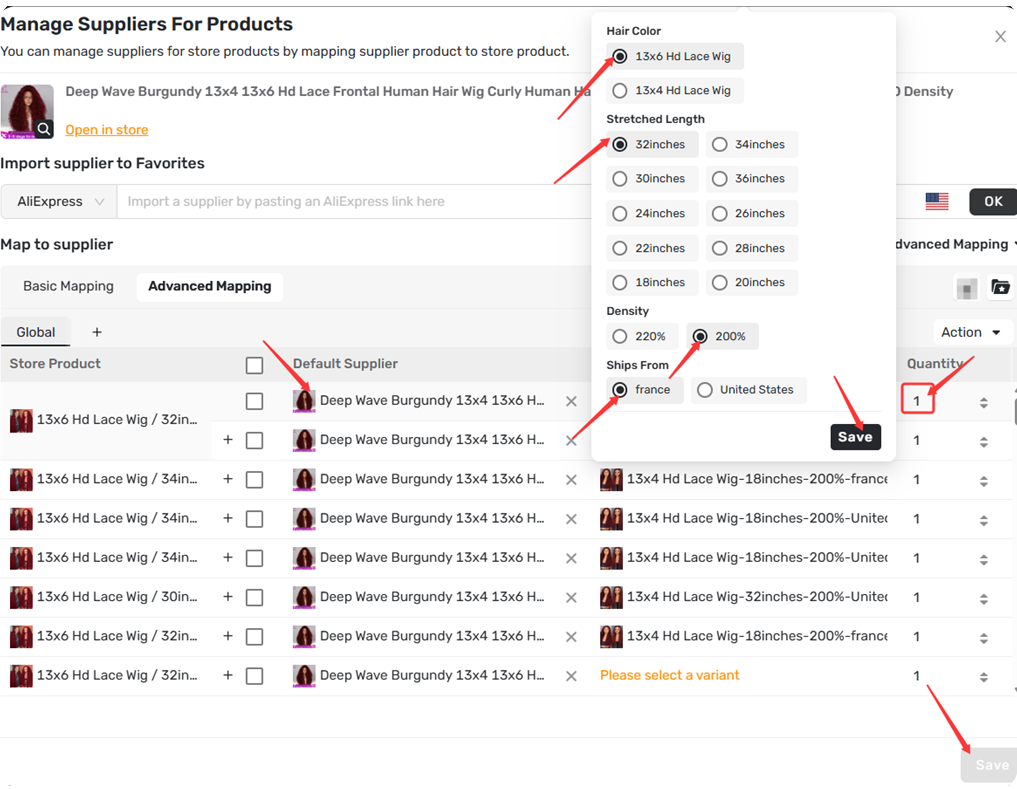
Step 3: Add/Duplicate a Specific Country Sheet
To create a rule for a specific destination country:
- Click the + next to the “Ship to” bar
- In the pop-up, select your destination country from the dropdown menu (e.g., "United States")
- Click CONFIRM
- save the new supplier variants as step 2
- Click Save button to submit the variant mapping.
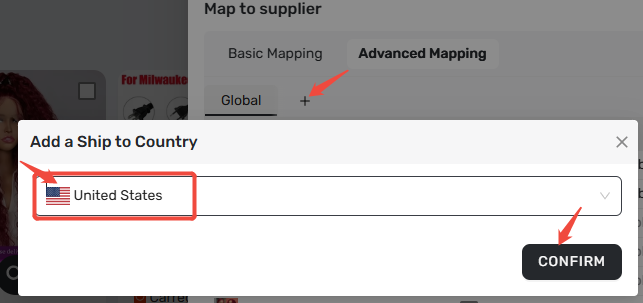
A new sheet will appear to the right of the Global sheet.
Step 4: Repeat for more destination countries
For additional destination countries for the same variant, repeat Steps 3. For example, you can select France as the Ship to country and map a supplier that ships from France.
Step 5: Save your changes
1. Click Save
 at the bottom of the page
2. In the pop-up, confirm Advanced Mapping is selected as the method
3. Click CONFIRM
 to save
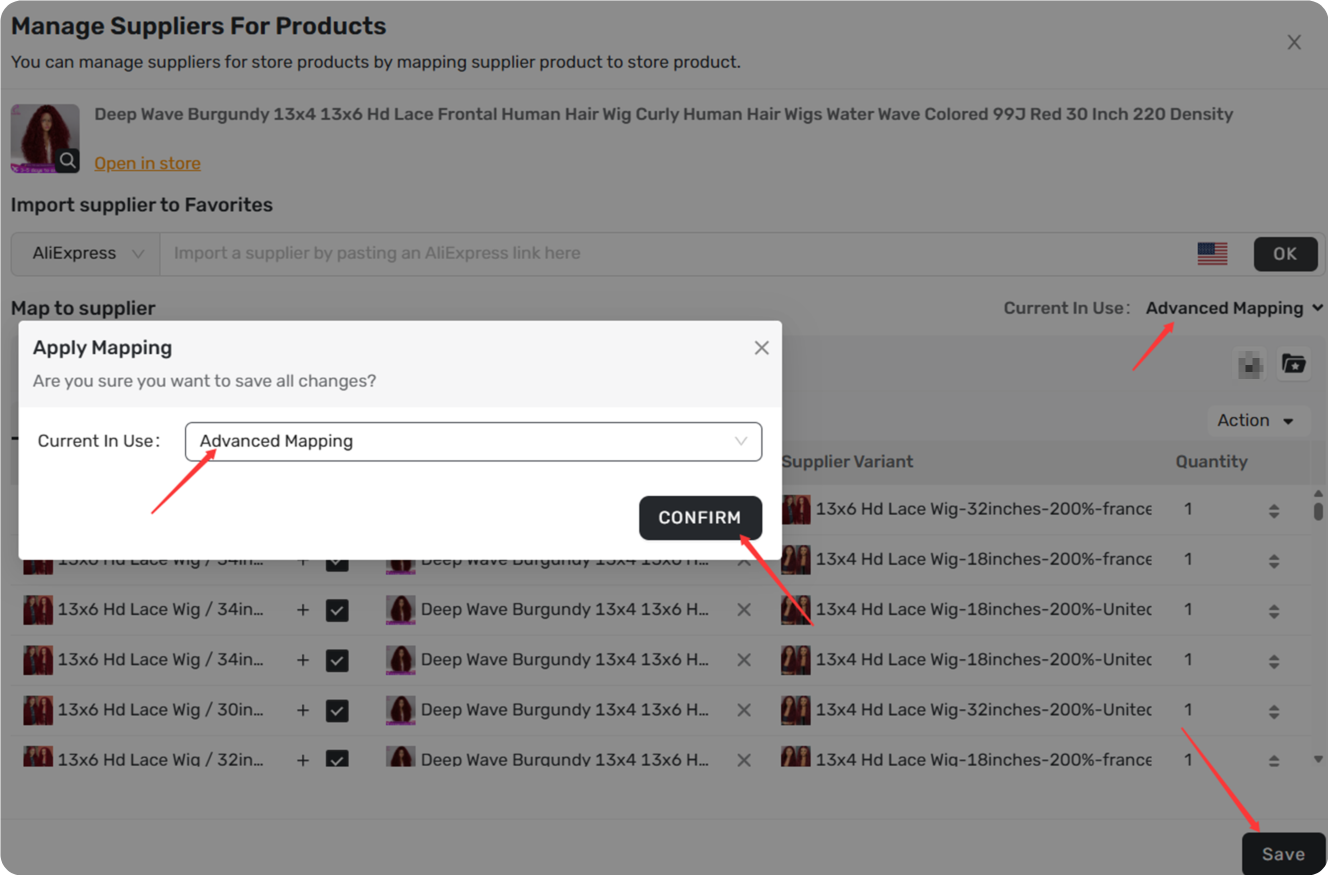
Once configured, DSers automatically routes each order to the supplier you mapped for that destination country, if no specific country sheet exists, the order falls back to the Global sheet supplier.
Important Things to Know
- 10 supplier limit – Maximum 10 different country-supplier pairs per variant.
- Global fallback is optional but recommended – Without it, orders from unmapped countries will not use Advanced Mapping rules.
- Cost Multiple appears automatically – DSers detects that the same variant has different supplier costs and shows the range on the product card.
How to use Bulk Edit for faster configuration
Use this when you want to assign the same supplier to multiple SKUs at once.
- Select your Bulk editing SKU Apply range
- Choose “Action” options:
- Duplicate This Sheet-Add a Ship to Country
- Add Bundle products
- Bulk apply suppliers-Add Bundle Products
- Delete Rows
3. Choose a supplier from the list (all suppliers in your Favorite Suppliers appear here).
4. Confirm.
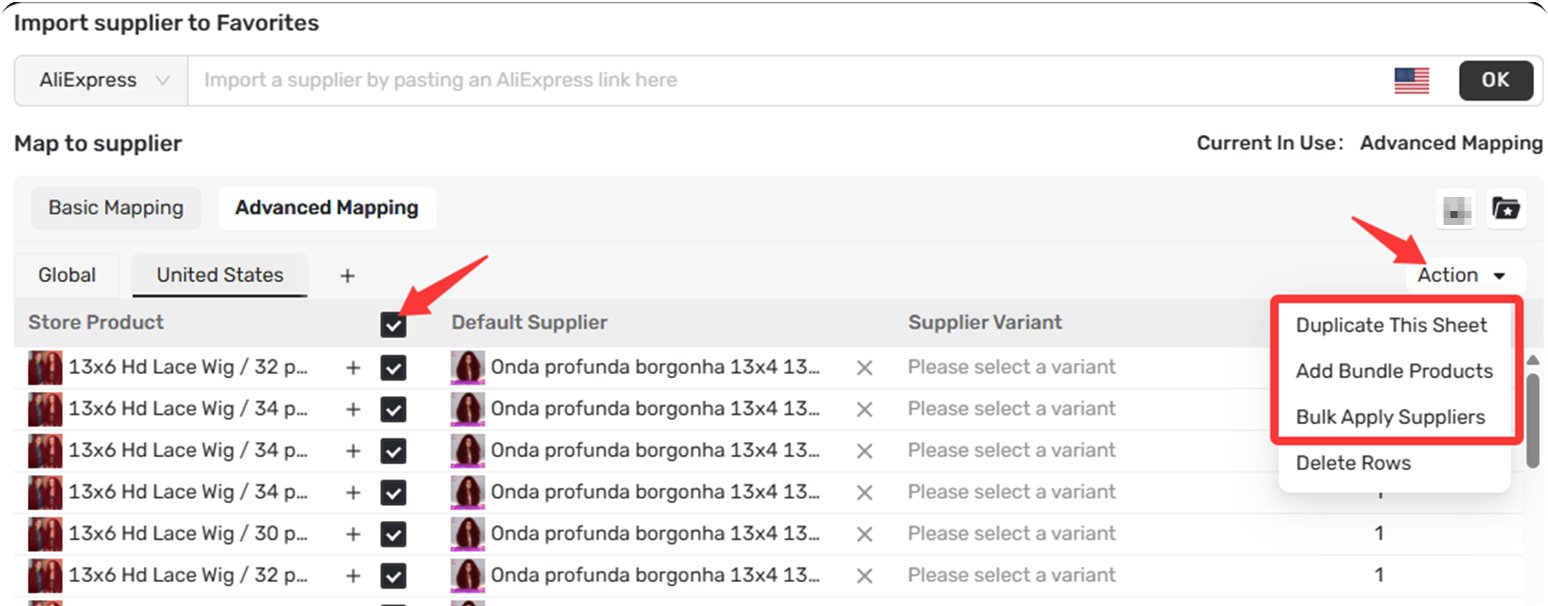
DSers fills the Default Supplier column for all selected SKUs with your chosen supplier.
Related Articles
- How Variant Mapping Works
- Basic Mapping: How to set Backup Suppliers
- Basic Mapping Templates: Scale Your Product Library
- BOGO & Bundle Mapping: Sell More with Product Combinations
FAQ Section
Everything you need to know about Country-Based Advanced Mapping and how to route orders to the right supplier by region.
| Get Started Now to Grow Your Online Business with the DSers! |
