

Remove distractions, erase flaws, and replace backgrounds with AI. No design skills required.
Note
Professional product images build customer trust and increase conversions. But before AI editing tools, dropshippers had to do everything manually.
The old way: Remove backgrounds or erase objects using complex software — manually tracing products pixel by pixel. A single image took 5–15 minutes. A full catalog of 50 images could take hours or even a full day. Sellers without design skills had to pay freelancers $5–25 per image.
The DSers difference: Three AI editing features, one click, seconds. No software, no tracing. Just select, generate, apply.Click here to start dropshipping now with DSers
What Is AI Image in DSers?
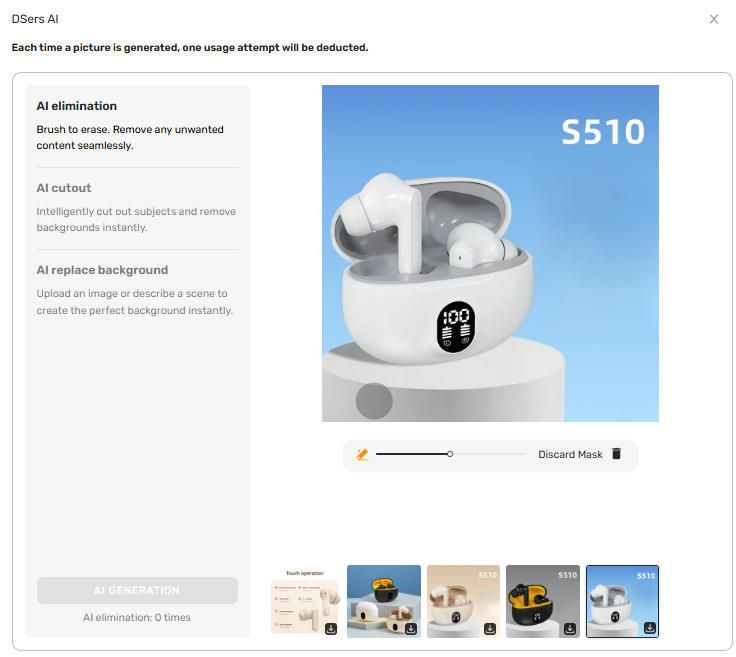
AI Image is a built-in editing tool inside Import List-Edit Products-Images. Click AI Editing Images to open the editor. You get three features:
| Feature | What It Does |
|---|---|
| AI elimination | Erase unwanted objects, text, or blemishes |
| AI cutout | Remove backgrounds instantly, keep only the product |
| AI replace background | Change backgrounds using an image or text description |
How to Use Each Feature
1. Open Import List-Edit Product-Image, click AI Editing Images.

2. In the editor, select one of the three AI features.
3. Depending on your selected feature, complete the following steps:
| If you select... | Do this... |
|---|---|
| AI elimination |
Hold and drag your mouse over the area to remove. Adjust brush size with the slider. Click Discard Mask to clear mistakes. |
| AI cutout | Select the image you want to remove the background from. |
| AI replace background |
Choose a method: upload an image (JPEG, JPG, PNG, WEBP, max 12MB) or type a description (up to 60 characters). |
4. Click AI GENERATE.
 Wait a few seconds for the AI to process.
5. The edited image appears on the right with a tick mark. Save it via APPLY
 , or download
 it locally.
Usage Limits & Upgrading
```html
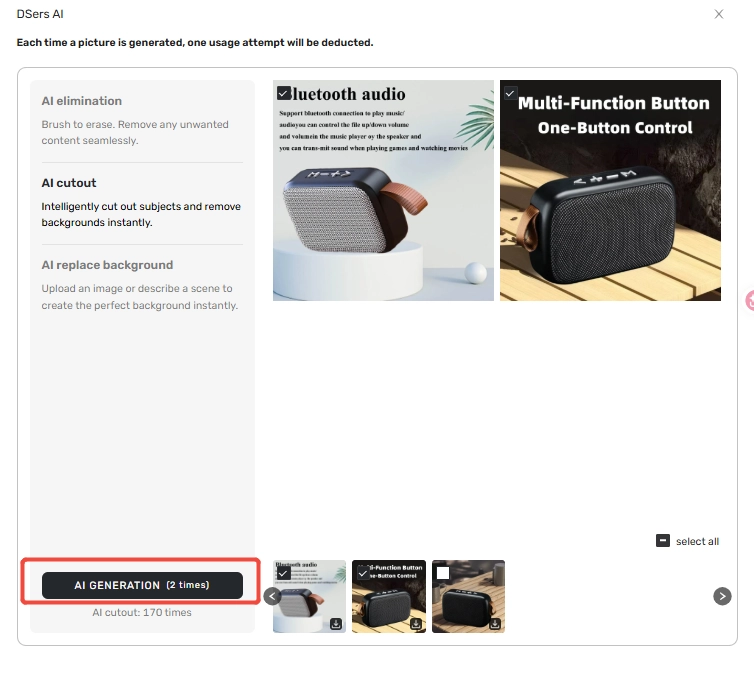
- Each feature shows your remaining tries at the left bottom of the editor.
-
The AI GENERATE
button shows the estimated cost before you click.
-
Out of tries? The checkout will automatically pop up for you to subscribe. After that, go to billing → return and click refresh
 to update your remaining uses.
Tips for Using AI Editing Images
✅ Save the changes before switching/closing images
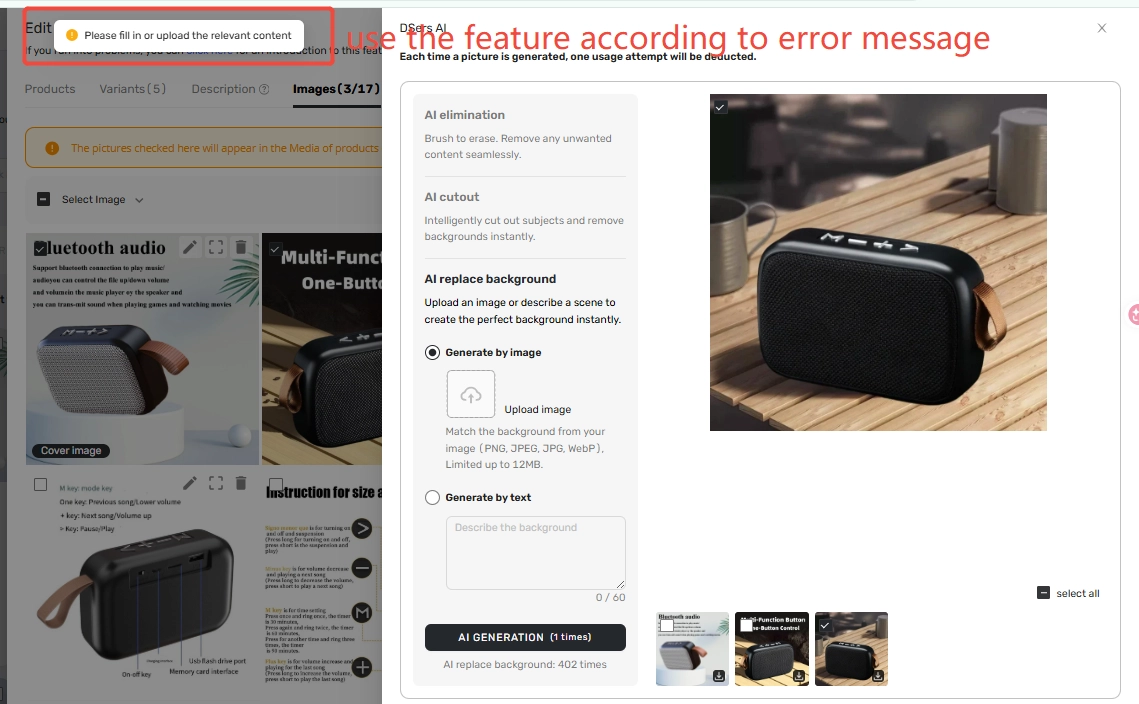
✅ Error message—If an image fails to process, an error message will explain why.
- ✅ Compare originals and edits—Thumbnails show older images on the left and newer on the right.
-
✅ Keep your originals – APPLY
adds new images without deleting old ones.
- ✅ Write specific text prompts—"wooden shelf, natural light" works better than "nice background".
Related Articles
- AI Product Title Optimization: From Keyword Stuff to SEO-Friendly
- AI Description Generator: Turn Specs into Benefits
- How to Use AI Mapping and Fix Errors to Match Products Faster
- AI Recommendation Notification: How to Find Better Suppliers
FAQ Section
Quick answers to the most common questions about DSers AI Image editing features.
| Get Started Now to Grow Your Online Business with the DSers! |
