

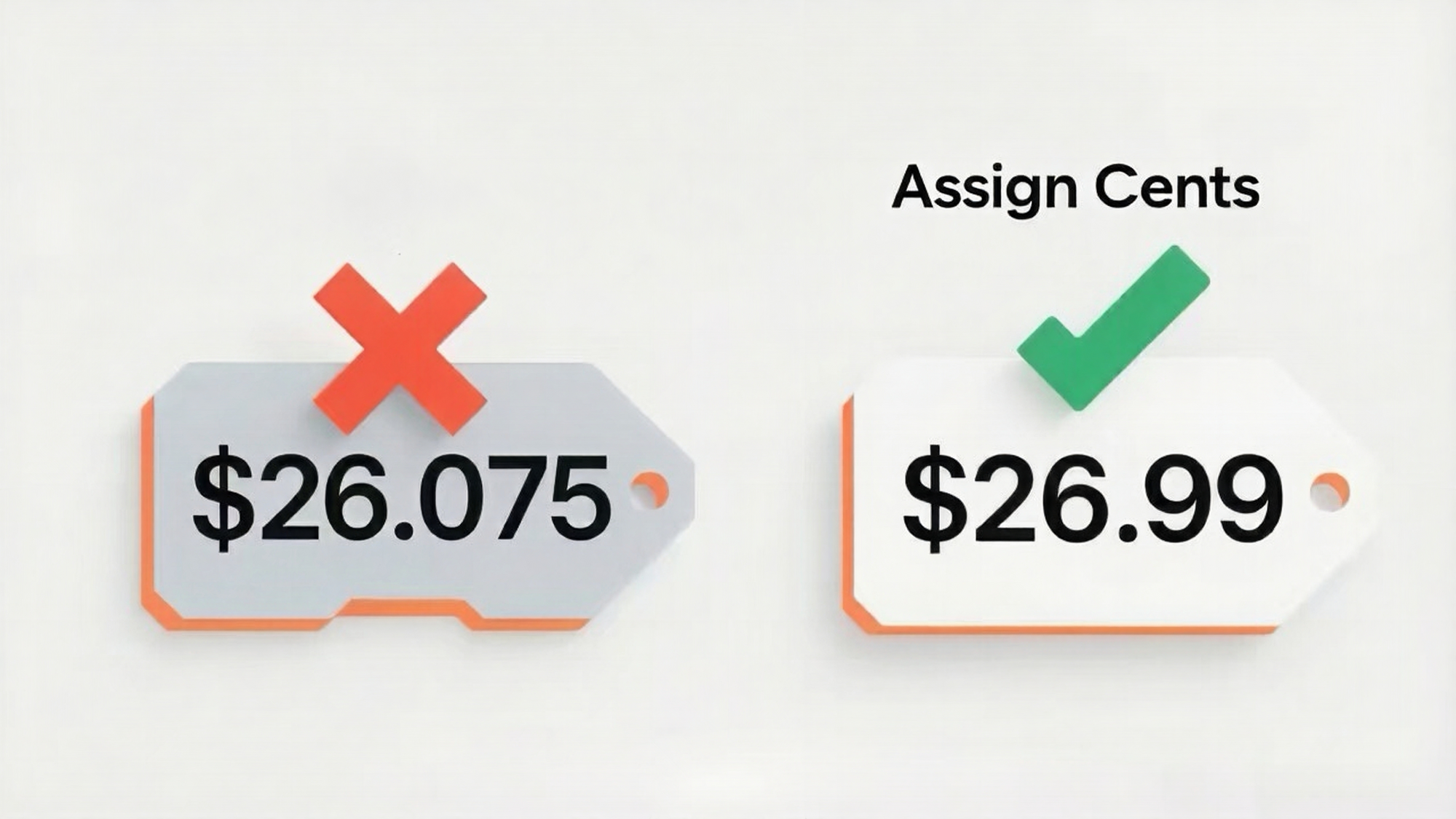
Stop showing customers ugly decimals like $26.075. Standardize your prices in seconds.
Note
In dropshipping, product prices often come out as messy calculations.
Your pricing rule says ×2.5 on a 10.43 cost item, and suddenly your store shows 26.075. Customers notice. They might not know why, but a price like 26.07 feels less trustworthy than 26.99.
This tutorial covers one simple but powerful feature in Settings > Pricing settings.
Assign Cents & Price Preview – Automatically replace the decimal (cents) value of every product price with your chosen number and preview the sale price of products before you push them to your store.
Click here to start dropshipping now with DSers
Step-by-Step: Set Up Assign Cents
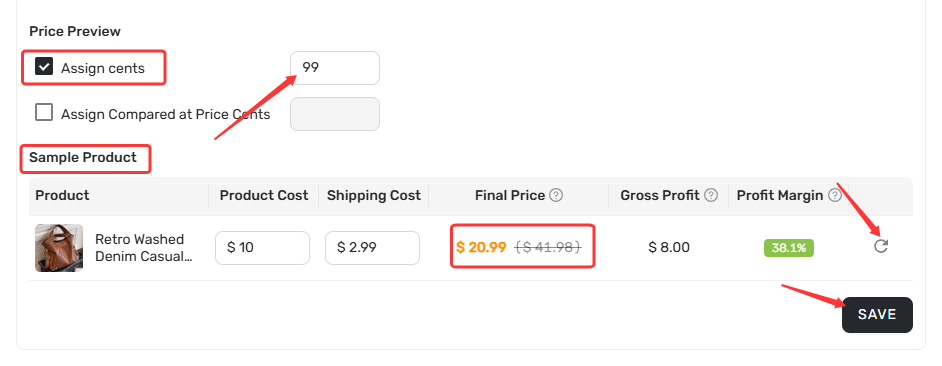
Step 1: Navigate to Assign Cents
- Go to Settings > Pricing settings.
- Add your own pricing template from step 1-3
- Step 4: Assign Cents & Price Preview will appear
Step 2: Review Price Preview (Optional)
- A sample product is displayed with its Product Cost, Shipping Cost, Final Price, Gross Profit, and Profit Margin.
- Click the pencil icon next to Product Cost or Shipping Cost to test different values. The calculation results will refresh with one click.
Step 3: Set the Cent Value for Sale Price
- Check the Assign cents checkbox
- Enter your desired cent value in the input box (e.g.,
99,95, or00).
Step 4: Set the Cent Value for Compared-at Price (Optional)
If you use "compare at" pricing (regular price before discount):
- Check the Assign compared at cents checkbox.
- Enter your desired cent value.
Step 5: Save
- Click SAVE at the bottom of the page.
Tip: Wix products do not support "Compared at price" rounding. This feature works for all other platforms.Click here to start dropshipping now with DSers
Best Practices: Which Cent Value Should You Use?
| Cent Value | Best For | Example |
|---|---|---|
| .99 | Most dropshipping stores – standard retail psychology | $19.99 |
| .95 | Discount or wholesale-style stores | $14.95 |
| .00 | High-end or luxury positioning | $49.00 |
Pro Tip: Be consistent. Don't mix.99on some products and.95on others. A consistent format across all products builds brand trust and looks more professional.
How Assign Cents Fits in the Pricing Flow
DSers applies features in a specific order. Understanding this flow helps you debug unexpected results.
Step 1: Pricing rule calculates base price
         Example: $10.43 USD
                    ↓
Step 2: Currency Exchange Rate converts USD to your store currency
         Example: $14.08 CAD
                    ↓
Step 3: Assign Cents replaces the decimal value
         Example: $14.08 CAD → $14.99 CAD
                    ↓
Final price on your store: $14.99 CAD
Related Articles
- Master Pricing Settings: 2 Ways to Automate Your Product Pricing
- Basic Pricing Rule: Automate Your Product Pricing in Minutes
- Basic Pricing Rule: How to Add Shipping Cost to Your Pricing Rule
- Advanced Pricing Rules: Automate Your Profit Margins
- Advanced Pricing Rules: How to Add Shipping & Tax to Your Pricing Rule
- Store Currency & Exchange Rates: How to Price Across Different Currencies
- Manually Change Store Products Price: Bulk Refresh with Your Latest Rules
- Automatic Price Update: Keep Store Prices in Sync with Suppliers
- Manual Price Sync Failures: Causes & Troubleshooting Solutions
- Shipping Settings: How to Set Your Default Shipping Method
FAQ Section
Here are some common questions about Assign Cents and pricing standardization in DSers.
| Get Started Now to Grow Your Online Business with the Best AliExpress Dropshipping Tool - DSers! |
