

Stop Guessing Your Margins and Start Automating Your True Costs
Note
Note: When pushing products to your store, don't just set the selling price—make sure the product cost is pushed as well, so you can track cost and profit in your reports.
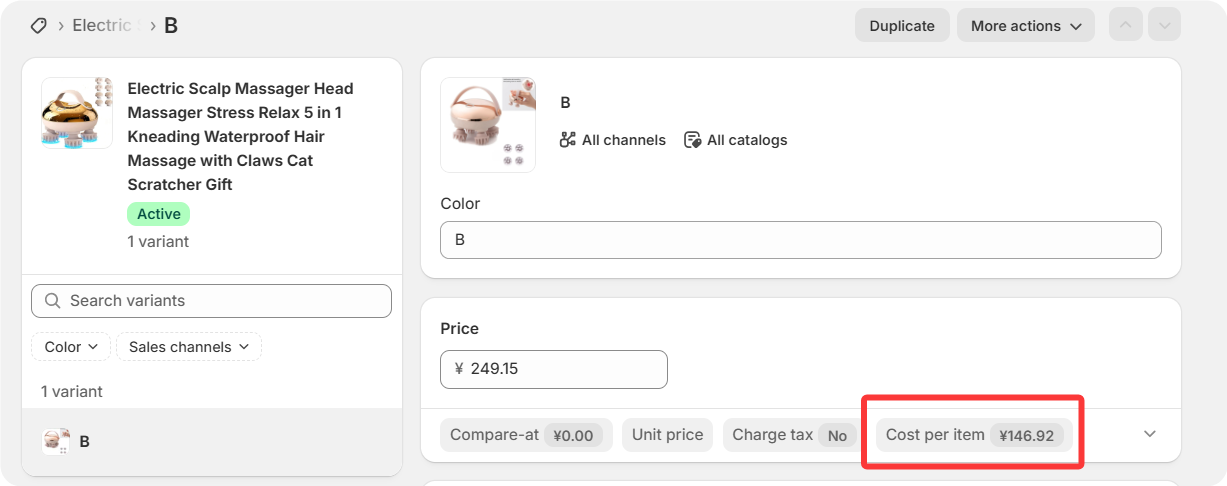
This guide walks you through how to send both product and shipping costs to Shopify’sCost per itemfield, and how to set up automatic updates to keep everything accurate.
This feature is available on paid plans (Advanced and above).Click here to start dropshipping now with DSers
How to Send Product and Shipping Costs to Shopify
- Go to Settings - Product Settings - Push products section
- Locate the "When pushing products, you want DSers to" options and select "Send product and shipping cost to Store"
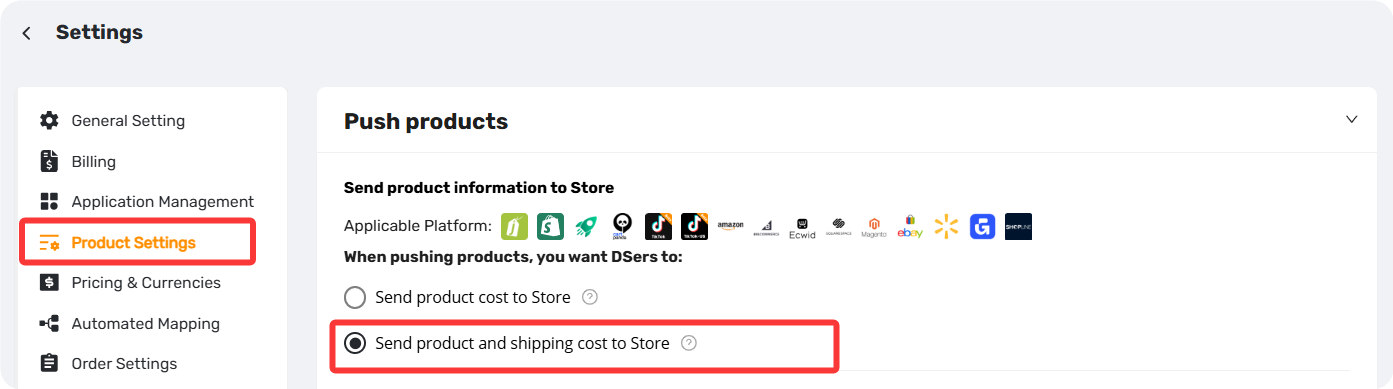
Selecting this option doesn't guarantee shipping cost will be included—it depends on your pricing and shipping settings, as explained below.
Understanding the Costs Being Pushed
When you select "Send product and shipping cost to Store," DSers combines the supplier's product cost with the shipping cost and pushes the total to Shopify's Cost per item field on the product variant page.
How Shipping Costs Are Determined
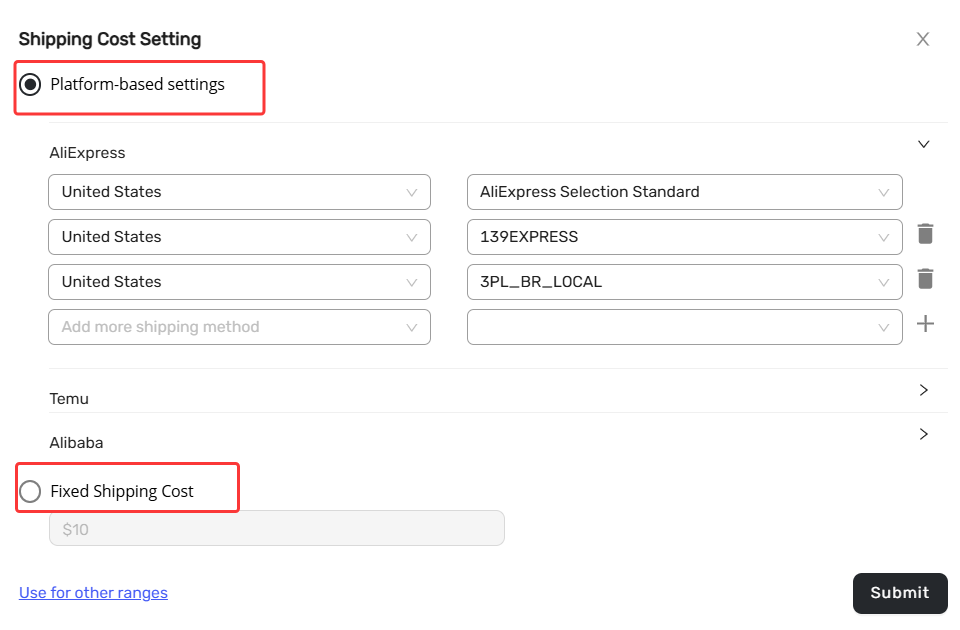
If you use Advanced Pricing Rule:
You must configure shipping settings within the rule itself, either by selecting a specific shipping method for a destination country or adding a fixed shipping value.
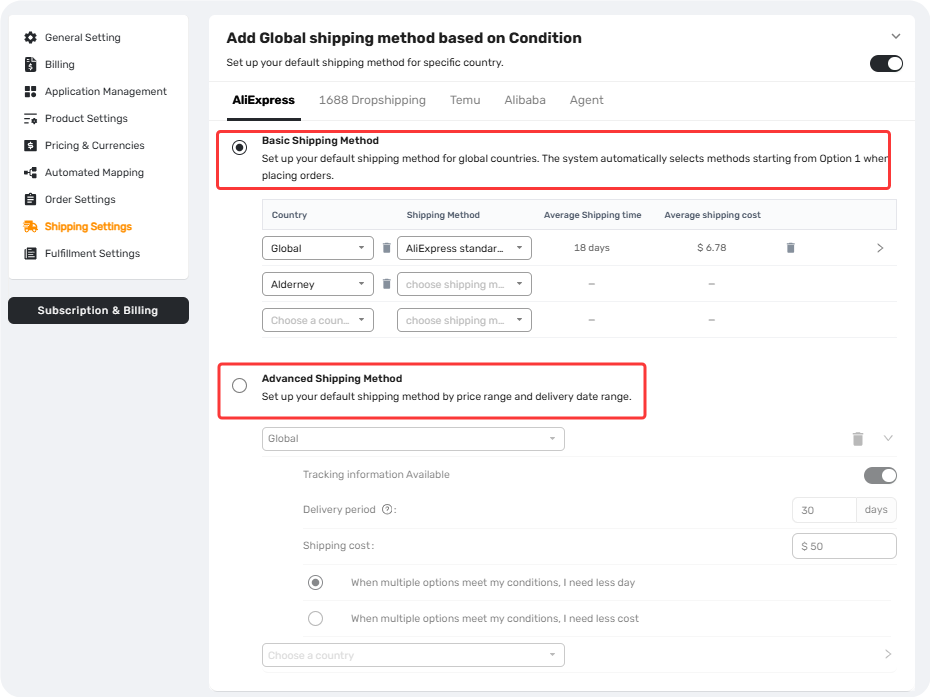
If you use Basic Pricing Rules:
You need to ensure that shipping methods are properly set up in Settings > Shipping Settings > Add Global shipping method based on Condition.
⚠️ Important: In either case, if the supplier doesn't support the shipping method you've set, the shipping cost will be calculated as $0.
For a full breakdown of why shipping costs might show as $0 and how to resolve it, check out our dedicated Troubleshooting article [here].
How to Set Up Automatic Cost Sync
Suppliers change prices and shipping fees all the time. Manually updating everything is a headache. DSers' Automatic Price Update keeps your costs current without lifting a finger.
Setting It Up
- Go to Settings - Product Setting, find the Automatic Price Update section
- Select "Update price, Compared at price and cost to store”
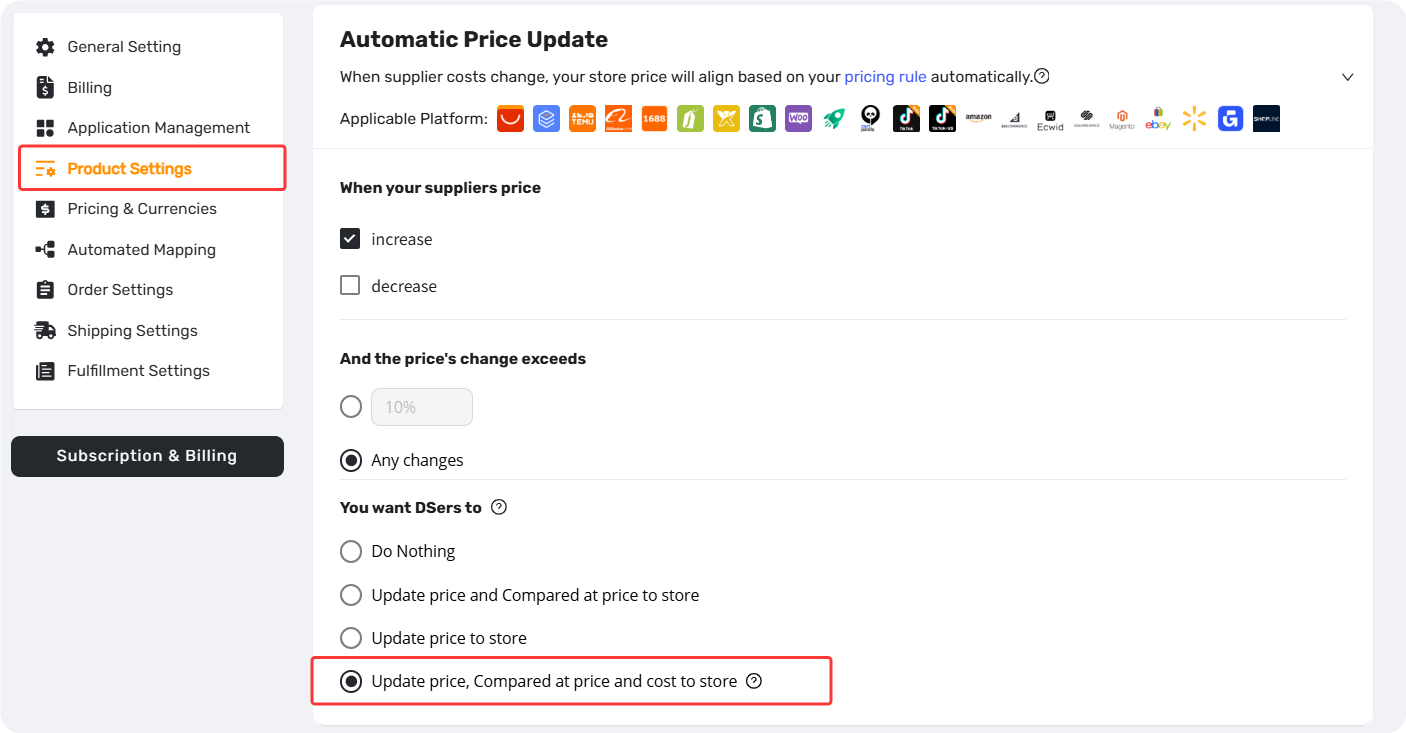
When enabled, DSers detects supplier price changes and updates your store automatically—keeping your profit reports accurate with zero manual effort.
Related Articles
- Master Pricing Settings: 2 Ways to Automate Your Product Pricing
- Basic Pricing Rule: Automate Your Product Pricing in Minutes
- Basic Pricing Rule: How to Add Shipping Cost to Your Pricing Rule
- Advanced Pricing Rules: Automate Your Profit Margins
- Advanced Pricing Rules: How to Add Shipping & Tax to Your Pricing Rule
- Store Currency & Exchange Rates: How to Price Across Different Currencies
- Assign Cents: Make Your Product Prices Look Clean and Professional
- Manually Change Store Products Price: Bulk Refresh with Your Latest Rules
- Automatic Price Update: Keep Store Prices in Sync with Suppliers
- Manual Price Sync Failures: Causes & Troubleshooting Solutions
- Shipping Settings: How to Set Your Default Shipping Method
FAQ Section
Quick answers to the most common questions about syncing product and shipping costs to your store.

Get Started Now to Grow Your Online Business with the DSers!