

Import Products Faster, Smarter, and With the Right Costs
Note
The DSers Chrome Extension lives in your browser and turns AliExpress into a seamless sourcing channel. No copy-pasting.
No manual data entry. Just click, import, and move on.
This article covers the extension's core product importing features.
Tip: Make sure you have the latest version of the DSers Chrome Extension installed before you begin.Click here to start dropshipping now with DSers
You can also download it from your DSers dashboard (Home → Chrome Extension) .
What You Can Do With the Extension — At a Glance
| Feature | What It Does for You |
|---|---|
| Import products | One-click import from any AliExpress product page, or import multiple at once from search results, store pages, and related items |
| Import multilingual products | Import product info in multiple languages for different markets — learn more |
| Set destination preferences | Set your "Ship to" country, shipping method, and currency — products that match show a green badge for easy spotting |
| Search by image & multi-platform price comparison | Find similar products across AliExpress, Amazon, 1688, and more — learn more |
Set Your Destination Country for Accurate Costs
AliExpress prices vary by shipping destination. To get accurate costs, you need to configure two separate settings — one directly on the AliExpress page, and one in the DSers plugin.
1. Ship-to Country (for import cost accuracy)
Before importing a product, make sure you've set the Ship-to country directly on the AliExpress page (in the top bar). This determines the product cost that will be pulled into DSers when you import.
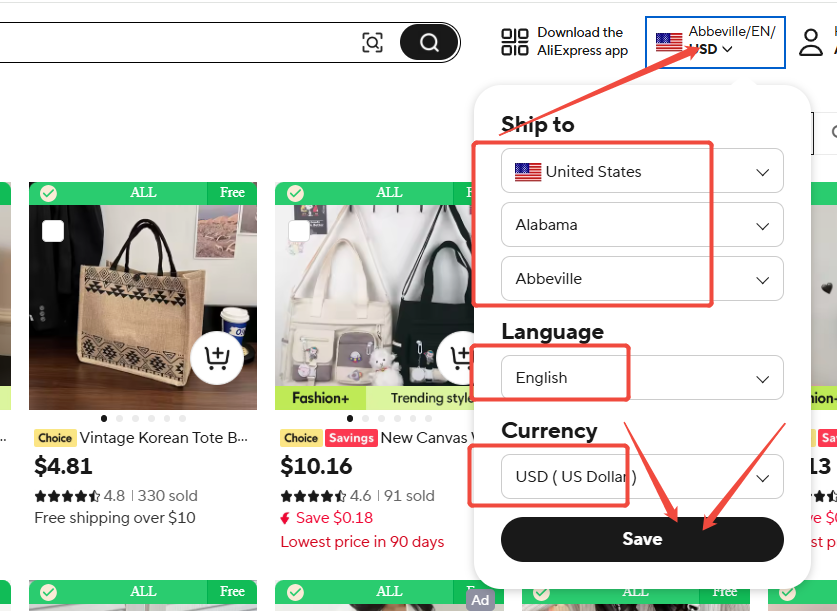
For more details, see [How to Set Your Default "Price for Ship to Country"].
2. Plugin Settings (for product browsing)
Click the DSers icon in your browser toolbar and set your:
- Country
- Shipping Method
- Currency
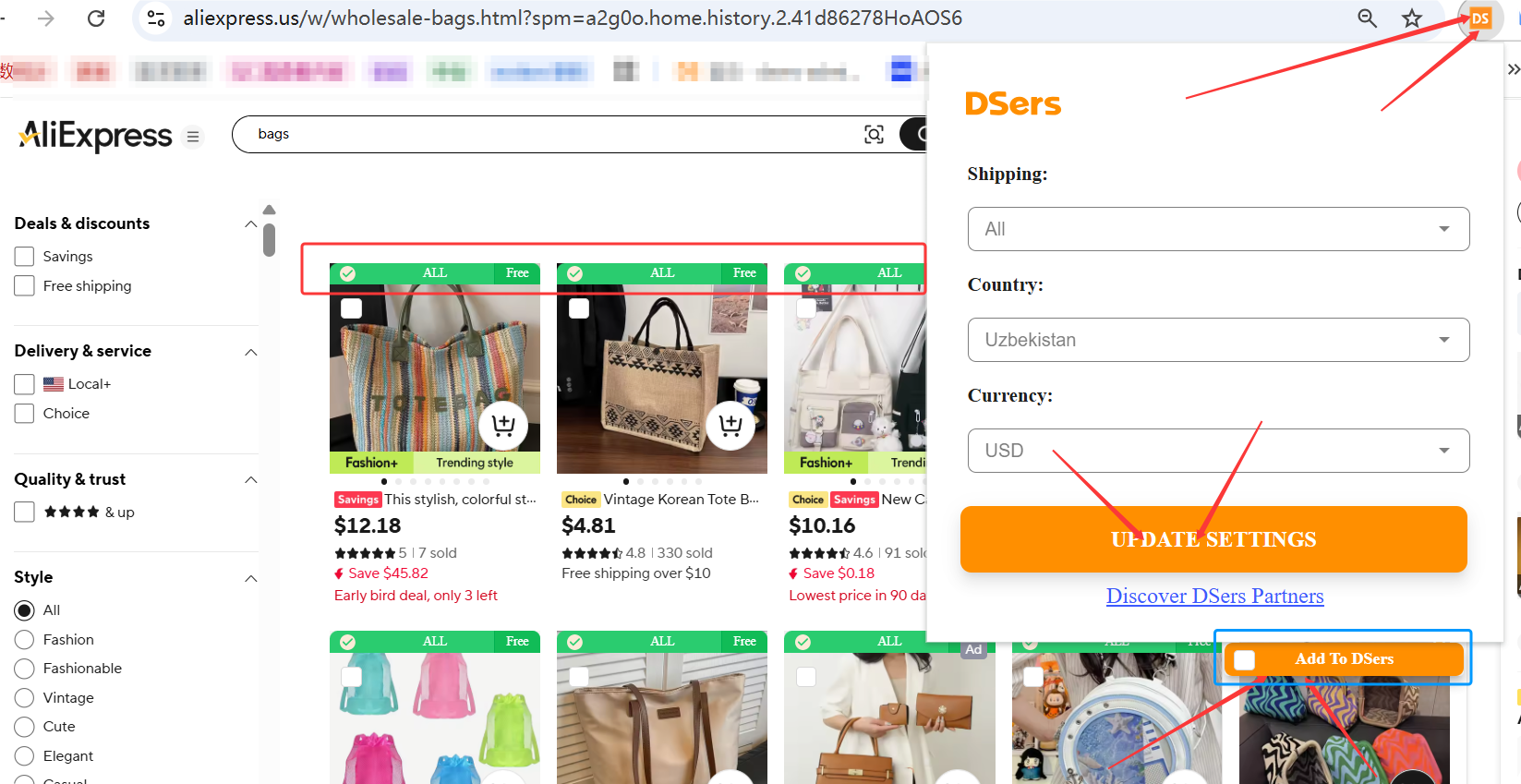
Once saved:
- Products that ship to your destination via your preferred method show a green badge with the shipping cost on the AliExpress search results page.
- Products that don't support your settings show a clear indicator so you can skip them.
Import Products to Your Import List
The Import List is a preparation area where products are edited and optimized before being published to your store.
Think of it as a quality-control checkpoint between product discovery and store launch.
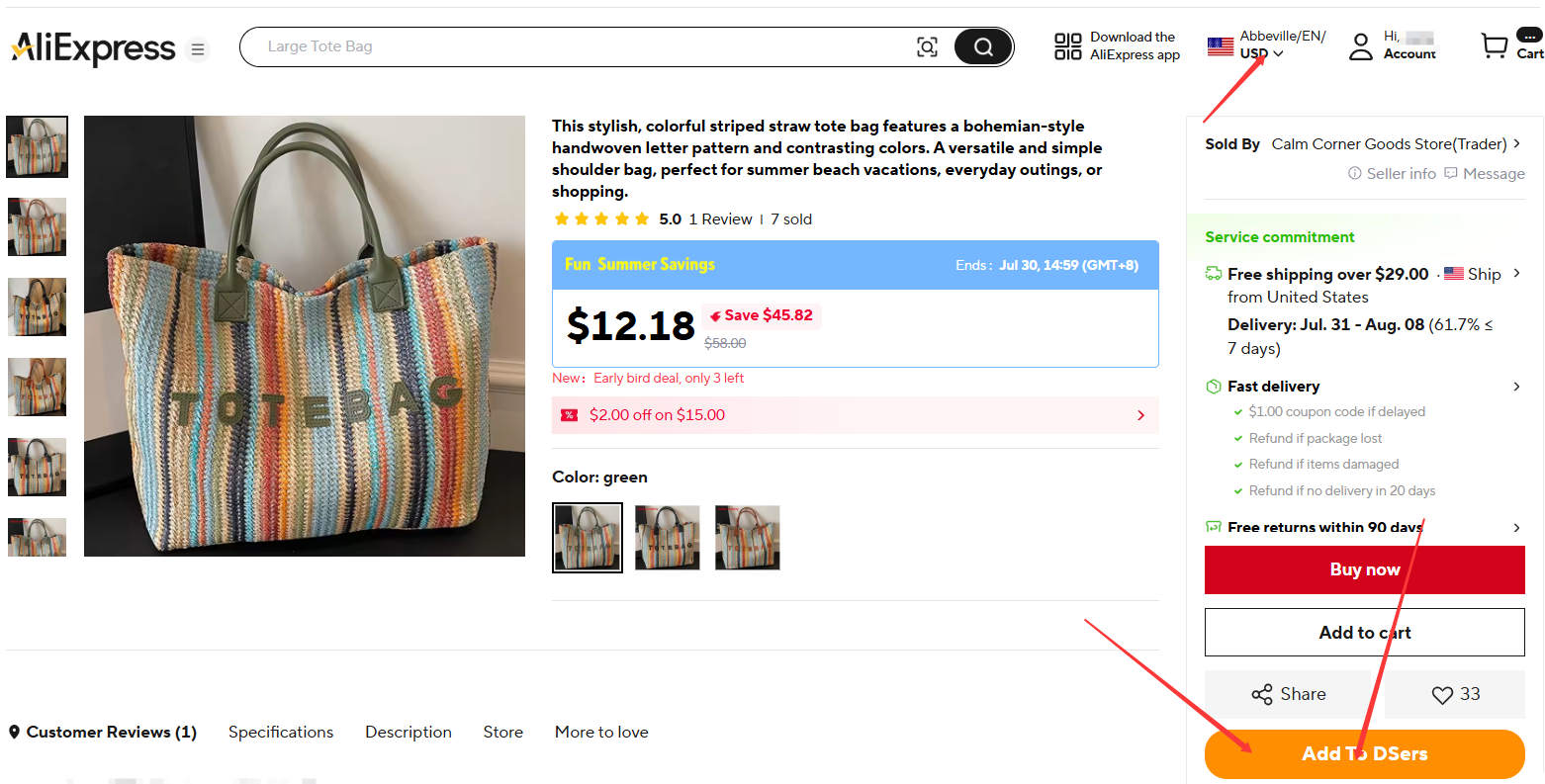
Import a Single Product
You can import from multiple places on AliExpress:
| Where | How |
|---|---|
| Product detail page | Click the Add to DSers button on the page |
| Search results page | Hover over any product card and click the DSers icon |
| More to love section | Hover over activity products → find the DSers button on the preview page |
| Wish List | Click the heart icon to save to your AliExpress Wish List, then import from there (one by one) |
Once imported, the product appears in your DSers Import List, ready for editing and publishing.
Bulk Import Products
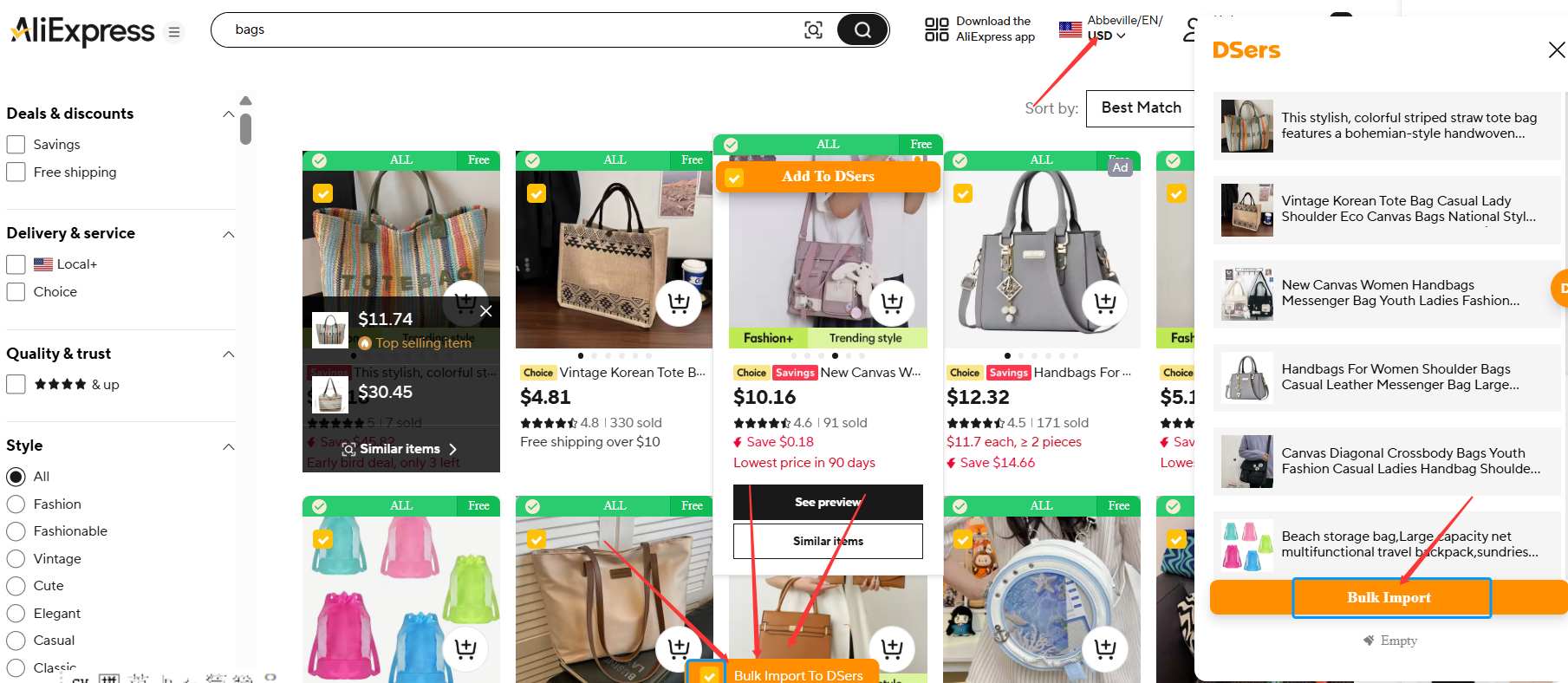
Save time by importing multiple products at once from AliExpress. The way you trigger bulk import varies by page type, but all follow the same basic flow: select products, then import them together.
| Page Type | Max Per Batch | How to Bulk Import |
|---|---|---|
| Search results | 10 products | Hover to reveal checkboxes → select products → click Bulk Import to DSers |
| Product detail page (Related Items) | Up to 12 | Scroll to the Related Items section → select products → click Import All |
| Store page | Up to 30 | Scroll through the store's product list → select products → click Add All to DSers |
You can also use the floating window on search results pages to:
- Clear — deselect all products
- Open Import List — jump straight to DSers to review them
Search by Image & Multi-Platform Price Comparison
Right-click any product image and select Search for image-related products to find similar products on AliExpress.
You can also click the DSers floating ball or the search icon on any image to compare the same product across AliExpress, Amazon, 1688, and more.
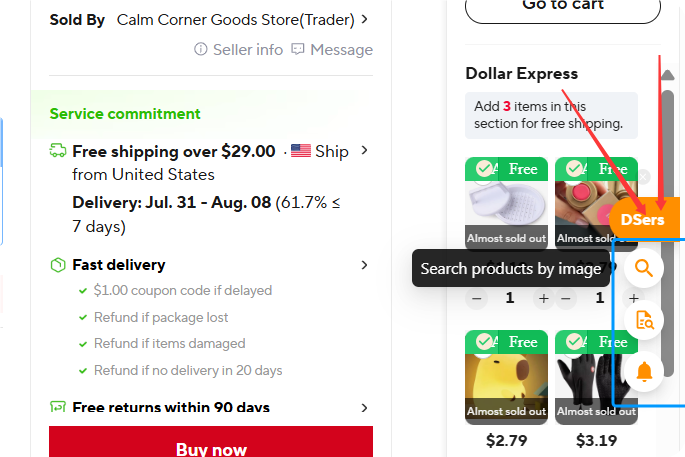
For a detailed walkthrough, see [Supplier Optimizer: How to Find the Best Suppliers Using DSers Plugin].
Import Products in Multiple Languages
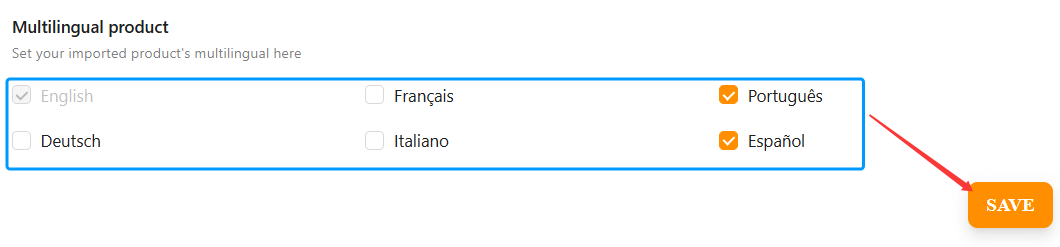
You can import product information in English plus additional languages (French, Portuguese, German, Italian, Spanish) based on your DSers plan.
For detailed setup instructions, see [How to Import Products in Multiple Languages].
Import Errors and Troubleshooting
"Product already exists"
A single AliExpress product can only be imported into your Import List once. If you click Add to DSers on a product you've already imported, you'll see this error.
"Please login to DSers and try again"
You're not logged into DSers. The extension needs an active DSers session to know where to send imported products.
- On product lists: clicking import may do nothing — check the DSers icon for the login prompt
- On product detail pages: the Add to DSers button won't work — a notification will appear asking you to log in
The extension automatically detects which DSers account you're logged into and imports to that account.
Logging into multiple DSers accounts on the same computer isn't supported.
Related Articles
- How to Set Your Default "Price for Ship to Country"
- Supplier Optimizer: How to Find the Best Suppliers Using DSers Plugin
- How to Import Products in Multiple Languages
- DSers Chrome Extension: Features and Capabilities Overview
- DSers Chrome Extension: Placing orders and Syncing Tools Guide
- Manually Updating Tracking Numbers via the DSers Chrome Extension
- Import Errors: Why Can't I Import Products from AliExpress?
FAQ Section
Everything you need to know about the DSers Chrome Extension and how to import products from AliExpress.

Get Started Now to Grow Your Online Business with the DSers!