

Don't panic if you can't find an order—it might just be hidden. Here's how to find and fix it
Note
Can't find an order in your Pending or Awaiting Order lists? It might be hidden.Click here to start dropshipping now with DSers
This guide walks you through how to locate hidden orders, why they get hidden, and how to fix each cause.
Before You Begin: Locate Your Hidden Orders
When you have hidden orders, a notification banner will appear across all tabs (Pending, Awaiting Orders etc.)—click "here" to open the pop-up.
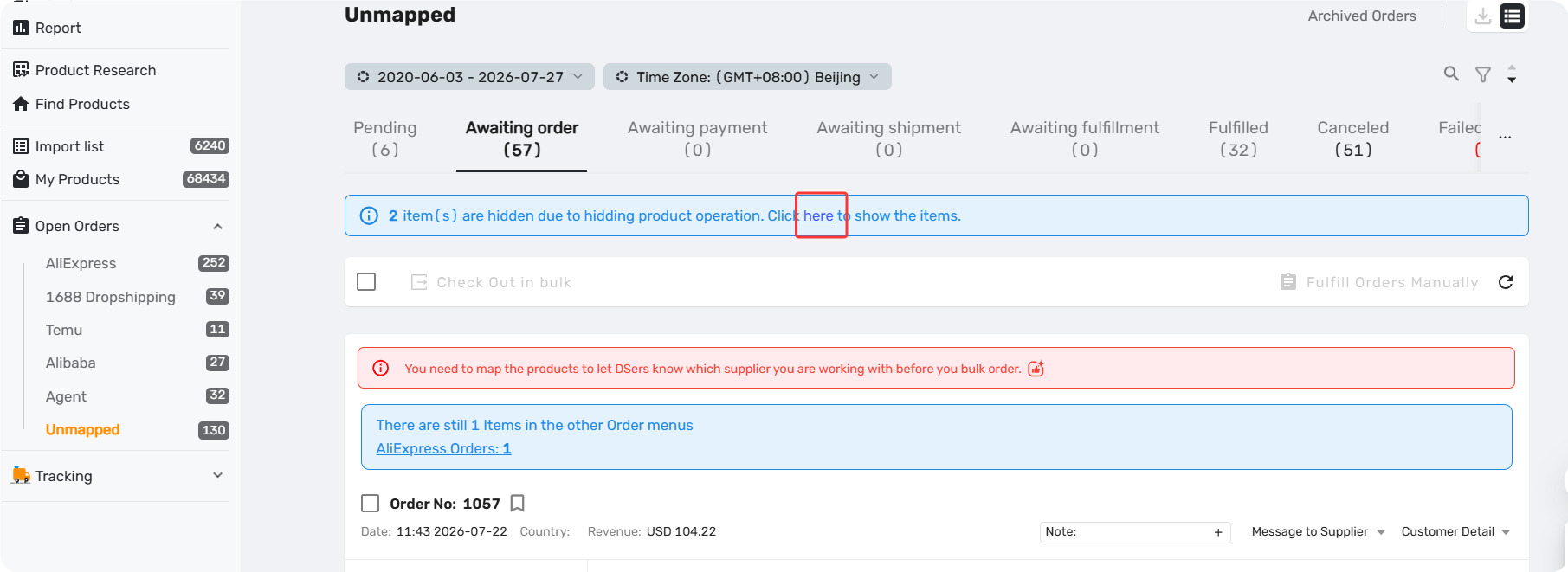
In the pop-up, you'll see a list of hidden orders with their Order No and Reason.
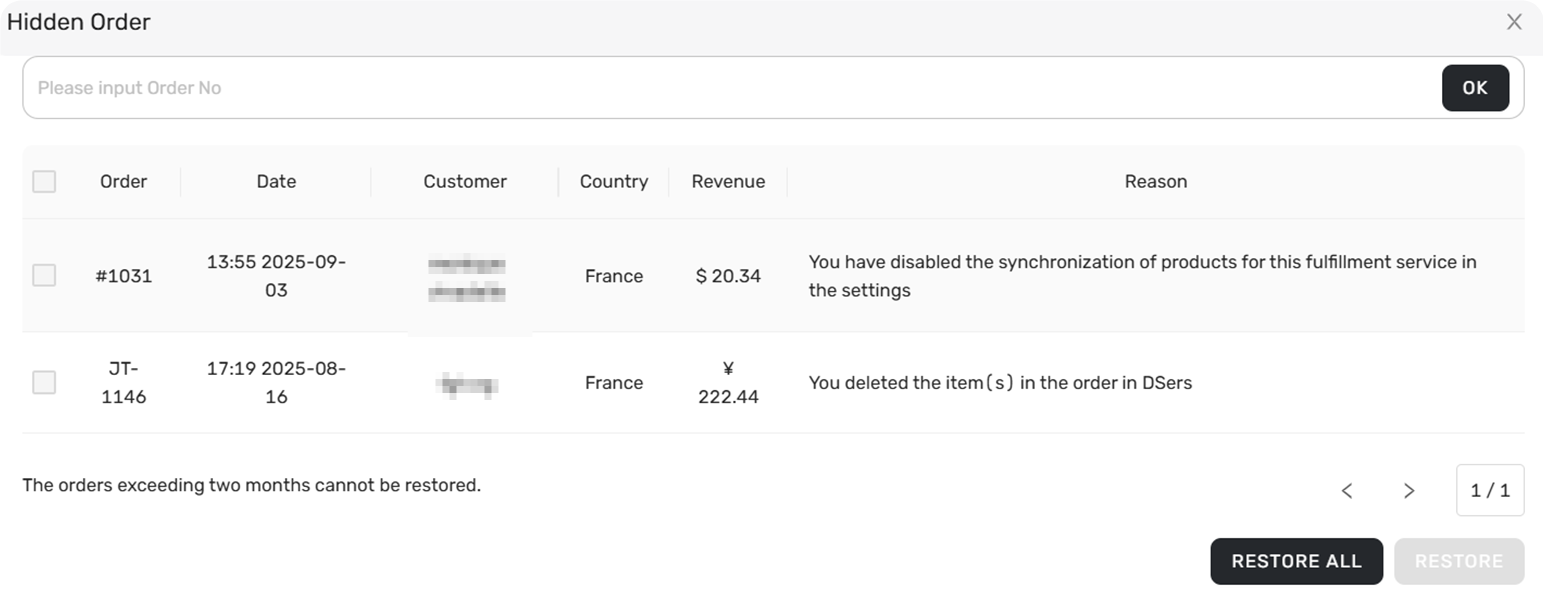
- Search: Enter an Order No. and click "OK" (fuzzy search supported). If the order is hidden, a banner will appear—click "here" to view it.
- Restore: Click
Restorefor a single order, orRESTORE ALLat the bottom.
Tip: Orders older than two months cannot be restored. To process an older hidden order, duplicate or recreate it manually in your store.
Restore progress: After clicking RESTORE ALL, a progress bar shows the status. Once complete, click Check orders for a detailed breakdown.
Now let's look at why orders get hidden—and how to prevent it from happening again.
Cause 1: The Product Is hidden in DSers
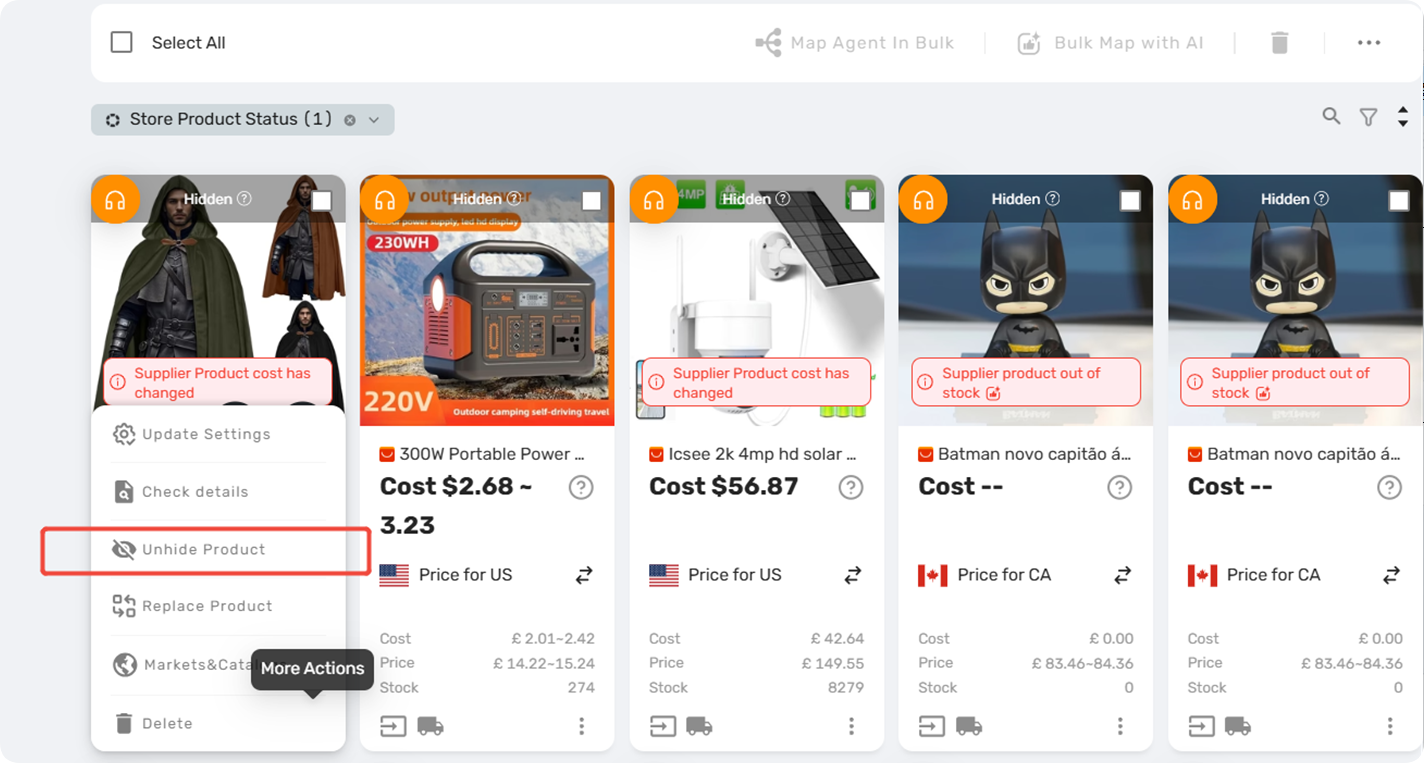
What happened: The product is marked as "hidden" in My Products>More Actions>Hide Product. DSers will hide new orders for these items.
How to fix it:
- Go to My Products, find the product, and click
Unhide Product. - Future orders will now sync normally.
Cause 2: The Fulfillment Service Is Turned Off
What happened: The product's assigned fulfillment service is disabled in your DSers settings.
How to fix it:
- Go to Settings > Fulfillment Settings > Product fulfillment service management.
- Toggle the relevant service ON.
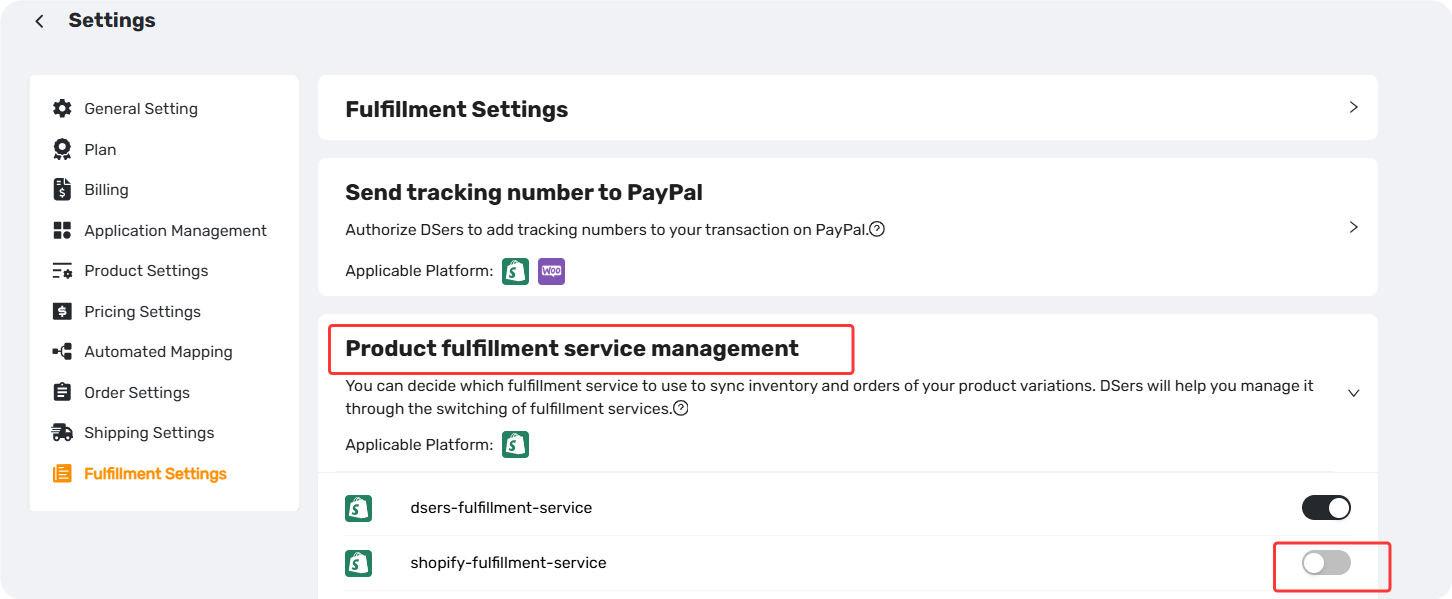
Alternative: Switch the product's location to dsers-fulfillment-service or any other enabled service.
Cause 3: The Product Was Deleted from DSers
What happened: The product exists in your online store but was deleted from DSers. When a new order comes in, DSers will hide it.
How to fix it:
- Re-import the product: go to My Products>
IMPORT PRODUCT FROM [Sales channel name]and import it. - Future orders will sync normally.
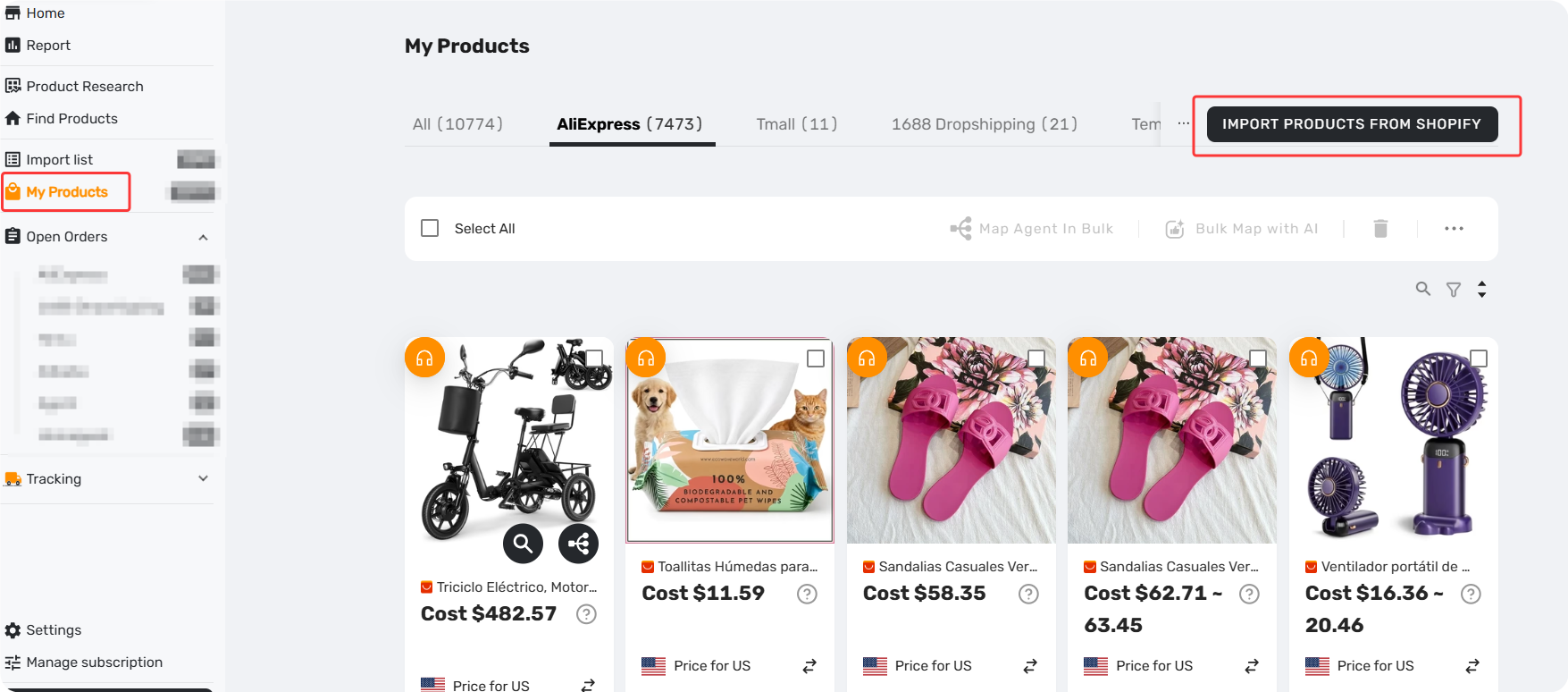
For bulk recovery: Contact DSers Support to import all products on your store at once.
Related Articles
- Understanding Your Dashboard: Orders Overview
- Fulfill Your First Order: A Step-by-Step Walkthrough
- Fulfilling Customer Orders: How to Place & Pay for Supplier Orders
- Order Sync Failed: Why Orders Aren't Appearing in DSers
FAQ Section
Quick answers to the most common questions about DSers hidden orders, product restoration, and fulfillment services.

Get Started Now to Grow Your Online Business with the DSers!