

Update the default supplier for coming order—or remap multiple orders at once.
Note
When you permanently switch to a new supplier, update the product mapping so all orders go to the right place.Click here to start dropshipping now with DSers
DSers handles this at the product level—change the mapping once, and all awaiting orders for that product reroute to the new supplier in one go.
This article provides step-by-step instructions and tips to ensure orders place successfully to supply platform.
Important Things Before You Start
- This only affects orders that haven't been placed to AliExpress yet – Awaiting Order, Failed, and AliExpress-canceled orders will use the new mapping.
- For orders already placed to AliExpress (Awaiting Payment, Awaiting Shipment), changing the mapping will not update those already-placed orders. It only applies to new orders going forward.
- If you only want to change the supplier for one specific order (without updating the product's default mapping), use [Action-Edit Supplier] instead.
Step-by-Step: How to Change Supplier Mapping
Step 1: Locate the order and open mapping
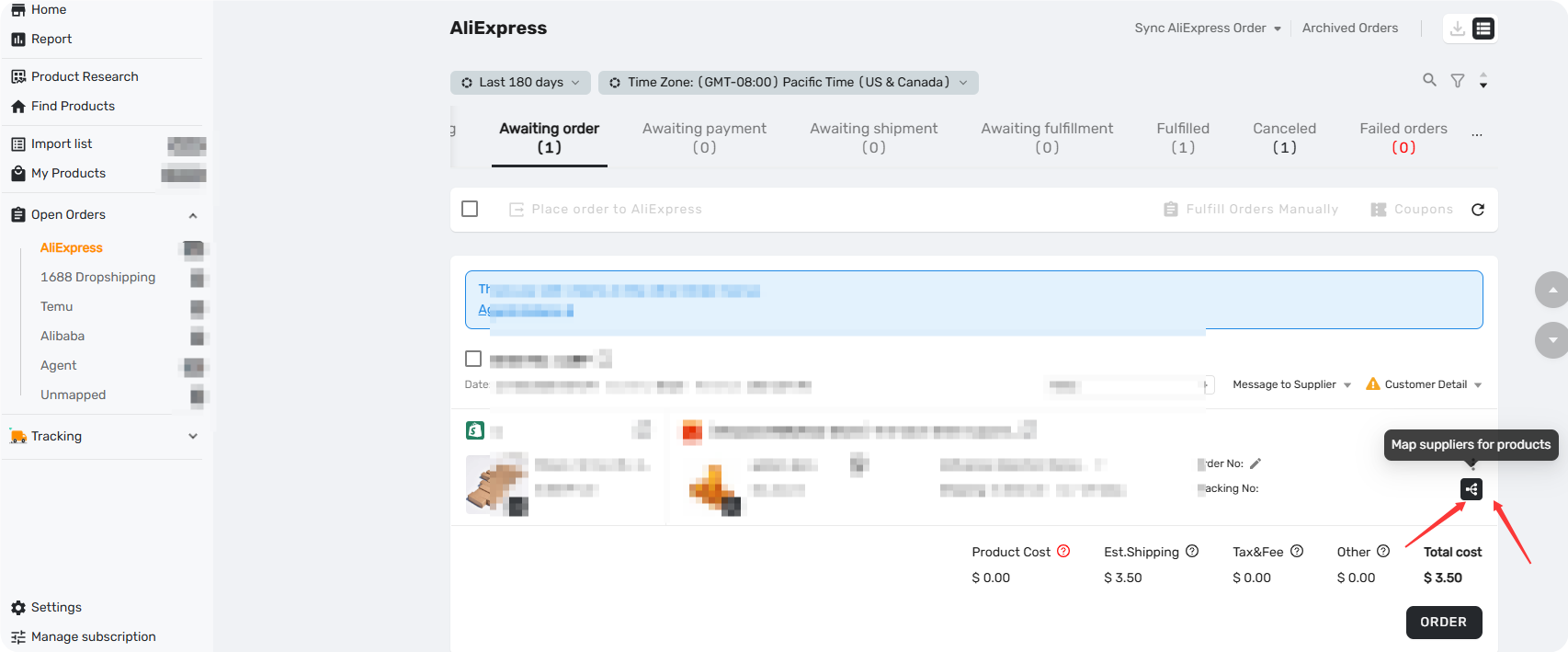
Go to DSers Dashboard → Open Order → Awaiting orders.
Find the order, then click the Mapping icon (puzzle piece) in the order row.
Step 2: Import new supplier
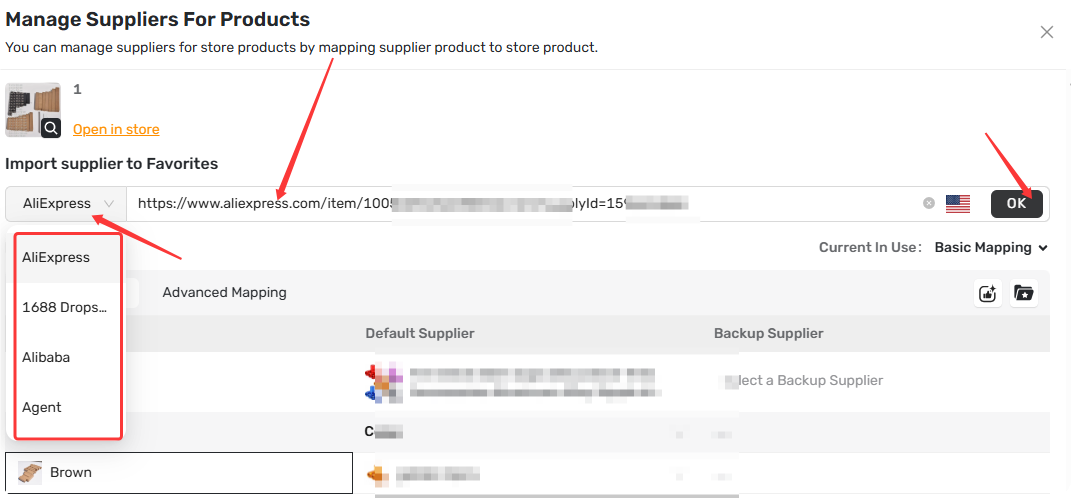
In "Import supplier to Favorites":
- Select the supplier platform
- Paste a new supplier URL → Click "OK"
- Or select from existing favorites
Step 3: Set as default
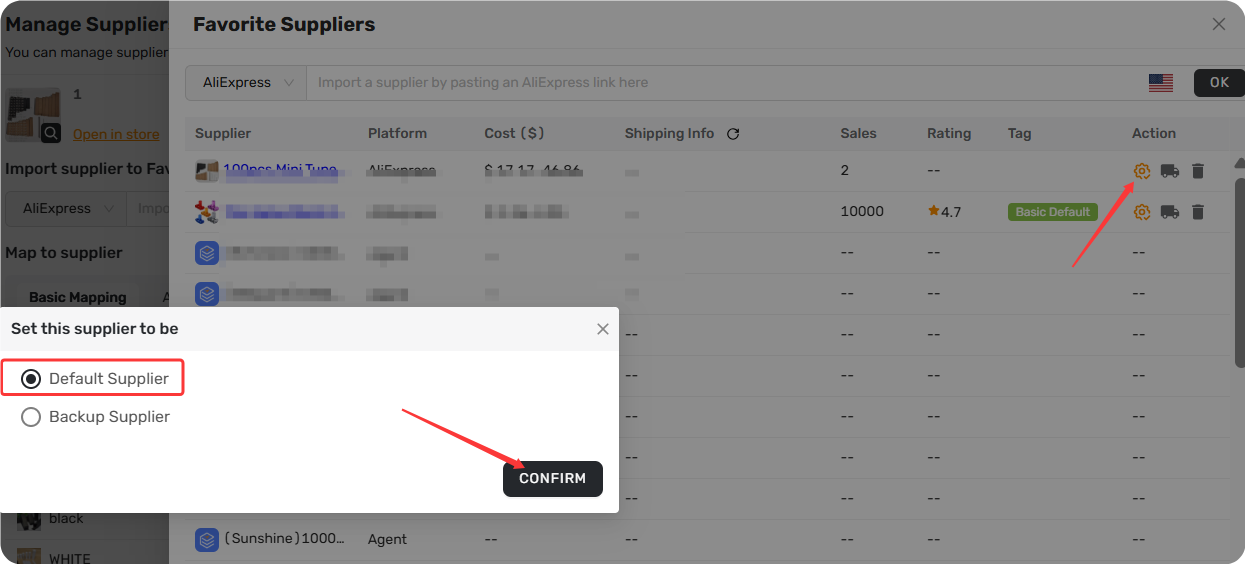
Click "Set as Default Supplier" or select from the "Select a Basic Supplier" dropdown.
Step 4: Map variants
For each variant, click the dropdown and select the matching variant from the new supplier.
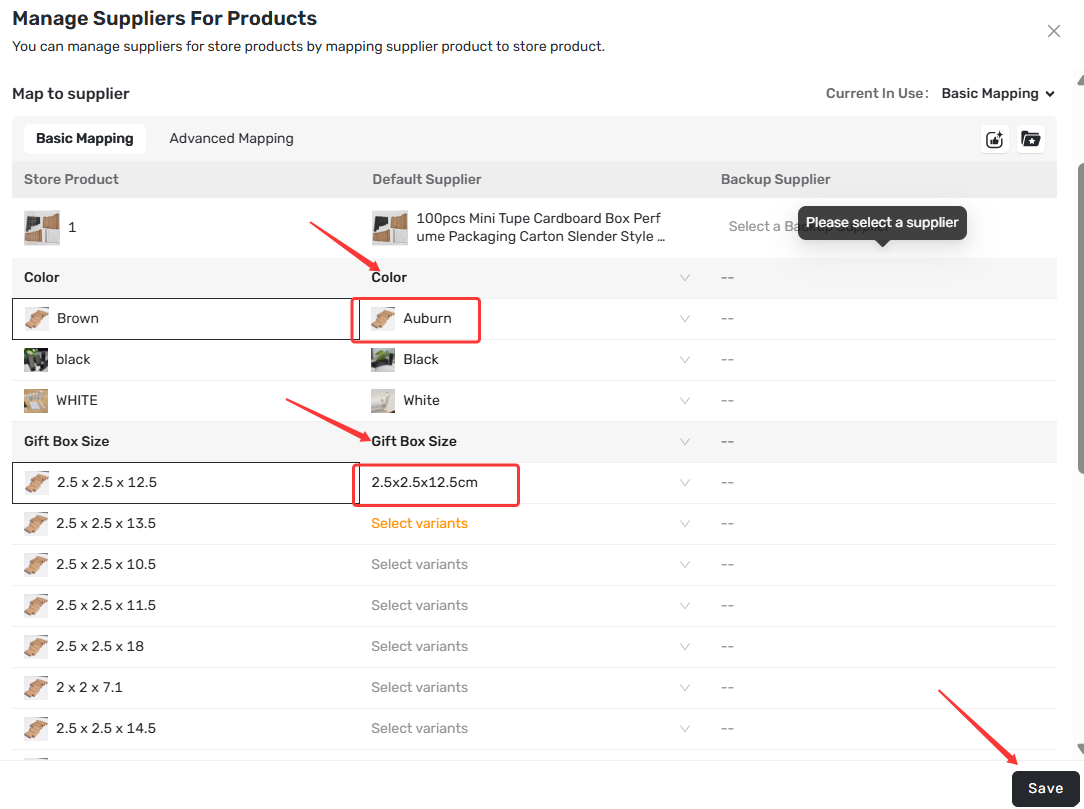
Tip: The variant with a black box outline is the SKU your customer actually ordered—start by mapping this one first.
Make sure the supplier variant you select matches this SKU exactly (same color, size, etc.) to avoid sending the wrong item to your customer.
Step 5: Confirm mapping type and save
In the "Map to supplier" section, make sure "Basic Mapping" is selected (this is the default mapping mode for most dropshippers). Then click "Save."
If a confirmation popup appears asking "Are you sure you want to save all changes?" click "CONFIRM."
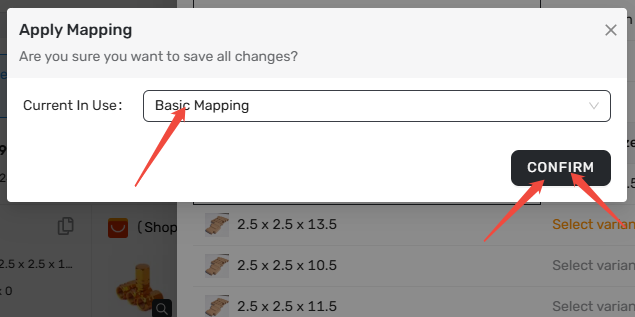
Important: The mapping isn't updated until you complete this final save step.
Helpful Tips
- Map all variants, not just the ones you've sold. Even if you've only sold one color, mapping all variants now saves you from coming back later when other variants sell.
- No undo button, but you can redo. If you save the wrong mapping, simply go back and change it again—the process is identical.
- Choose the right mapping type. see [Mapping Explained: How DSers Knows Which Supplier to Order From] if you need it.
Related Articles
- How to Change a Product's Supplier Mapping for Awaiting Orders
- Mapping Explained: How DSers Knows Which Supplier to Order From
- Basic Mapping: How to set Backup Suppliers
- How Variant Mapping Works
FAQ Section
Everything you need to know about changing supplier mapping for awaiting orders.

Get Started Now to Grow Your Online Business with the DSers!