

Push once, edit anywhere. Store-side price changes sync back to DSers — no re-push needed.
Note
Once a product is pushed to your store, you cannot edit its price directly inside DSers.Click here to start dropshipping now with DSers
For one-off or small-batch changes, edit directly in your Shopify store — the updated price will sync back to DSers automatically.
If you need to apply your latest pricing rules to all already-pushed products in bulk, use the [Manually Change Store Products Price: Bulk Refresh with Your Latest Rules] tool instead.
When You'd Need Manual Edit in Shopify
| Scenario | What's Happening |
|---|---|
| Flash sale | You need to drop prices on specific products for a limited-time promotion |
| Pricing mistake | You caught an incorrect price right after pushing |
| Competitive adjustment | You need to match a competitor's price quickly |
For these one-off or small-batch changes, editing directly in your Shopify store is the fastest route.
Option 1: Edit a Single Product in Shopify
When you need to update just one product:
- Go to Shopify Admin → Products.
- Click the product you want to edit.
- Under the Pricing section, adjust:
Price — the selling price customers see
Compare at price — the original/strikethrough price (optional) - Click Save.
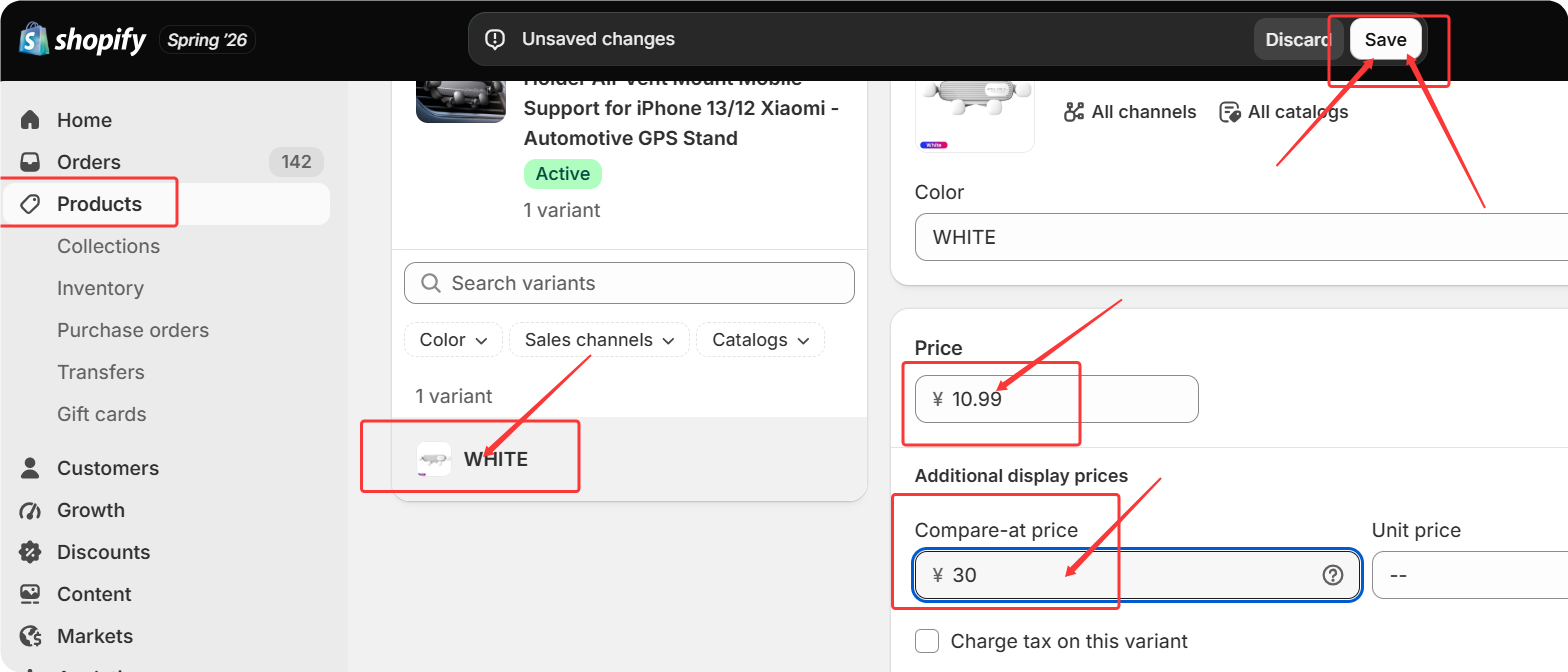
The change applies to your storefront immediately.
Option 2: Bulk Edit Multiple Products in Shopify
- Go to Shopify Admin → Products.
- Select the products you want to update (check the boxes).
- Click Bulk Edit.
- In the spreadsheet-like view, click Columns and select Base Price (and Compare-at price, if needed) — only selected columns can be edited.
- Edit prices directly in the table, then click Save to apply all changes.
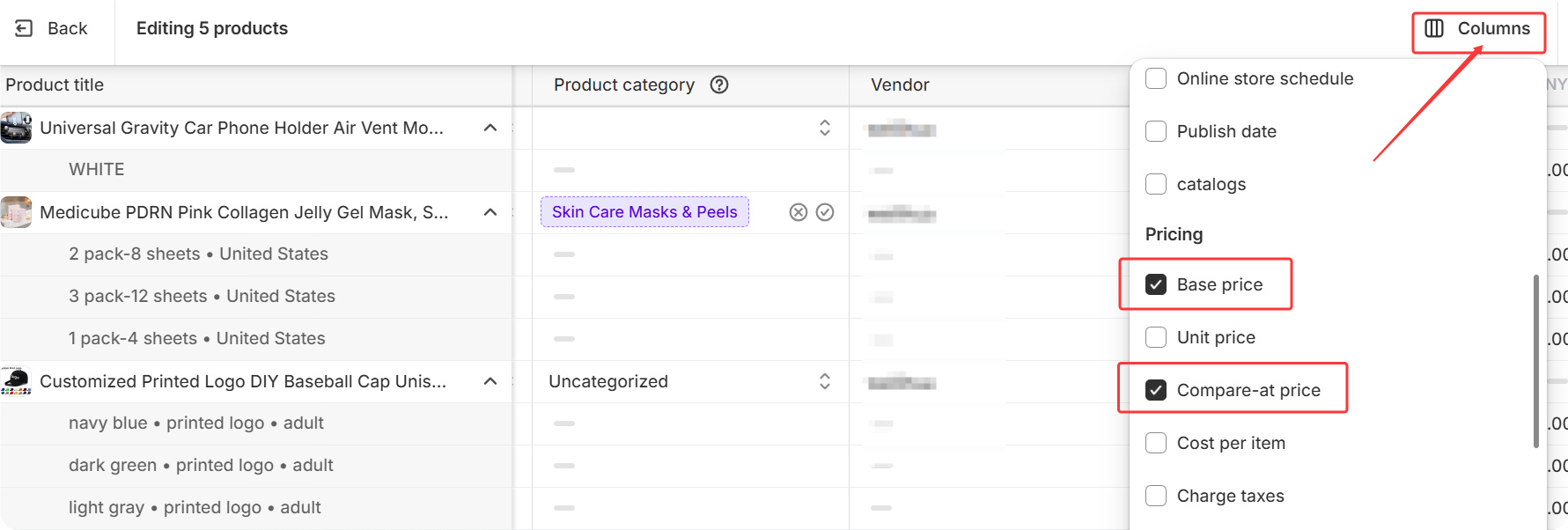
Shopify's bulk editor supports up to 50 products per page, with direct cell editing, copy-paste, and keyboard shortcuts.
Tip: You can also use Shopify's CSV import for bulk price updates. For detailed instructions, refer to Shopify's Help Center.
Will These Changes Sync Back to DSers?
Yes. Price edits made in your Shopify store will sync back to DSers under My Products automatically — typically within a few seconds.
⚠️ Important: If you later run DSers' [Manually Change Store Products Price: Bulk Refresh with Your Latest Rules] tool, it will recalculate and overwrite your store prices based on your current pricing rules. Any manual tweaks you made in Shopify could be reset.
Related Articles
- Manually Change Store Products Price: Bulk Refresh with Your Latest Rules
- Master Pricing Settings: 2 Ways to Automate Your Product Pricing
- Basic Pricing Rule: Automate Your Product Pricing in Minutes
- Advanced Pricing Rules: Automate Your Profit Margins
- Set Up Price Auto-Update for Your Products
FAQ Section
Everything you need to know about editing product prices in your Shopify store after pushing from DSers.

Get Started Now to Grow Your Online Business with the DSers!