

Set up automated pricing logic that calculates shipping, fees, and profit floors—so you don't have to.
Note
Note: This feature is designed for dropshippers who want to move beyond simple markups. If you're tired of manually calculating shipping costs, transaction fees, or worrying about supplier price hikes, Advanced Pricing Rule does the math for you—automatically and consistently.Click here to start dropshipping now with DSers
Ready to set up your first pricing template? Follow the 4-step guide below to lock in your profits from start to finish.
Step 1: Select Your Store & Currency
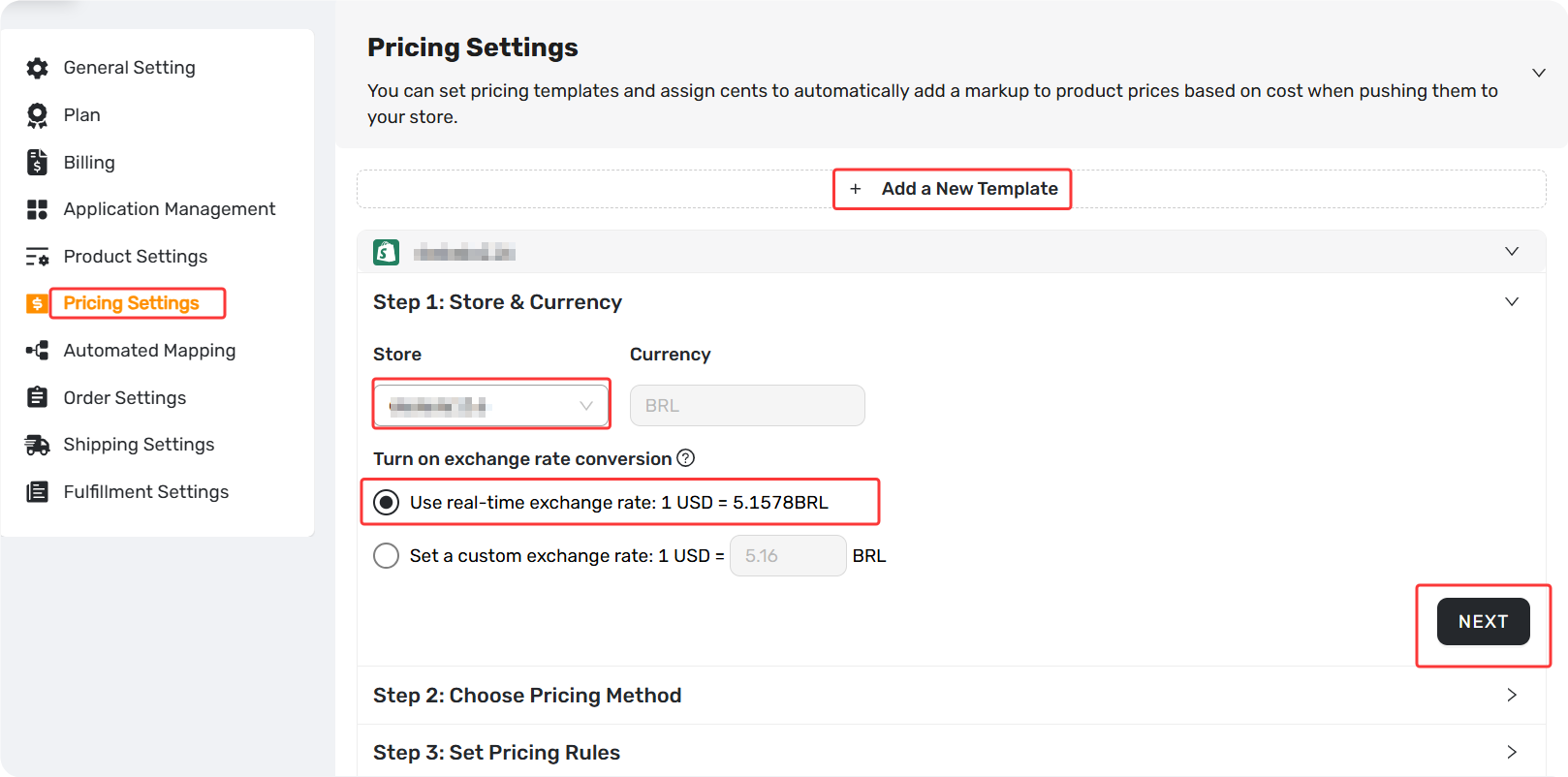
- Go to Pricing Settings and click Add a new template.
- Select the store you want to apply the rule to.
- If your store currency is USD: Proceed to Step 2.
- If your store currency is not USD:
- Choose Use real-time exchange rate for automatic updates.
- Or, select Set a custom exchange rate to lock in a specific rate.
Note: Once you save Step 1, the store cannot be changed.
Step 2: Choose Your Pricing Method
| Method | Best For |
|---|---|
| Basic Pricing Rule (Free) | Simple markup on low-cost items. |
| Advanced Pricing Rule (Paid) | Scaling stores with hidden costs (shipping, fees). |
| No Pricing Rule | Manual control only. |
If you select Advanced and are on a Free plan: Clicking Next will prompt you to upgrade.
Step 3: Set Your Advanced Pricing Rule
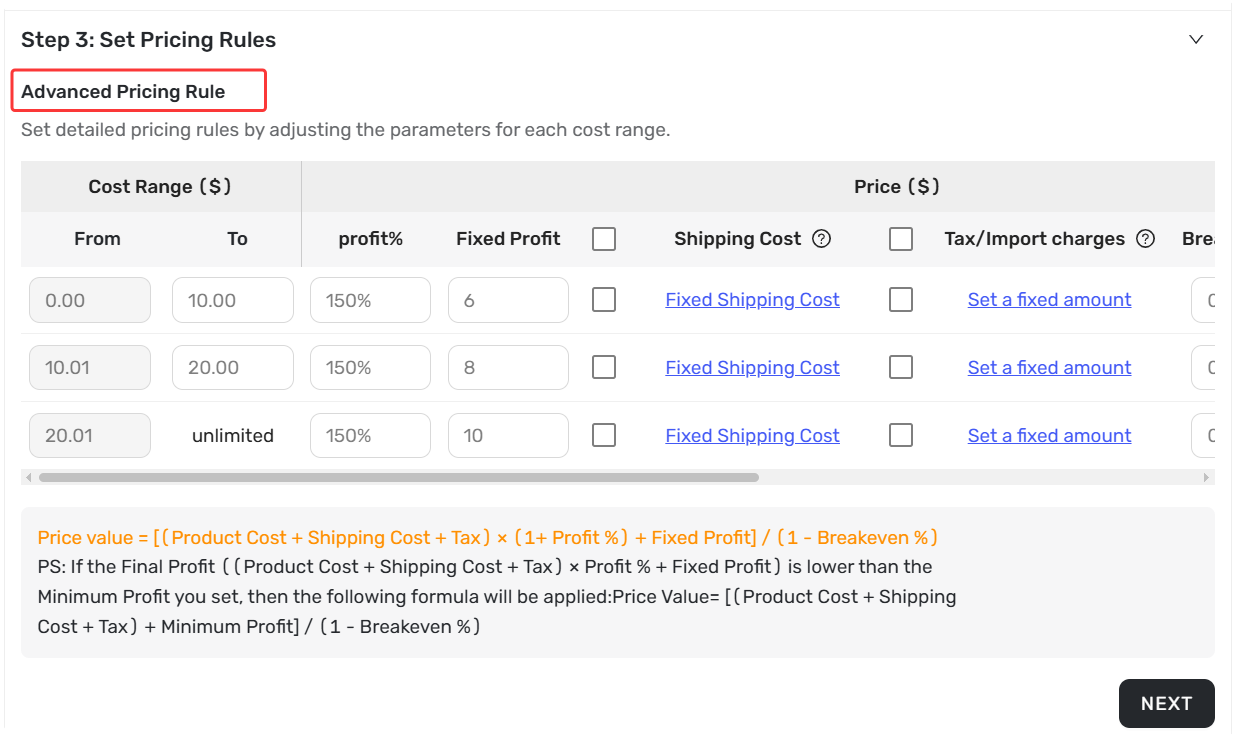
Advanced Pricing Rule
Configure these key fields to protect your profit:
- Profit % – Your desired return percentage.
- Fixed Profit – A specific dollar amount added per item.
- Minimum Profit – Your safety net. DSers ensures you never make less than this.
- Breakeven % – Cover transaction fees (PayPal, Shopify, etc.).
- Shipping Cost – Use supplier rates or set a fixed amount.
- Tax/Import Charges – Set a fixed amount or use Brazil auto-calculation.
Click + Add cost range to create different rules for cheap vs. expensive products. For a complete breakdown of how to include shipping costs and taxes in your product pricing formula, check out our guide: [Advanced Pricing Rule: How to Add Shipping & Tax to Your Pricing Rule]
Simple Calculation Example
Formula: Final Price = (Product Cost + Shipping Cost + Fixed Profit) × (1 + Profit %) ÷ (1 - Breakeven %)
Example: Product $10 + Shipping $3 + Fixed Profit $1 → $14 × 1.30 (30% profit) ÷ 0.971 (2.9% fee) = $18.74
Your profit per sale is $4.74. The Minimum Profit guard ensures you never drop below your set amount if costs rise
Step 4: Preview & Assign Cents
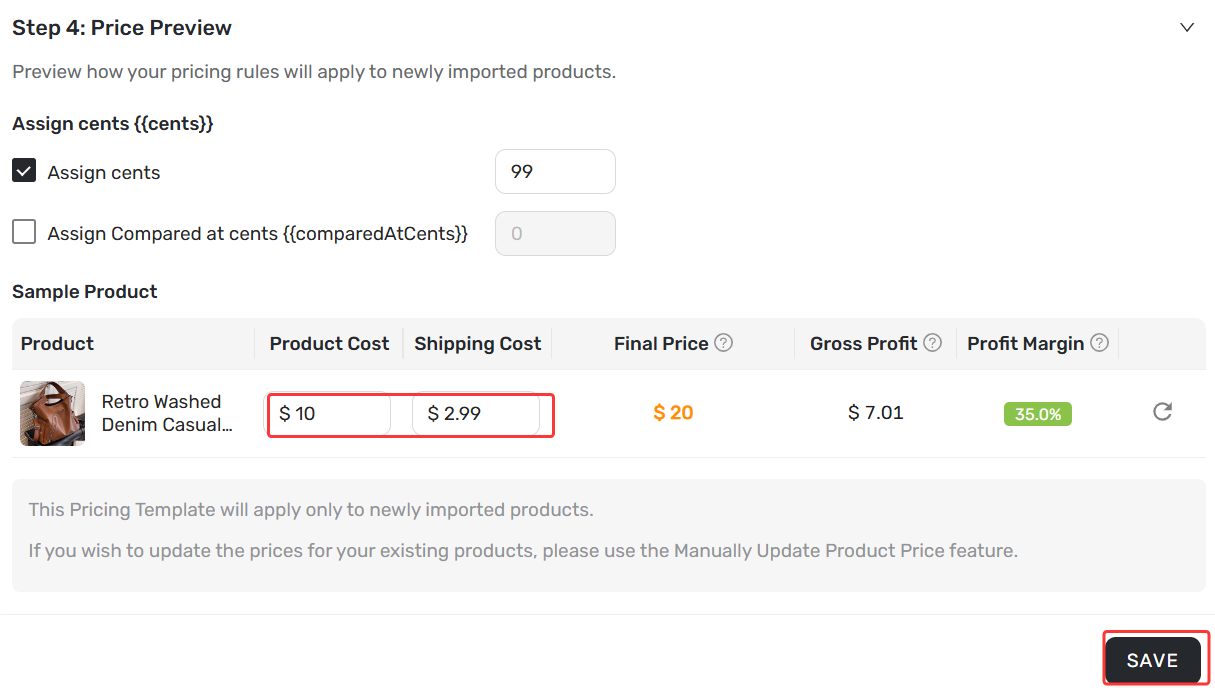
- Review the Sample Product preview panel.
- Edit Product Cost or Shipping Cost to see the Final Price update live.
- Assign Cents: Enter
99to turn$24.51into$24.99for psychological pricing.
Tip: Your new template applies only to newly imported products by default. To update existing products, go to Settings > Product Settings and use Manually change store products price. Make sure all settings are completed before updating.
Tiered Pricing Example
Let's say you sell phone cases ($5 cost) and laptops ($500 cost). Here's how you'd set up your tiers:
| Cost Range | Profit % | Fixed Profit | Breakeven % | Final Price Formula |
|---|---|---|---|---|
| $0 – $20 | 50% | $0 | 2.9% | (Cost x 150%) ÷ 0.971 |
| $20.01 – $100 | 30% | $2 | 2.9% | [(Cost x 130%) + $2] ÷ 0.971 |
| $100.01 – unlimited | 20% | $5 | 2.9% | [(Cost x 120%) + $5] ÷ 0.971 |
What happens to each product:
| Product | Product Cost | Final Price | Profit |
|---|---|---|---|
| Phone case | $5 | ($5 x 1.5) ÷ 0.971 = $7.72 |
$2.72 |
| Laptop | $500 | (($500 x 1.2) + $5) ÷ 0.971 = $623.07 |
$118.07 |
Formula: Final Price = (Product Cost + Shipping Cost + Fixed Profit) × (1 + Profit %) ÷ (1 - Breakeven %)
Result: The cheap item gets a higher percentage markup (50% vs 20%) but stays affordable at $7.72. The expensive item gets a lower percentage but still makes over $100 in profit per sale.
Related Articles
- Master Pricing Settings: 2 Ways to Automate Your Product Pricing
- Basic Pricing Rule: Automate Your Product Pricing in Minutes
- Basic Pricing Rule: How to Add Shipping Cost to Your Pricing Rule
- Advanced Pricing Rules: How to Add Shipping & Tax to Your Pricing Rule
- Store Currency & Exchange Rates: How to Price Across Different Currencies
- Assign Cents: Make Your Product Prices Look Clean and Professional
- Manually Change Store Products Price: Bulk Refresh with Your Latest Rules
- Automatic Price Update: Keep Store Prices in Sync with Suppliers
- Manual Price Sync Failures: Causes & Troubleshooting Solutions
- Shipping Settings: How to Set Your Default Shipping Method
FAQ Section
Here are some common questions about Advanced Pricing Rules, tiered markups, and margin protection in DSers.
| Get Started Now to Grow Your Online Business with the DSers! |
