

Stop losing money on hidden fees. Automate your markup in seconds.
Note
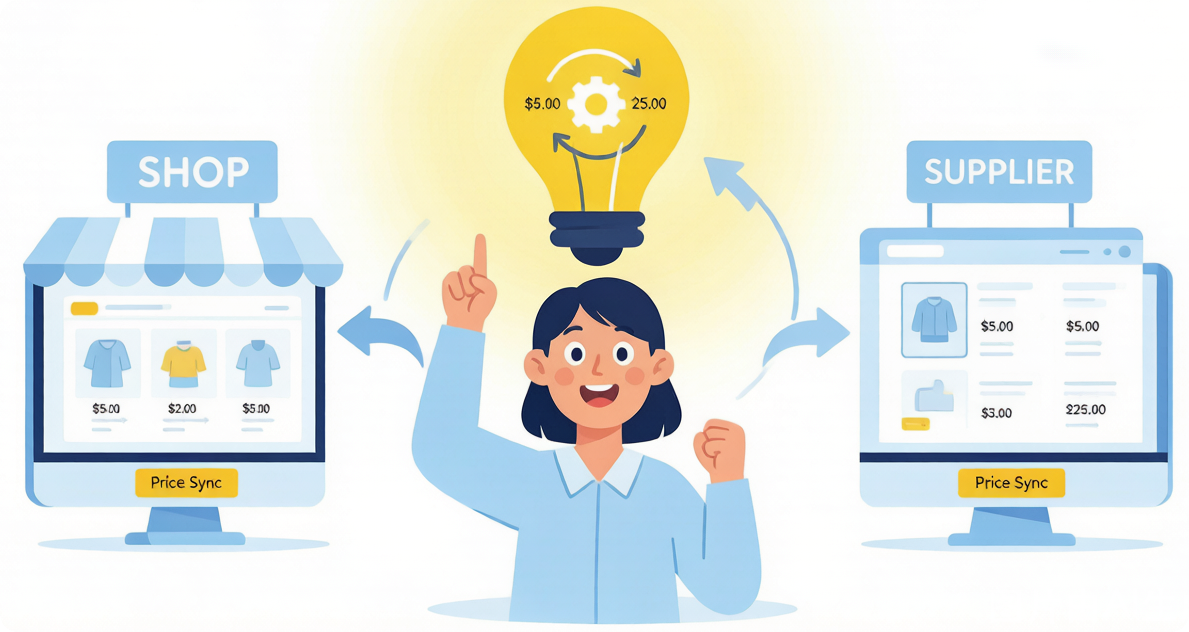
Setting prices manually for every product is slow and inconsistent. One miscalculation can wipe out your profit. The Basic Pricing Rule automates this: set your formula once, and DSers applies it instantly every time you push a product to your store. No spreadsheets. No math errors
What is the Basic Pricing Rule?
It is a simple, global pricing template. You decide whether to Multiply the cost by a factor (e.g., 300%x) or Add a fixed amount (e.g., +$10.00). DSers applies this instantly when you push the product to your store .
Step-by-Step: Setting Up Your Basic pricing rule
Follow these steps to configure your Settings - Pricing Settings tab like a pro.
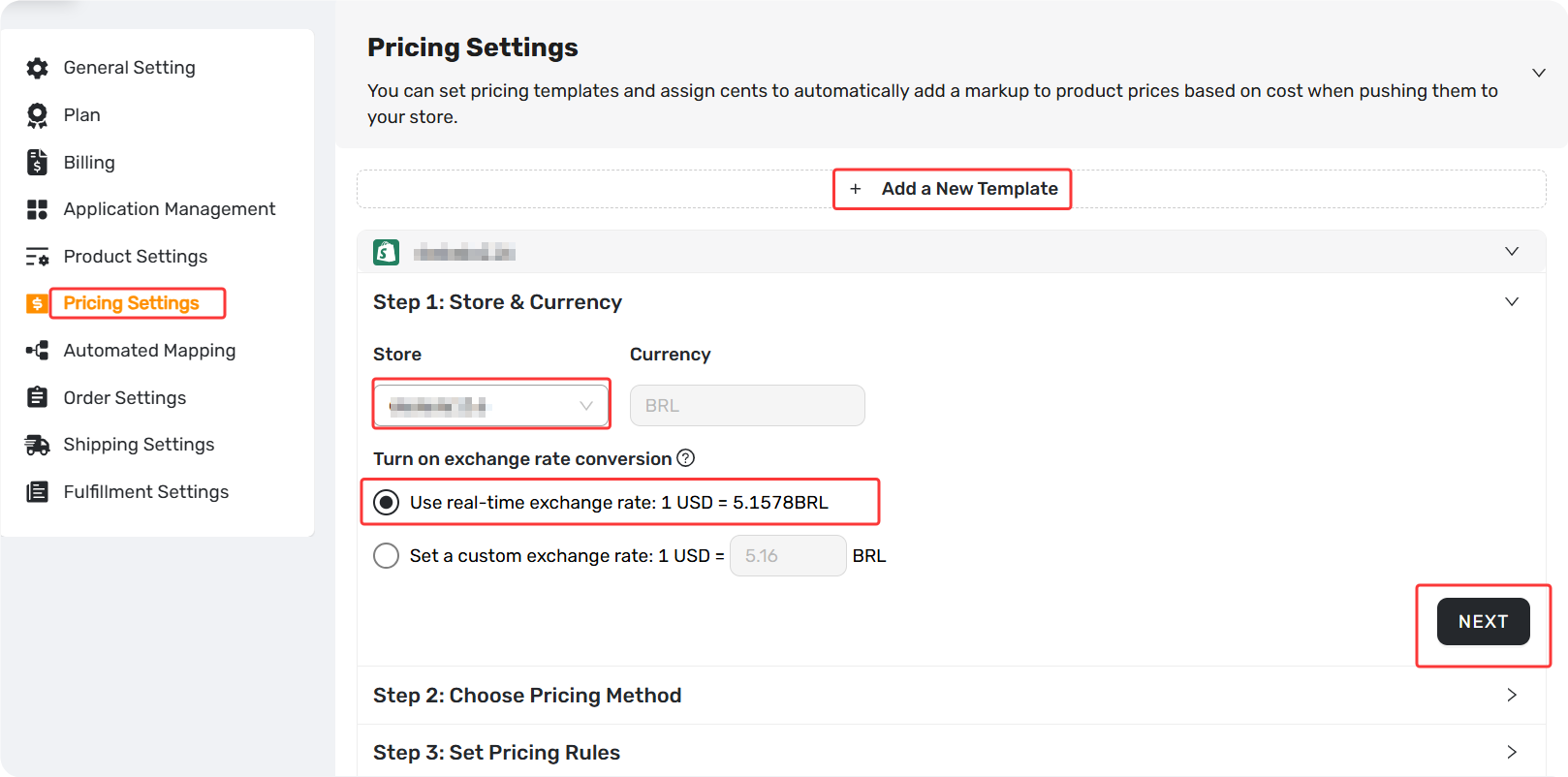
1. Navigate to Pricing Templates
- Log in to your DSers account.
- Go to Settings - Pricing Settings.
- Check store currency and exchange rate setting on Step 1
2. Select the Basic Rule on Step 2
- In the Step 2: Select Basic pricing rule.
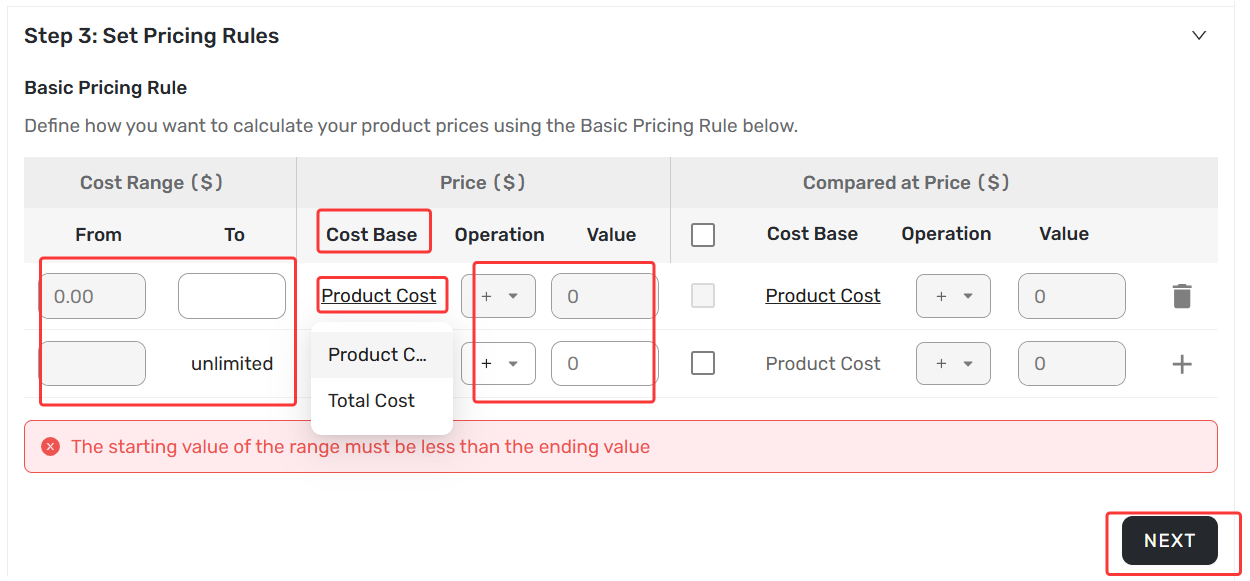
3. Choose Your Math: Cost Base
- Product Cost:
Uses the supplier's item price only. - Total Cost:
This includes Product Cost + Shipping. This is safer because it prevents high-shipping items from becoming loss leaders.
Tip: Selected Total Cost but shipping isn't being added to your price? See: [Basic Pricing Rule: How to Add Shipping Cost to Your Pricing Rule]
4. Set Your Markup Strategy
Click the Symbol selector ( + or × ) and choose your profit weapon:
- Multiplication (
×): Best for high-margin, low-cost items.
Example: Cost 5.00×'300%' = 15.00 Retail Price.
- Addition (
+): Best for high-cost electronics or heavy items.
Example: Cost 50.00 + '20' = 70.00 Retail Price.
Pro Tip (The Buffer Rule): When entering your number, ensure your markup covers your Payment Gateway Fees and your desired NetProfit. If you want 10 profit on an item, don′t just add 10 ; add 10.50 to cover the transaction fee .
5. Advanced Tip: Tiered Pricing by Cost Range
Set different markup strategies for different cost ranges — applying a multiplier to low-cost items and a fixed amount to high-cost items. Click "+ Add Cost Range" to define each range and its markup method.
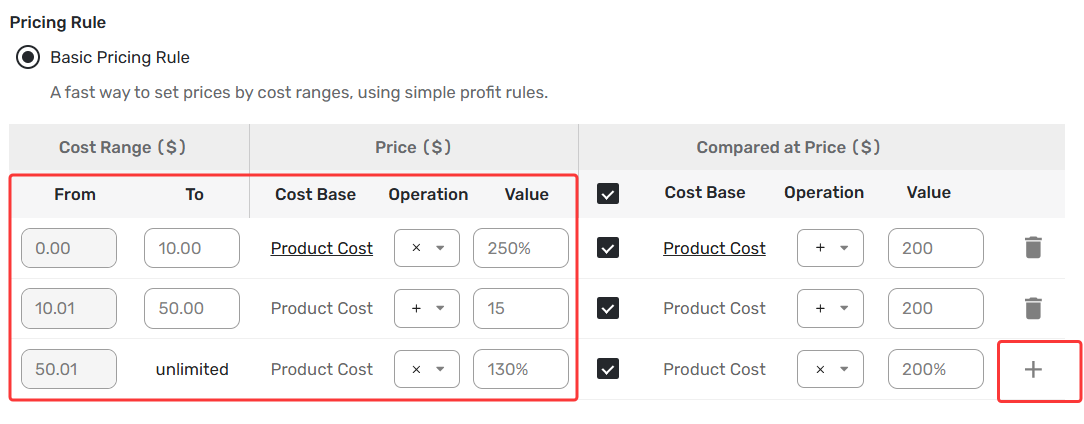
Example:
| Cost Range | Markup Method | Result |
|---|---|---|
$0 – $10 |
Multiplication × 250% |
Low-cost items generate higher profit multiples |
$10.01 – $50 |
Addition + $15 |
Mid-range items secure a fixed profit per sale |
$50.01 – $100 |
Multiplication × 130% |
High-cost items stay competitively priced |
Tip: This setup works the same as the previous "Standard Pricing Rule," now fully integrated into Basic Pricing Rule — no need to switch pages.
6.Preview & Assign Cents
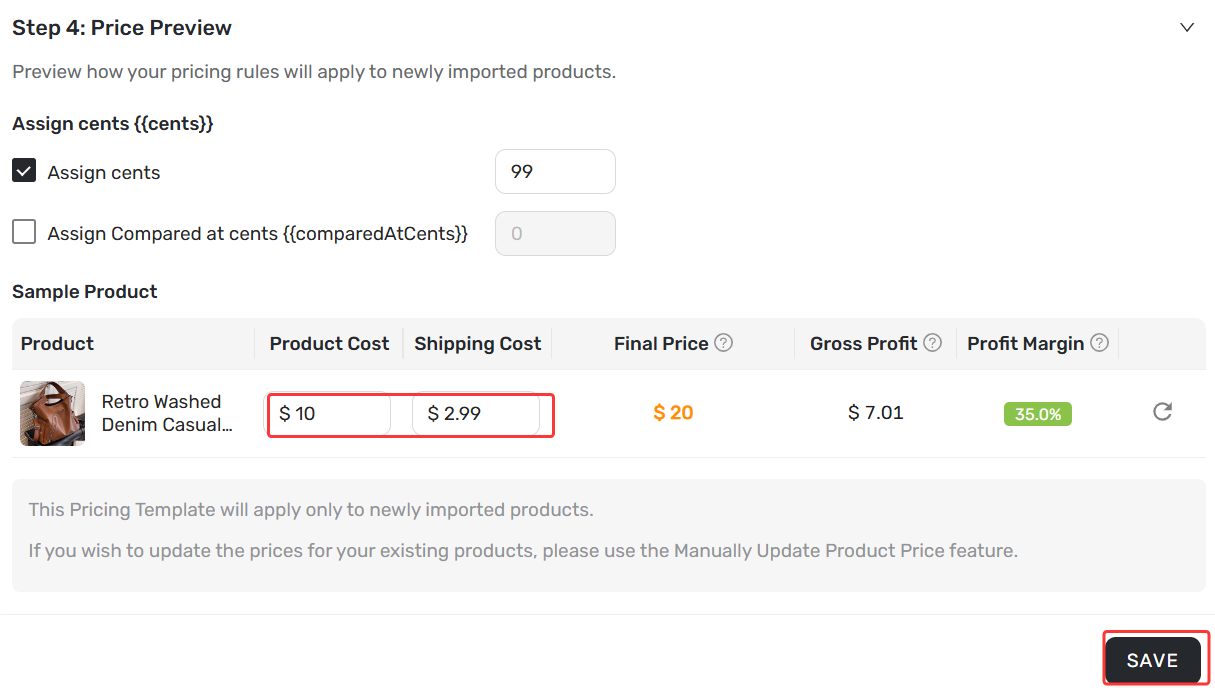
- Review the Sample Product preview panel.
- Edit Product Cost or Shipping Cost to see the Final Price update live.
- Assign Cents: Enter
99to turn$20.51into$20.99for psychological pricing.
Tip: To apply the newest pricing rule to imported products, navigate to Settings - Product Settings - Manually change store products price.
7. Save & Apply
- Click Save at the bottom of the page.
- Next Step: Go to your Import List. When you select a product and click Push to Store, DSers will automatically inject your new pricing rule into the listing .
Common Mistake to Avoid
Currency Confusion: How DSers Calculates Prices
All pricing rule calculations in DSers run in USD first. The system then automatically converts the result to your store currency (EUR, GBP, CAD, etc.) when you push the product.
If your store uses a non-USD currency, check your exchange rate settings in Settings > Pricing setting> Step 1 .
Related Articles
- Master Pricing Settings: 2 Ways to Automate Your Product Pricing
- Basic Pricing Rule: How to Add Shipping Cost to Your Pricing Rule
- Advanced Pricing Rules: Automate Your Profit Margins
- Advanced Pricing Rules: How to Add Shipping & Tax to Your Pricing Rule
- Store Currency & Exchange Rates: How to Price Across Different Currencies
- Assign Cents: Make Your Product Prices Look Clean and Professional
- Manually Change Store Products Price: Bulk Refresh with Your Latest Rules
- Automatic Price Update: Keep Store Prices in Sync with Suppliers
- Manual Price Sync Failures: Causes & Troubleshooting Solutions
- Shipping Settings: How to Set Your Default Shipping Method
FAQ Section
Here are some common questions about Basic Pricing Rules and margin configuration in DSers.
| Get Started Now to Grow Your Online Business with the Best AliExpress Dropshipping Tool - DSers! |
