

Missing Tax IDs Can Block Checkout and Create Failed Orders—Here's the Fix
Note
You're processing orders, everything seems fine—until one Brazilian order gets stuck. The customer's payment went through, but you can't fulfill the order because a tax ID is wrong/missing.
Now you're stuck waiting on a customer reply.
Customers in some countries cannot complete checkout on AliExpress without a valid tax ID. If the ID is missing or incorrect, AliExpress will reject the order entirely.
The good news? You can solve this directly in your Shopify checkout settings.Click here to start dropshipping now with DSers
No apps, no coding, no manual follow-ups. This guide shows you exactly how.
Countries That Require a Tax ID at Checkout
Before diving into the setup, here's the complete list of countries where AliExpress requires a tax ID to process orders. Pay special attention to these markets:
| Country | Required Tax ID Type |
|---|---|
| Brazil | CPF |
| Chile | RUT |
| South Korea | CCI (Customs Clearance Information) |
| Turkey | Turkish ID Number |
| Israel | Identity Number |
| Mexico | RFC / CURP |
| Peru | RUC |
| Oman | RUC / Omani Tax ID |
| Argentina | CUIL / CUIT |
⚠️ Critical for Brazil & South Korea: For these two countries, the tax ID alone isn't enough—the customer's name must match the tax ID exactly, so customers need to provide their full legal name at checkout.
Setting Up Tax ID Collection in Shopify Checkout
Here's how to add a dedicated tax ID field to your Shopify checkout so customers provide this correct information at the point of purchase.
Step 1: Navigate to Checkout Settings
- Log in to your Shopify Admin dashboard.
- Go to Settings → Checkout and accounts.
- Scroll down to the Customer information section.
Step 2: Enable the Company Name Field
- Under Customer information, find the Company name option.
- Select Optional (recommended) or Required.
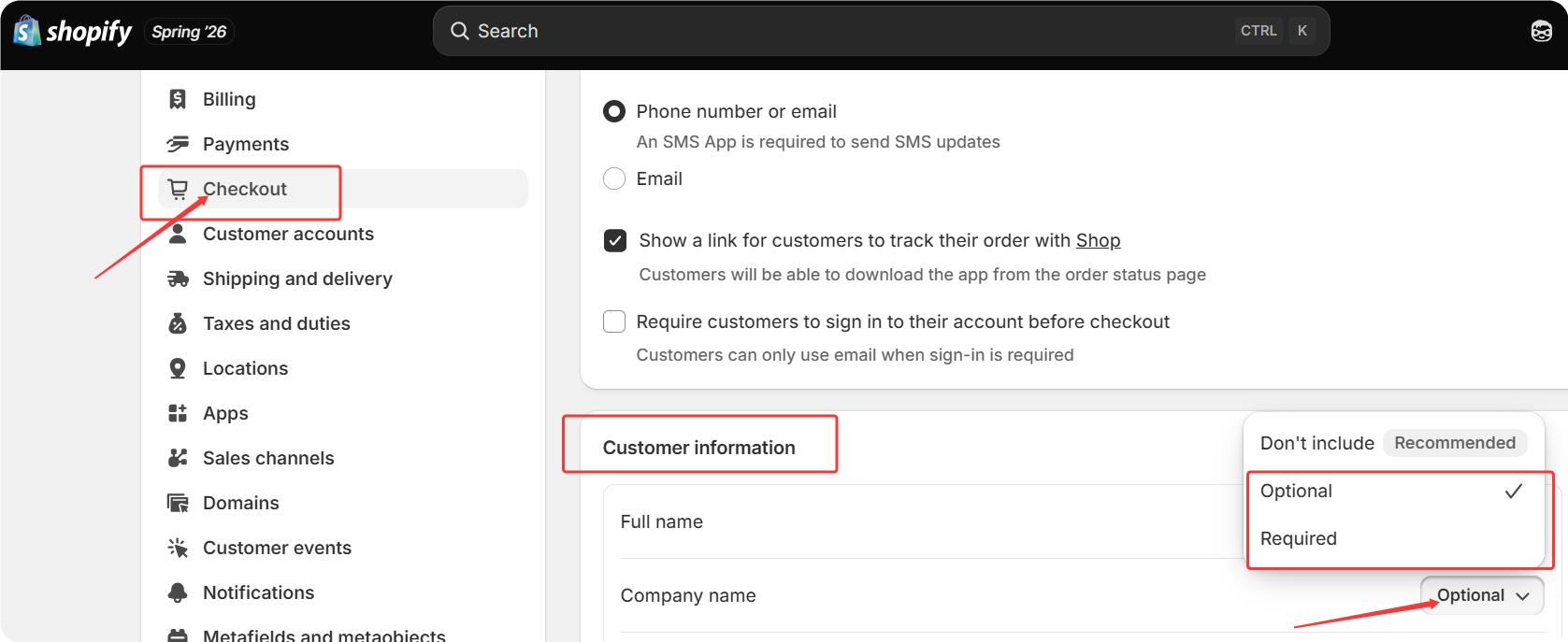
⚠️ Important: If you set this field to Required, certain accelerated checkout options like Apple Pay or Shop Pay may not appear.
For most dropshippers, we recommend Optional—this collects tax IDs when needed without blocking customers who don't have one.
Step 3: Customize the Field Label (Key Step)
The default "Company name" label isn't clear for tax ID collection. Here's how to change it:
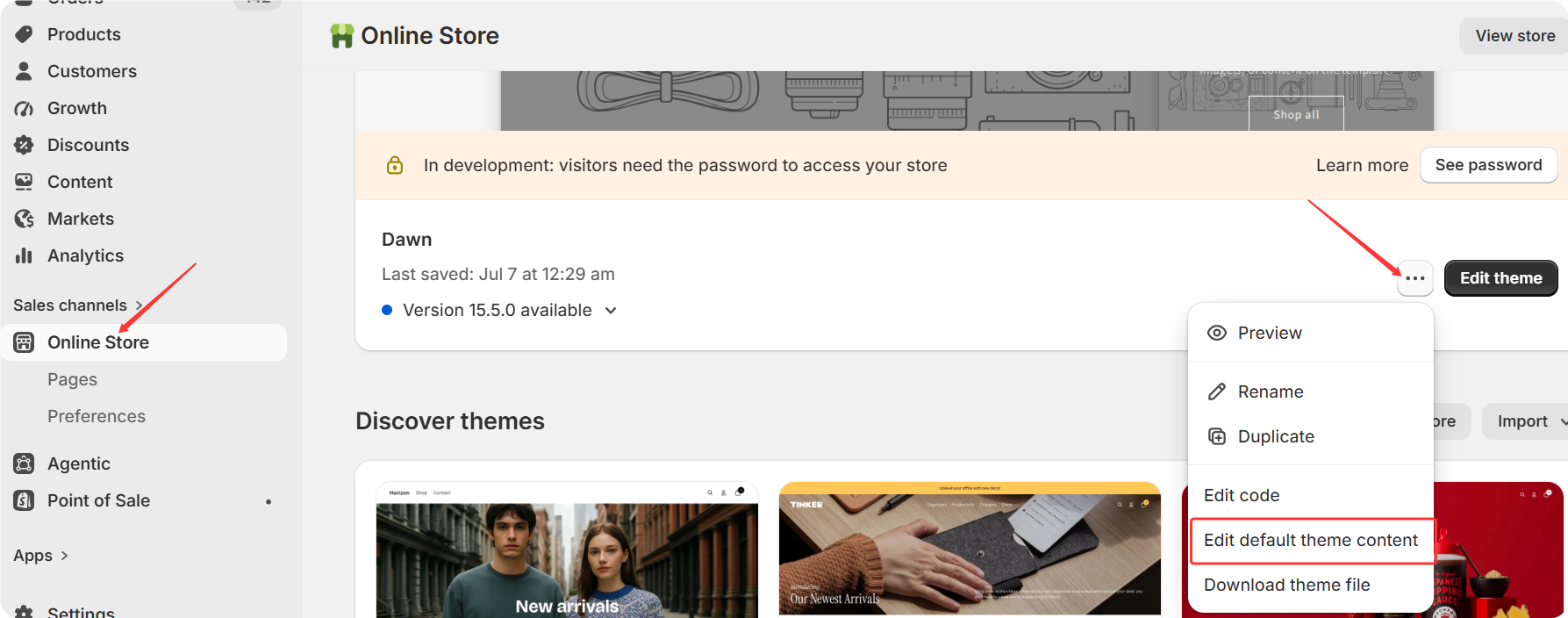
- In your Shopify admin, go to Online Store > Themes.
- Click the “...” button next to your current theme, then select Edit default theme content.
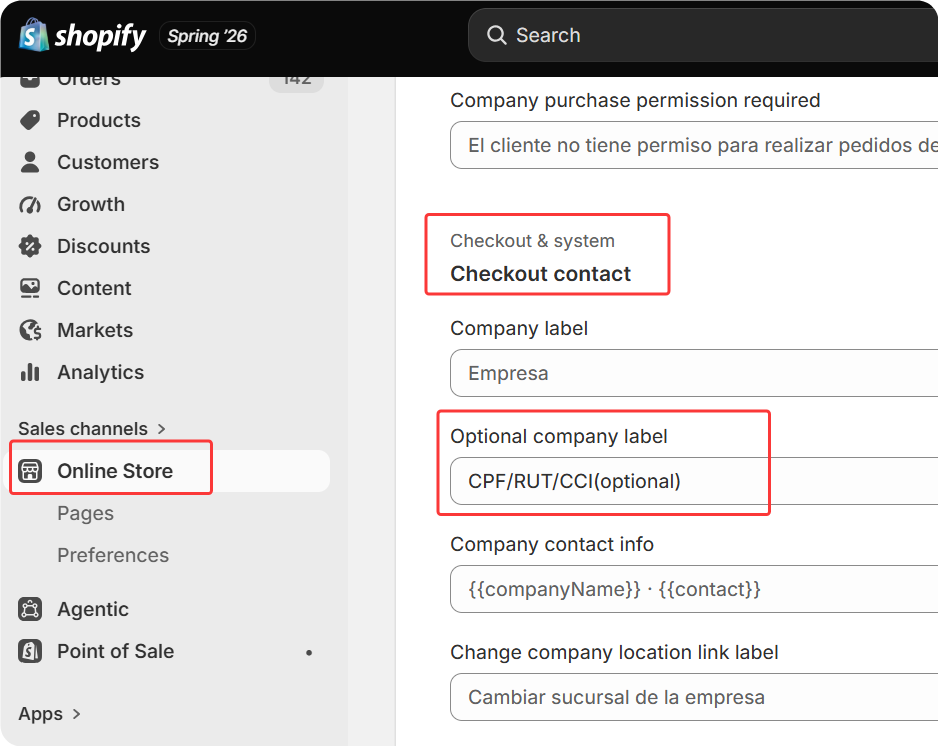
- Use the Filter items search bar to find
companyoroptional. - Locate the Optional company label field under the Checkout & system category.
- Change the text to something specific, such as:
Tax ID (CPF for Brazil, RUT for Chile)National ID (Required for customs)Enter your tax ID (e.g., CPF, RFC, RUT)
For detailed guidance, refer to Shopify's official guide on Changing the wording in themes.
Step 4: Save and Test
- Click Save at the top of the page.
- Create a test order to verify the tax ID field appears correctly at checkout page of your online store.
How DSers Handles Tax ID Information
Once you've set up the tax ID field in Shopify, DSers automatically handles the rest:
- Pulls the tax ID from the Shopify order and includes it in the order data sent to AliExpress.
What DSers cannot do:
- DSers cannot generate a tax ID if the customer didn't provide one at checkout. The customer must fill it in themselves.
For Shopify Managed Markets Users
If you use Shopify Managed Markets, the platform automatically adds the required tax ID fields for countries like Brazil, South Korea, and Mexico.
It even auto-fills tax IDs on invoices where possible.
📌 Important: If you've already set up custom tax ID fields, disable them before enabling Managed Markets to avoid duplicate fields and customer confusion.
Related Articles
- Order Sync Failed: Why Orders Aren't Appearing in DSers
- Shipping Address Issues: Customer Address Causing Errors
- Payment Failed: AliExpress Checkout Errors
- How to Change the Shipping Address After Placed Order to Supplier
FAQ Section
Everything you need to know about Tax ID collection and how to capture required identification at checkout.

Get Started Now to Grow Your Online Business with the DSers!