

Update abnormal stores authorization: How to Fix Authorization Failed & Relink Your Store
Note
As a dropshipper using DSers, you may occasionally see authorization-related pop-ups when connecting or managing your stores.Click here to start dropshipping now with DSers
This is a normal part of maintaining a secure connection between DSers and your sales channels.
This article explains the three most common scenarios where re-authorization is needed and walks you through how to resolve each one quickly.
Scenario 1: Stuck on the Store Binding Page
The issue: You're trying to link a store for the first time, but the process won't complete—you're stuck on the binding page.
Why this happens: During the final step, your browser may not complete the redirect back to DSers, so DSers never receives the confirmation that you approved the connection.
How to fix it:
- Restart the connection process from the beginning.
- Log into only one store account in your browser—multiple tabs can interfere.
- Allow pop-ups from
dsers.comso the authorization window can open. - Complete the approval on your sales channel.
- Return to DSers and click UPDATE to refresh the page and finalize the connection.
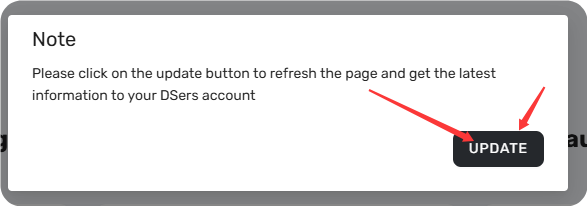
Scenario 2: The "Update Abnormal Stores Authorization" Pop-Up
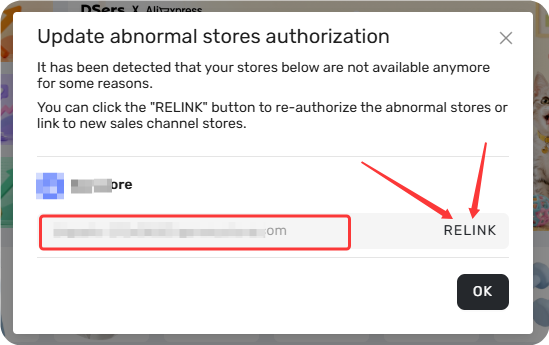
The issue: When you log into DSers, you see a pop-up titled "Update abnormal stores authorization" listing your stores with a RELINK button next to each.
Why this happens: Your store connection has become invalid—the store may no longer be active, or the authorization token has expired or been revoked. This is the most common scenario users encounter.
How to fix it:
- Confirm the store is still active. Log into your sales channel and verify the store is live and accessible.
- Log into the correct store account. If you have multiple stores, make sure you're in the right one before proceeding.
- Click RELINK on the pop-up in DSers, then follow the on-screen prompts on your sales channel to complete the authorization.
💡 Tip: If you have multiple stores with similar names, compare the original domain in your store settings to make sure you're logging into the right one.
If the store is permanently closed and you don't need its data in DSers, share store name with DSers support to remove it.
Related Articles
- How to Disconnect a Store from Your DSers Account
- How to Connect Multiple Stores to a Single DSers Account
- Connection Failed: Why DSers Can't Bind to Your Store
- Login Issues: Can't Access Your DSers Account
- DSers Doesn't Support Your Platform? Use CSV Upload to Connect Your Store
FAQ Section
Everything you need to know about store re-authorization and how to relink your store when authorization fails.

Get Started Now to Grow Your Online Business with the DSers!