

Master multi-currency pricing. Never lose money on exchange rates again.

Note
In dropshipping, most beginners don't realize they have a currency problem until their first payout arrives. You list a product for $19.99 USD.
A customer in Canada buys it. Your store converts it to CAD. But DSers pays your supplier in USD. If your exchange rate settings are wrong, you eat the difference.
This tutorial walks you through two related but separate settings in Settings > Pricing settings - Step 1:
- Store Currency: The currency your store sells in
- Exchange Rate: How DSers converts USD prices into your store currency
By the end, your prices will be accurate in any currency, and your profit margin will be protected—even when exchange rates fluctuate.
Click here to start dropshipping now with DSers
Part 1: Store Currency – The Foundation
How Store Currency Works in DSers
DSers calculates everything in USD by default.
Your supplier prices on AliExpress are in USD. Your pricing rules run in USD.
The Store Currency setting tells DSers which currency your store actually sells in (EUR, GBP, CAD, AUD, etc.).
When you first authorize your store, DSers automatically pulls your store's currency. If no currency is retrieved, USD is set as the default.
Note: Store currency is a store-level setting. If you manage multiple stores in DSers, each store can have its own currency.
How to Check Your Store Currency
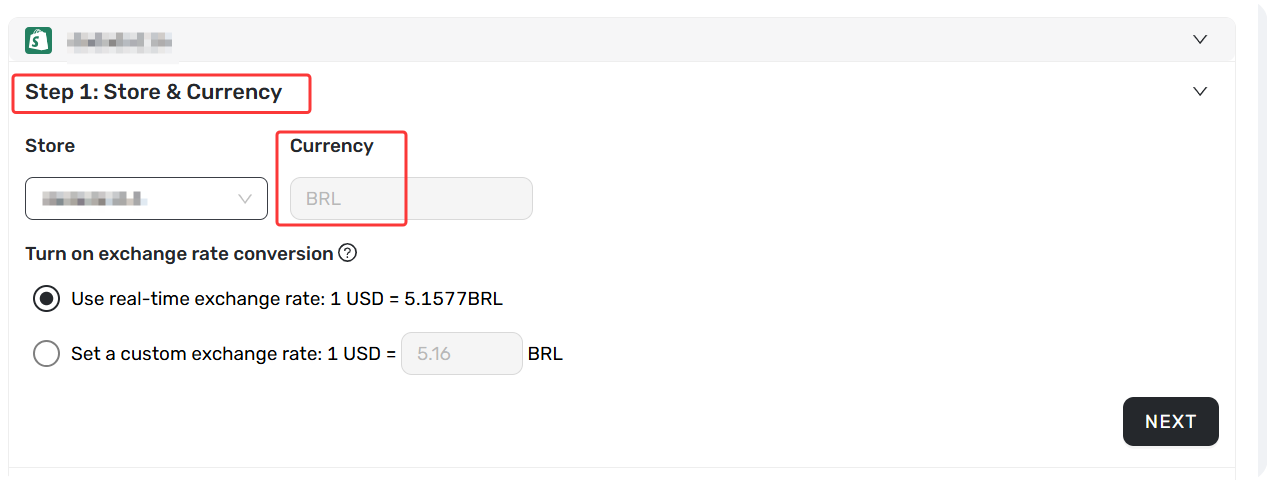
- Log in to your DSers account.
- Go to Settings > Pricing settings.
- In the Step 1: Store& Currency section, locate your store.
- Check the Currency next to "Store name"
Tip: If the currency shown does NOT match your actual store currency, contact DSers Customer Support with a screenshot of your store's currency settings to request an update.
Part 2: Exchange Rate – The Conversion Logic
Once your store currency is set (and it's not USD), DSers automatically converts your USD-calculated prices into your store currency using an exchange rate.
Two Ways to Set Exchange Rates
DSers gives you two options for how this conversion happens:
| Option | Name on DSers | Can You Edit It? | Best For |
|---|---|---|---|
| Real-time rate (Default) | Use real-time exchange rate | No (read-only, updates automatically) | Stores that want exchange rate to stay aligned with current market conditions |
| Custom fixed rate | Set a custom exchange rate | Yes | Stores that want stable, predictable pricing with a built-in buffer against fluctuations |
How to Switch to Custom Fixed Rate?
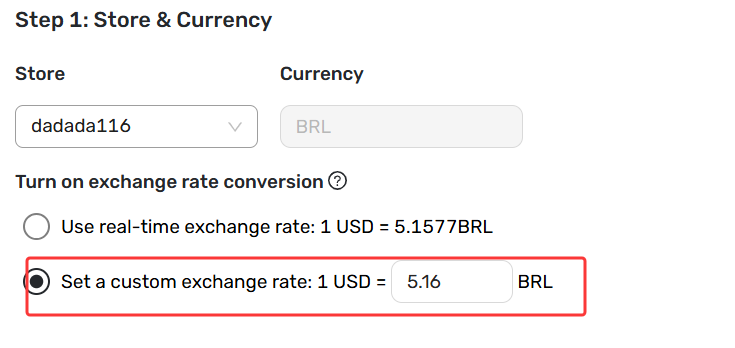
- Select the radio button for your preferred option (Real-time or Custom).
- If you selected Custom, the input box becomes editable.
Enter your desired exchange rate. - Click Save.
Behind the Scenes: How DSers Handles Two Different Rates
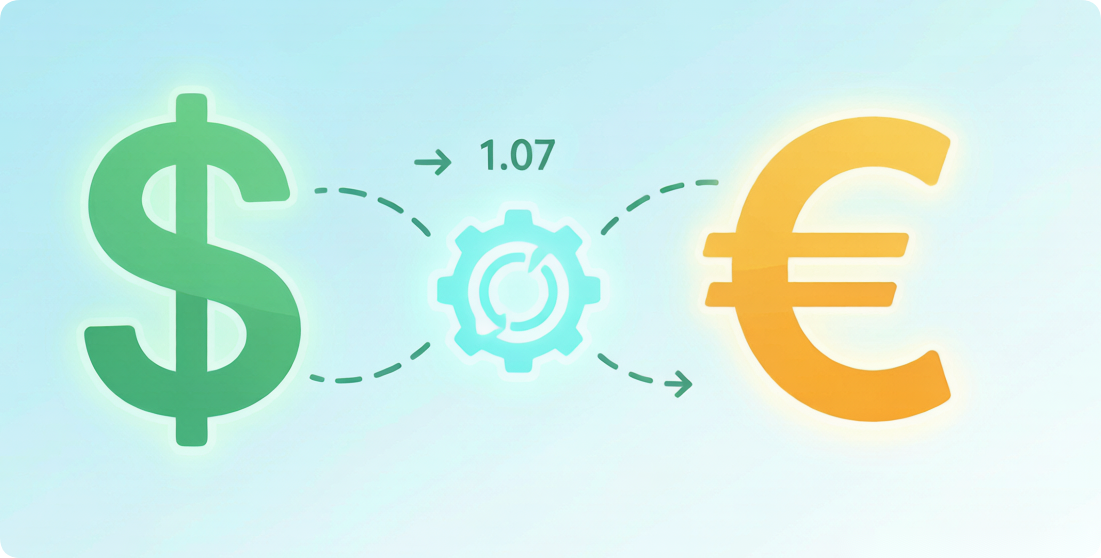
Here's the part that catches most people off guard. DSers actually uses two different exchange rates depending on the action:
| Scenario | Which Rate DSers Uses |
|---|---|
| Calculating your store price (what the customer sees) | Your custom rate (if you set one) or real-time rate |
| Displaying the reference price of orders in DSers before placing the order to AliExpress | Always the real-time market rate |
Why This Matters
Let's walk through an example to see why this protects your profit:
| Step | Calculation |
|---|---|
| Product cost (supplier price) | $10 USD |
| Your pricing rule (×2.5) | $25 USD selling price (before conversion) |
| Your custom rate (1 USD = 1.40 CAD) | 25 × 1.40 = $35.00 CAD (CAD on your store) |
| Customer pays | $35.00 CAD |
| Order be synced to DSers awaiting order tab | DSers uses real-time rate for order cost reference (e.g., 1.35) |
| You go to place the order via DSers | DSers synced the correct paid price from AliExpress |
| The reference price displayed is | 10 USD × 1.35 = $13.50 CAD |
The custom rate only applies to what you show customers.
The reference price shown in DSers before you confirm the order—which uses the real market rate—helps you understand the actual cost context.
This means you can build a safety buffer into your displayed prices without affecting your reference calculations.
Related Articles
- Master Pricing Settings: 2 Ways to Automate Your Product Pricing
- Basic Pricing Rule: Automate Your Product Pricing in Minutes
- Basic Pricing Rule: How to Add Shipping Cost to Your Pricing Rule
- Advanced Pricing Rules: Automate Your Profit Margins
- Advanced Pricing Rules: How to Add Shipping & Tax to Your Pricing Rule
- Store Currency & Exchange Rates: How to Price Across Different Currencies
- Manually Change Store Products Price: Bulk Refresh with Your Latest Rules
- Automatic Price Update: Keep Store Prices in Sync with Suppliers
- Manual Price Sync Failures: Causes & Troubleshooting Solutions
- Shipping Settings: How to Set Your Default Shipping Method
FAQ Section
Here are some common questions about Store Currency, Exchange Rates, and pricing configuration in DSers.
| Get Started Now to Grow Your Online Business with the Best AliExpress Dropshipping Tool - DSers! |
