

Which TikTok button do I click? A simple guide to connecting your store.
Note
This guide walks you through connecting your TikTok Shop to DSers — covering both ways to connect: starting from DSers or installing directly from your TikTok Shop.Click here to start dropshipping now with DSers
By the end, your store will be linked and ready to import products and process orders automatically.
Before you start
Before connecting, check these items:
| ✅ Check | What to verify |
|---|---|
| TikTok Shop account | You have an active TikTok Shop seller account with valid login credentials |
| Store region | Your store is in the US, UK, Germany, or Spain (supported regions) |
| Store availability | Your TikTok Shop is not already linked to another DSers account |
💡 Tip: If your store is outside these supported regions, you can still use DSers via CSV — learn more in the Related articles below.
How to connect your TikTok Shop
You have two ways to connect. Both work the same way — choose the one that feels easier.
Option 1: Start from DSers
Step 1: Log in to your DSers account. On the platform selection page, choose the correct TikTok option for your store region:
| Button | Store type | What happens next |
|---|---|---|
| TikTok-US | US stores (cross-board and local) | Goes directly to US store authorization |
| TikTok | UK, Germany, or Spain stores (local only) | Shows a country selection pop-up after installation |
New to DSers? Learn how to create your account here: [Create Your DSers Account: Sign Up Step by Step]
Connecting another store? Check out: [How to Connect Multiple Stores to a Single DSers Account]
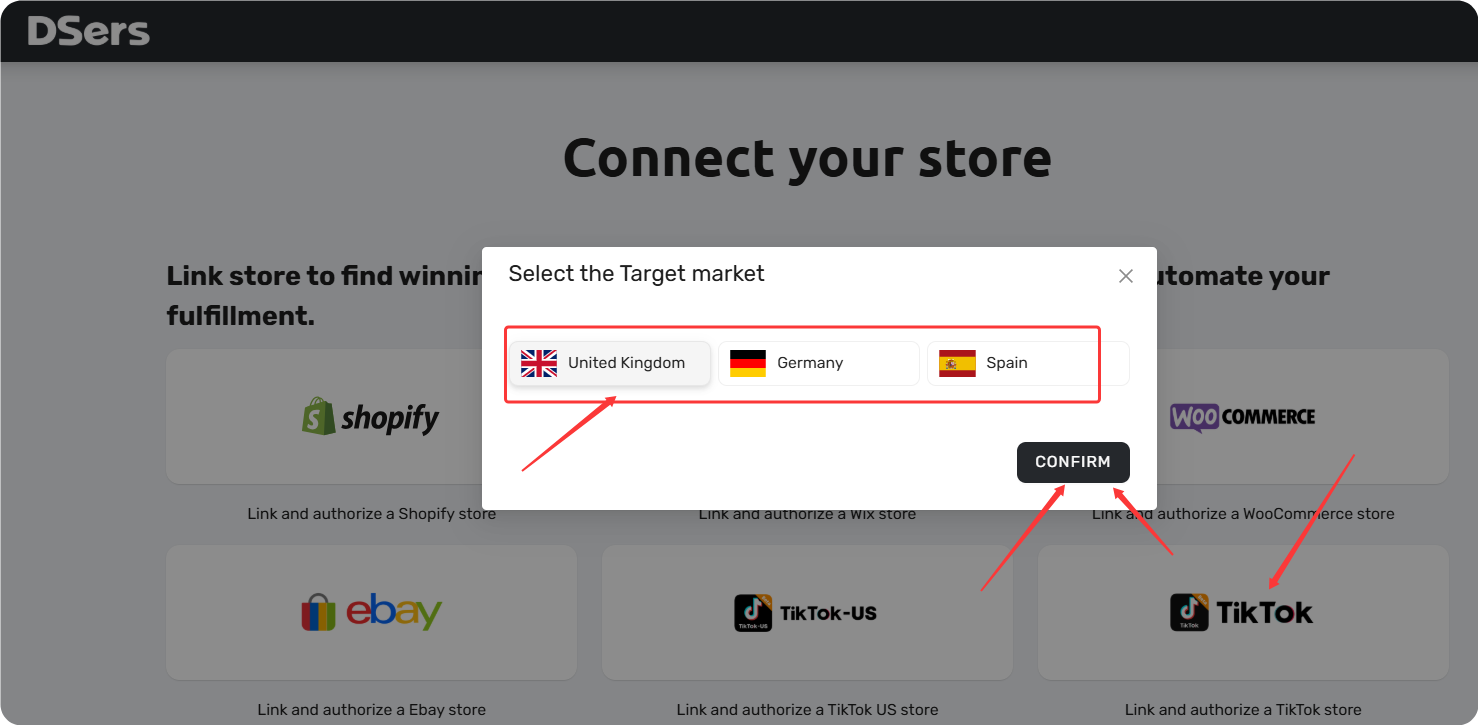
Step 2: In the pop-up, click INSTALL — you'll be redirected to TikTok.
Step 3: Log in to your TikTok Shop seller account if you haven't already.
Step 4: Review the permissions request and click Authorize to grant DSers access.
Step 5: Once redirected back to DSers, click UPDATE to sync your store.
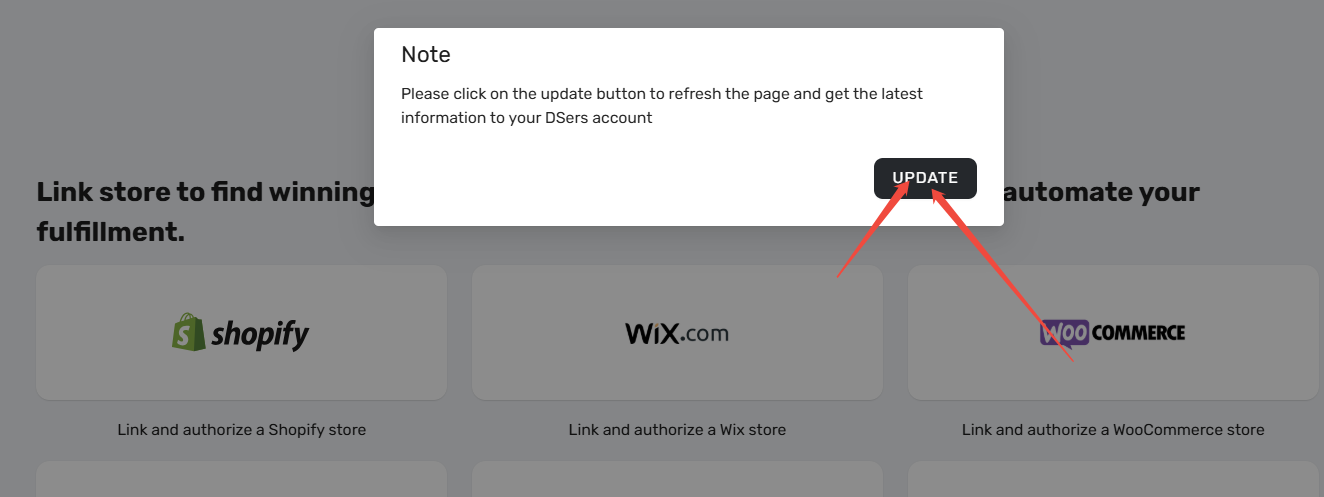
Your store is now linked!
Option 2: Install from your TikTok Shop
Step 1: Log in to your TikTok Shop seller account. Go to Growth Centre and click App store.
Step 2: Search for "DSers", then click Install.
Step 3: In the pop-up, enter your store details (such as store name and region), then click Confirm.
Step 4: Click Authorise to verify the authorization.
Step 5: You'll be redirected to DSers. Sign up or log in to complete the connection.
Your store is now linked!
Common issues and how to fix them
| Issue | Why it happens | How to fix |
|---|---|---|
| "Store region not supported" | Your TikTok Shop is in a country not supported by DSers | DSers supports the US, UK, Germany, and Spain. If your store is outside these regions, consider using CSV connection instead |
| Clicked the wrong TikTok button for your store region | You picked the wrong option for your store location | US stores → click TikTok-US; UK/Germany/Spain stores → click TikTok and select your country |
| Authorization fails after redirect | You're not logged into the correct TikTok Shop account | Log out of TikTok, log back in with the correct seller account, then try again |
| Store already linked to another account | Each TikTok Shop can only connect to one DSers account | Log in to the DSers account already linked |
What's next?
Once your TikTok Shop is connected, you'll be prompted to choose a subscription plan. The Basic plan is free — no credit card needed.
After that, the most common next step is connecting your supplier account.
💡 Ready to connect a supplier? Check out our guide: [Connect Your AliExpress Account to DSers]
Related Articles
- How to Connect Multiple Stores to a Single DSers Account
- Create Your DSers Account: Sign Up Step by Step
- Connect Your AliExpress Account to DSers
- eBay Authorization: Connect Your eBay Store to DSers
- Amazon Authorization: Connect Your Amazon Store to DSers
- Wix Authorization: Connect Your Wix Store to DSers
- DSers Doesn't Support Your Platform? Use CSV Upload to Connect Your Store
FAQ Section
Everything you need to know about connecting your TikTok Shop to DSers.

Get Started Now to Grow Your Online Business with the DSers!