

Learn how Shopify locations control which products and orders sync into DSers.
Note
Are your orders missing from DSers? Or did your product's location in Shopify suddenly change after placing an order? These issues trace back to the fulfillment service location.Click here to start dropshipping now with DSers
Here’s how locations work in DSers, why DSers automatically updates them to process your orders, and what happens when you turn them off.
What Is a Fulfillment Service Location?
In Shopify, a location is where a product's inventory lives. DSers reads these locations to decide if it's allowed to sync inventory and orders.
- Push default: When DSers pushes a product to your store, the stock goes to the
dsers-fulfillment-servicelocation by default. - The sync rule: DSers can only sync inventory for products under
dsers-fulfillment-service, aShop location, or a custom location. If a third-party app manages the location, DSers won't touch the inventory. - Automatic routing: To prevent order failures, DSers requires the line item to be in a supported location. Once a DSers supplier order is generated, if the item is stuck under a third-party app location (like Oberlo), DSers will automatically switch it to
dsers-fulfillment-serviceto ensure the order can be placed successfully.
How to check a product's location in Shopify
- Login to Shopify admin, go to Products, and click the product you want to check.
- If the product has variants, select the specific variant you want to check.
- Scroll to the Inventory section. Make sure Multiple locations is selected if applicable, then click Edit locations.
- In the pop-up, you can see which locations are stocking this variant. Check or uncheck the locations as needed, then click Save.
Tip: You can't unstock a product from a location that has unfulfilled orders or pending transfers requiring its inventory.
Where to Manage Locations in DSers
Path: DSers > Fulfillment Setting > Product fulfillment service management
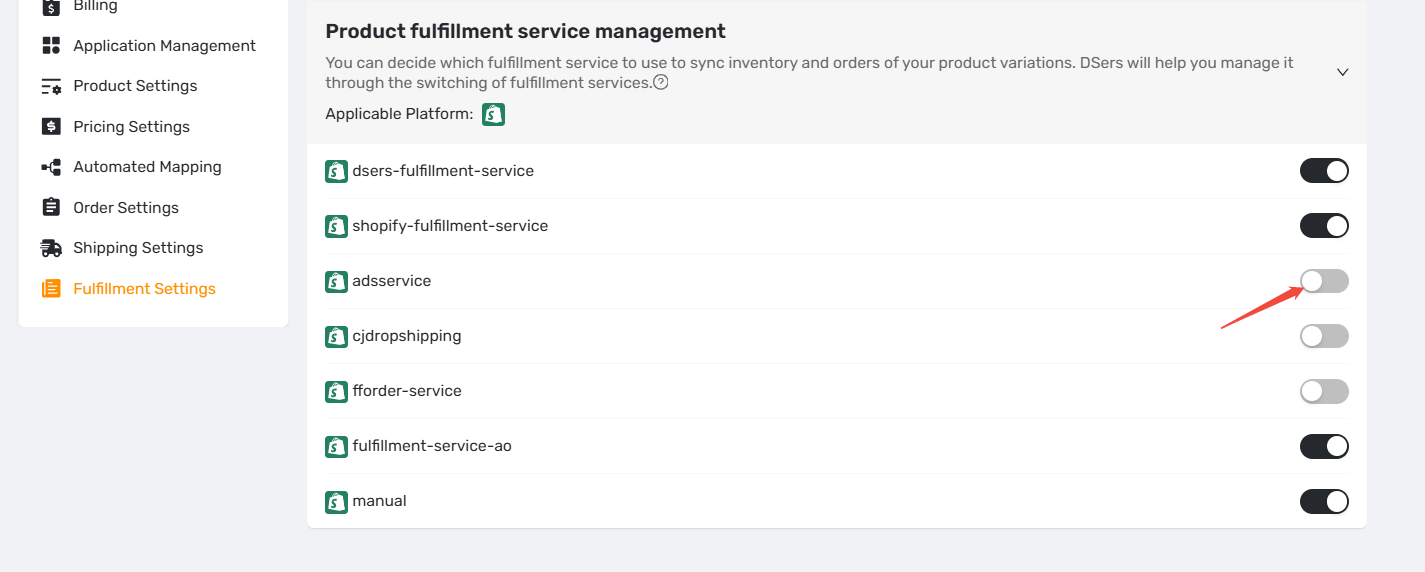
dsers-fulfillment-serviceis always on and can't be turned off. Other locations default to "on" when first detected.- Switch behavior: Turn it on to update product info and show orders. Turn it off to stop both.
Pro tip: Keep this location on so DSers can sync and fulfill these orders.
Only turn it off if you intentionally manage these specific orders outside of DSers.
How Location Affects Product & Order Sync
If a location is turned off:
- Products: They won't pull into My Products. If they're already mapped, their variants stop syncing inventory and prices.
- Orders: New orders won't sync (manual sync won't work either). Existing synced orders stay visible and sync normally.
- Multi-variant products: DSers looks at the location of the first variant ordered. If that variant is under an "off" location, the entire order is blocked.
For missing orders: Learn how to restore them and check more reasons why orders aren't showing [here].
For inventory issues: Check more reasons why stock isn't updating [here].
Related Articles
- How to Manage Your Product Fulfillment Services in DSers
- How to Update the DSers Fulfillment Service Address in Shopify
- Set Up Inventory Auto-update for Your Products
- Inventory Not Syncing: Stock Showing Incorrectly
- Hide Orders in DSers: Causes and Recovery Steps
FAQ
Here are some common questions about how Shopify locations affect product and order syncing in DSers.