

You set up auto-sync, but inventory still isn't updating
Note
You've turned on automatic sync, but your store still shows the wrong stock numbers. This guide walks through the most common reasons why—so you can find the fix fast.Click here to start dropshipping now with DSers
1. Check the update settings: Settings Level & Product Level
Check Steps:
1. Account-Level Settings:
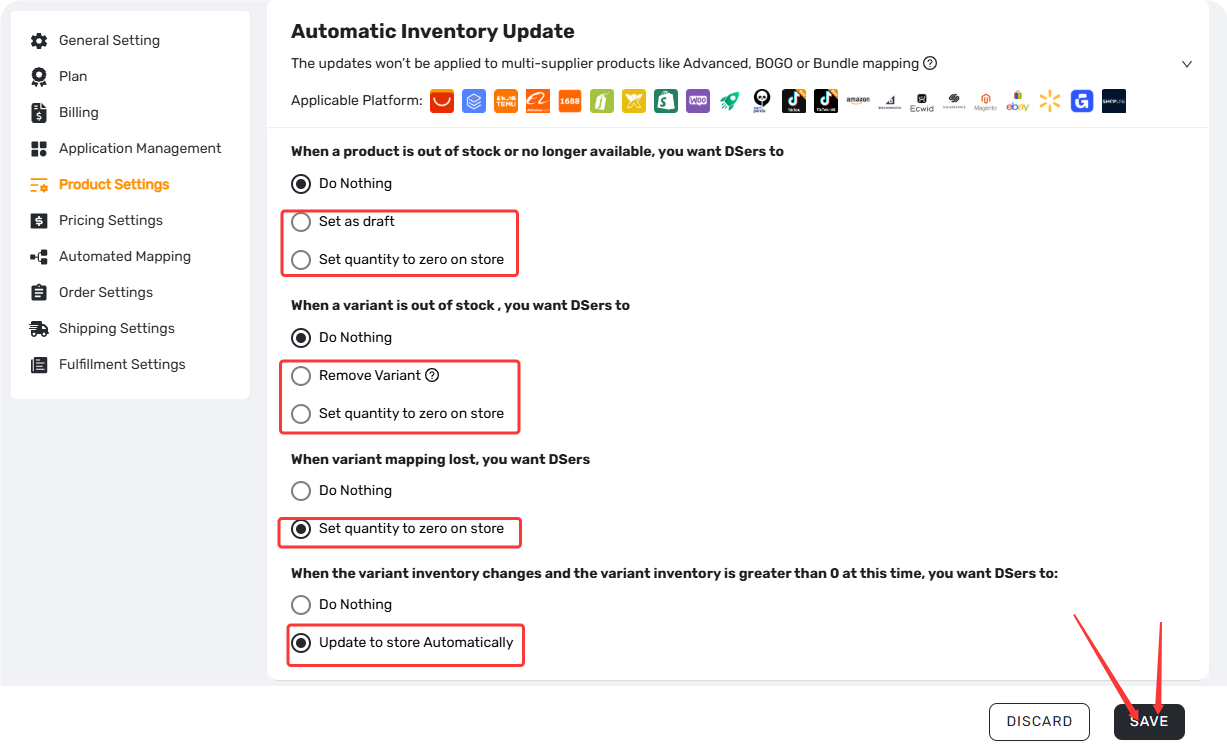
a. Log in to DSers > Settings > Product Settingsb. Locate the Automatic Inventory Update section
c. Configure these four options :
d. Click SAVE

| Setting | Options |
|---|---|
| When a product is out of stock or no longer available | Do nothing / Set as draft / Set quantity to zero on store |
| When a variant is out of stock | Do nothing / Remove Variant / Set quantity to zero on store |
| When variant mapping is lost | Do nothing / Set quantity to zero on store |
| When a product's inventory changes | Do nothing / Update to store Automatically |
2. Product-Level Check:
If a specific product isn't syncing even though the update setting is on:
a. Log in to DSers > My Products

b. Click More Actions
 > Update Settings

c. Ensure Automatic Inventory Update is checked
💡 Pro Tip:
You can use filter to narrow down the products which unselected autosync inventory.
If you have many products that need the sync feature enabled, contact DSers support—they can help enable it in bulk.
⚠️ Note: If these settings are grayed out, your current plan doesn't support automatic inventory sync. You'll need to upgrade to a paid plan .
2. Sync Conditions Aren't Met
The problem: Everything looks configured correctly, but certain products still won't update—or the storefront still shows "Sold Out" even after a sync.
DSers has several hard requirements for automatic inventory sync. If any one isn't met, the sync won't happen.
Condition 1: Wrong Fulfillment Service Location
DSers only syncs inventory for products in these locations: dsers-fulfillment-service, Shop location, and any custom locations you manually create. Products assigned to other third-party locations won't sync.
How to fix:
- In Shopify, go to Shopify> Products page—confirm which location the product stock at
- In DSers, go to Settings > Fulfillment settings> Product fulfillment service management, turn on for the services you want DSers to manage
- If a product is assigned to another third-party location, change it to "Shopify" or "DSers.”
📌 Quick heads-up: If your Shopify admin shows inventory but your storefront says "Sold Out," check that you have shipping zones and rates configured in Shopify > Settings > Shipping and delivery. Missing shipping settings can cause all products to appear out of stock.
Condition 2: Incomplete Mapping
DSers can only sync inventory for properly mapped products. If variants aren't fully mapped, DSers doesn't know which supplier inventory to check.
How to fix:
1. Go to My Products
> Mapping
 to see all products needing attention
2. Ensure each variant is properly mapped:
- Option-Level Mapping: Each store option (e.g., "Large", "Black") maps to a supplier option
- SKU-Based Mapping: Each store variant maps to a specific supplier SKU
⚠️Attention: Automatic inventory sync does NOT apply to multi-supplier products. Ensure only one available supplier SKU is linked to each product variant.
Condition 3: Sync Frequency + Timing
DSers does not sync in real time. Sync frequency depends on your subscription plan :
| Plan | Sync Frequency |
|---|---|
| Basic | Notification only (no automatic update) |
| Standard | 12-24 hours |
| Advanced | 6-12 hours |
| Pro | 6-12 hours |
| Enterprise | within 6 hours |
The synchronization procedure will be started at UTC+8 10:00 AM.
💡 Tip: If it's been over 36 hours with no update, check the Shopify admin product page for the variant's view adjustment history.
If it shows no data, DSers isn't pushing the inventory number. Please contact DSers support team to check details for you.
Condition 4: Inventory Gap Doesn't Meet the Sync Threshold
To protect you from overselling due to sync delays, DSers uses a safe threshold for inventory updates.
If the gap between your Shopify inventory and your supplier's inventory is too small, we will not update the stock automatically.
Specifically, DSers will ONLY sync when the gap meets these conditions:
| Condition | Example |
|---|---|
| Shopify ≤ 500, gap between Shopify and AliExpress is greater than 10 | Shopify=400, AE=300 → Gap=100 → ✅ Will sync |
| Shopify > 500, gap between Shopify and AliExpress is greater than 400 | Shopify=800, AE=100 → Gap=700 → ✅ Will sync |
| Shopify is 0, AliExpress shows "unlimited" | Shopify=0, AE=unlimited → ✅ Will sync |
3. Free vs. Paid Users: Different Approaches
🔹 Free Plan Users
DSers does not automatically sync inventory to your store on the Free plan—it only supports notifications.
Recommended approach:
Enable Inventory Changes Notification to receive alerts when:
- A product is not found (discontinued)
- A product is out of stock
- A variant is out of stock
When you receive a notification, you can manually update stock via the notification prompt.
📎 Related Article: Inventory Changes Notification: What to Do When a Product Goes Out of Stock
🔹 Paid Plan Users
If your plan includes automatic inventory sync, follow the setup steps in the related article below.
📎 Related Article: Inventory Auto-Sync: Prevent Overselling
FAQ Section
Everything you need to know about auto-sync and how to keep your inventory accurate across channels.
Related Articles
- Inventory Auto-Sync: Prevent Overselling
- Inventory Changes Notification: What to Do When a Product Goes Out of Stock
- Mapping Errors: Products Not Syncing Correctly
- DSers Plans and Billing: A Complete Overview
- Sync Delivered Status: Keep Orders Accurate

Get Started Now to Grow Your Online Business with the DSers!