

Automatically trigger payment release in Shopify by syncing "Delivered" statuses from your supplier

Note
In dropshipping, your cash flow is everything. On Shopify, customer funds are typically held until an order is marked as Delivered. By automatically syncing this final status from your supplier to your store, you stop leaving money on the table and ensure faster access to your capital.
This tutorial covers how to enable the "Sync Delivered Status" feature to automate order finalization for Pro users and above.
Click here to start dropshipping now with DSers
What is "Sync Delivered Status"?
Usually, DSers syncs orders from your store to the supplier and brings back Tracking Numbers and Fulfilled statuses . However, the journey doesn't end when an item is shipped.
The Sync Delivered Status feature bridges the final gap. It checks your supplier’s data to confirm when a customer has actually received their package. Once confirmed, DSers tells Shopify to update the order status to "Delivered."
How It Works
Once you turn this on, DSers works in the background to finalize your orders. Here is exactly what to expect:
- Automatic Tracking: DSers will look back at your recently fulfilled orders and monitor their journey until the supplier marks them as "Delivered."
- The "All or Nothing" Rule: DSers only updates an order to "Delivered" in your store when every single item in that order has been delivered.
- Handling Returns Gracefully: If a customer cancels one item out of a five-item order, don't worry. DSers stops tracking the canceled item and will still sync the "Delivered" status for the remaining four items once they arrive.
- 30-Day Window: DSers will track orders for up to 30 days from the first time you get a Tracking Number (TN).
Step-by-Step: How to Turn It On
Ready to automate your cash flow? Follow these steps to enable the feature .
1. Check Your Plan
This feature is exclusively available for Pro and Enterprise users. If you are on a Basic or Advanced plan, you will need to upgrade to see the toggle .
2. Navigate to Settings
- Log in to your DSers account.
- Go to Settings > Order Setting>Locate Order Details Synchronization.
4. Enable the Toggle
- Find Sync delivered status of orders to store.
- Toggle the switch to On.
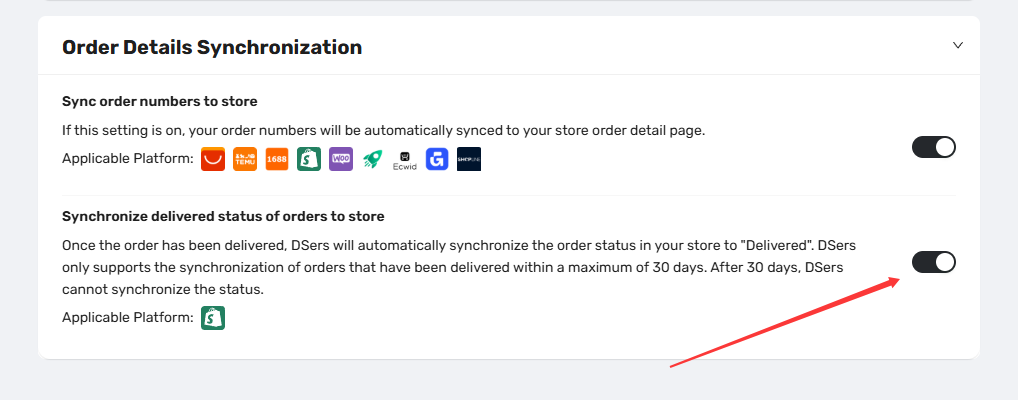
Pro Tip: If you are on a free or lower-tier plan and try to turn this on, DSers will automatically pop up a subscription window.
Important Things to Remember
To make sure this works smoothly, keep these details in mind:
- Plan Changes: If you downgrade your subscription from Pro to a lower plan later, this feature will automatically turn off. DSers will stop syncing delivered statuses immediately.
- Supplier Data Required: DSers relies on the shipping carrier marking the item as "Delivered." If the shipping carrier’s tracking is slow to update, DSers will wait for that data before syncing to Shopify.
- No Manual Override: This is an automatic trust signal. It ensures that only genuinely delivered items trigger the status change, protecting you from chargebacks.
Related Articles
- Auto-Sync Tracking Numbers to Your Store
- How to Auto-Sync Tracking Number Changes
- Tracking Status Explained: Know Where Every Package Is
- DSers Plans and Billing: A Complete Overview
- Order Syncing: How to Synchronize Your Store Orders
- Sync Delivered Status: Keep Orders Accurate
FAQ Section
Everything you need to know about Sync Delivered Status and how it impacts your Shopify store.
| Get Started Now to Grow Your Online Business with the DSers! |
