

Note
DSers auto-syncs new orders from your store the moment they come in. But sometimes you need to manually pull orders.Click here to start dropshipping now with DSers
When to Use Manual Sync
- An expected order isn't appearing in your Open Orders tab
- You just connected a new store and want to pull older orders beyond the auto-sync window
- You need orders from a specific date range pulled in immediately
Pull Orders from Your Store into DSers (Manual Sync)
If you need to manually fetch orders from your sales channel (like Shopify, WooCommerce, or Wix) into DSers, follow these steps:
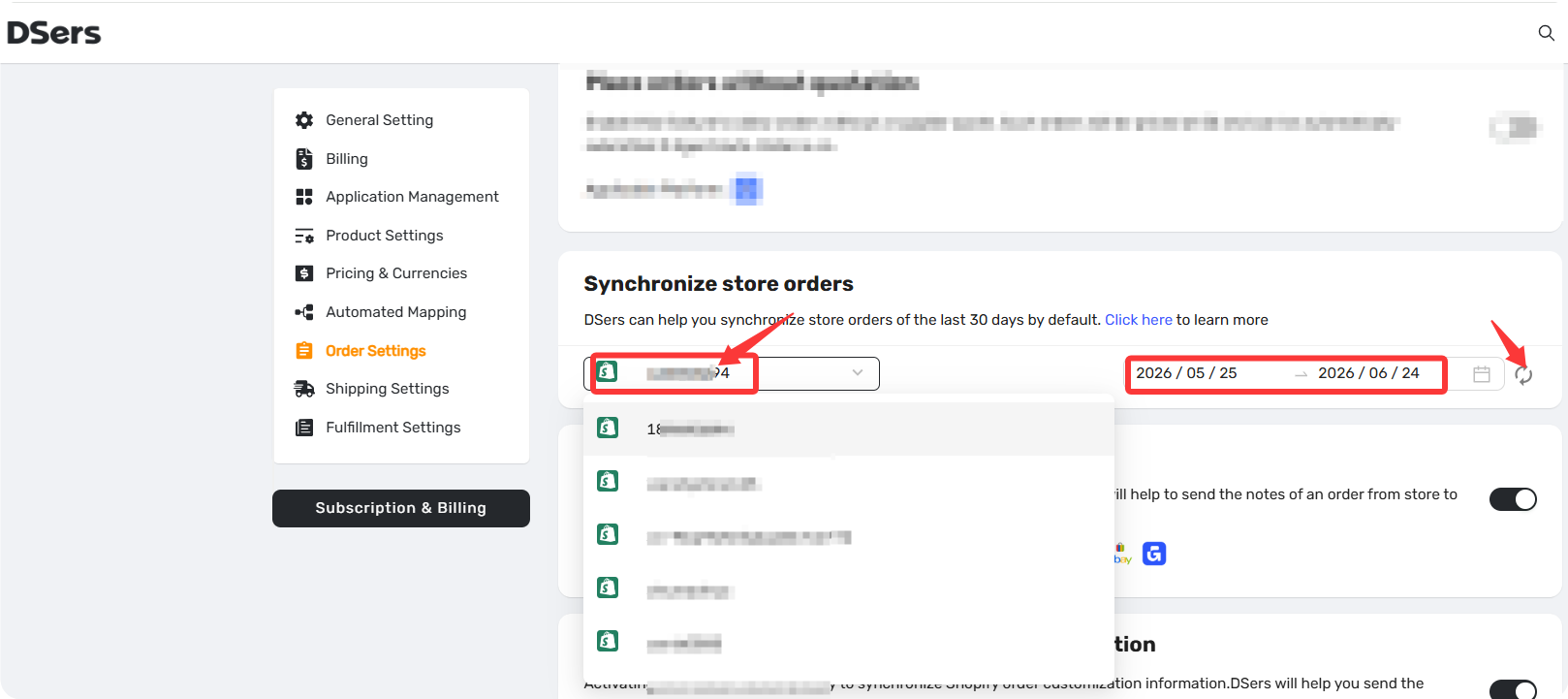
- Log in to DSers and go to Settings >Order Settings > Synchronize store orders.
- In the Synchronize store orders section, select store from the dropdown menu.
- Choose Time range. By default, it's set to the last 30 days—adjust it to cover a few days before and after the order created date to make sure you capture everything.
- Click the sync icon to pull in the orders.
Important note on sync limits: Depending on your sales channel, there are limits to how far back you can sync :
| Sales Channel | Available Sync Range (Starts at Binding) |
|---|---|
| Shopify | Orders from the last 60 days |
| WooCommerce | No specific limit |
| Wix | Orders from the last 90 days |
Please allow a few minutes for the sync to complete if a large volume of orders is being imported.
Related Articles
- Understanding Your Dashboard: Orders Overview
- Order Sync Failed: Why Orders Aren't Appearing in DSers
- Fulfilling Customer Orders: How to Place & Pay for Supplier Orders
- Auto-Sync Tracking Numbers to Your Store
- Sync Delivered Status: Keep Orders Accurate
FAQ Section
Here are some common questions about order syncing, troubleshooting, and multi-channel order management in DSers.

Get Started Now to Grow Your Online Business with the DSers!