

Can't find your orders in DSers? Order tab missing orders? Orders not showing up?

Note
You've received a new order in your store, but when you go to DSers, it's nowhere to be found. Before you panic, know that your order is likely safe—it's just hiding in a different tab or waiting to be synced.Click here to start dropshipping now with DSers
💡 Quick Tip: New Store? Sync More Orders First
If you just connected your store to DSers, by default, DSers pulls orders from the last 7 days.
To sync older orders:
- Go to Settings > Order Settings > Synchronize store orders .
- Select your store and choose your desired time range.
- Click Sync.
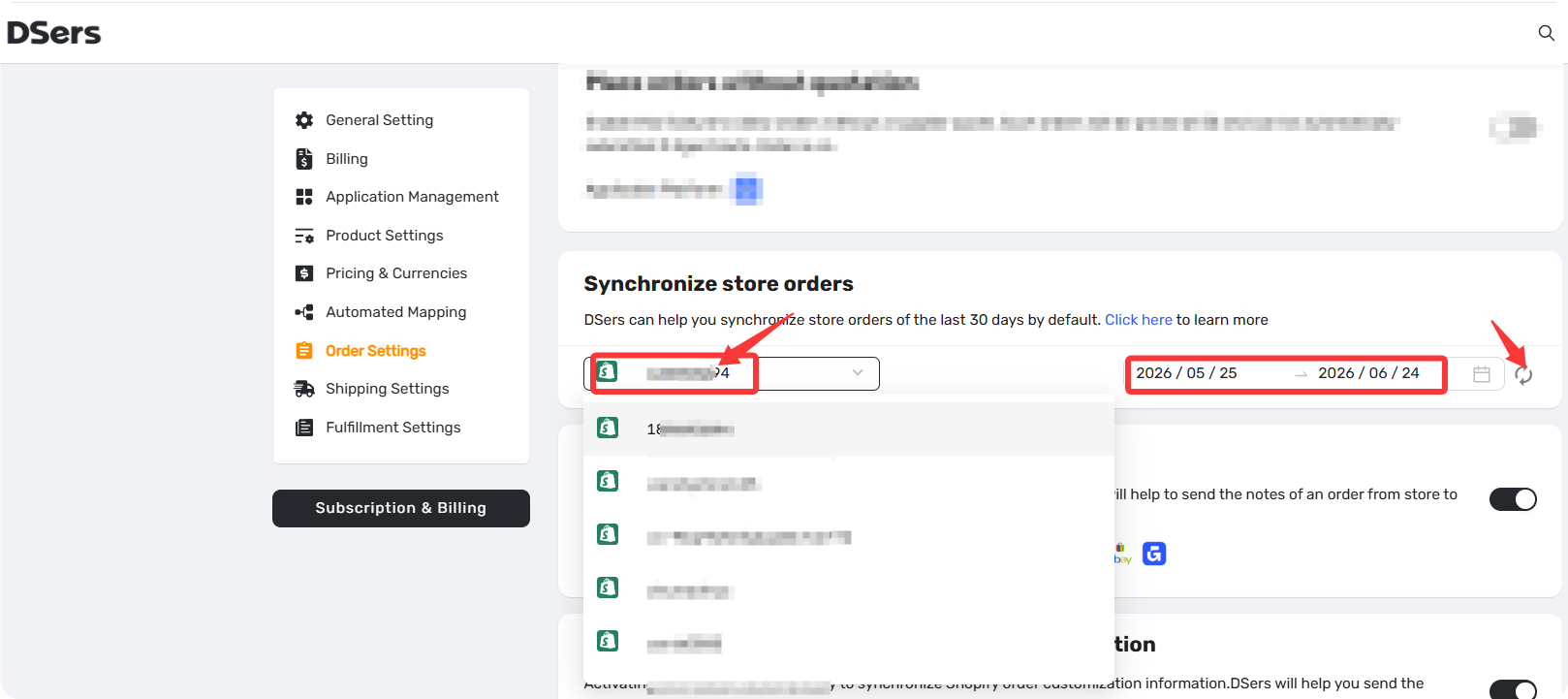
Need more details? See our related article: How to Synchronize Your Store Orders
🚀 Find Quickly: Use the Global Search Bar
Don't want to click through multiple tabs? Just search.
Use the Global Search Bar at the top of every page. It searches across all suppliers, all status tabs, and all stores at once.
What you can search by:
- Order No. (e.g., #1101)
- Customer Name
- Tracking No.
- Supplier Order No.
- Product name (fuzzy search)
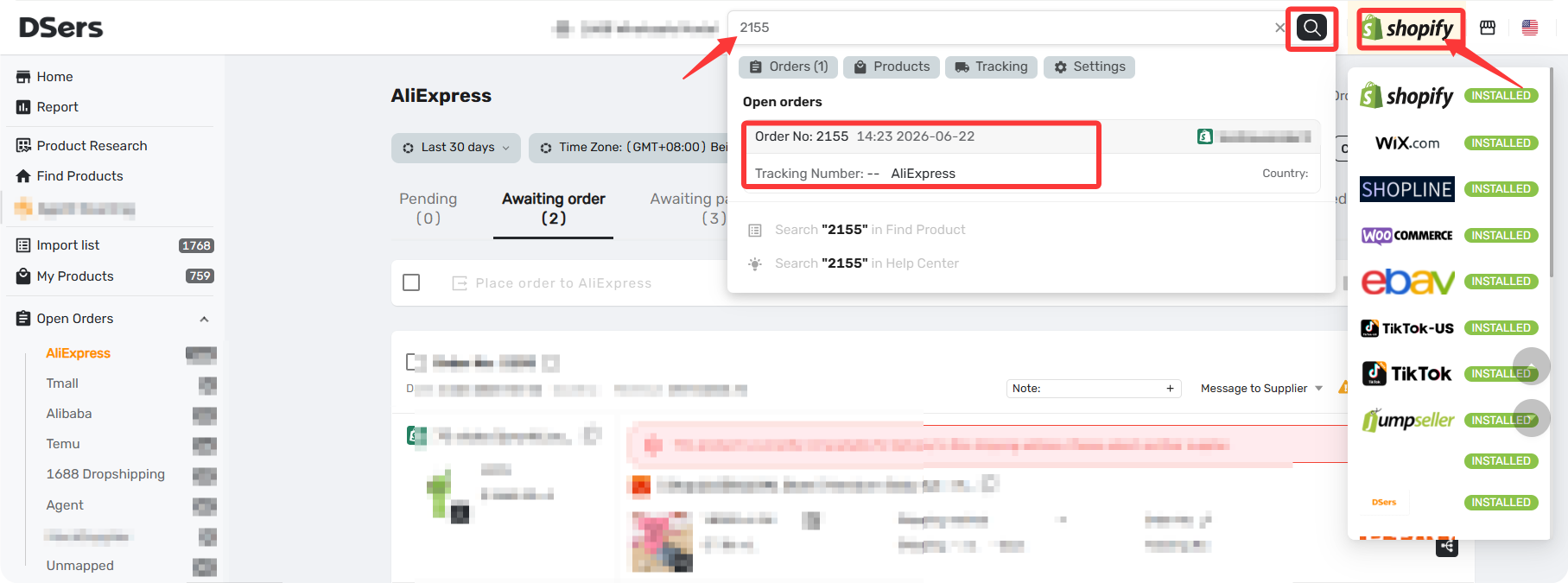
Tip: Make sure you've selected the correct platform (Shopify, WooCommerce, etc.) from the store selector at the top of DSers.
Where Is My Order? 5 Situations
1. Order created 30 Days ago? Adjust the Date Filter
By default, DSers' Open Orders page only shows orders from the last 30 days. If you're looking for an older order, you won't find it unless you change the filter.
What to do:
- Go to
Open Orders - Click the Filter
- Change the range to a longer period (60 days, 90 days, or custom)
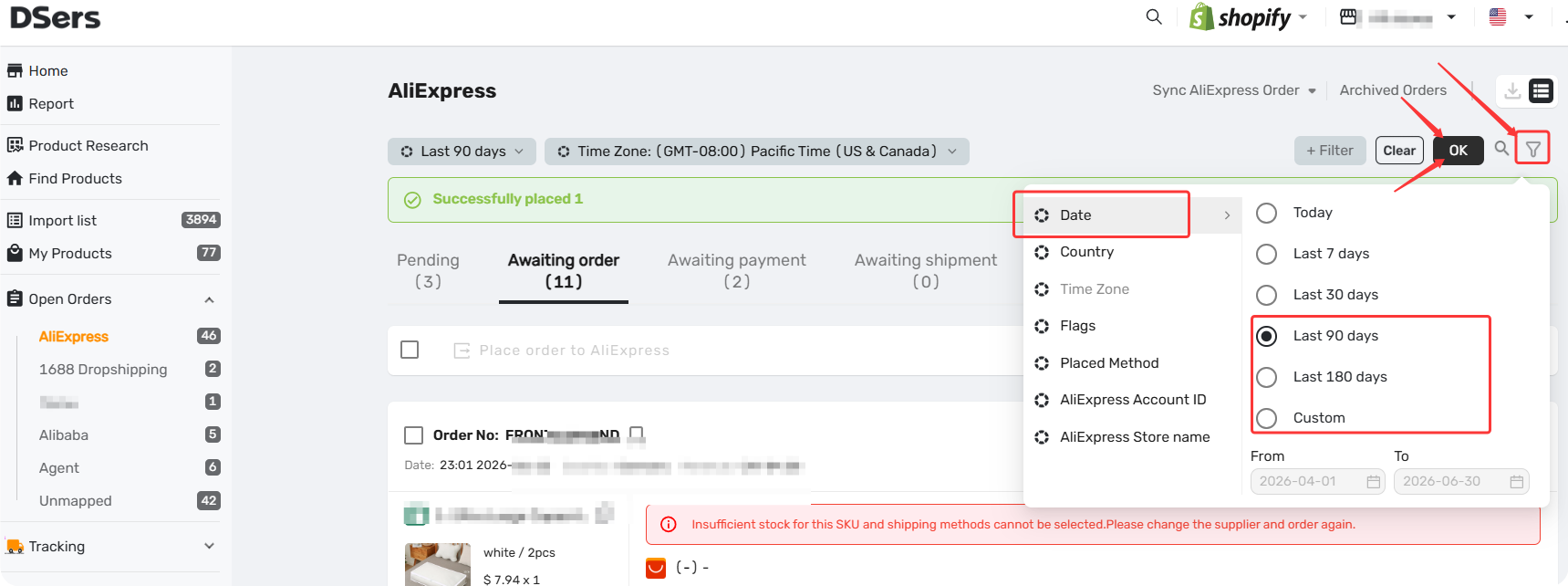
💡 Using multiple stores? Also check the Store selector at the top of the page. Make sure you've selected the correct store or "All stores."
2. Different Supplier/Sales Channel? Switch to the Right Tab in Open Orders
Orders may come from different sales channels (Shopify stores) or supplier sources (AliExpress, 1688, etc.). If you're looking at the wrong combination, your order won't show up.
What to do:
- Go to
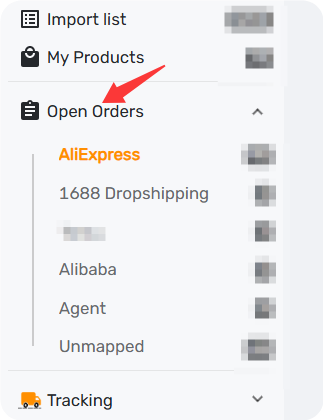
Open Orders - Check the top bar Sales channel
- Look at the supplier tabs at the left sidebar: AliExpress / 1688 Dropshipping/ Agent / Alibaba
- Click the tab that matches where you mapped your product
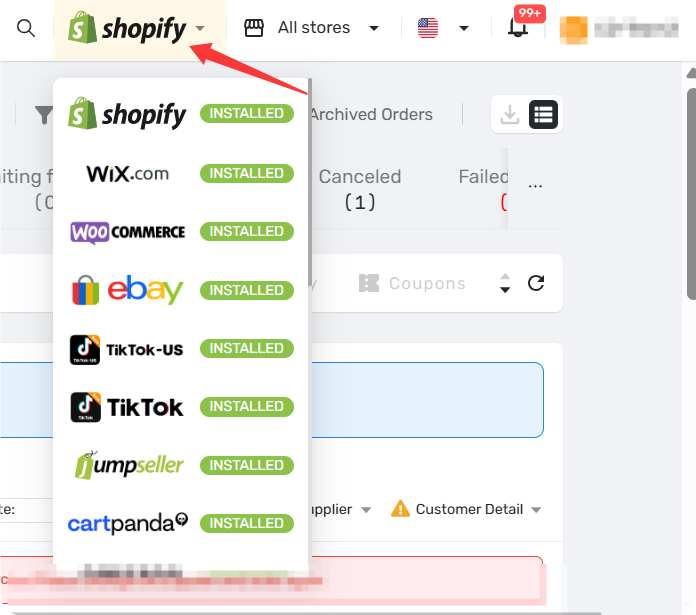
💡 Not sure which supplier a product belongs to? Check your product mapping in My Products.3. Different Order Status? Check the Right Status Tab
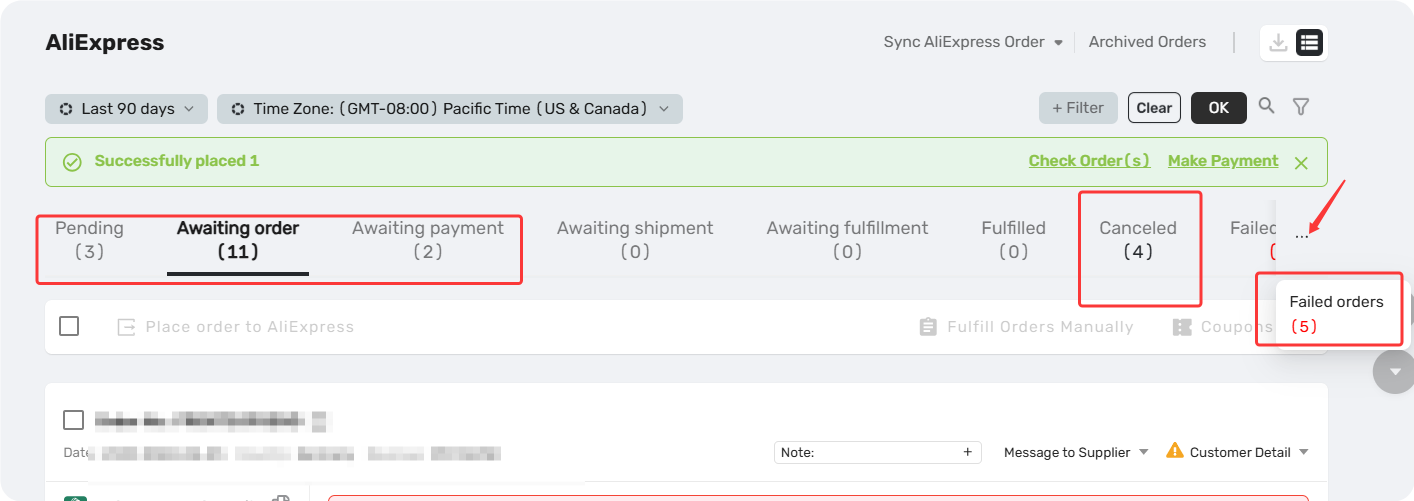
Not every synced order goes straight to "Awaiting Order." Depending on its status, it may be sitting in a different tab under the same supplier page.
What to do:
- Go to
Open Orders→ Select your supplier tab - Search the store order number
- Click on the status tab that has a number—your order will be there
4. Hidden Orders? Restore Them
When you hide a product in My Products, DSers stops showing future orders for that product in Open Orders. This is by design—you told DSers you don't want to fulfill that product through the app.
How to restore them:
How to restore them:
- Go to
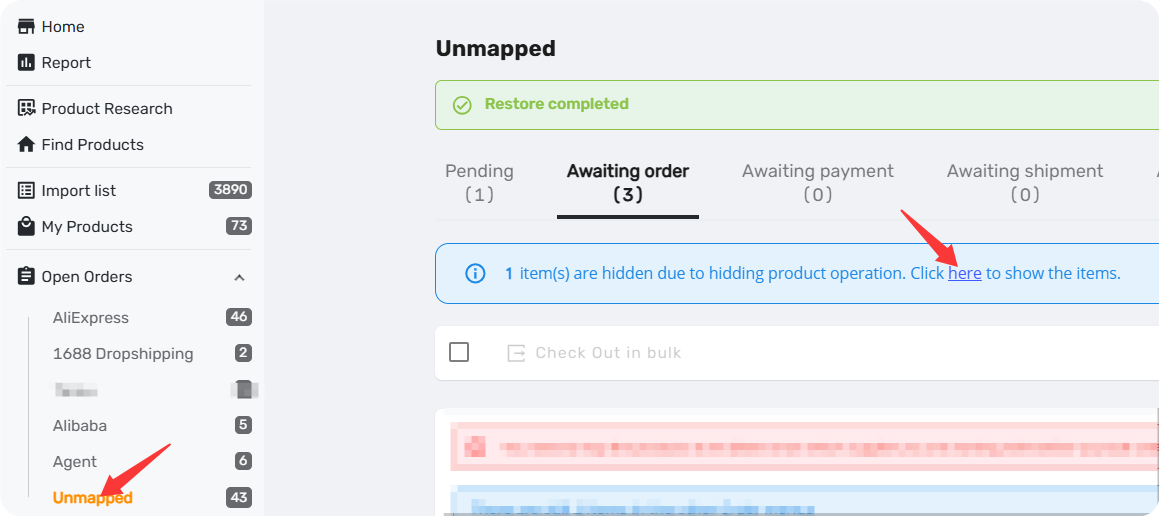
Open Orders - Click the Unmapped page
- Look for the blue notification bar at the top that says:
"X item(s) are hidden due to hiding product operation. Click here to show the items."
- Click "here"
- Select the order(s) you want to restore
- Click RESTORE

⚠️ Important: Hidden orders older than 2 months cannot be restored. Check this soon after you notice an order is missing.
5. Archived Orders? Unarchive Them
Once an order has been fulfilled for more than 4 months, DSers automatically moves it to Archived Orders. This keeps your Open Orders page focused on active orders.
How to find archived orders:
- Go to
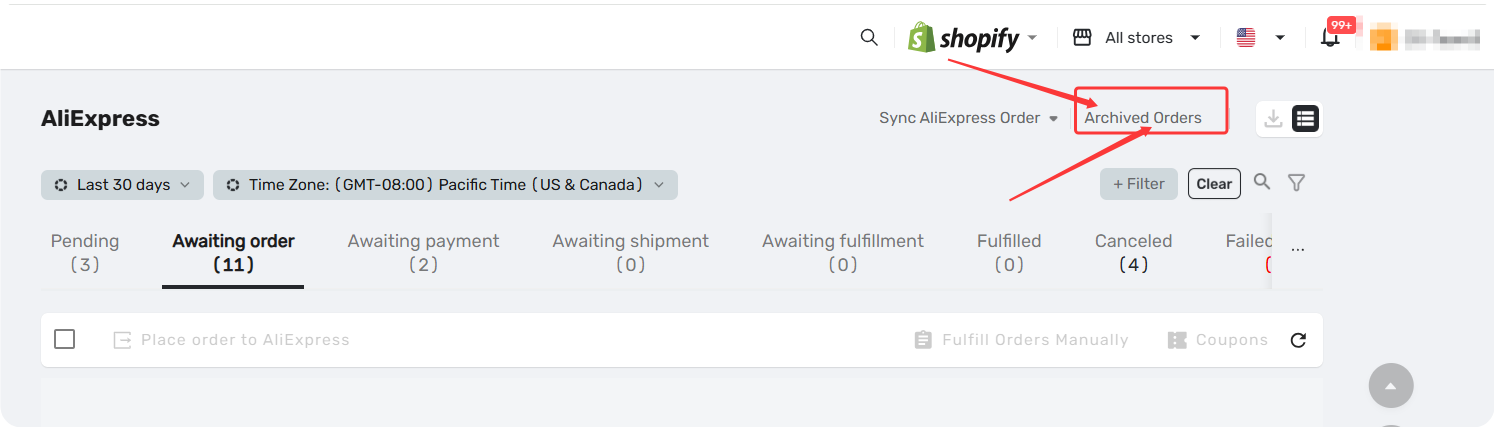
Open OrdersPage, - Archived Orders isn't a tab inside Open Orders—look to the right of the search bar row—you'll find the Archived Orders button.
- Use the search bar to find your order
- Need to reprocess it? Click Unarchive to move it back to Open Order
Related Articles
- Order Syncing: How to Synchronize Your Store Orders
- Understanding Your Dashboard: Orders Overview
- Hide Orders in DSers: Causes and Recovery Steps
- Connection Failed: Why DSers Can't Bind to Your Store
- Fulfilling Customer Orders: How to Place & Pay for Supplier Orders
- Order Failed? How to Fix Failed Orders Caused Products
FAQ Section
Everything you need to know about finding orders in DSers and troubleshooting missing orders.
| Get Started Now to Grow Your Online Business with the DSers! |
