

Learn what happens when mapping breaks, why it happens, and how to restore it in minutes.

Note
In dropshipping, suppliers change SKUs and product details constantly — often without warning. Meanwhile, you may edit your own Shopify variants for SEO or branding. These mismatches break mapping, which stops price sync, inventory updates, and order placement. This article explains how to fix it.Click here to start dropshipping now with DSers
What Happens When Mapping Is Lost
When mapping breaks, several critical functions go down:
| Affected Function | What Happens |
|---|---|
| Auto-sync price & inventory | Stops entirely. Your store no longer reflects supplier price or stock changes. |
| Manual price sync | Also fails. Even if you try to sync manually, DSers can't find the supplier data to pull. |
| Order placement to supplier | Fails. DSers doesn't know which supplier SKU to add to the cart. |
Bottom line: No mapping = No data sync = No orders can be placed.
How to Restore Mapping — Common Scenarios
Here are the three most common reasons mapping breaks and how to resolve each one.
1. The supplier changed their SKU or variant name
How to stay informed:
Turn on notifications at Settings → General Settings → Notification → SKU changes. You'll be alerted when a mapped supplier's SKU name changes or when a new option is added.
How to fix it:
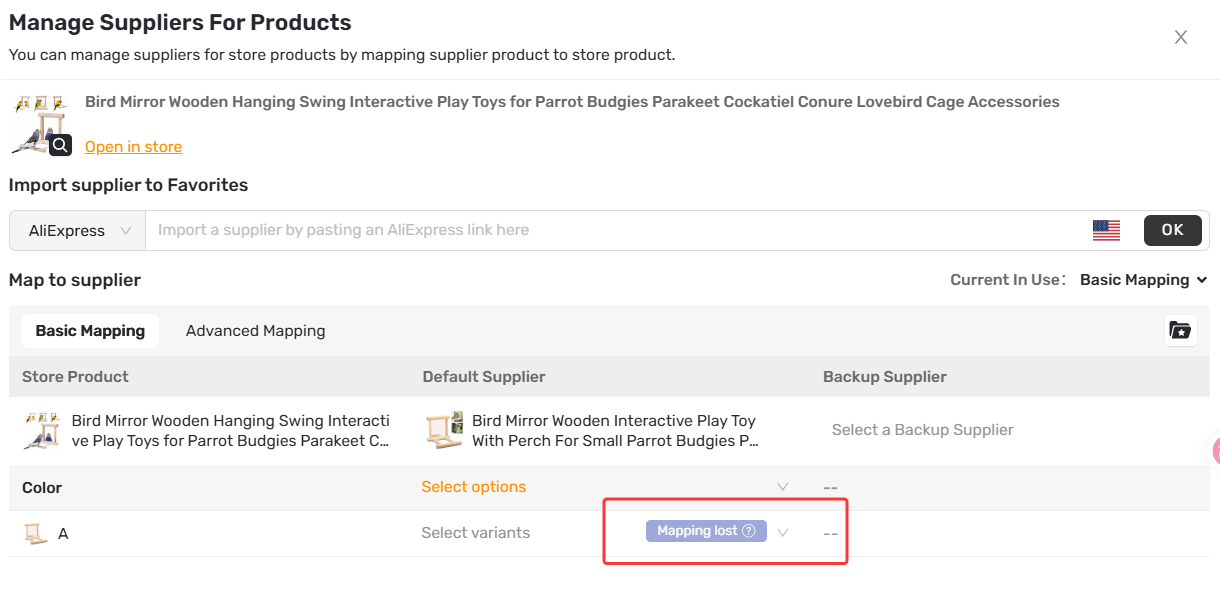
Go to My Products and look for the product with the red notification badge. Click the Mapping icon/Notifications — DSers will show you the updated supplier options. Simply match them to your store variants again and click Save.
2. The supplier is unavailable (out of stock or offline)
How to stay informed:
Turn on Inventory changes notifications at Settings → General Settings → Notification → Inventory changes.
DSers will alert you when a supplier product is marked "Product not found," "Product out of stock," or "Variants out of stock." This gives you a head start to find a replacement before orders start piling up.
How to fix it: Link to a new supplier
1. Go to My Products
 , hover over the product image — the Supplier Optimizer
 icon will appear.
2. DSers will show you a list of other suppliers selling the same product, with different prices, ratings, and sales volumes.
3. Compare options and select a new supplier.
4. Copy the supplier link and complete the mapping.
Tip: Never rely on just one supplier. Set up a Backup Supplier in Basic Mapping so DSers can auto-switch if your main supplier becomes unavailable.
3. You edited the product SKU in Shopify
You added a new option or SKU in Shopify, but no mapping data exists for the new variant yet.
How to fix it:
From the Shopify product page, click More actions → Edit in DSers Click the Mapping icon. Match your store variant to the corresponding supplier option and click Save.
Tip: If you only edit the option value (not add or remove variants), DSers will retain your original mapping data automatically.
Related Articles
- Mapping Explained: How DSers Knows Which Supplier to Order From
- How Variant Mapping Works
- SKU Changes Notification: What to Do When Variant Mapping Fails
- Inventory Changes Notification: What to Do When a Product Goes Out of Stock
- Supplier Optimizer: Find Better Suppliers in Seconds
- Basic Mapping: How to set Backup Suppliers
FAQ Section
Everything you need to know about mapping breaks and how to restore them quickly.
| Get Started Now to Grow Your Online Business with the DSers! |
