

Export DSers order data as a CSV file from the Compact View of the Open Orders page.
Note
Need to pull your DSers orders into a spreadsheet? You can export them from the Open Orders page.Click here to start dropshipping now with DSers
This guide walks you through exporting your order list as a CSV file from the Compact View, so you can choose exactly which orders to include.
Compact View vs. Details View
The Open Orders page offers two list views that you can switch between at the top of the page:
- Compact View: Shows orders in a table, one row per order, with financial summary columns — Cost, Revenue, Profit, and Margin.
The Export button is only available in Compact View. - Details View: Expands each order so you can review the full details order by order.
How to Export Order Data
Step 1: Open the Open Orders page and switch to Compact View
- Open DSers > Orders > Open Orders.
- Switch the list view to Compact View — the Export button only appears in Compact View.
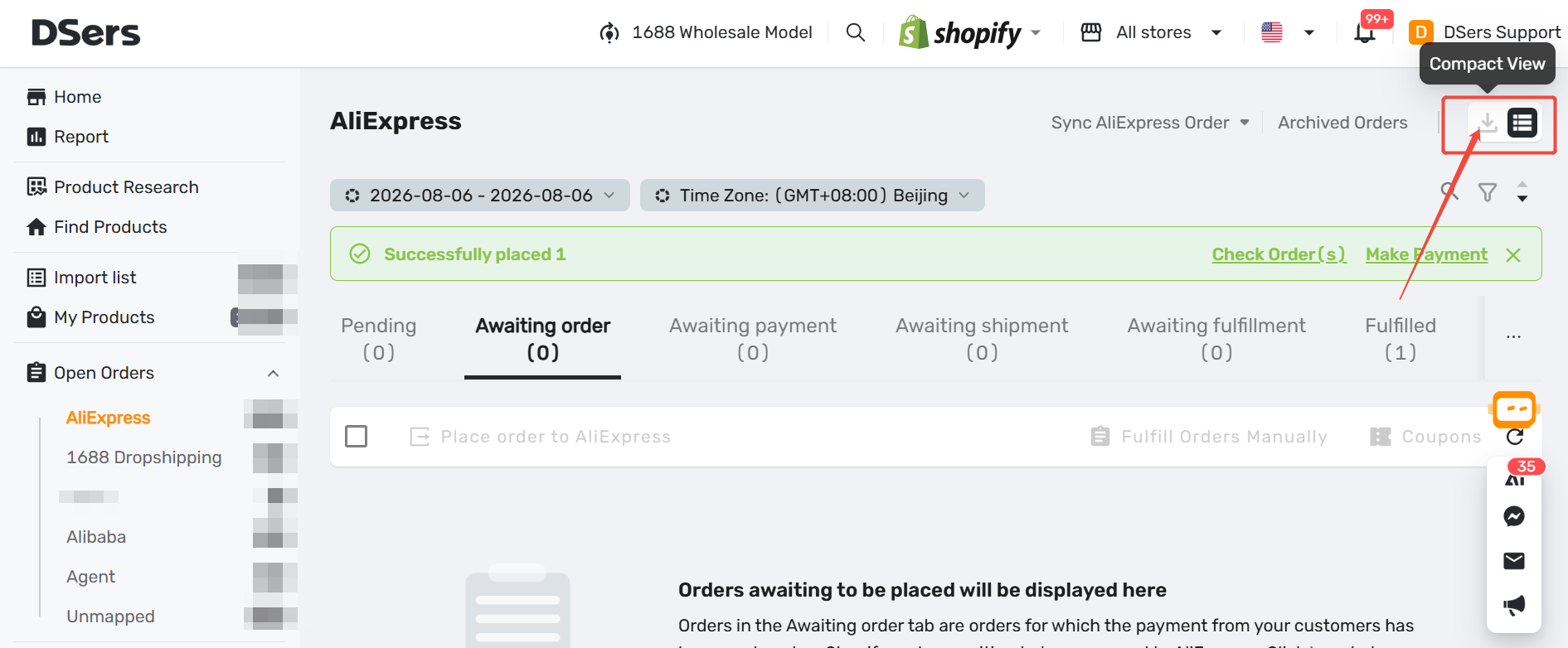
Step 2: Filter or select your orders
- Use the search bar and filters (date, country, status, and more) to narrow down the list.
- To export only some orders, use the checkboxes to select the ones you want.
Tip: In Compact View, you can customize the table columns with Edit Columns — show or hide columns and drag to reorder them. The exported CSV file follows your saved column setup.Step 3: Click Export and choose the export scope
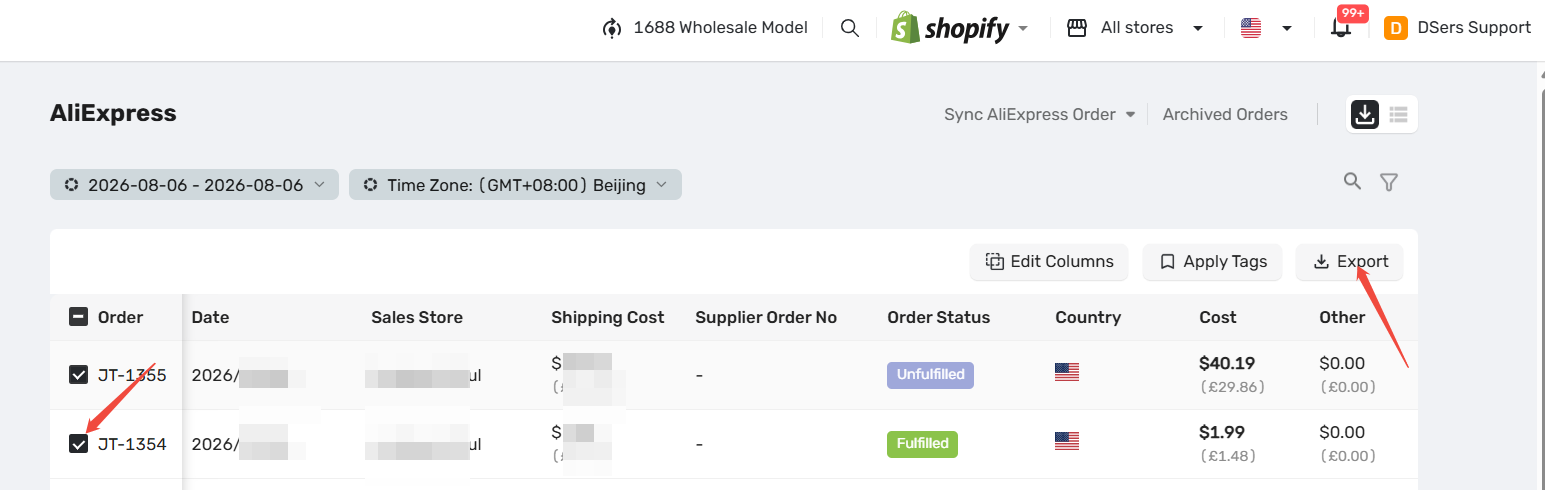
- Click Export at the top of the page. The Export Orders Table dialog opens.
- Choose one of the two export scopes:
- Order(s) currently selected: exports only the orders you checked.
- All filtered order(s): exports every order under the current filter.
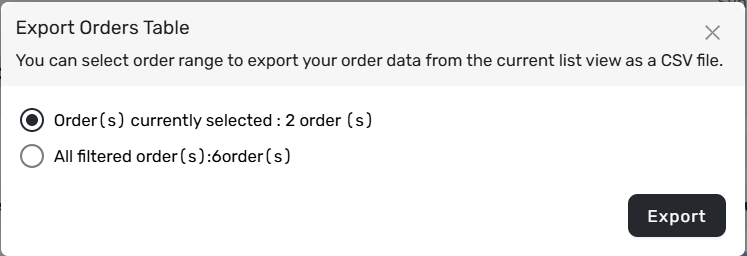
Step 4: Download the CSV file
- Click Export in the dialog.
- The order data downloads to your device as a CSV file.
- The file uses your saved column setup from Edit Columns.
Exporting Archived Orders (Contact Support)
DSers separates orders into two independent pages: Open Orders and Archived Orders.
The Archived Orders page has no Compact/Details view toggle and does not support CSV export. If you need to export archived order data:
- Contact DSers Support to export it for you.
- When you contact support, provide the necessary information (such as your DSers account, date range, and store) so they can locate and process your request.
Related Articles
- Understanding Your Dashboard: Orders Overview
- Order Syncing: How to Synchronize Your Store Orders
- Can AI Agent Analyze My Store Data for Me?
FAQ
Here are some common questions about exporting order data from DSers.

Get Started Now to Grow Your Online Business with the DSers!