

Move your product catalog — mapping included — from one store to another without starting from scratch
Note
When you're running multiple dropshipping stores, setting up products and mapping relationships for each new store takes time.Click here to start dropshipping now with DSers
If you've already matched variants to suppliers and set up pricing rules, you shouldn't have to repeat it. That's what Product Migration does.
This article walks you through how to migrate products and mapping relationships between stores — within the same DSers account or across different accounts.
What Is Product Migration?
Product Migration lets you move products from one store (Source Store) to another (Target Store) while keeping the mapping relationships you've already set up.
Mapping is the link between your store products and supplier products — it tells DSers which supplier variant to order when a customer buys from you.
When you migrate with mapping, you're moving both product information (title, description, images, variants, pricing) and supplier connections.
What Can You Migrate?
| Option | What It Does |
|---|---|
| Migrating products | Transfers product information: title, description, images, variants, pricing |
| Migrating mapping relationships | Transfers supplier mapping configurations |
Migration Checklist
Since Product Migration is a paid feature ($9.99 per attempt), review these points before starting:
| Check | Why It Matters |
|---|---|
| Target Store has enough product slots | If the store plan is nearly full, remaining products will fail |
| Products exist in Source Store | Deleted products won't be migrated |
| Required platform fields are ready | TikTok Shop needs warehouse/size info; Squarespace needs a StorePage |
| Variants have SKU numbers | Missing SKUs can cause mapping failures |
Step-by-Step Guide
Step 1: Navigate to Product Migration
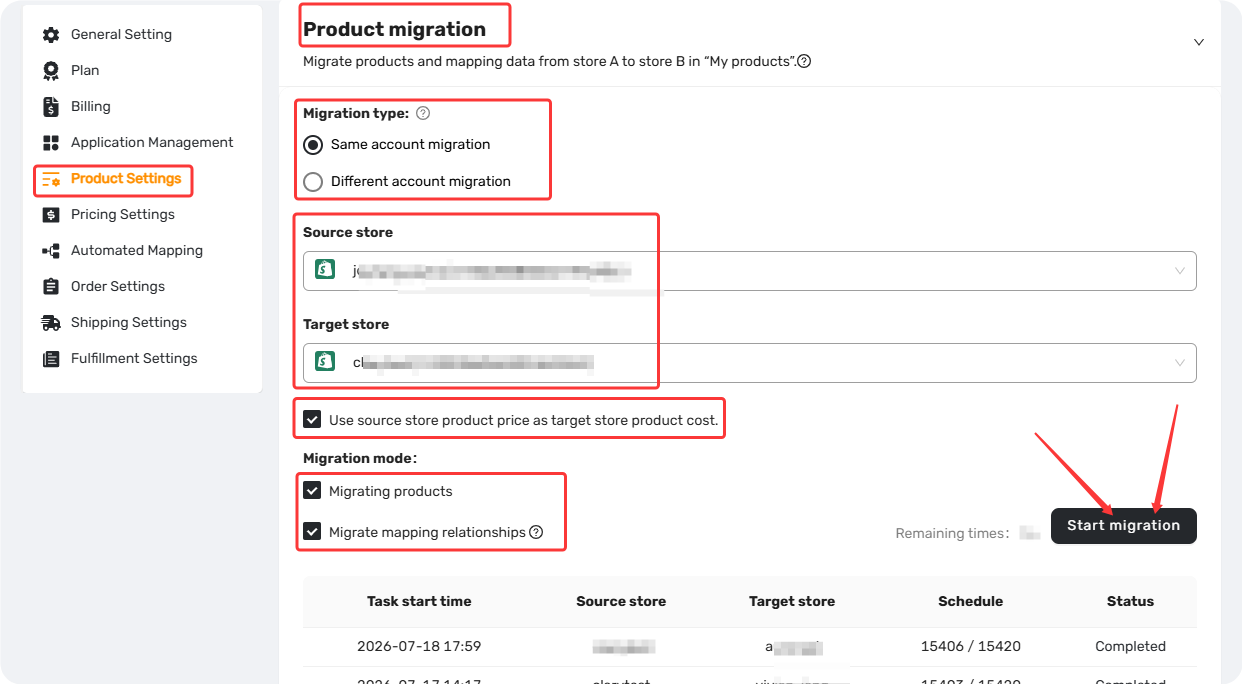
Go to Settings > Product Settings > Product Migration.
Step 2: Choose Migration Type
- Same-account migration – Source and target stores are under the same DSers account.
- Different account migration – Source store is in your current account; target store belongs to a different DSers account.
Step 3: Select Stores
- Same account – Select both the source and target stores from the dropdown menus.
- Different account– Select the source store from the dropdown, then manually enter the target Store ID (must be at least 10 digits and exactly matched).
- If the ID is invalid, you'll see: "This ID was not found. Please try again."
Only stores with a normal binding status appear in the dropdown lists.
Step 4: Set Migration Preferences
| Products | Mapping | Result |
|---|---|---|
| Checked | Checked | Migrate both products and mapping |
| Checked | Unchecked | Migrate products only |
| Unchecked | Checked | Migrate mapping only — products must already exist in Target Store |
Step 5: Start Migration
- Ensure both stores are selected
- Ensure at least one preference is checked
- Click Start Migration
A migration task is created and consumes one migration credit. If you have 0 remaining times, you'll be prompted to upgrade.
Track Your Migration Results
Migration Records table shows:
| Column | Description |
|---|---|
| Start Time | When the task started |
| Source Store | Name of the source store |
| Target Store | Name of the target store |
| Schedule | Progress: success count / total products |
| Status | "In Progress" or "Completed" |
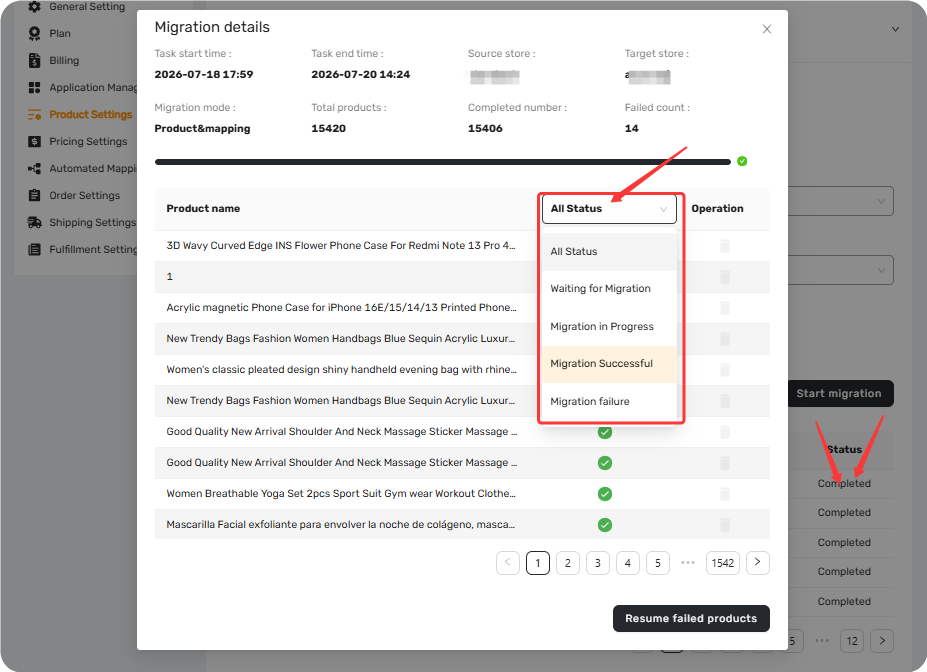
Click on a Completed task to open Migration Details, which shows:
- Start and end times
- Migration mode
- Total, completed, and failed counts
- Failed product names (if any)
Resume Failed Products
If products fail to migrate, you can retry them without using another remain times:
- Open Migration Details for the completed task
- Click Resume failed products (visible only if failures ≥ 1)
- Confirm in the pop-up
The system retries only the failed products. Start Time updates and Status changes back to "In Progress."
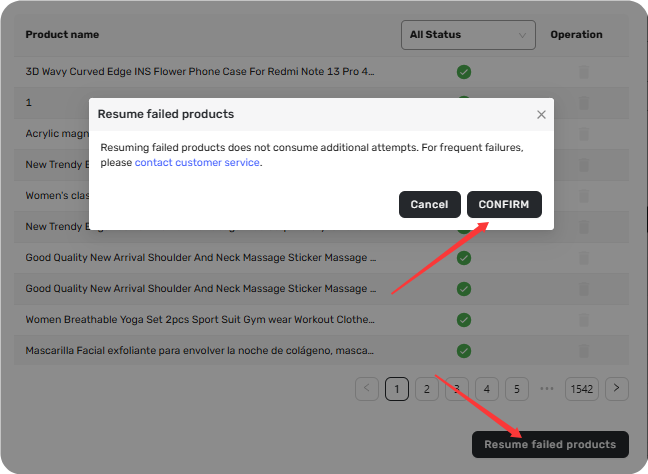
Pop-up message: "Resuming failed products does not consume additional attempts. For frequent failures, please contact customer service."
When to Contact Support
Contact DSers Support for backend migration assistance in these cases:
- The store is unbound or disconnected but you need its data moved
- The Source or Target store has an abnormal binding status
- You need to restore exact data from original linked store
Pricing
| Item | Details |
|---|---|
| Cost per migration | $9.99 USD per attempt |
| Remain times | 1 time = 1 migration task |
| Retry failed products | Does not consume extra credits |
Related Articles
- Mapping Explained: How DSers Knows Which Supplier to Order From
- Basic Mapping: How to set Backup Suppliers
- How to Organize Your Import List Using Custom Tags
- Importing: How to Bring Products from AliExpress
FAQ Section
Everything you need to know about Product Migration and how to move products between stores.

Get Started Now to Grow Your Online Business with the DSers!