

Stop scrolling. Start organizing. Manage hundreds of products with custom tags inside your DSers Import List.

Note
As your dropshipping business grows, locating specific products in a crowded Import List becomes inefficient. DSers Tags enable you to label, group, and organize products — transforming the Import List into a structured workspace.
What Are DSers Tags?
DSers Tags are custom labels for organizing products within the Import List. They exist solely within DSers and are never synced to any store. Up to 100 tags may be created. One or multiple tags can be applied to any product. Each tag displays the number of associated products.
How to Use Tags
Create a Tag
-
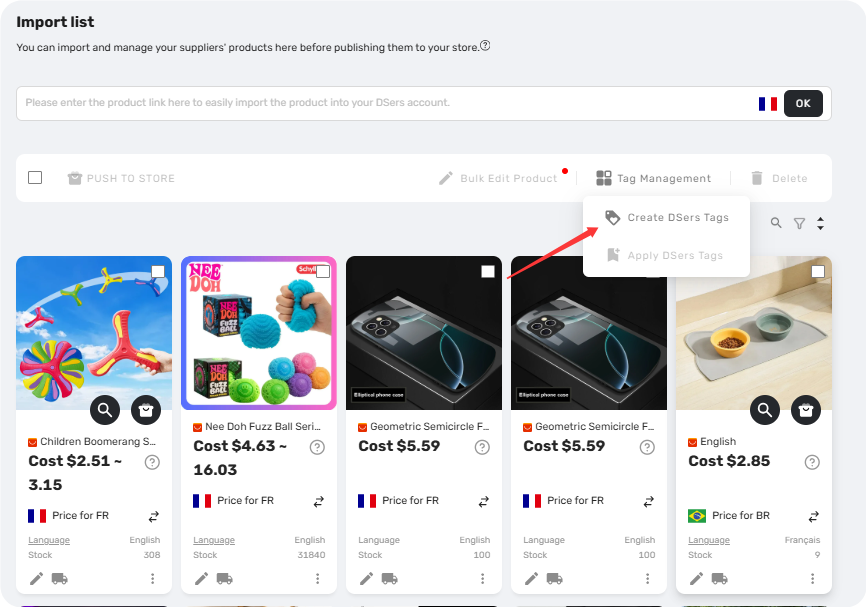
Navigate to Import List,
click Tag Management

-
Select Create DSers Tags

-
Enter the tag name and click
 to save
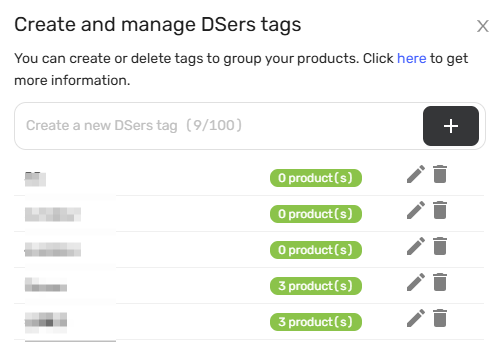
Existing tags are displayed with product counts
 .
.
You can click the pencil icon
 to rename a tag, or the trash icon
 to delete it. Deleting a tag automatically removes it from all associated products.
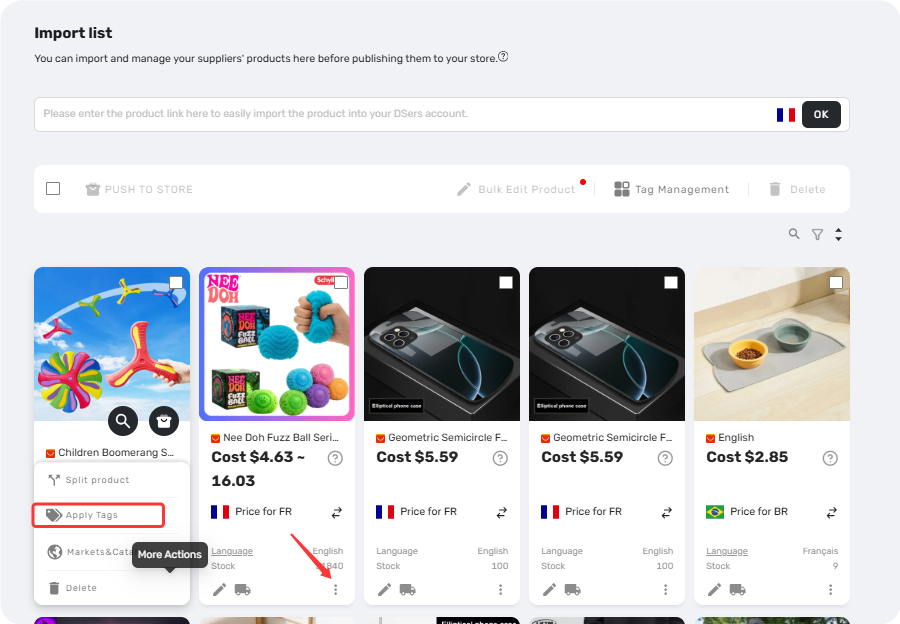
Apply tags to a single product:
1. Click the three dots
 on the product card > select
Apply Tags
on the product card > select
Apply Tags

2. Check the desired tags and click
OK

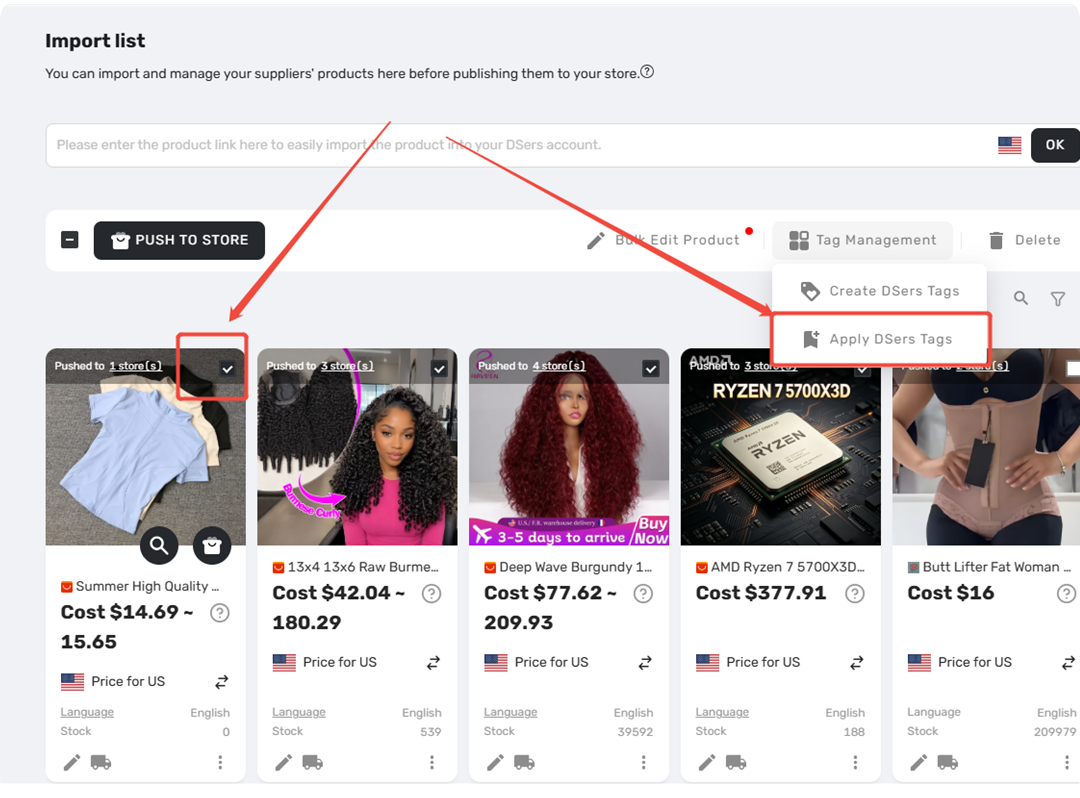
Apply tags to multiple products:
-
Select the target products using the
checkboxes

-
Click
Tag Management
>
Apply DSers Tags

-
Choose the tags and click
OK
Combining Tags and Filters
For maximum organizational efficiency, tags and filters may be used together:
- Tag products by category, supplier, priority, or any custom system
- Filter by those tags to view only the relevant products
- Apply additional filters (cost range, push status, etc.) to refine results further
This approach transforms the Import List from a static, lengthy list into a dynamic, searchable workspace. Refer to this article to learn more about Filter features for the DSers Import List—How to Quickly Find Products with Advanced Filters
Related Articles
- How to Quickly Find Products with Advanced Filters
- Bulk Import & Edit: Add Products in Batches
- Edit & Push: Customize Products Before Publishing
- Activity Log: Track Every Change in Your Account
- Import Errors: Why Can't I Import Products from AliExpress?
FAQ Section
Quick answers to the most common questions about DSers custom tags and product organization.
| Get Started Now to Grow Your Online Business with the DSers! |
